

This guide is applicable only for Windows systems. If you are using macOS or
Linux, please refer to the FTDI website for platform-specific instructions.
Symptoms
- USB-to-Serial connection fails to establish
- USB Serial Ports appear under Other devices instead of Ports (COM & LPT) in Device Manager
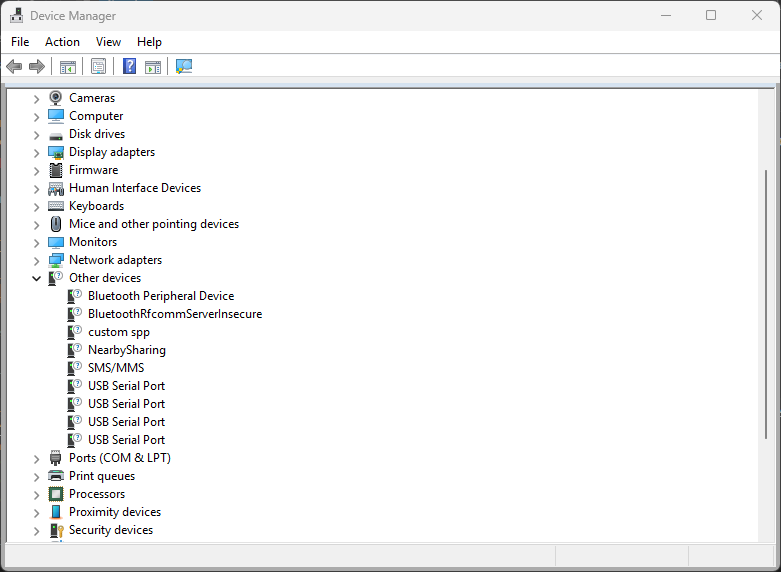
Device Manager showing missing FTDI drivers
Fix the missing driver
1
Download the FTDI VCP Driver
Download the FTDI VCP driver for Windows from the official FTDI website.
- Select the Windows driver package (ZIP file) for manual installation that matches your system architecture.
- Save the file (e.g.,
CDM-v2.12.36.20-WHQL-Certified.zip) to your Downloads folder.
2
Extract the Driver Files
- Locate the downloaded ZIP file (e.g.,
CDM-v2.12.36.20-WHQL-Certified.zip). - Right-click the ZIP file and select Extract All….
- Choose a location to extract the files such as your Downloads folder.
- Note the extraction location as you will need it in a later step.
3
Connect Your Development Kit
- Connect your development kit to your computer via USB-to-Serial.
- Windows will detect the device but may fail to install the driver automatically.
4
Open Device Manager
- Right-click the Start button and select Device Manager.
- Expand Other devices.
- Locate the USB Serial Port entries (may have yellow warning icons on some machines).
Device Manager showing USB Serial Ports under Other devices
5
Update the Driver Manually
- Right-click one of the USB Serial Port entries and select Properties.
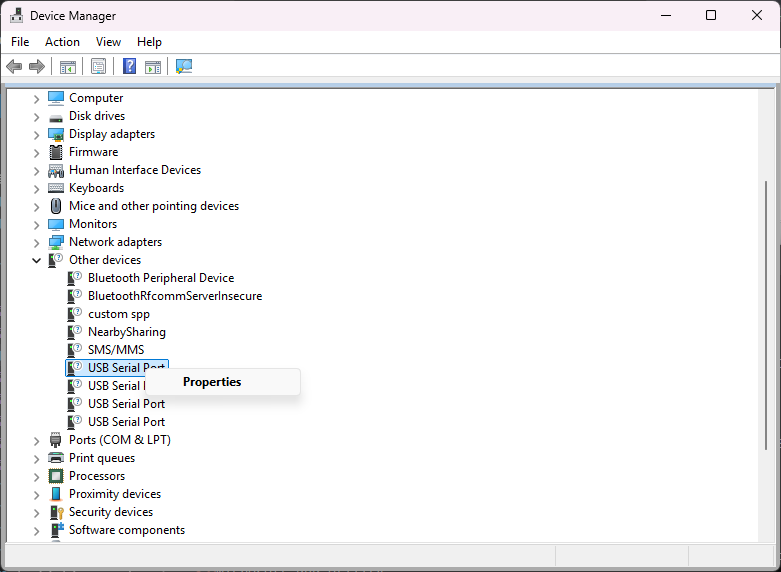
Right-click USB Serial Port to open Properties
- In the General tab, you’ll see “No drivers are installed for this device” in the Device status. Click Change settings. Windows prompts for elevated privileges — accept the prompt to continue.
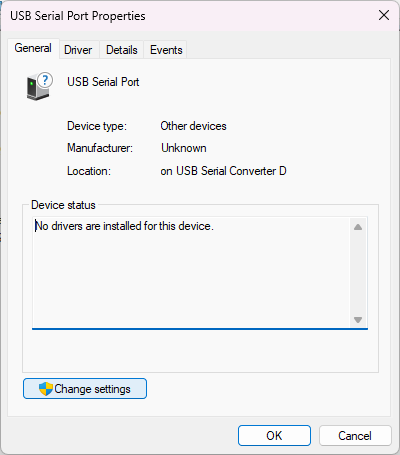
Properties showing no drivers installed
- Click on the Driver tab, then click Update Driver.
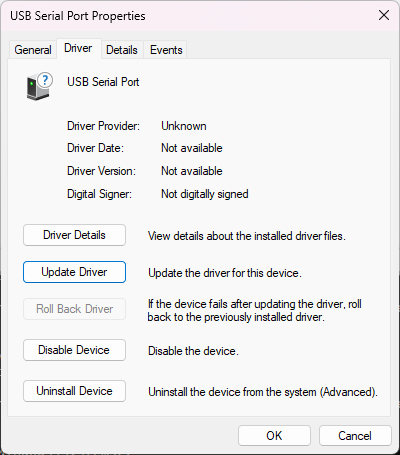
Driver tab with Update Driver button
- In the dialog that appears, select Browse my computer for drivers.
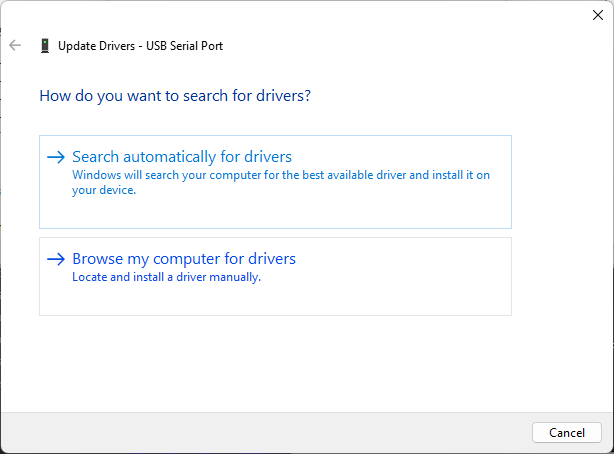
Select Browse my computer for drivers
- Click Browse and navigate to the folder where you extracted the FTDI driver files.
- Ensure Include subfolders is checked.
- Click Next to install the driver.
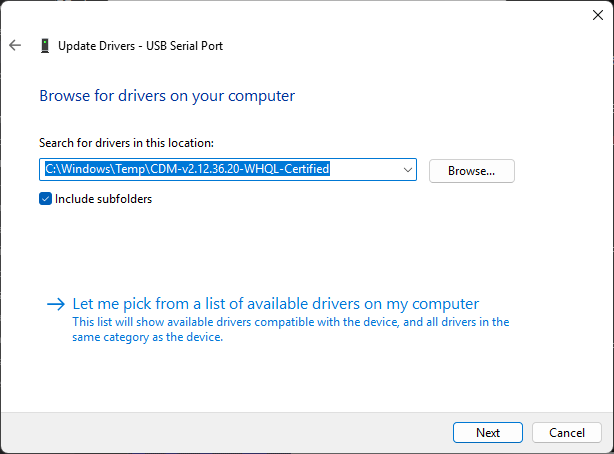
Browse to the extracted FTDI driver folder
- Windows will install the driver and show a success message.
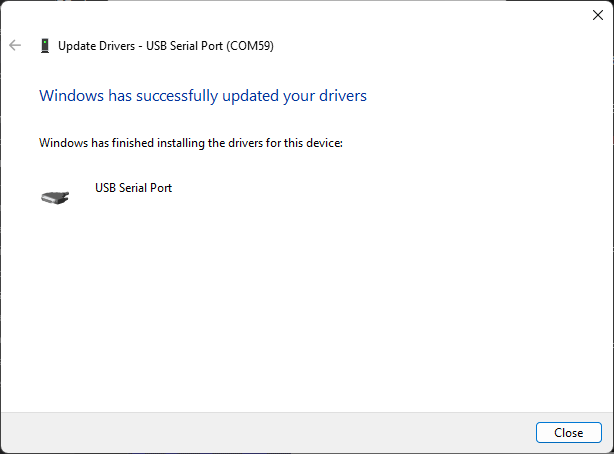
Windows has successfully updated your drivers
6
Verify Installation
- After installing the drivers for all USB Serial Port entries, open Device Manager again.
- Expand Ports (COM & LPT).
- All USB Serial Ports should now appear properly under Ports (COM & LPT) with assigned COM port numbers.
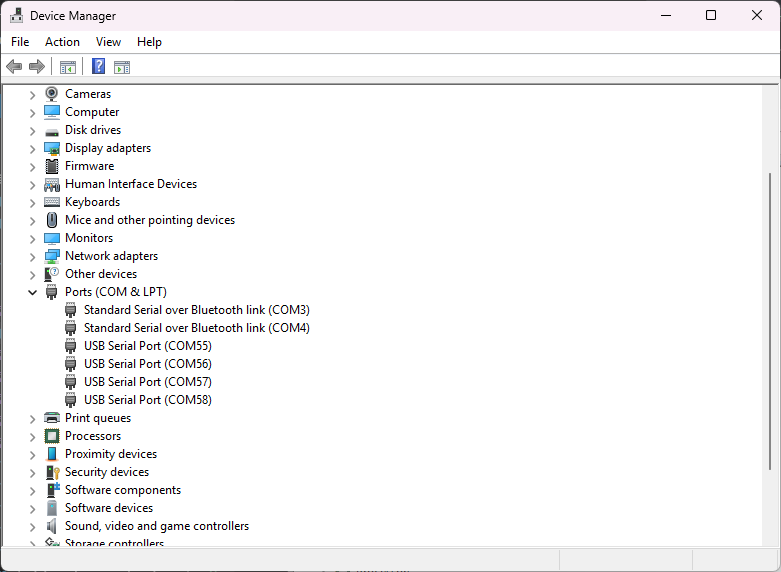
Device Manager showing all FTDI devices properly installed