

For supported interfaces and capabilities, see IQ-8275 display specifications.
Set up the DisplayPort
The display subsystem provides the Weston and Wayland compositors, along withlibdrm, which interact with the DPU driver to render the Wayland client applications. Use the sample test applications to evaluate the basic rendering of the Wayland applications and to connect to the DisplayPort.

Figure: DisplayPort setup workflow
-
Connect the DisplayPort cable to the eDP0 connector as shown in the following figure:
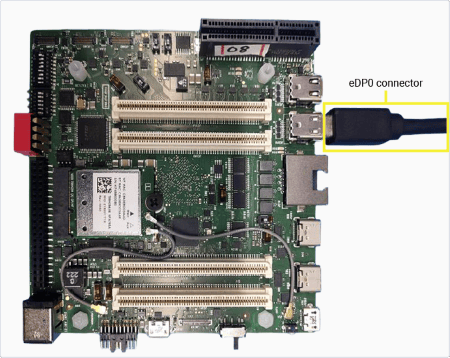
Figure: IQ-8275 DisplayPort setup
- Power on the device. Weston launches automatically during boot.
-
Verify the display.
The following Dragonwing Image displays on the screen, indicating a successful setup.

Figure: Dragonwing Image
Set up multiple DisplayPort displays
The IQ-8275 EVK supports two DisplayPort displays simultaneously through the eDP0 (DP0, primary) and eDP1 (DP1, secondary) connectors. Supported configurations are 4K30 on both displays, or 4K60 on one display with 1080p60 on the other. Dual 4K60 is not supported. See Concurrent DisplayPort modes for the resolution and refresh rate of each configuration.For step-by-step connection and configuration instructions, see Set up multiple DisplayPort displays.
If you are experiencing a no-display screen issue on DisplayPort, see Debug the DisplayPort.
Run Weston simple EGL
Verify composition and rendering of frames on your display.
Run DRM modetest
Verify the display driver topology and DPU paths.