

For the complete list of available applications, see Qualcomm IM SDK sample applications.
Prerequisites
- Qualcomm Linux multimedia image: The device must be flashed with the prebuilt Qualcomm Linux multimedia proprietary image (
qcom-multimedia-proprietary-image), which includes Qdemo and the Qualcomm IM SDK. - HDMI monitor: Connect to the device to view Qdemo output.
- Mouse and keyboard: Required to interact with the Weston desktop and the Qdemo application.
- USB camera (optional): Required for camera-based sample applications. If connected, select it from the
Sourcelist in Qdemo. - Set up the debug UART:
The debug UART provides serial-console access to the device, allowing you to sign in and verify the device after flashing.
Follow the debug UART setup instructions in the EVK guide for the specific device you are using. For example, see Set up the debug UART for Qualcomm Dragonwing IQ9.
- Connect to Wi-Fi:
AI sample applications require a Wi-Fi connection to download models and labels from GitHub. Multimedia applications do not require Wi-Fi.
Follow the Wi-Fi connection instructions in the EVK guide for the specific device you are using. For example, see Connect to Wi-Fi for Qualcomm Dragonwing IQ9.
- Enable Camera:
To use camera-based applications, SSH into the target device from the host computer:
Then run the following commands on the target device to enable
qticamsrc:
Run sample applications using Qdemo
1
Connect the peripherals and power on the device
Connect the mouse, keyboard, and HDMI monitor to the device, then power it on.After the device powers on, the following screen appears on the monitor.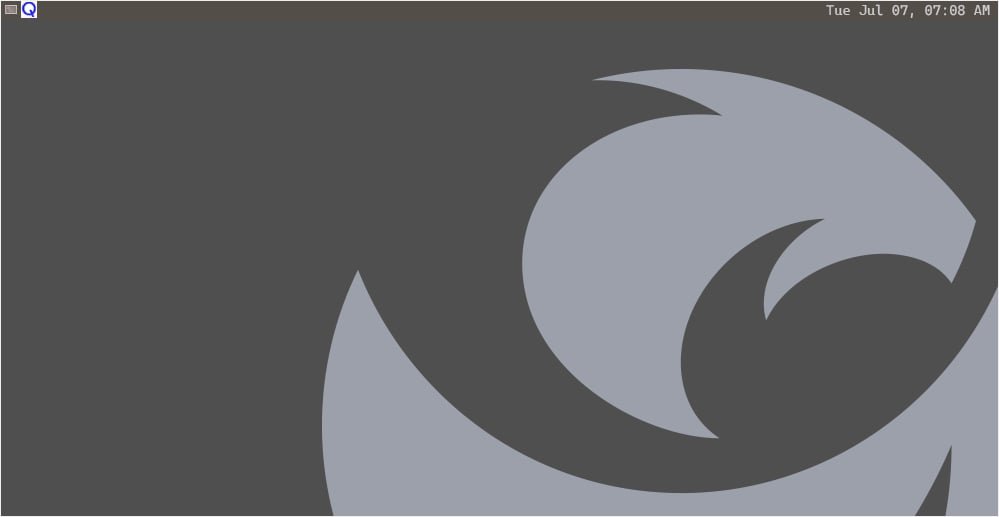
2
Launch the Qdemo application
Run the Qdemo application by clicking the 
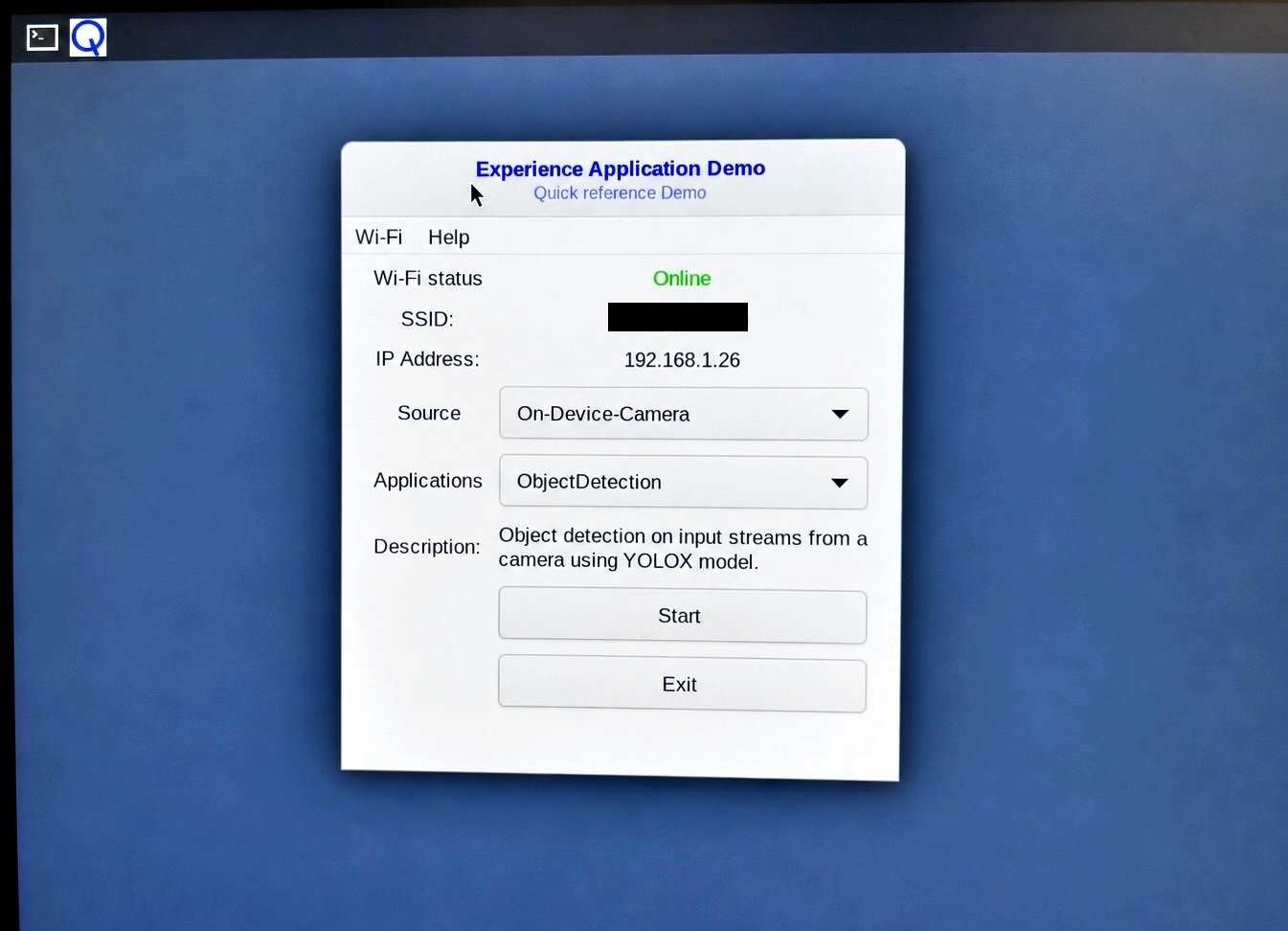
Q icon on the screen.Wi-Fi connection is already done.3
Select the camera source
In the Source list, select the required camera.If you connect a USB camera to the device, use the Source list to select the USB camera. By default, the On-Device-Camera is selected.
4
Start an application
In the Applications list, select an application and click Start.The selected application starts running, and a pop-up window displays the output on the screen.The following figure shows the sample output of the Object Detection application, identifying two objects including a person and a dog: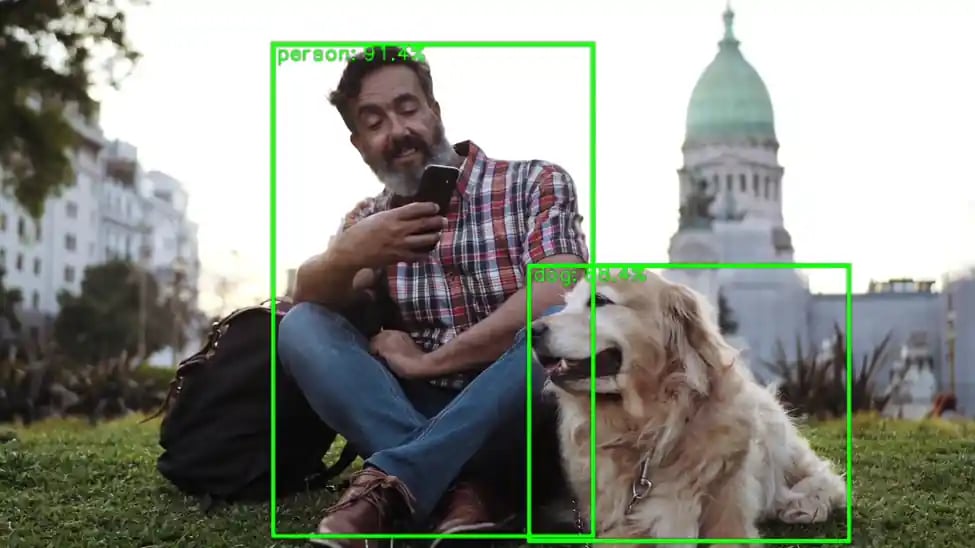
During the first run, the application may take more than a minute to start, as it downloads AI models and labels from GitHub.
5
Stop the sample application
Close the output window to stop the sample application.
6
Exit Qdemo
Select Exit to close the Qdemo application.