

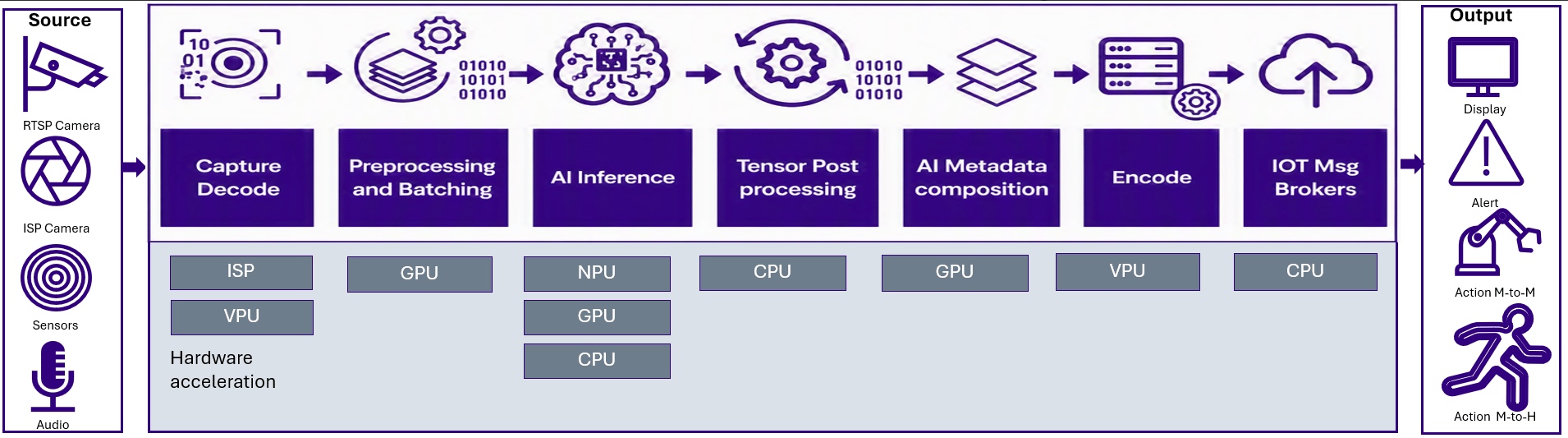
QIM SDK maps each pipeline stage onto the most suitable hardware block
This page provides a workflow-level overview for the AI Developer Workflow. For complete SDK reference material, including installation, plugin catalogs, App Builder APIs, sample pipelines, and reference applications, see the QIM SDK documentation.
Why use QIM SDK?
QIM SDK reduces the effort required to build optimized AI and multimedia applications on Qualcomm platforms. It provides the following benefits:Unified multimedia and AI pipeline
Run capture, preprocessing, inference, post-processing, rendering, encoding, and streaming in one GStreamer-based workflow instead of stitching together separate applications.
Hardware acceleration by default
Use Qualcomm CPU, GPU, NPU/HTP, camera ISP, video, display, and DSP engines so each pipeline stage runs on the hardware block best suited for that task.
Zero-copy buffer flow
Pass frames between compatible pipeline stages as DMA-buf handles to reduce CPU copies, memory bandwidth, and latency.
GPU-accelerated pre- and post-processing
Run resize, color conversion, tensor layout conversion, and overlay rendering on the Adreno GPU so the CPU remains available for application logic.
Flexible AI runtime support
Choose LiteRT/TFLite, ONNX, Qualcomm AI Engine Direct, or SNPE runtime paths based on model format, performance goals, and deployment requirements.
Qualcomm AI Hub integration
Start with pre-trained and optimized models from Qualcomm AI Hub and integrate them into QIM SDK reference pipelines.
How zero-copy improves performance
Traditional media pipelines often copy frames between stages. These copies increase CPU usage, memory traffic, and end-to-end latency. QIM SDK avoids unnecessary copies by passing frames as shared DMA-buf handles when all plugins in the path support zero-copy operation.- Camera ISP, GPU, NPU/HTP, video, and display blocks can operate on shared buffers without repeated CPU memory copies.
- GStreamer allocation negotiation lets compatible plugins agree on DMA-buf allocation and import behavior.
- The result is lower memory bandwidth, reduced CPU load, and improved latency, especially for high-resolution, multi-stream, and real-time workloads.
Zero-copy works only when every plugin in the path supports it. If you add an element that requires CPU-mapped buffers, the pipeline falls back to copying at that point. Consider this when adding custom or third-party elements to an accelerated pipeline.
GPU-accelerated preprocessing and post-processing
AI inference performs best when the NPU/HTP receives correctly formatted tensors without interruption. QIM SDK uses the Adreno GPU for data-shaping and overlay work, reducing CPU load and helping keep the inference path efficient.- Preprocessing:
qtimlvconverterperforms color-space conversion, resizing, and tensor-layout transforms on the GPU to produce the input tensor required by the model. - Post-processing:
qtimlpostprocessdecodes model output tensors into structured ML metadata such as bounding boxes, labels, and masks.qtivoverlaythen renders that metadata on the frame using the GPU.
Next steps
Application development with QIM SDK
Continue to the development workflow to review the important QIM SDK components, the application development workflow, and the post-processing modules and supported use cases.
Related information
- Run inference — compare QIM SDK with other runtime and integration paths.
- Prepare your model — convert, quantize, or fine-tune a model before integrating it.
- Develop an AI application using QAIRT C++ APIs — use the lower-level API path when your application is not a multimedia pipeline.
- QIM SDK documentation — the complete SDK reference.