

Set up your environment
1
Set up your Python environment
2
Install git
3
Install the AI Hub Python client
4
Download the model
Refer to AI Hub models for the list of available models. Download the model of your choice:Example:
To download the
yolov8 detection model, run the following command:5
Sign in to AI Hub
Go to AI Hub and sign in with your
Qualcomm ID to view information about jobs you create.Once signed in, go to Account > Settings > API Token to obtain the API token used to configure your client.
6
Configure the AI Hub client
Configure the client with your API token using the following command
in your terminal.
7
Export the model
To run the model on Qualcomm® devices, you must export the model using the following command:Example:
You can export the
yolov8 detection model using this command:Additional options are documented with the
--help option.Choose an AI Hub workflow
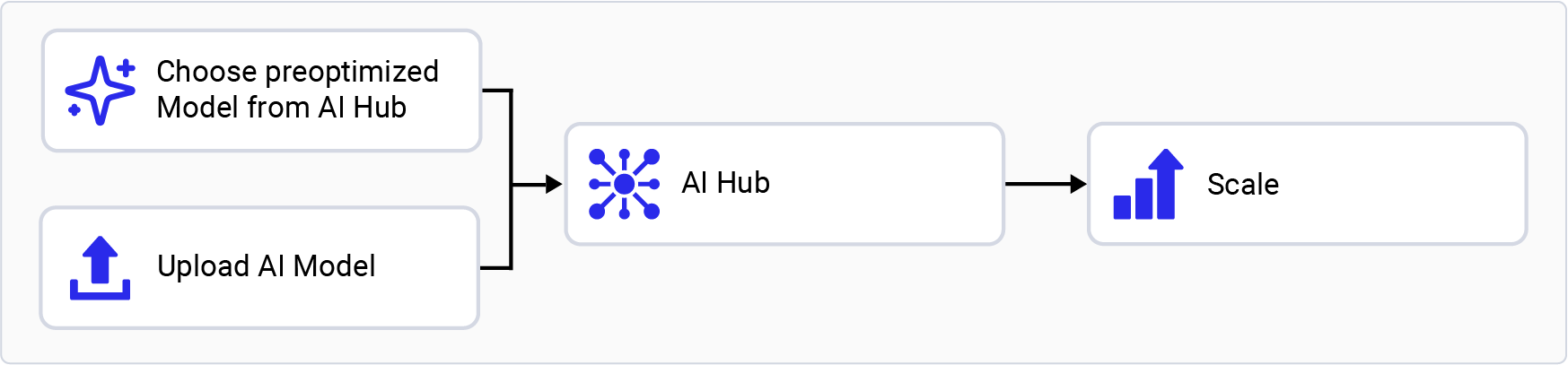
Try a preoptimized model
1
Open AI Hub Model Zoo
Go to AI Hub Model Zoo to access preoptimized models available for Qualcomm evaluation kits.
2
Filter models for your EVK
Filter models for your EVK by selecting the matching chipset in the left pane. For example,
select Qualcomm QCS6490 for the Qualcomm Dragonwing™ RB3 Gen 2, or Qualcomm QCS8300
for the Qualcomm Dragonwing™ IQ-8275 EVK.
3
Select a model
Select a model from the filtered view to go to the model page.
4
Select the runtime and precision
On the model page, select the runtime and precision.
5
Download the preoptimized model
Select Download to download the model. The downloaded model is preoptimized and ready for deployment. See Run inference for more information.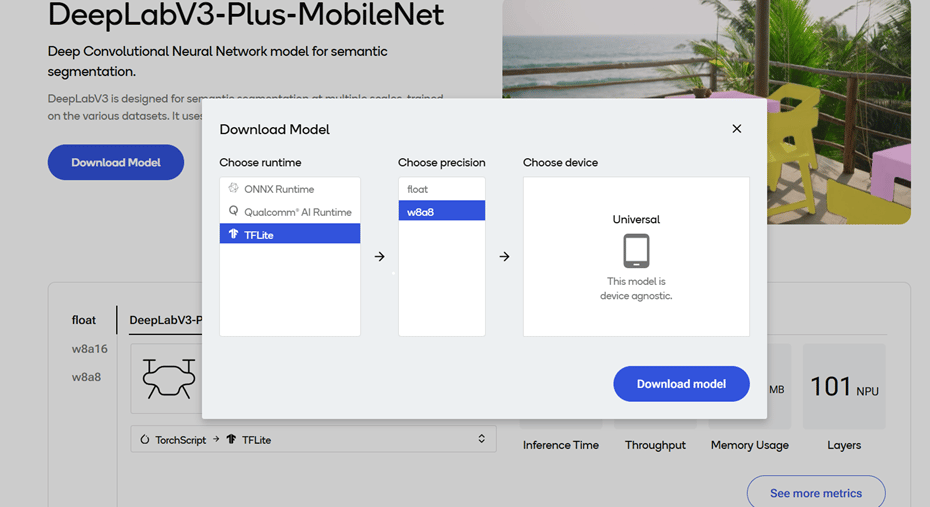
Bring your own model
1
Select a pretrained model
Select a pretrained model in PyTorch or ONNX format.
2
Submit the model to AI Hub
Submit a model for compilation or optimization to AI Hub using Python APIs.When submitting a compilation job, select a device or chipset for your EVK and the target runtime. For Qualcomm Dragonwing™ RB3 Gen 2, the LiteRT runtime is supported.
On submission, AI Hub generates a unique ID for the job. You can use
this job ID to view job details.
3
Optimize the model
AI Hub optimizes the model based on your device and runtime selections.
- Optionally, you can submit a job to profile or run inference on the optimized model (using Python APIs) on a real device provisioned from a device farm.
- Profiling: Benchmarks the model on a provisioned device and provides statistics, including average inference times at the layer level, runtime configuration, etc.
- Inference: Performs inference using an optimized model on data submitted as part of the inference job by running the model on a provisioned device.
4
Review and download the completed job
Each submitted job is available for review in the AI Hub portal. A completed compilation job provides a downloadable link to the optimized model, which can then be deployed on a local development device such as Qualcomm Dragonwing™ RB3 Gen 2.
To deactivate a previously activated
qai_hub environment, use the following command.