

Currently, the Qdemo application isn’t supported through the GUI launcher icon. Launch the Qdemo application using the device terminal. QDemo is available only for server builds.
For the complete list of available applications, see Qualcomm IM SDK sample applications.
Prerequisites
- Ubuntu multimedia image: The device must be flashed with the prebuilt ubuntu image, which includes Qdemo and the Qualcomm IM SDK.
- HDMI monitor: Connect to the device to view Qdemo output.
- Mouse and keyboard: Required to interact with the Weston desktop and the Qdemo application.
- Wi-Fi connection: Required for AI sample applications to download models and labels from GitHub. Not required for multimedia applications.
- USB camera (optional): Required for camera-based sample applications. If connected, select it from the
Sourcelist in Qdemo.
Run sample applications using Qdemo
1
Connect the mouse, keyboard, and HDMI monitor, then power on the device
Connect the mouse, keyboard, and HDMI monitor to the device, then power it on.
2
Open the target device shell
3
Install the required dependencies
4
Create the required folders and set ownership
Create media, labels, models, and a data folder, and change owner to ubuntu:ubuntu:
5
Download the required artifacts
6
Launch the Qdemo application from the device terminal
7
Select Wi-Fi to connect to a network
Only AI sample applications require a Wi-Fi connection. For multimedia applications, skip this step.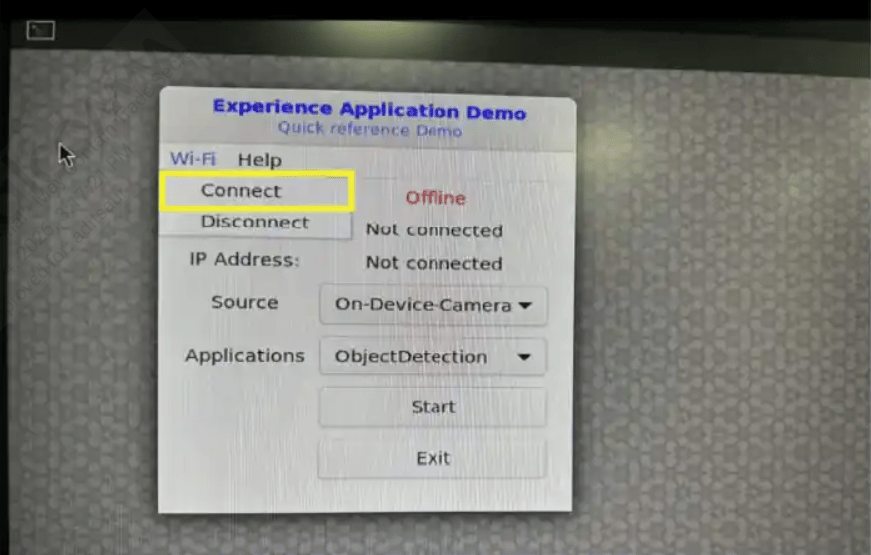
8
Select the required camera in the Source list
Not all applications require a camera. If a USB camera is connected, select it from the list.
The default selection is On-Device-Camera.
9
Select an application and click Start
In the Applications list, select an application and click Start.The application launches and displays output on the screen.The following is the sample output of the ObjectDetection application: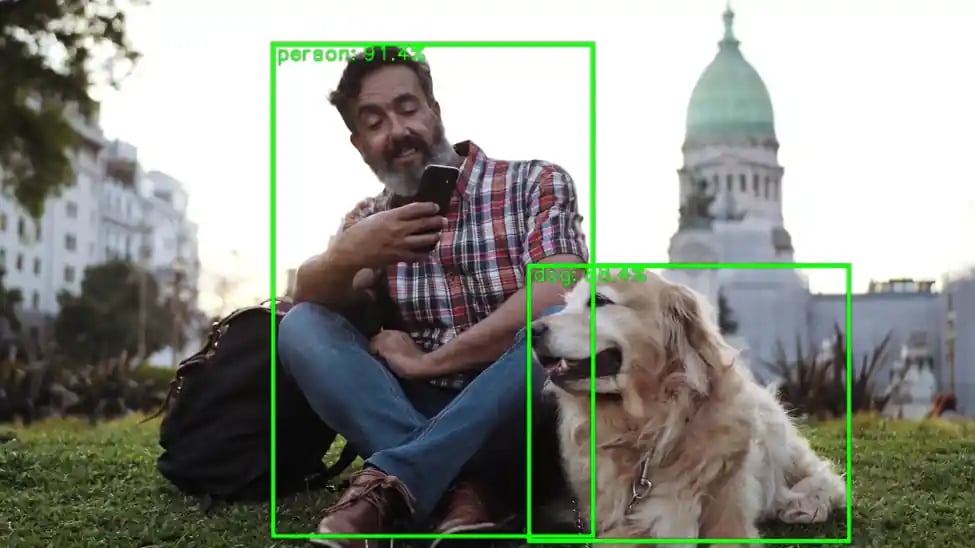
During the first run, the application may take more than a minute to start, as it downloads AI models and labels from GitHub.
10
Close the output window to stop the sample application
Close the output window to stop the sample application.
11
Select Exit to close the Qdemo application
Select Exit to close the Qdemo application.