> ## Documentation Index
> Fetch the complete documentation index at: https://dragonwingdocs-staging.qualcomm.com/llms.txt
> Use this file to discover all available pages before exploring further.
# 显示
IQ-9075 平台配备 Qualcomm Adreno 显示处理单元(DPU),提供硬件加速的图像处理。IQ9-EVK 通过双 DisplayPort 输出支持两个显示器同时工作。
## 显示能力
| 接口 | 能力 |
| ------- | --------------------------------------------- |
| **DP0** | 3840 × 2160 @ 60 fps,30 bpp |
| **DP1** | 3840 × 2160 @ 60 fps,30 bpp |
| **并发** | DP0 作为主显示 + DP1 作为副显示,均为 3840 × 2160 @ 60 fps |
**支持的功能:**
* 使用上游协议的 Wayland 和 Weston
* 带 DRM 后端的 Weston 合成器
* 2 个 DisplayPort,支持 SST 和 MST
## 架构
### DPU 硬件
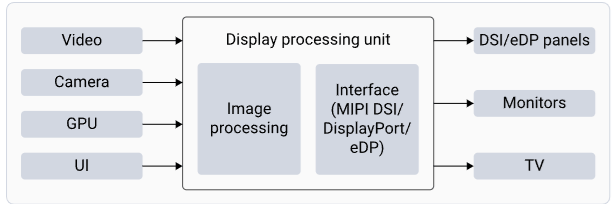
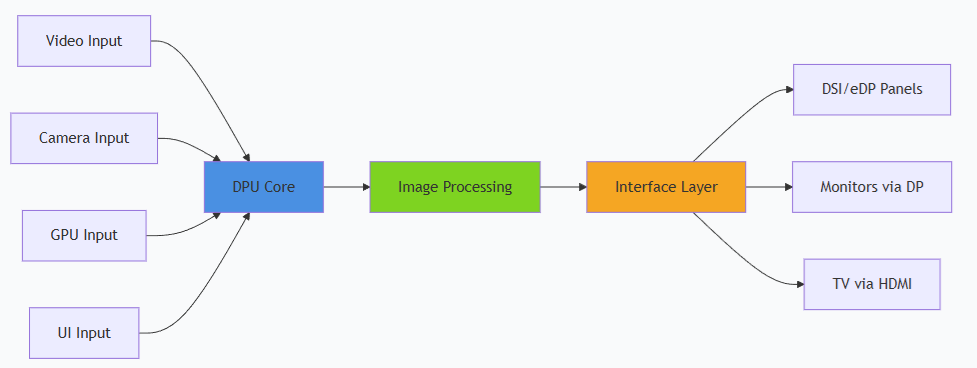
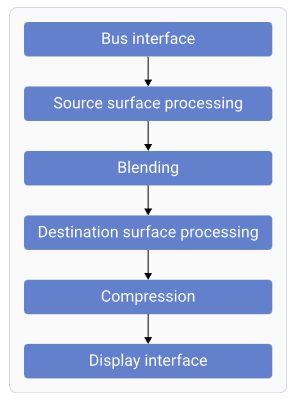
 | 组件 | 功能 |
| ---------- | -------------------- |
| **总线接口** | 从内存读取数据 |
| **源表面处理** | 读取 RGB/YUV 表面;执行格式转换 |
| **混合** | 混合并叠加源表面 |
| **目标表面处理** | 根据面板特性转换和调整数据 |
| **压缩** | 通过发送压缩的显示缓冲区降低带宽 |
| **显示接口** | 为连接的显示外设生成时序 |
### 软件栈
| 组件 | 功能 |
| ---------- | -------------------- |
| **总线接口** | 从内存读取数据 |
| **源表面处理** | 读取 RGB/YUV 表面;执行格式转换 |
| **混合** | 混合并叠加源表面 |
| **目标表面处理** | 根据面板特性转换和调整数据 |
| **压缩** | 通过发送压缩的显示缓冲区降低带宽 |
| **显示接口** | 为连接的显示外设生成时序 |
### 软件栈
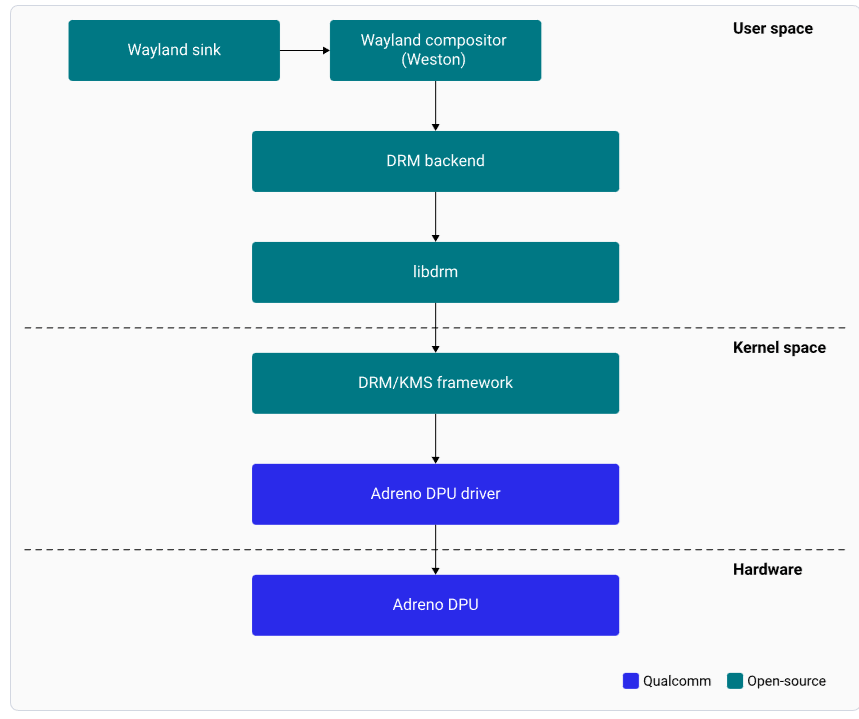
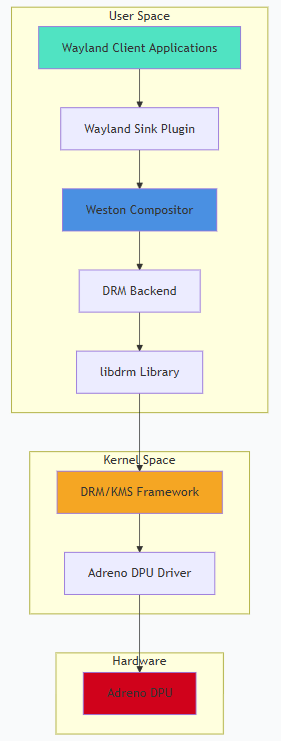 | 组件 | 说明 |
| ----------------- | ----------------------- |
| **Wayland Sink** | 与 Weston 通信以渲染显示内容的插件 |
| **Weston** | Wayland 合成器;处理合成与渲染 |
| **DRM 后端** | 管理 Adreno DPU 硬件资源和合成策略 |
| **libdrm** | 提供 DRM IOCTL API 的库 |
| **DRM/KMS 框架** | 面向硬件功能的内核与用户态接口 |
| **Adreno DPU 驱动** | 管理到面板接口的所有像素数据路径 |
## DisplayPort 和 DSI 接口
### eDP 接口
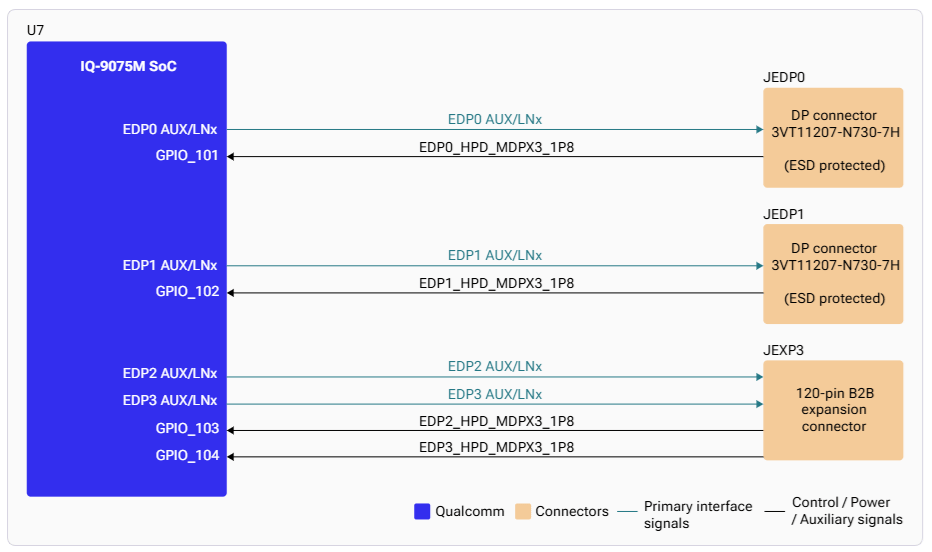
处理器有四个 eDP 接口。eDP0 和 eDP1 分别路由到连接器 JEDP0 和 JEDP1。
| 组件 | 说明 |
| ----------------- | ----------------------- |
| **Wayland Sink** | 与 Weston 通信以渲染显示内容的插件 |
| **Weston** | Wayland 合成器;处理合成与渲染 |
| **DRM 后端** | 管理 Adreno DPU 硬件资源和合成策略 |
| **libdrm** | 提供 DRM IOCTL API 的库 |
| **DRM/KMS 框架** | 面向硬件功能的内核与用户态接口 |
| **Adreno DPU 驱动** | 管理到面板接口的所有像素数据路径 |
## DisplayPort 和 DSI 接口
### eDP 接口
处理器有四个 eDP 接口。eDP0 和 eDP1 分别路由到连接器 JEDP0 和 JEDP1。
 ### DSI 接口
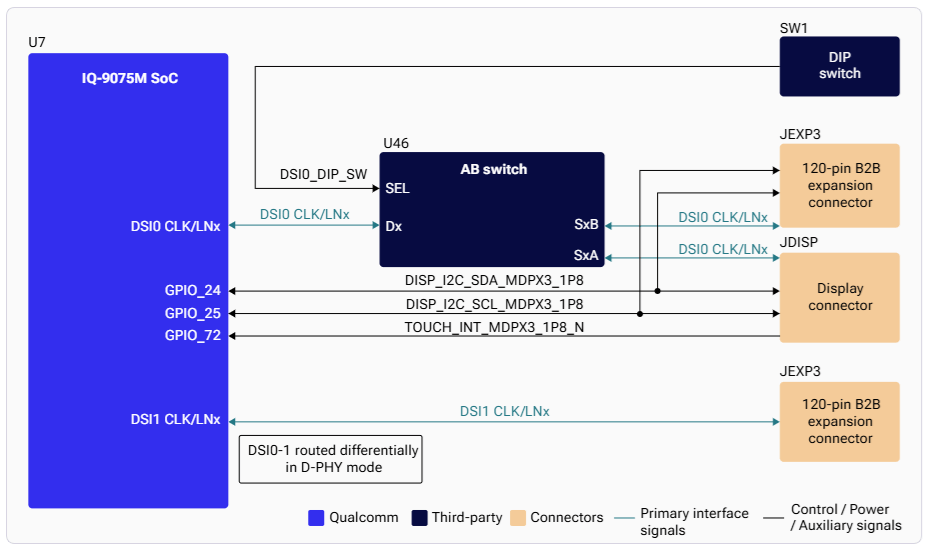
IQ-9075 支持两个 4 通道 MIPI-DSI,支持 VESA DSC v1.2。DSI0 接口使用模拟开关,可通过 JDISP LCD 连接器和 JEXP1 板对板扩展连接器访问。
### DSI 接口
IQ-9075 支持两个 4 通道 MIPI-DSI,支持 VESA DSC v1.2。DSI0 接口使用模拟开关,可通过 JDISP LCD 连接器和 JEXP1 板对板扩展连接器访问。
 ## 设置
### 连接 DisplayPort
## 设置
### 连接 DisplayPort
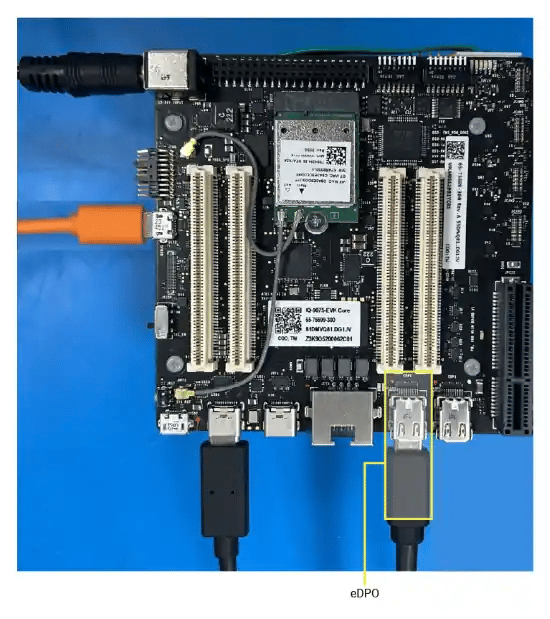
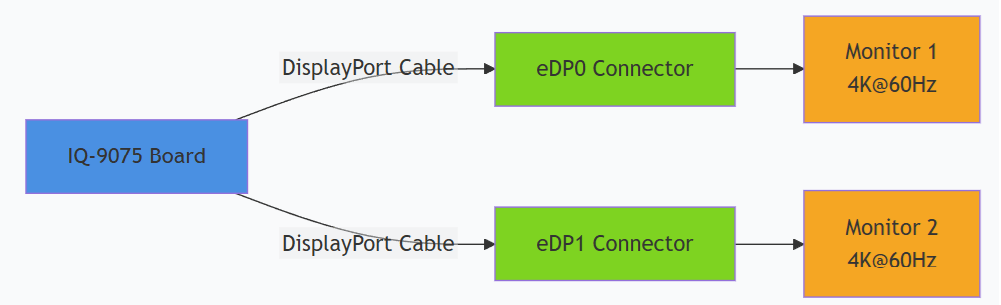
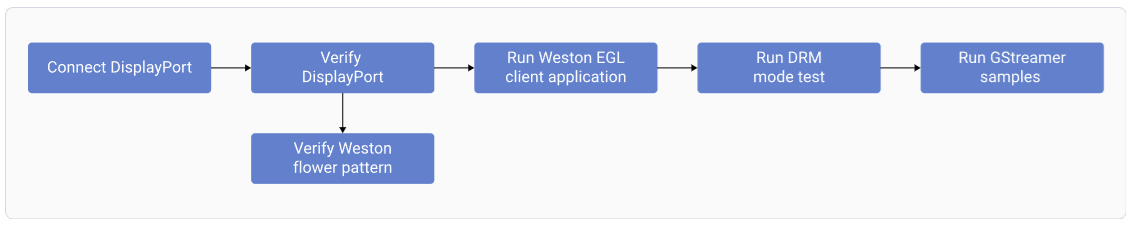
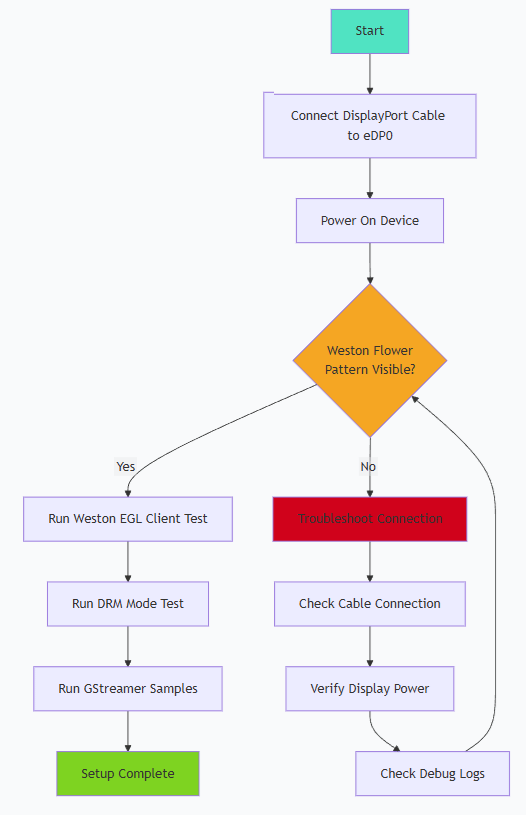 将 DisplayPort 线缆连接到 **eDP0** 连接器。
如需双显示,将第二根 DisplayPort 线缆连接到 **eDP1**。
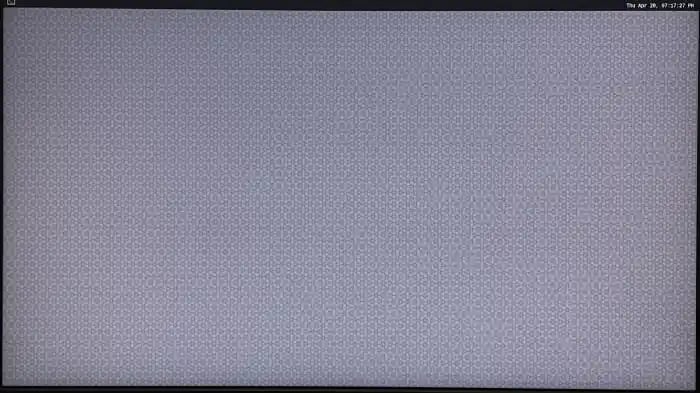
给设备上电。Weston 在启动期间自动运行并显示花朵图案。
将 DisplayPort 线缆连接到 **eDP0** 连接器。
如需双显示,将第二根 DisplayPort 线缆连接到 **eDP1**。
给设备上电。Weston 在启动期间自动运行并显示花朵图案。
 ### SSH 访问
默认凭据:**用户名:** `ubuntu` / **密码:** `ubuntu`
## 测试与验证
### 运行 Weston EGL 客户端
```bash theme={null}
weston-simple-egl
```
**预期输出:** 显示器上以 60 fps 旋转的三角形。
```
300 frames in 5 seconds: 60.000000 fps
```
按 `Ctrl+C` 结束。
### GStreamer 视频播放
### SSH 访问
默认凭据:**用户名:** `ubuntu` / **密码:** `ubuntu`
## 测试与验证
### 运行 Weston EGL 客户端
```bash theme={null}
weston-simple-egl
```
**预期输出:** 显示器上以 60 fps 旋转的三角形。
```
300 frames in 5 seconds: 60.000000 fps
```
按 `Ctrl+C` 结束。
### GStreamer 视频播放
 确保视频文件位于设备的 `/etc/media` 目录。
```bash theme={null}
# H.264 playback
gst-launch-1.0 -v filesrc location=/etc/media/video.mp4 ! qtdemux ! queue ! \
h264parse ! v4l2h264dec capture-io-mode=4 output-io-mode=4 ! \
video/x-raw,format=NV12 ! waylandsink
# H.265/HEVC playback
gst-launch-1.0 -v filesrc location=/etc/media/video_hevc.mp4 ! qtdemux ! queue ! \
h265parse ! v4l2h265dec capture-io-mode=4 output-io-mode=4 ! \
video/x-raw,format=NV12 ! waylandsink
# With scaling
gst-launch-1.0 -v filesrc location=/etc/media/video.mp4 ! qtdemux ! queue ! \
h264parse ! v4l2h264dec capture-io-mode=4 output-io-mode=4 ! \
video/x-raw,width=1920,height=1080 ! waylandsink
```
**关键管线组件:**
| 组件 | 用途 |
| ------------------- | ---------------------- |
| `capture-io-mode=4` | 将解码帧分配为 DMABUF(零拷贝到显示) |
| `output-io-mode=4` | 通过 DMABUF 处理编码码流缓冲区 |
| `format=NV12` | 硬件加速路径使用的 NV12 像素格式 |
| `waylandsink` | 将视频渲染到 Wayland 显示 |
## 调试
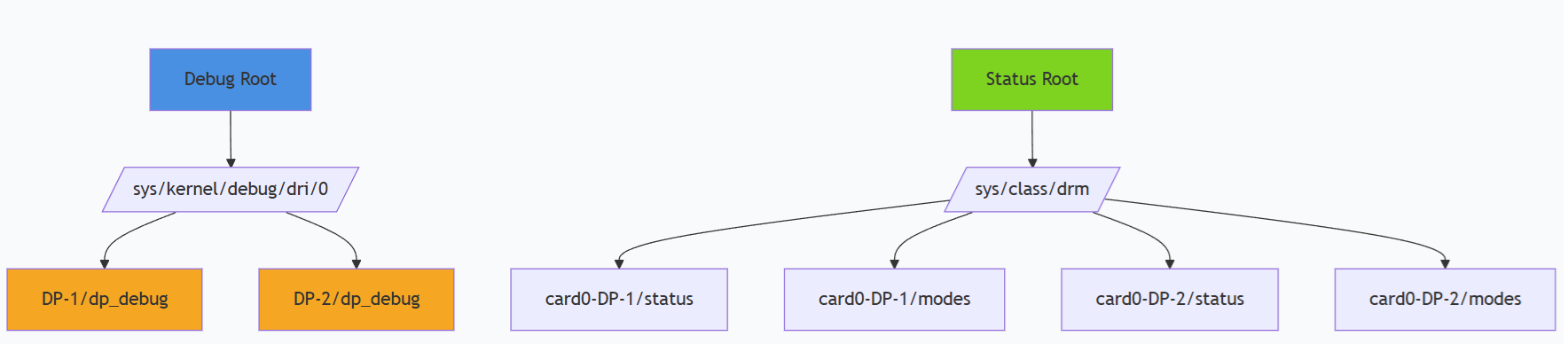
### 检查 DisplayPort 状态
```bash theme={null}
# Cable status
sudo cat /sys/class/drm/card0-DP-1/status # eDP0
sudo cat /sys/class/drm/card0-DP-2/status # eDP1
# Available modes (EDID)
sudo cat /sys/class/drm/card0-DP-1/modes
# Detailed DP info
sudo cat /sys/kernel/debug/dri/0/DP-1/dp_debug
```
### 调试文件系统
确保视频文件位于设备的 `/etc/media` 目录。
```bash theme={null}
# H.264 playback
gst-launch-1.0 -v filesrc location=/etc/media/video.mp4 ! qtdemux ! queue ! \
h264parse ! v4l2h264dec capture-io-mode=4 output-io-mode=4 ! \
video/x-raw,format=NV12 ! waylandsink
# H.265/HEVC playback
gst-launch-1.0 -v filesrc location=/etc/media/video_hevc.mp4 ! qtdemux ! queue ! \
h265parse ! v4l2h265dec capture-io-mode=4 output-io-mode=4 ! \
video/x-raw,format=NV12 ! waylandsink
# With scaling
gst-launch-1.0 -v filesrc location=/etc/media/video.mp4 ! qtdemux ! queue ! \
h264parse ! v4l2h264dec capture-io-mode=4 output-io-mode=4 ! \
video/x-raw,width=1920,height=1080 ! waylandsink
```
**关键管线组件:**
| 组件 | 用途 |
| ------------------- | ---------------------- |
| `capture-io-mode=4` | 将解码帧分配为 DMABUF(零拷贝到显示) |
| `output-io-mode=4` | 通过 DMABUF 处理编码码流缓冲区 |
| `format=NV12` | 硬件加速路径使用的 NV12 像素格式 |
| `waylandsink` | 将视频渲染到 Wayland 显示 |
## 调试
### 检查 DisplayPort 状态
```bash theme={null}
# Cable status
sudo cat /sys/class/drm/card0-DP-1/status # eDP0
sudo cat /sys/class/drm/card0-DP-2/status # eDP1
# Available modes (EDID)
sudo cat /sys/class/drm/card0-DP-1/modes
# Detailed DP info
sudo cat /sys/kernel/debug/dri/0/DP-1/dp_debug
```
### 调试文件系统
 | 命令 | 用途 |
| ----------------------------------- | ---------- |
| `dmesg \| grep -i display` | 与显示相关的内核消息 |
| `dmesg \| grep -i drm` | DRM 子系统消息 |
| `cat /sys/kernel/debug/dri/0/state` | 当前 DRM 状态 |
| `cat /proc/interrupts \| grep mdss` | 显示中断 |
## 故障排除
```bash theme={null}
cat /sys/class/drm/card0-DP-1/status
sudo dmesg | grep -i "dp\|display\|drm"
```
* 检查连接到 eDP0 或 eDP1 的线缆
* 检查显示器电源和输入源选择
```bash theme={null}
cat /sys/class/drm/card0-DP-1/modes
```
确认显示器支持所需的分辨率。
```bash theme={null}
journalctl -u weston
ls -l /dev/dri/card0
ls -l /dev/dri/
```
手动启动 Weston 并输出调试日志:
```bash theme={null}
weston --idle-time=0 --continue-without-input --log=/home/ubuntu/weston.log
```
```bash theme={null}
cat /sys/class/drm/card0-DP-1/status
cat /sys/class/drm/card0-DP-2/status
cat /sys/kernel/debug/dri/0/state
```
* 确认两根线缆已分别连接到 eDP0 和 eDP1
* 检查 Weston 配置是否支持多显示
```bash theme={null}
ps -A | grep weston
killall weston
sudo systemctl start weston-autostart
export XDG_RUNTIME_DIR=/run/user/$(id -u ubuntu)
export WAYLAND_DISPLAY=wayland-1
```
## 资源
| 资源 | URL |
| ------------------------- | -------------------------------------------------------------------------------------------------------------------------- |
| DRM Internals | [https://www.kernel.org/doc/html/v5.4/gpu/drm-internals.html](https://www.kernel.org/doc/html/v5.4/gpu/drm-internals.html) |
| Kernel Mode Setting (KMS) | [https://www.kernel.org/doc/html/v5.4/gpu/drm-kms.html](https://www.kernel.org/doc/html/v5.4/gpu/drm-kms.html) |
| Wayland Protocol | [https://wayland.freedesktop.org/](https://wayland.freedesktop.org/) |
| Weston Compositor | [https://gitlab.freedesktop.org/wayland/weston](https://gitlab.freedesktop.org/wayland/weston) |
| GStreamer Documentation | [https://gstreamer.freedesktop.org/documentation/](https://gstreamer.freedesktop.org/documentation/) |
| 命令 | 用途 |
| ----------------------------------- | ---------- |
| `dmesg \| grep -i display` | 与显示相关的内核消息 |
| `dmesg \| grep -i drm` | DRM 子系统消息 |
| `cat /sys/kernel/debug/dri/0/state` | 当前 DRM 状态 |
| `cat /proc/interrupts \| grep mdss` | 显示中断 |
## 故障排除
```bash theme={null}
cat /sys/class/drm/card0-DP-1/status
sudo dmesg | grep -i "dp\|display\|drm"
```
* 检查连接到 eDP0 或 eDP1 的线缆
* 检查显示器电源和输入源选择
```bash theme={null}
cat /sys/class/drm/card0-DP-1/modes
```
确认显示器支持所需的分辨率。
```bash theme={null}
journalctl -u weston
ls -l /dev/dri/card0
ls -l /dev/dri/
```
手动启动 Weston 并输出调试日志:
```bash theme={null}
weston --idle-time=0 --continue-without-input --log=/home/ubuntu/weston.log
```
```bash theme={null}
cat /sys/class/drm/card0-DP-1/status
cat /sys/class/drm/card0-DP-2/status
cat /sys/kernel/debug/dri/0/state
```
* 确认两根线缆已分别连接到 eDP0 和 eDP1
* 检查 Weston 配置是否支持多显示
```bash theme={null}
ps -A | grep weston
killall weston
sudo systemctl start weston-autostart
export XDG_RUNTIME_DIR=/run/user/$(id -u ubuntu)
export WAYLAND_DISPLAY=wayland-1
```
## 资源
| 资源 | URL |
| ------------------------- | -------------------------------------------------------------------------------------------------------------------------- |
| DRM Internals | [https://www.kernel.org/doc/html/v5.4/gpu/drm-internals.html](https://www.kernel.org/doc/html/v5.4/gpu/drm-internals.html) |
| Kernel Mode Setting (KMS) | [https://www.kernel.org/doc/html/v5.4/gpu/drm-kms.html](https://www.kernel.org/doc/html/v5.4/gpu/drm-kms.html) |
| Wayland Protocol | [https://wayland.freedesktop.org/](https://wayland.freedesktop.org/) |
| Weston Compositor | [https://gitlab.freedesktop.org/wayland/weston](https://gitlab.freedesktop.org/wayland/weston) |
| GStreamer Documentation | [https://gstreamer.freedesktop.org/documentation/](https://gstreamer.freedesktop.org/documentation/) |