> ## Documentation Index
> Fetch the complete documentation index at: https://dragonwingdocs-staging.qualcomm.com/llms.txt
> Use this file to discover all available pages before exploring further.
# 升级 Ubuntu 镜像
本指南将引导您使用预构建软件包完成简化的系统更新流程,同时保留您现有的环境。更新从主机电脑(运行 Ubuntu、Windows® 或 macOS®)执行,以确保您的设备获得性能、安全性和兼容性方面的最新改进。
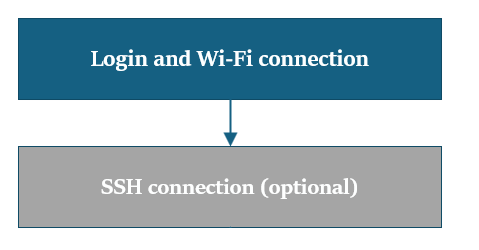 **前提条件:** 开始之前 - 完成[**🔗 设置设备**](../set-up-the-device)中的说明。
## 登录和 Wi-Fi 连接
**a.** 使用键盘和鼠标在连接的显示器上登录并修改密码(如果尚未修改),或者在通过串行连接的情况下通过 UART 控制台操作。
* 使用 **ubuntu** 作为用户名和密码登录 Dragonwing IQ-8275 EVK Ubuntu UART 控制台。然后,您可以在命令终端中重置密码。
* 成功登录后,您将看到以下串行控制台提示符。
**前提条件:** 开始之前 - 完成[**🔗 设置设备**](../set-up-the-device)中的说明。
## 登录和 Wi-Fi 连接
**a.** 使用键盘和鼠标在连接的显示器上登录并修改密码(如果尚未修改),或者在通过串行连接的情况下通过 UART 控制台操作。
* 使用 **ubuntu** 作为用户名和密码登录 Dragonwing IQ-8275 EVK Ubuntu UART 控制台。然后,您可以在命令终端中重置密码。
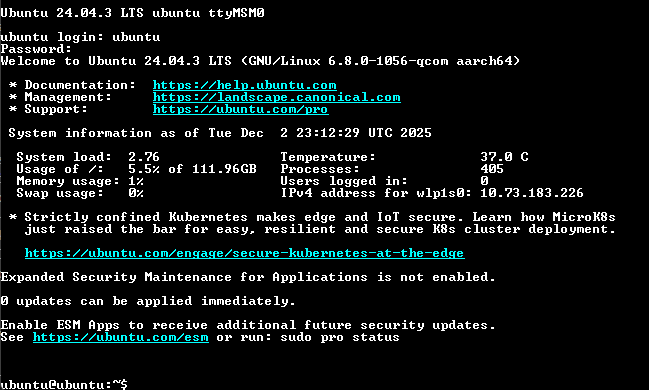
* 成功登录后,您将看到以下串行控制台提示符。
 **b.** 按照以下步骤设置 Wi-Fi 连接:[🔗 **Wi-Fi 设置指南**](../set-up-the-device#wi-fi)
## SSH 连接
SSH 可在主机电脑与 Dragonwing IQ-8275 设备之间通过网络实现安全的终端访问。
在连接 SSH 之前,请确保您的设备已通过以太网或 Wi-Fi 建立网络连接。
**注意:** 确保远程主机电脑与设备连接到同一个 Wi-Fi 接入点。
**a.** 要连接 SSH,请先根据网络连接类型在主机电脑的 UART 控制台上运行相应命令,查找 Dragonwing IQ-8275 的 IP 地址:
以太网:
```shell theme={null}
ip addr show end0
```
Wi-Fi:
```shell theme={null}
ip addr show wlp1s0
```
该命令会显示 Dragonwing IQ-8275 设备的 IP 地址。
**b.** 在主机电脑上运行以下命令建立到设备的 SSH 连接:
```shell theme={null}
ssh ubuntu@ip-address
```
**参数详情**\
ip-address 是 eth0 或 wlan0 接口的 IP 地址。
**示例**\
要连接到 IP 地址为 192.168.0.222 的设备,运行以下命令:
```shell theme={null}
ssh ubuntu@192.168.0.222
```
**c.** 输入 *ubuntu* 用户的密码进行登录。
## 验证软件版本
在设备 shell 中运行以下命令验证操作系统版本:
```shell theme={null}
cat /etc/os-release
```
**输出:**
```json theme={null}
PRETTY_NAME="Ubuntu 24.04.4 LTS"
NAME="Ubuntu"
VERSION_ID="24.04"
VERSION="24.04.4 LTS (Noble Numbat)"
VERSION_CODENAME=noble
ID=ubuntu
ID_LIKE=debian
HOME_URL="https://www.ubuntu.com/"
SUPPORT_URL="https://help.ubuntu.com/"
BUG_REPORT_URL="https://bugs.launchpad.net/ubuntu/"
PRIVACY_POLICY_URL="https://www.ubuntu.com/legal/terms-and-policies/privacy-policy"
UBUNTU_CODENAME=noble
LOGO=ubuntu-logo
```
运行以下命令检查 Linux 内核版本:
```shell theme={null}
uname -a
```
**输出:**
```json theme={null}
Linux ubuntu 6.8.0-1064-qcom #65-Ubuntu SMP PREEMPT_DYNAMIC Mon Feb 9 09:59:39 UTC 2026 aarch64 aarch64 aarch64 GNU/Linux
```
## 升级预构建软件包
此命令会将设备升级到最新的预构建软件包。
```shell theme={null}
sudo apt update
sudo apt upgrade -y
```
**注意:**\
如果您的软件版本当前不是 Ubuntu(例如设备正在运行 Qualcomm Linux),请先按照[**🔗使用 Launcher 刷写镜像**](./flash-using-qualcomm-launcher)指南刷写 Ubuntu。
**重要:** 其他驱动和软件包
**下一步:** 如果尚未安装所需的软件包,请参考[**🔗安装所需软件包**](../Install_required_software_packages)部分并运行提供的 Install PPA Packages 脚本。
**b.** 按照以下步骤设置 Wi-Fi 连接:[🔗 **Wi-Fi 设置指南**](../set-up-the-device#wi-fi)
## SSH 连接
SSH 可在主机电脑与 Dragonwing IQ-8275 设备之间通过网络实现安全的终端访问。
在连接 SSH 之前,请确保您的设备已通过以太网或 Wi-Fi 建立网络连接。
**注意:** 确保远程主机电脑与设备连接到同一个 Wi-Fi 接入点。
**a.** 要连接 SSH,请先根据网络连接类型在主机电脑的 UART 控制台上运行相应命令,查找 Dragonwing IQ-8275 的 IP 地址:
以太网:
```shell theme={null}
ip addr show end0
```
Wi-Fi:
```shell theme={null}
ip addr show wlp1s0
```
该命令会显示 Dragonwing IQ-8275 设备的 IP 地址。
**b.** 在主机电脑上运行以下命令建立到设备的 SSH 连接:
```shell theme={null}
ssh ubuntu@ip-address
```
**参数详情**\
ip-address 是 eth0 或 wlan0 接口的 IP 地址。
**示例**\
要连接到 IP 地址为 192.168.0.222 的设备,运行以下命令:
```shell theme={null}
ssh ubuntu@192.168.0.222
```
**c.** 输入 *ubuntu* 用户的密码进行登录。
## 验证软件版本
在设备 shell 中运行以下命令验证操作系统版本:
```shell theme={null}
cat /etc/os-release
```
**输出:**
```json theme={null}
PRETTY_NAME="Ubuntu 24.04.4 LTS"
NAME="Ubuntu"
VERSION_ID="24.04"
VERSION="24.04.4 LTS (Noble Numbat)"
VERSION_CODENAME=noble
ID=ubuntu
ID_LIKE=debian
HOME_URL="https://www.ubuntu.com/"
SUPPORT_URL="https://help.ubuntu.com/"
BUG_REPORT_URL="https://bugs.launchpad.net/ubuntu/"
PRIVACY_POLICY_URL="https://www.ubuntu.com/legal/terms-and-policies/privacy-policy"
UBUNTU_CODENAME=noble
LOGO=ubuntu-logo
```
运行以下命令检查 Linux 内核版本:
```shell theme={null}
uname -a
```
**输出:**
```json theme={null}
Linux ubuntu 6.8.0-1064-qcom #65-Ubuntu SMP PREEMPT_DYNAMIC Mon Feb 9 09:59:39 UTC 2026 aarch64 aarch64 aarch64 GNU/Linux
```
## 升级预构建软件包
此命令会将设备升级到最新的预构建软件包。
```shell theme={null}
sudo apt update
sudo apt upgrade -y
```
**注意:**\
如果您的软件版本当前不是 Ubuntu(例如设备正在运行 Qualcomm Linux),请先按照[**🔗使用 Launcher 刷写镜像**](./flash-using-qualcomm-launcher)指南刷写 Ubuntu。
**重要:** 其他驱动和软件包
**下一步:** 如果尚未安装所需的软件包,请参考[**🔗安装所需软件包**](../Install_required_software_packages)部分并运行提供的 Install PPA Packages 脚本。