> ## Documentation Index
> Fetch the complete documentation index at: https://dragonwingdocs-staging.qualcomm.com/llms.txt
> Use this file to discover all available pages before exploring further.
# 以太网
本指南介绍如何在 Qualcomm Dragonwing IQ-8275 EVK 上配置、操作和排查以太网连接问题。该平台支持接口枚举、数据路径、链路速率配置、MAC 地址管理、MTU 配置和网络诊断。
## 前提条件
* IQ-8275 EVK 硬件
* 以太网线缆(RJ45)
* 与 IQ-8275 EVK 位于同一网络的主机 PC
* SSH 客户端软件
* 基本的 Linux 命令行知识
## 架构
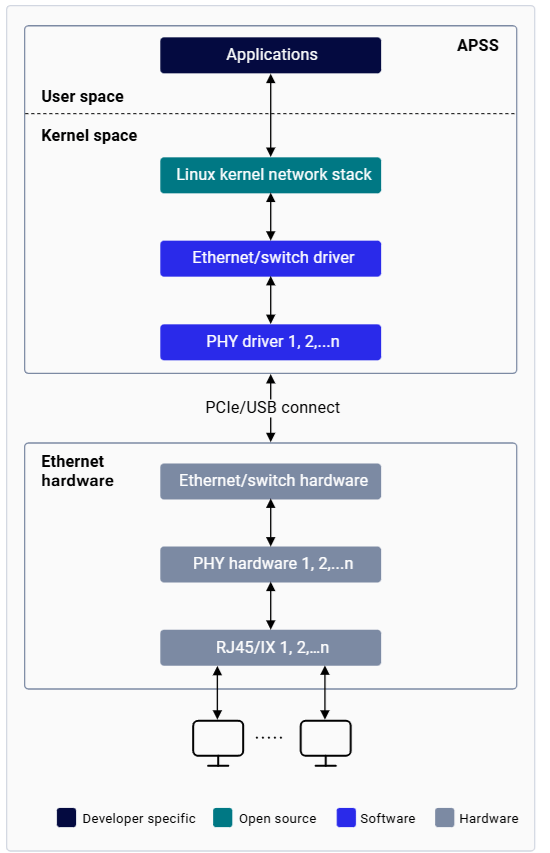 | 组件 | 说明 |
| ------------------ | ---------------------------------------------------------- |
| **应用处理器子系统(APSS)** | 运行基于 Linux 的操作系统 |
| **以太网驱动** | 通过有线以太网接口提供数据连接的 Linux 内核驱动 |
| **PHY 驱动** | 管理以太网物理层的低级驱动;实现了从初始化到链路建立的 PHY 生命周期状态机;通过 MDIO 访问 PHY 寄存器 |
| **以太网硬件** | 1× QEP8081 PHY,支持 10/100/1000/2500 Mbps,通过 RJ45 连接器启用 |
## 快速开始
| 组件 | 说明 |
| ------------------ | ---------------------------------------------------------- |
| **应用处理器子系统(APSS)** | 运行基于 Linux 的操作系统 |
| **以太网驱动** | 通过有线以太网接口提供数据连接的 Linux 内核驱动 |
| **PHY 驱动** | 管理以太网物理层的低级驱动;实现了从初始化到链路建立的 PHY 生命周期状态机;通过 MDIO 访问 PHY 寄存器 |
| **以太网硬件** | 1× QEP8081 PHY,支持 10/100/1000/2500 Mbps,通过 RJ45 连接器启用 |
## 快速开始
 ## 启用以太网
 在继续之前,请先通过 Wi-Fi 上的 SSH 或串口提示符建立对设备的访问。有关说明,请参见[设置设备](../set-up-the-device)部分。
在设备上刷写相应的 CDT,以确保以太网启用时使用正确的配置。
IQ-8275 EVK 出厂时带有一个出厂 MAC 地址。如需按原样使用,请跳过此步骤。
要更改 MAC 地址:
```shell theme={null}
sudo ifconfig end0 hw ether XX:XX:XX:YY:YY:YY
```
此 MAC 地址仅在当前启动周期内有效。重启后,设备会恢复为持久化存储中的地址。
在公共网络上,DHCP 服务器会自动分配 IP 地址。要手动分配静态 IP 地址:
```shell theme={null}
ifconfig end0 192.168.1.2
```
```shell theme={null}
ifconfig end0 down
ifconfig end0 mtu 1500
ifconfig end0 up
```
确认以下内容:
* `end0` 在 `ifconfig` 输出中可见
* 接口状态显示 `UP BROADCAST RUNNING MULTICAST`
* IP 地址已正确分配
* MTU 已设置为所需值(通常为 1500)
* RX/TX 数据包计数器中没有错误
## 以太网操作
### 检查连通性
使用 `ping` 验证设备与远程主机之间的连通性。客户端 IP 地址必须与设备位于同一子网。
```shell theme={null}
ping 169.254.227.240
```
### 配置 NIC 设置
```shell theme={null}
ethtool end0
ethtool -S end0
```
### 配置网络接口
```shell theme={null}
ifconfig end0
```
### 监控网络连接
```shell theme={null}
netstat -r
```
### 捕获网络流量
```shell theme={null}
sudo tcpdump -i any -s 0 -w /home/ubuntu/tcpdump.pcap
```
### 查看路由表
```shell theme={null}
ip r s
```
## 配置链路速率
```shell theme={null}
sudo ethtool -s end0 autoneg on speed 1000 duplex full
```
## 故障排除
### 收集诊断日志
```bash theme={null}
sudo dmesg > /home/ubuntu/dmesg_logs.txt
```
```bash theme={null}
sudo tcpdump -i any -s 0 -w /home/ubuntu/tcpdump.pcap
```
按 `Ctrl+C` 停止捕获。
```bash theme={null}
scp ubuntu@:/home/ubuntu/tcpdump.pcap .
scp ubuntu@:/home/ubuntu/dmesg_logs.txt .
```
```bash theme={null}
{
echo "=== ETHTOOL OUTPUT ==="
ethtool end0
echo "=== ETHTOOL STATISTICS ==="
ethtool -S end0
echo "=== IFCONFIG OUTPUT ==="
ifconfig end0
echo "=== NETSTAT OUTPUT ==="
netstat -r
echo "=== IP ROUTE OUTPUT ==="
ip route show
} > /home/ubuntu/ethernet_diagnostics.txt
```
### 常见问题
```bash theme={null}
sudo dmesg | grep -i phy
ifconfig end0
ethtool end0
```
**解决方案:** 更换故障线缆,确保两端连接牢固,确认链路对端已通电,检查 `dmesg` 中是否有 PHY 驱动错误。
```bash theme={null}
ifconfig end0
ip route show
netstat -r
arp -a
sudo tcpdump -i end0 icmp
```
**解决方案:** 配置正确的 IP 地址和子网掩码;必要时添加默认网关。
```bash theme={null}
ethtool end0 | grep -E "Speed|Duplex"
ethtool -S end0 | grep -E "error|drop|collision"
ifconfig end0 | grep MTU
```
**解决方案:** 如果自动协商失败,强制设置为 1000 Mbps 全双工;如果检测到错误,请更换线缆。
```bash theme={null}
ifconfig -a
sudo dmesg | grep -i ethernet
ls /sys/class/net/
```
**解决方案:** 确保已刷写正确的 CDT;确认内核中编译了以太网驱动;重启后再次检查。
```bash theme={null}
ifconfig end0 | grep ether
cat /var/persist/config.ini | grep MAC_ID
```
**解决方案:** 创建或恢复 `/var/persist/config.ini`。格式:`MDIOBUSID1: 1: MAC_ID01: XX:XX:XX:YY:YY:YY`。
## 命令参考
| 命令 | 用途 | 示例 |
| ----------------- | ----------- | ------------------- |
| `dmesg` | 查看内核消息 | `dmesg \| grep eth` |
| `ethtool ` | 检查链路状态 | `ethtool end0` |
| `ethtool -S ` | 查看 NIC 统计信息 | `ethtool -S end0` |
| `ifconfig ` | 检查接口配置 | `ifconfig end0` |
| `ip addr show` | 显示 IP 地址 | `ip addr show end0` |
| `ip route show` | 显示路由表 | `ip route show` |
| `ping ` | 测试连通性 | `ping 192.168.1.10` |
| `tcpdump -i ` | 捕获数据包 | `tcpdump -i end0` |
| `netstat -r` | 显示路由 | `netstat -r` |
| `arp -a` | 显示 ARP 表 | `arp -a` |
## 资源
* [ethtool 手册页](https://man7.org/linux/man-pages/man8/ethtool.8.html)
* [ifconfig 手册页](https://man7.org/linux/man-pages/man8/ifconfig.8.html)
* [netstat 手册页](https://man7.org/linux/man-pages/man8/netstat.8.html)
* [tcpdump 手册页](https://www.tcpdump.org/manpages/tcpdump.1.html)
在继续之前,请先通过 Wi-Fi 上的 SSH 或串口提示符建立对设备的访问。有关说明,请参见[设置设备](../set-up-the-device)部分。
在设备上刷写相应的 CDT,以确保以太网启用时使用正确的配置。
IQ-8275 EVK 出厂时带有一个出厂 MAC 地址。如需按原样使用,请跳过此步骤。
要更改 MAC 地址:
```shell theme={null}
sudo ifconfig end0 hw ether XX:XX:XX:YY:YY:YY
```
此 MAC 地址仅在当前启动周期内有效。重启后,设备会恢复为持久化存储中的地址。
在公共网络上,DHCP 服务器会自动分配 IP 地址。要手动分配静态 IP 地址:
```shell theme={null}
ifconfig end0 192.168.1.2
```
```shell theme={null}
ifconfig end0 down
ifconfig end0 mtu 1500
ifconfig end0 up
```
确认以下内容:
* `end0` 在 `ifconfig` 输出中可见
* 接口状态显示 `UP BROADCAST RUNNING MULTICAST`
* IP 地址已正确分配
* MTU 已设置为所需值(通常为 1500)
* RX/TX 数据包计数器中没有错误
## 以太网操作
### 检查连通性
使用 `ping` 验证设备与远程主机之间的连通性。客户端 IP 地址必须与设备位于同一子网。
```shell theme={null}
ping 169.254.227.240
```
### 配置 NIC 设置
```shell theme={null}
ethtool end0
ethtool -S end0
```
### 配置网络接口
```shell theme={null}
ifconfig end0
```
### 监控网络连接
```shell theme={null}
netstat -r
```
### 捕获网络流量
```shell theme={null}
sudo tcpdump -i any -s 0 -w /home/ubuntu/tcpdump.pcap
```
### 查看路由表
```shell theme={null}
ip r s
```
## 配置链路速率
```shell theme={null}
sudo ethtool -s end0 autoneg on speed 1000 duplex full
```
## 故障排除
### 收集诊断日志
```bash theme={null}
sudo dmesg > /home/ubuntu/dmesg_logs.txt
```
```bash theme={null}
sudo tcpdump -i any -s 0 -w /home/ubuntu/tcpdump.pcap
```
按 `Ctrl+C` 停止捕获。
```bash theme={null}
scp ubuntu@:/home/ubuntu/tcpdump.pcap .
scp ubuntu@:/home/ubuntu/dmesg_logs.txt .
```
```bash theme={null}
{
echo "=== ETHTOOL OUTPUT ==="
ethtool end0
echo "=== ETHTOOL STATISTICS ==="
ethtool -S end0
echo "=== IFCONFIG OUTPUT ==="
ifconfig end0
echo "=== NETSTAT OUTPUT ==="
netstat -r
echo "=== IP ROUTE OUTPUT ==="
ip route show
} > /home/ubuntu/ethernet_diagnostics.txt
```
### 常见问题
```bash theme={null}
sudo dmesg | grep -i phy
ifconfig end0
ethtool end0
```
**解决方案:** 更换故障线缆,确保两端连接牢固,确认链路对端已通电,检查 `dmesg` 中是否有 PHY 驱动错误。
```bash theme={null}
ifconfig end0
ip route show
netstat -r
arp -a
sudo tcpdump -i end0 icmp
```
**解决方案:** 配置正确的 IP 地址和子网掩码;必要时添加默认网关。
```bash theme={null}
ethtool end0 | grep -E "Speed|Duplex"
ethtool -S end0 | grep -E "error|drop|collision"
ifconfig end0 | grep MTU
```
**解决方案:** 如果自动协商失败,强制设置为 1000 Mbps 全双工;如果检测到错误,请更换线缆。
```bash theme={null}
ifconfig -a
sudo dmesg | grep -i ethernet
ls /sys/class/net/
```
**解决方案:** 确保已刷写正确的 CDT;确认内核中编译了以太网驱动;重启后再次检查。
```bash theme={null}
ifconfig end0 | grep ether
cat /var/persist/config.ini | grep MAC_ID
```
**解决方案:** 创建或恢复 `/var/persist/config.ini`。格式:`MDIOBUSID1: 1: MAC_ID01: XX:XX:XX:YY:YY:YY`。
## 命令参考
| 命令 | 用途 | 示例 |
| ----------------- | ----------- | ------------------- |
| `dmesg` | 查看内核消息 | `dmesg \| grep eth` |
| `ethtool ` | 检查链路状态 | `ethtool end0` |
| `ethtool -S ` | 查看 NIC 统计信息 | `ethtool -S end0` |
| `ifconfig ` | 检查接口配置 | `ifconfig end0` |
| `ip addr show` | 显示 IP 地址 | `ip addr show end0` |
| `ip route show` | 显示路由表 | `ip route show` |
| `ping ` | 测试连通性 | `ping 192.168.1.10` |
| `tcpdump -i ` | 捕获数据包 | `tcpdump -i end0` |
| `netstat -r` | 显示路由 | `netstat -r` |
| `arp -a` | 显示 ARP 表 | `arp -a` |
## 资源
* [ethtool 手册页](https://man7.org/linux/man-pages/man8/ethtool.8.html)
* [ifconfig 手册页](https://man7.org/linux/man-pages/man8/ifconfig.8.html)
* [netstat 手册页](https://man7.org/linux/man-pages/man8/netstat.8.html)
* [tcpdump 手册页](https://www.tcpdump.org/manpages/tcpdump.1.html)