> ## Documentation Index
> Fetch the complete documentation index at: https://dragonwingdocs-staging.qualcomm.com/llms.txt
> Use this file to discover all available pages before exploring further.

# 解决 USB 驱动冲突

> 解决导致 Qualcomm® Launcher 无法烧录设备的 USB 驱动冲突。

在某些 Windows 主机上,不正确的 USB 驱动程序可能会干扰 Qualcomm® Launcher 的烧录过程,导致反复出现 `qdl: unable to open USB device` 错误。
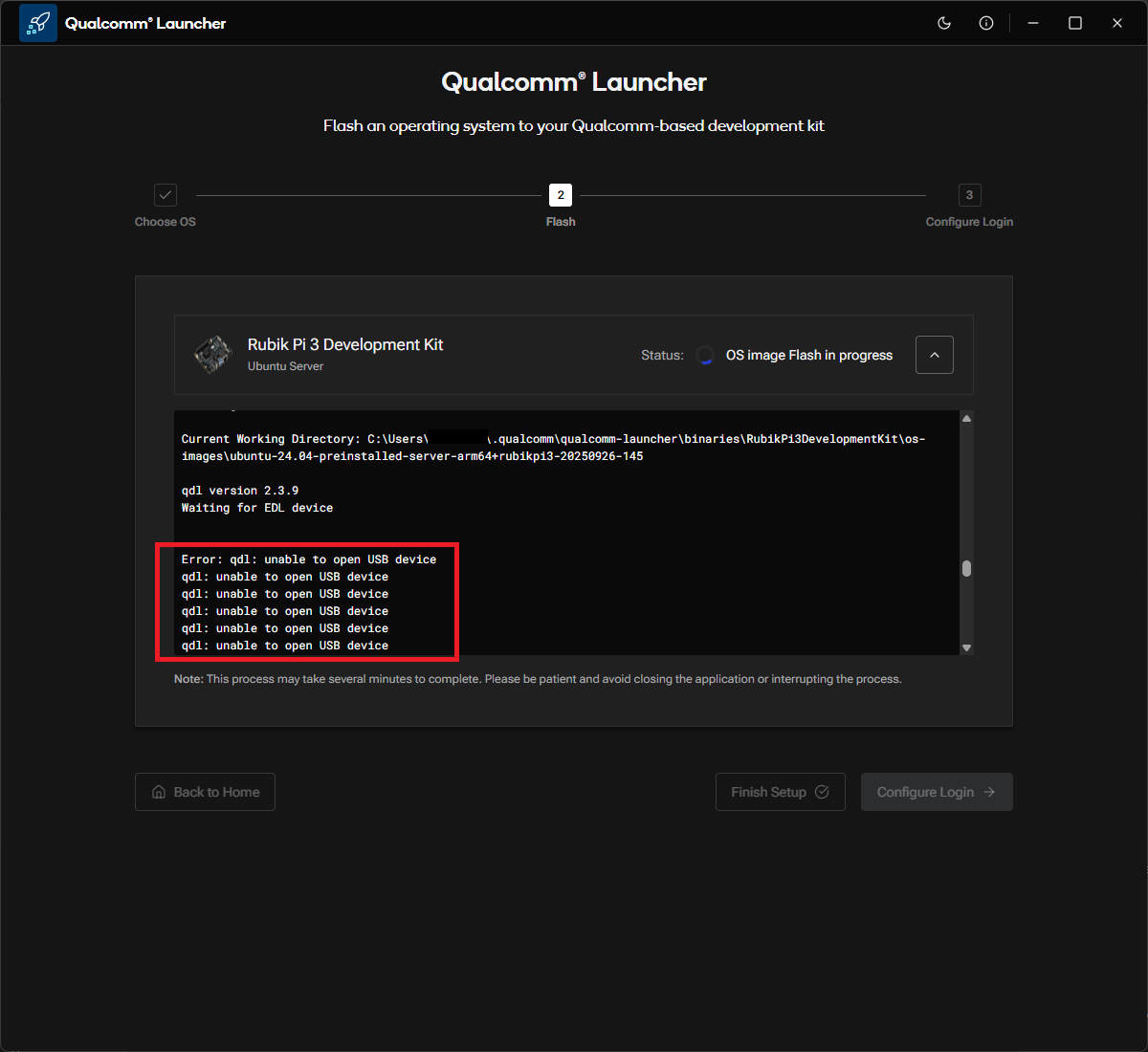
<Frame caption="由于 USB 驱动冲突导致烧录反复失败">
  <img src="https://mintcdn.com/qualcomm-staging/spyZ30ICw4vv_ioE/Tools/Qualcomm-Launcher/images/usb-driver-conflict/flash-error-qdl-unable-to-open.png?fit=max&auto=format&n=spyZ30ICw4vv_ioE&q=85&s=bc26904ca838e898acdf98d34e4dd81a" alt="qdl unable to open USB device 错误" width="1200" height="1100" data-path="Tools/Qualcomm-Launcher/images/usb-driver-conflict/flash-error-qdl-unable-to-open.png" />
</Frame>

<Note>
  多种第三方驱动都可能导致此问题。以下步骤以第三方 QDLoader
  驱动作为代表性示例,但该解决方法具有广泛适用性。
</Note>

***

## 解决步骤

<Steps>
  <Step title="打开设备管理器">
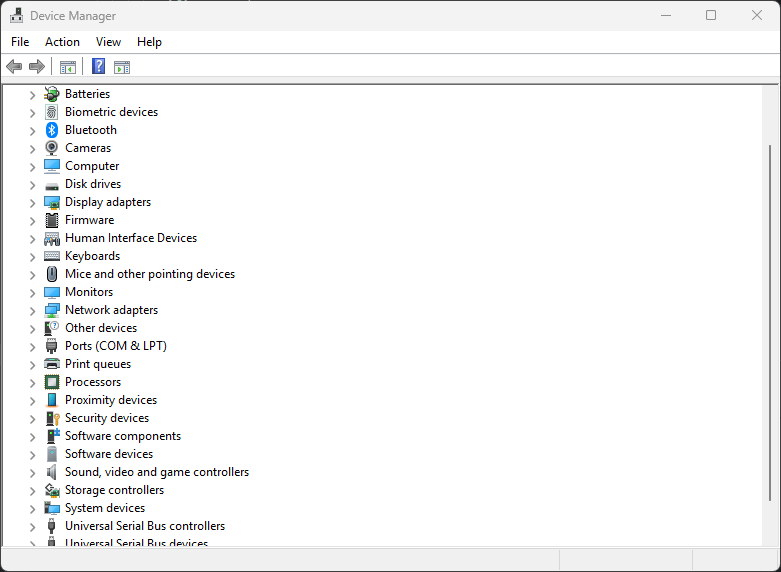
    右键点击**开始**按钮,选择**设备管理器**。

    <Frame>
      <img src="https://mintcdn.com/qualcomm-staging/spyZ30ICw4vv_ioE/Tools/Qualcomm-Launcher/images/usb-driver-conflict/open-device-manager.png?fit=max&auto=format&n=spyZ30ICw4vv_ioE&q=85&s=6aaf8ede7e5e3f715ba4e668a2ad88be" alt="打开设备管理器" width="781" height="572" data-path="Tools/Qualcomm-Launcher/images/usb-driver-conflict/open-device-manager.png" />
    </Frame>
  </Step>

  <Step title="在端口(COM 和 LPT)下找到冲突设备">
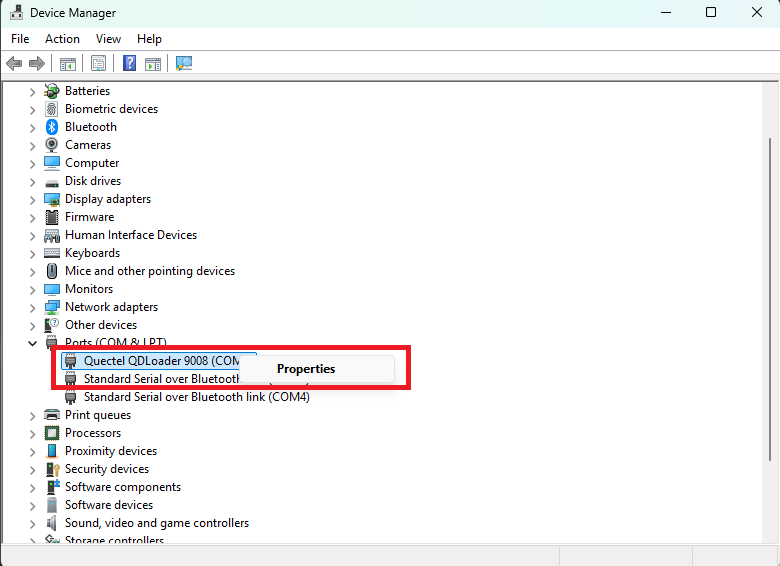
    展开**端口(COM 和 LPT)**,找到第三方 **QDLoader 9008** 条目。
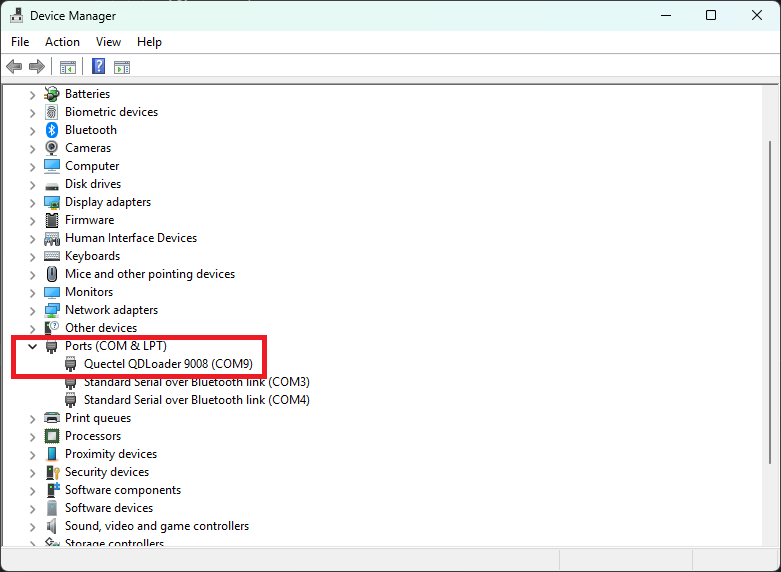
    <Frame caption="端口(COM 和 LPT)下列出的冲突设备">
      <img src="https://mintcdn.com/qualcomm-staging/spyZ30ICw4vv_ioE/Tools/Qualcomm-Launcher/images/usb-driver-conflict/conflicting-driver-under-ports.png?fit=max&auto=format&n=spyZ30ICw4vv_ioE&q=85&s=9886e4e58f1a57f62608f860dd40f115" alt="端口下的第三方 QDLoader 9008" width="781" height="572" data-path="Tools/Qualcomm-Launcher/images/usb-driver-conflict/conflicting-driver-under-ports.png" />
    </Frame>
  </Step>

  <Step title="打开属性并点击更改设置">
    右键点击第三方 **QDLoader 9008** 条目,选择**属性**。
    <Frame>
      <img src="https://mintcdn.com/qualcomm-staging/spyZ30ICw4vv_ioE/Tools/Qualcomm-Launcher/images/usb-driver-conflict/device-properties.png?fit=max&auto=format&n=spyZ30ICw4vv_ioE&q=85&s=ce9e06f61afebc080badebb030e5db22" alt="设备属性" width="780" height="566" data-path="Tools/Qualcomm-Launcher/images/usb-driver-conflict/device-properties.png" />
    </Frame>

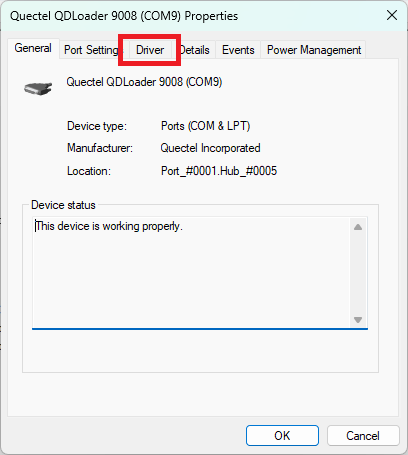
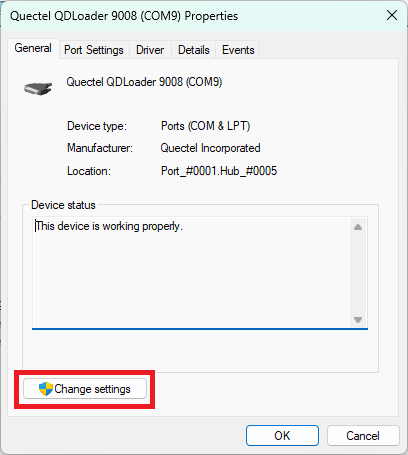
    在**常规**选项卡中,点击**更改设置**。Windows 会请求提升权限 — 接受提示以继续。
    <Frame>
      <img src="https://mintcdn.com/qualcomm-staging/spyZ30ICw4vv_ioE/Tools/Qualcomm-Launcher/images/usb-driver-conflict/change-settings-button.png?fit=max&auto=format&n=spyZ30ICw4vv_ioE&q=85&s=e71db7e42732b3098c5c5909b3565741" alt="更改设置按钮" width="408" height="455" data-path="Tools/Qualcomm-Launcher/images/usb-driver-conflict/change-settings-button.png" />
    </Frame>
  </Step>

  <Step title="打开驱动程序选项卡并点击更新驱动程序">
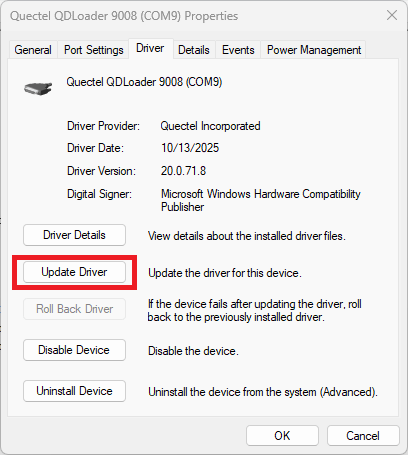
    在更新后的属性窗口中,点击**驱动程序**选项卡。

    <Frame>
      <img src="https://mintcdn.com/qualcomm-staging/spyZ30ICw4vv_ioE/Tools/Qualcomm-Launcher/images/usb-driver-conflict/driver-tab.png?fit=max&auto=format&n=spyZ30ICw4vv_ioE&q=85&s=afc6562013a33f182cf55b873354fc8f" alt="带驱动程序选项卡的属性" width="408" height="455" data-path="Tools/Qualcomm-Launcher/images/usb-driver-conflict/driver-tab.png" />
    </Frame>

    在**驱动程序**选项卡上,点击**更新驱动程序**。

    <Frame>
      <img src="https://mintcdn.com/qualcomm-staging/spyZ30ICw4vv_ioE/Tools/Qualcomm-Launcher/images/usb-driver-conflict/update-driver-button.png?fit=max&auto=format&n=spyZ30ICw4vv_ioE&q=85&s=a0bfb5a320b4c06437fbfcb5dedb0814" alt="更新驱动程序按钮" width="408" height="455" data-path="Tools/Qualcomm-Launcher/images/usb-driver-conflict/update-driver-button.png" />
    </Frame>
  </Step>

  <Step title="浏览并从列表中选择驱动程序">
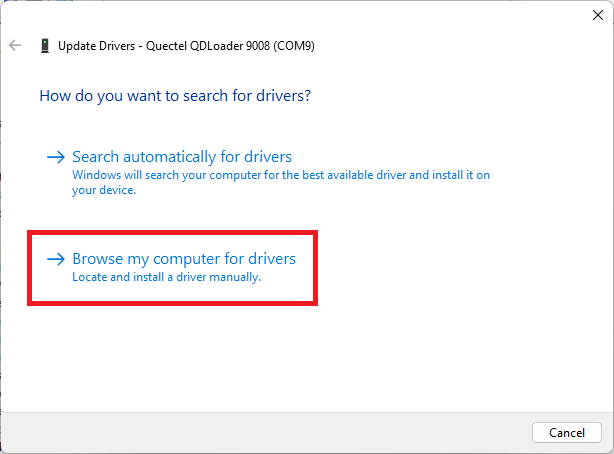
    选择**浏览我的电脑以查找驱动程序**。

    <Frame>
      <img src="https://mintcdn.com/qualcomm-staging/spyZ30ICw4vv_ioE/Tools/Qualcomm-Launcher/images/usb-driver-conflict/browse-my-computer.png?fit=max&auto=format&n=spyZ30ICw4vv_ioE&q=85&s=40ff4f3230aa458b3296bcd62e494db9" alt="更新驱动程序对话框" width="614" height="454" data-path="Tools/Qualcomm-Launcher/images/usb-driver-conflict/browse-my-computer.png" />
    </Frame>

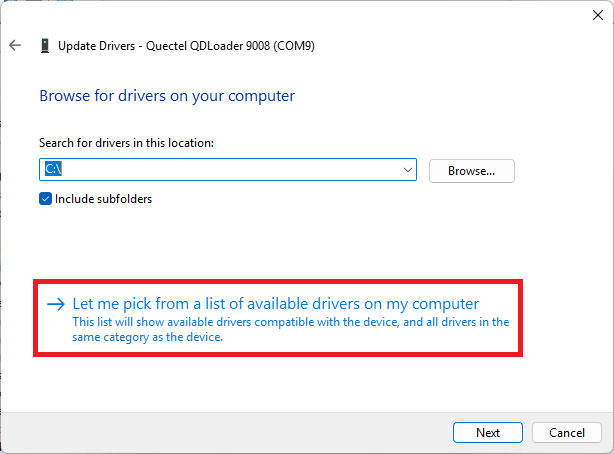
    点击**让我从计算机上的可用驱动程序列表中选取**。

    <Frame>
      <img src="https://mintcdn.com/qualcomm-staging/spyZ30ICw4vv_ioE/Tools/Qualcomm-Launcher/images/usb-driver-conflict/pick-driver-from-list.png?fit=max&auto=format&n=spyZ30ICw4vv_ioE&q=85&s=3ef85bce3dbf83177b2ebeee9f2631c8" alt="从驱动程序列表中选取" width="614" height="454" data-path="Tools/Qualcomm-Launcher/images/usb-driver-conflict/pick-driver-from-list.png" />
    </Frame>
  </Step>

  <Step title="选择 Qualcomm HS-USB 驱动程序并确认">
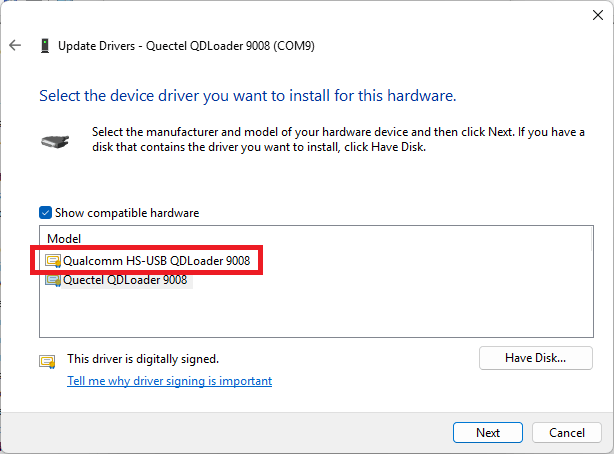
    从列表中选择 **Qualcomm HS-USB QDLoader 9008**,然后点击**下一步**。
    <Frame>
      <img src="https://mintcdn.com/qualcomm-staging/spyZ30ICw4vv_ioE/Tools/Qualcomm-Launcher/images/usb-driver-conflict/select-qualcomm-driver.png?fit=max&auto=format&n=spyZ30ICw4vv_ioE&q=85&s=0177360a9d9e6c900e68146fe415b7c8" alt="选择兼容驱动程序" width="614" height="454" data-path="Tools/Qualcomm-Launcher/images/usb-driver-conflict/select-qualcomm-driver.png" />
    </Frame>

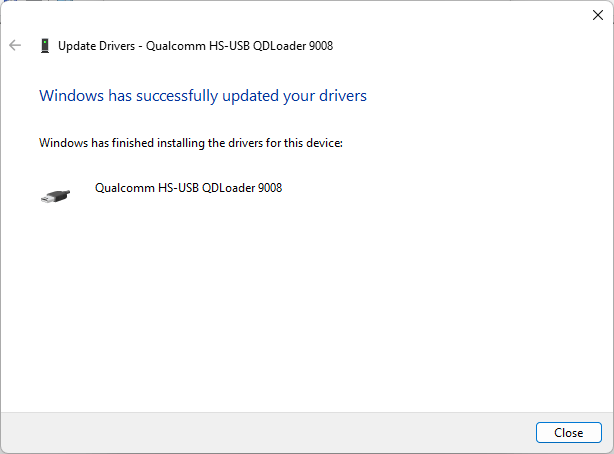
    Windows 会安装该驱动程序并确认成功。点击**关闭**。

    <Frame>
      <img src="https://mintcdn.com/qualcomm-staging/spyZ30ICw4vv_ioE/Tools/Qualcomm-Launcher/images/usb-driver-conflict/driver-update-success.png?fit=max&auto=format&n=spyZ30ICw4vv_ioE&q=85&s=1624be331d669a3638586c685c50fc26" alt="驱动程序更新成功" width="614" height="454" data-path="Tools/Qualcomm-Launcher/images/usb-driver-conflict/driver-update-success.png" />
    </Frame>
  </Step>

  <Step title="在设备管理器中确认并重试烧录">
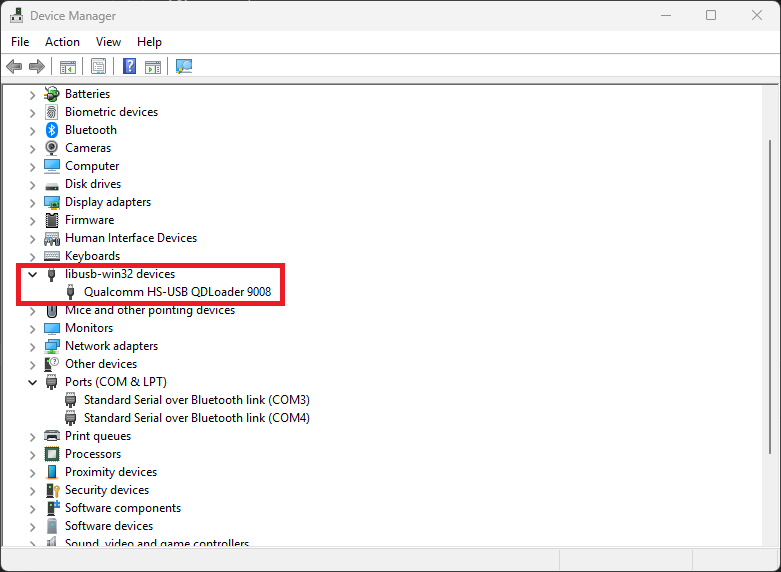
    设备现在会显示在 **libusb-win32 devices** 下,名称为 **Qualcomm HS-USB QDLoader 9008**。
    <Frame caption="设备列在 libusb-win32 devices 下">
      <img src="https://mintcdn.com/qualcomm-staging/spyZ30ICw4vv_ioE/Tools/Qualcomm-Launcher/images/usb-driver-conflict/device-under-libusb-win32.png?fit=max&auto=format&n=spyZ30ICw4vv_ioE&q=85&s=3d4ec706d426fdb49c5656affe48a218" alt="libusb-win32 devices 下的设备" width="781" height="572" data-path="Tools/Qualcomm-Launcher/images/usb-driver-conflict/device-under-libusb-win32.png" />
    </Frame>

    返回 Qualcomm® Launcher 并重试烧录。此时烧录过程应能顺利进行。
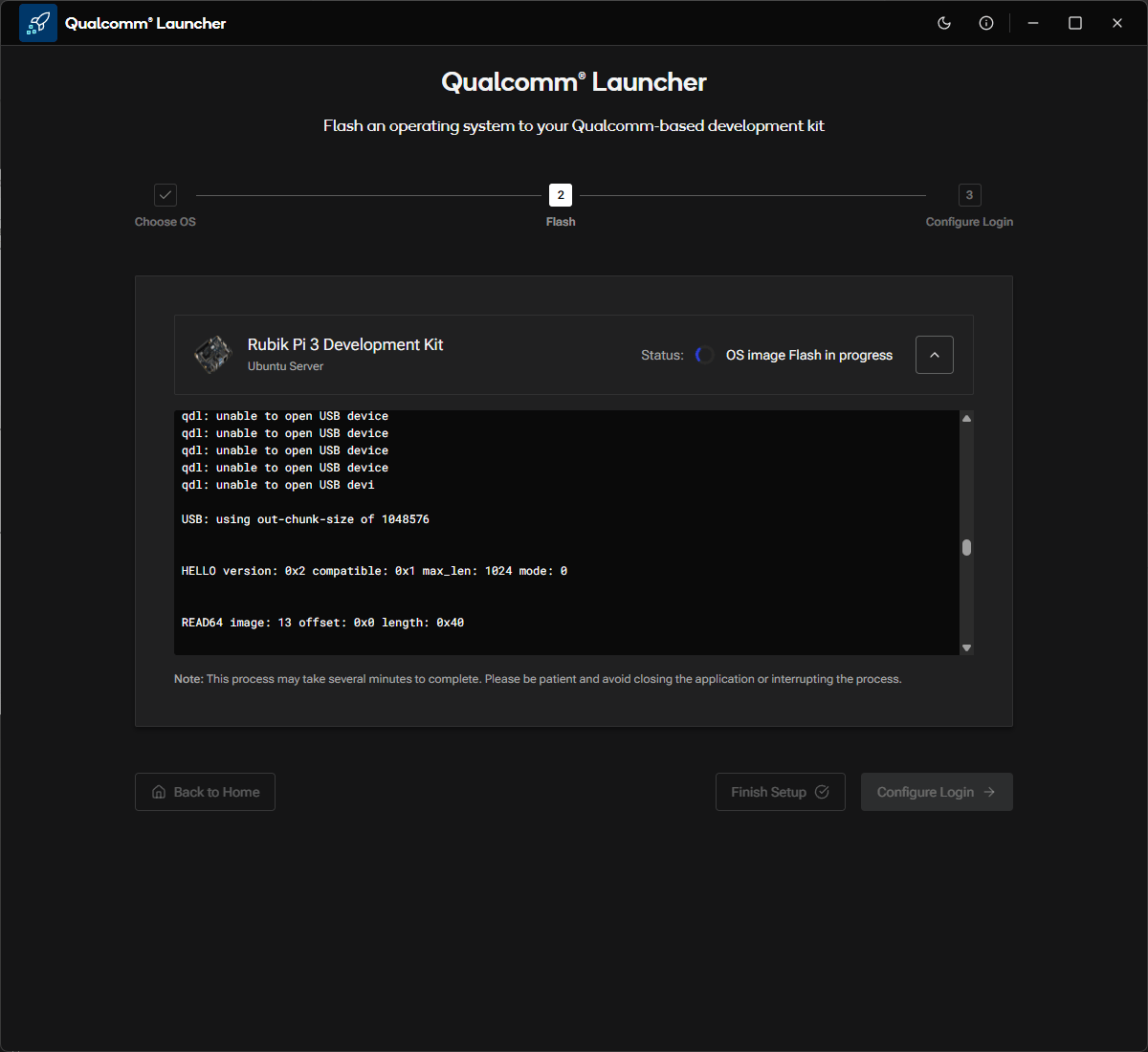
    <Frame caption="驱动修复后烧录顺利进行">
      <img src="https://mintcdn.com/qualcomm-staging/spyZ30ICw4vv_ioE/Tools/Qualcomm-Launcher/images/usb-driver-conflict/flash-success.png?fit=max&auto=format&n=spyZ30ICw4vv_ioE&q=85&s=b988f8c73a42c908f6818bf32cbd086d" alt="烧录成功" width="1200" height="1100" data-path="Tools/Qualcomm-Launcher/images/usb-driver-conflict/flash-success.png" />
    </Frame>

    <Check>
      USB 驱动冲突已解决,可以继续烧录。
    </Check>
  </Step>
</Steps>

<Tip>
  烧录完成后,您可以重复上述步骤并从驱动程序列表中选择之前安装的驱动,
  以恢复原先的驱动程序。
</Tip>