> ## Documentation Index
> Fetch the complete documentation index at: https://dragonwingdocs-staging.qualcomm.com/llms.txt
> Use this file to discover all available pages before exploring further.

# 仪表板

> Qualcomm VSCode 扩展的主中心 — 管理设备、下载、SDK 和 AI 模型。

## 概述

\*\*仪表板（Dashboard）\*\*是扩展的中央指挥中心。可通过活动栏中的 Qualcomm 图标访问。

<CardGroup cols={2}>
  <Card title="设备" icon="plug" href="./devices">
    查看已连接的设备、设置活动设备，并通过 SSH 管理连接。
  </Card>

  <Card title="下载" icon="download" href="../quick-start#step-3--flash-device-software">
    浏览已下载的设备软件和 SDK。直接从 UI 烧录固件。
  </Card>

  <Card title="项目" icon="folder" href="./projects">
    管理示例项目和模板。导入、重置并在编辑器中打开。
  </Card>

  <Card title="AI 模型" icon="brain" href="../ai/models">
    发现 AI 模型，使用 Qualcomm AI Hub 对其进行优化并进行性能分析。
  </Card>
</CardGroup>

## 活动设备

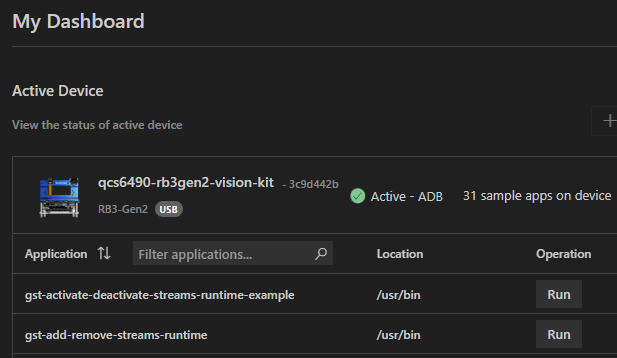
设备窗格显示连接到主机的设备、其元数据以及设备上可用的示例应用。您可以直接从此窗格执行预装应用并查看其输出。
<img src="https://mintcdn.com/qualcomm-staging/IpOQZ3a456y-ntjm/Tools/QVSCE/images/dashboard_device.png?fit=max&auto=format&n=IpOQZ3a456y-ntjm&q=85&s=94f049207f0e294f747ededa541665f9" alt="仪表板 — 活动设备窗格" width="617" height="358" data-path="Tools/QVSCE/images/dashboard_device.png" />

## 项目

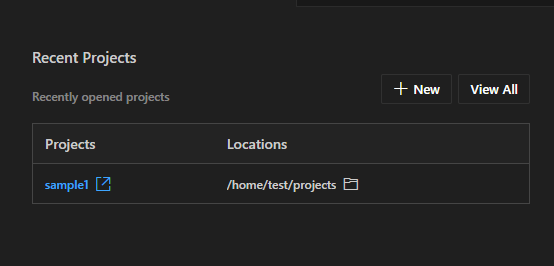
项目部分显示最近打开的项目。可以在此部分打开现有项目、创建新项目或查看所有项目。
<img src="https://mintcdn.com/qualcomm-staging/IpOQZ3a456y-ntjm/Tools/QVSCE/images/dashboard_projects.png?fit=max&auto=format&n=IpOQZ3a456y-ntjm&q=85&s=4d1d701bf081c41a6558d5521a249ab8" alt="仪表板 — 项目窗格" width="554" height="266" data-path="Tools/QVSCE/images/dashboard_projects.png" />

## AI 模型

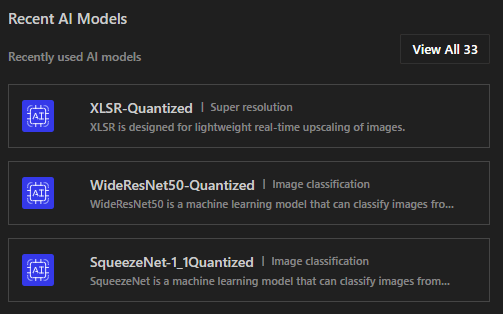
AI 模型部分列出最近使用的模型和 Qualcomm AI Hub 上可用的模型。
<img src="https://mintcdn.com/qualcomm-staging/IpOQZ3a456y-ntjm/Tools/QVSCE/images/dashboard_aimodel.png?fit=max&auto=format&n=IpOQZ3a456y-ntjm&q=85&s=c772524a8efef6d3e2cb93a204c0b1b7" alt="仪表板 — AI 模型窗格" width="503" height="314" data-path="Tools/QVSCE/images/dashboard_aimodel.png" />

## 下载

下载部分有四个标签页：**Operating System**、**SDKs**、**Tools** 和 **Extensions**。

### Operating System 标签页

列出可用的操作系统镜像。每个条目显示设备、操作系统变体、版本和本地路径。点击 **Flash & Setup Device** 烧录镜像。
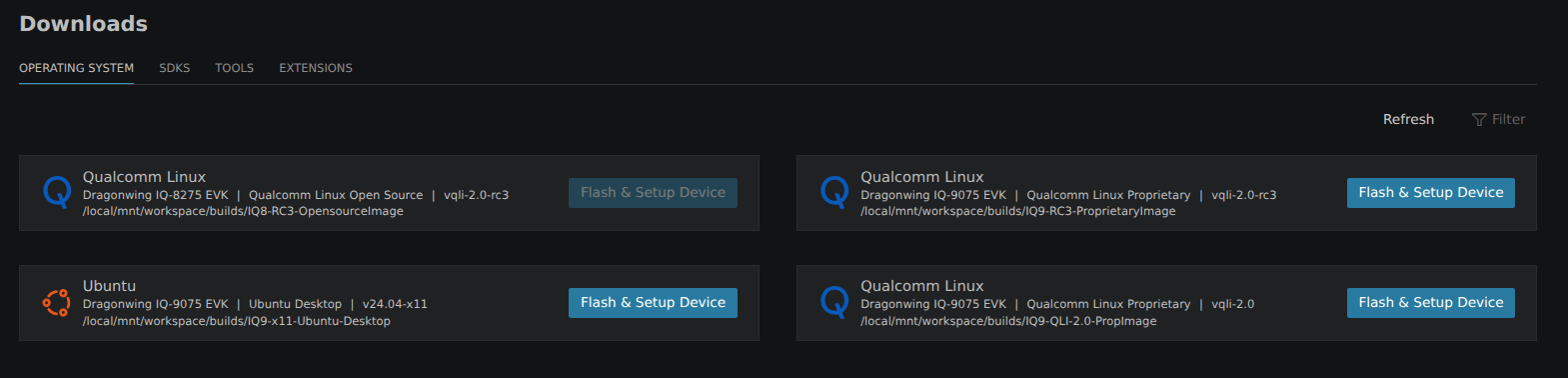
<img src="https://mintcdn.com/qualcomm-staging/IpOQZ3a456y-ntjm/Tools/QVSCE/images/dashboard_downloads_os.png?fit=max&auto=format&n=IpOQZ3a456y-ntjm&q=85&s=180bb5c2191d2d14f1f8b23aa60cb627" alt="仪表板 — 下载，Operating System 标签页" width="1569" height="378" data-path="Tools/QVSCE/images/dashboard_downloads_os.png" />

### SDKs 标签页

列出可用的 SDK。点击 **Configure Device** 在活动设备上运行安装后设置脚本。
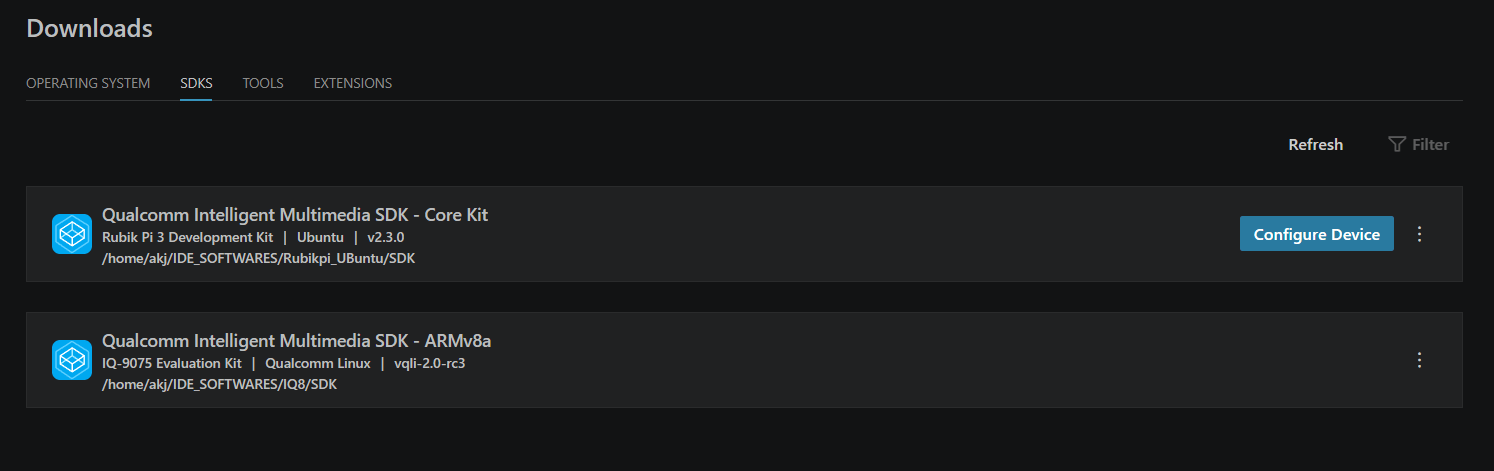
<img src="https://mintcdn.com/qualcomm-staging/IpOQZ3a456y-ntjm/Tools/QVSCE/images/dashboard_downloads_sdk.png?fit=max&auto=format&n=IpOQZ3a456y-ntjm&q=85&s=60a17ee1f7efa5e4cf0e71cb12708bc7" alt="仪表板 — 下载，带 Configure Device 的 SDKs 标签页" width="1494" height="471" data-path="Tools/QVSCE/images/dashboard_downloads_sdk.png" />

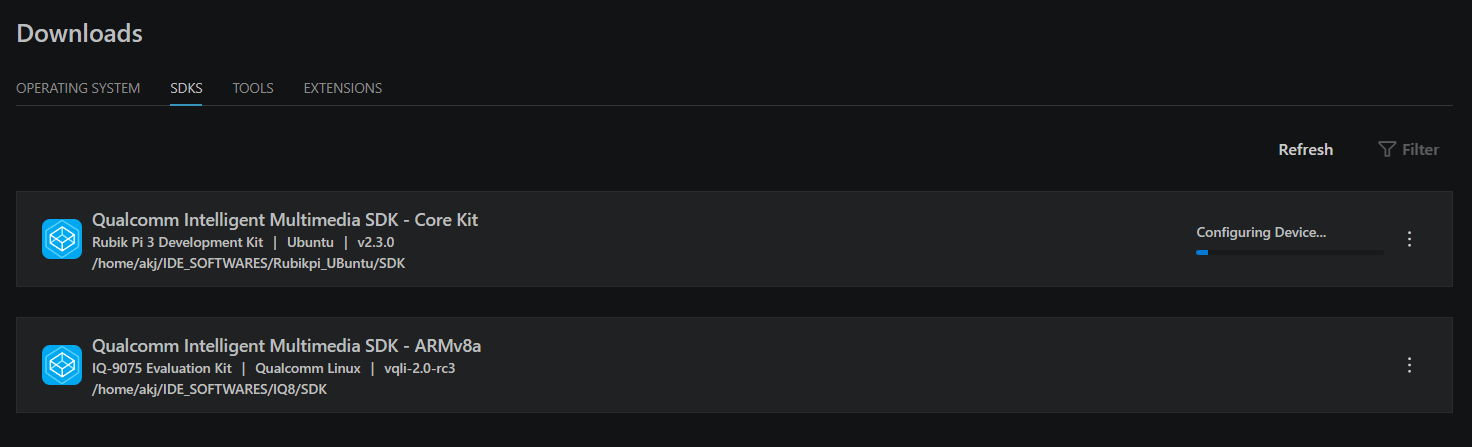
配置运行时，该行会显示 **Configuring Device...** 及进度指示器：

<img src="https://mintcdn.com/qualcomm-staging/IpOQZ3a456y-ntjm/Tools/QVSCE/images/dashboard_downloads_sdk_configuring.png?fit=max&auto=format&n=IpOQZ3a456y-ntjm&q=85&s=c75dde55aeeaa67497cf6554a9bca2ff" alt="仪表板 — SDK 正在配置设备" width="1472" height="447" data-path="Tools/QVSCE/images/dashboard_downloads_sdk_configuring.png" />

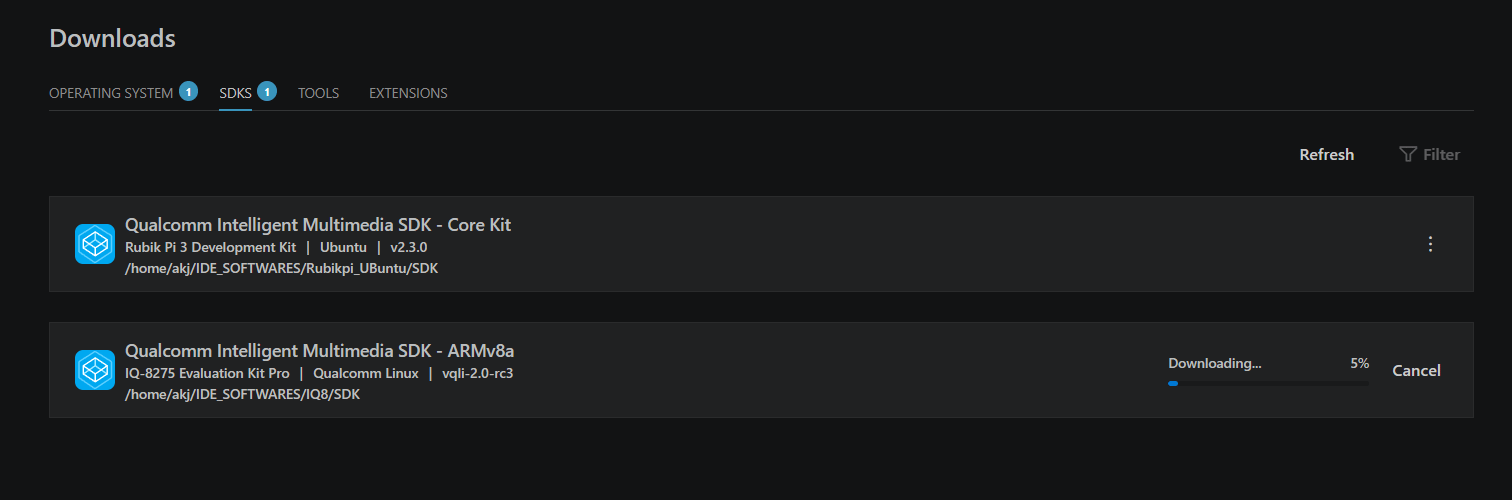
下载 SDK 时，该行会显示带百分比的进度条和一个 **Cancel** 按钮：

<img src="https://mintcdn.com/qualcomm-staging/IpOQZ3a456y-ntjm/Tools/QVSCE/images/dashboard_downloads_sdk_downloading.png?fit=max&auto=format&n=IpOQZ3a456y-ntjm&q=85&s=f688cf8dec2876f572a1eb51e26dc8d6" alt="仪表板 — SDK 正在下载并显示进度" width="1512" height="500" data-path="Tools/QVSCE/images/dashboard_downloads_sdk_downloading.png" />

### 设备烧录

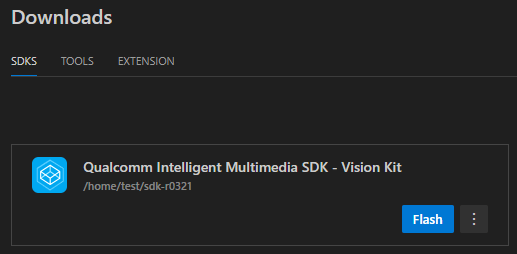
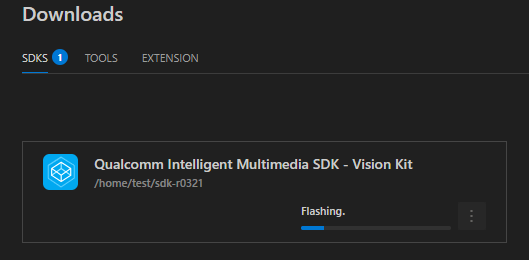
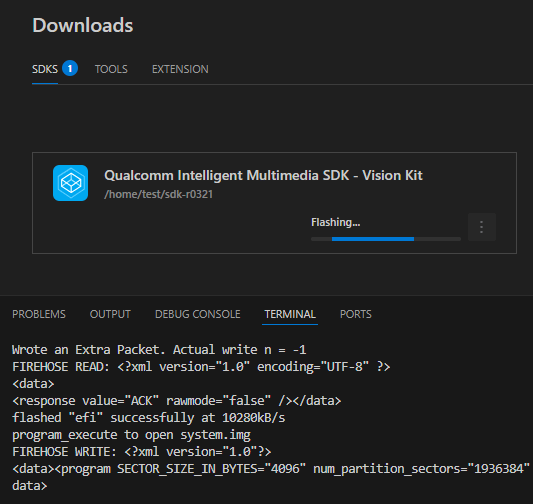
操作系统镜像可用后，点击镜像旁边的 **Flash & Setup Device**。将设备置于 Emergency Download（EDL）模式并开始烧录过程。

<img src="https://mintcdn.com/qualcomm-staging/IpOQZ3a456y-ntjm/Tools/QVSCE/images/dashboard_downloads_flash.png?fit=max&auto=format&n=IpOQZ3a456y-ntjm&q=85&s=8ead48e855b6e6b83733f3166d871539" alt="仪表板 — 烧录按钮" width="517" height="254" data-path="Tools/QVSCE/images/dashboard_downloads_flash.png" />

<img src="https://mintcdn.com/qualcomm-staging/IpOQZ3a456y-ntjm/Tools/QVSCE/images/dashboard_downloads_flash_progress.png?fit=max&auto=format&n=IpOQZ3a456y-ntjm&q=85&s=3aa1dfddbeedd59dc7c96eedd97c0045" alt="仪表板 — 烧录进行中" width="529" height="260" data-path="Tools/QVSCE/images/dashboard_downloads_flash_progress.png" />

扩展使用 [Qualcomm Device Loader (QDL)](https://softwarecenter.qualcomm.com/catalog/item/Qualcomm_Device_Loader) 写入镜像。进度显示在 VS Code 终端中。完成后，设备会重启并出现在活动设备窗格中。

<img src="https://mintcdn.com/qualcomm-staging/IpOQZ3a456y-ntjm/Tools/QVSCE/images/dashboard_downloads_flash_qdl.png?fit=max&auto=format&n=IpOQZ3a456y-ntjm&q=85&s=757ef324600258180a58365757a81f17" alt="仪表板 — QDL 烧录输出" width="533" height="504" data-path="Tools/QVSCE/images/dashboard_downloads_flash_qdl.png" />

## 仪表板各部分一览

| 部分 | 在此可执行的操作 |
| - | - |
| Devices | 激活设备、查看 SSH 状态 |
| Downloads | 烧录固件、配置设备 SDK |
| Projects | 导入模板、打开示例应用 |
| AI Hub | 浏览模型、提交优化作业 |

## SDK — 配置设备

<Note>
  烧录后，运行 **Dashboard → SDK → Configure Device** 以执行烧录后初始化脚本。此步骤对于设备正常工作是**必需的**。
</Note>