> ## Documentation Index
> Fetch the complete documentation index at: https://dragonwingdocs-staging.qualcomm.com/llms.txt
> Use this file to discover all available pages before exploring further.
# IQ-615
## 调试高清多媒体接口 (HDMI) 显示
按照 [IQ-615 HDMI 设置](enable-display-iq615) 中的说明将开关 **SW7 设置为 OFF**,然后参考下面的连接器映射并执行检查。
通过 SSH 连接到目标设备,并在 root shell 中运行目标设备命令。有关说明,请参阅 [使用 SSH 登录](https://dragonwingdocs.qualcomm.com/Key-Documents/Flash-Guide/how-to-sign-in-with-ssh)。
HDMI 输出将 DSI0 经由 ADV7511 DSI 至 HDMI 桥接芯片路由到 `HDMI-A-1`。
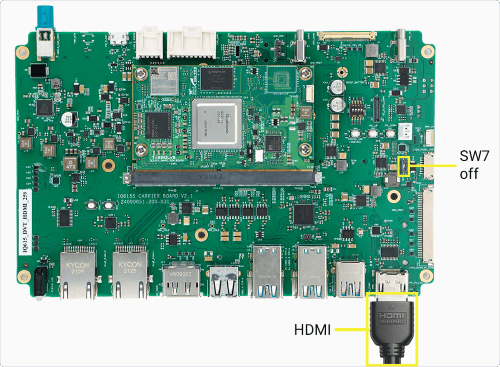
**图:IQ-615 HDMI 连接**
### 1. 识别连接器
运行以下命令:
> ```text theme={null}
> modetest -M msm -c
> ```
此命令列出 HDMI 连接器、其 DRM ID 以及连接状态。
参考输出
```text theme={null}
34 0 disconnected HDMI-A-1 0x0 0 33
```
运行以下命令:
> ```text theme={null}
> cat /sys/class/drm/card0-HDMI-A-1/status
> ```
此命令报告 HDMI 是否已连接。预期结果为 `connected`。
运行以下命令:
> ```text theme={null}
> cat /sys/class/drm/card0-HDMI-A-1/modes
> ```
此命令列出已连接显示器报告的模式。
如果 HDMI 显示为 `disconnected` 或未报告任何模式,请检查线缆、显示器电源以及所选的 HDMI 输入源。DRM 对象 ID 和 card 编号可能因版本而异。
### 3. 检查活动 DRM 状态
如果尚未挂载 `debugfs`,请运行以下命令:
> ```text theme={null}
> mount -t debugfs none /sys/kernel/debug
> ```
此命令使 DRM 状态和接口调试数据可供访问。
运行以下命令:
> ```text theme={null}
> modetest -M msm -c -p
> ```
此命令显示 HDMI 编码器、CRTC、模式和平面。
参考输出
```text theme={null}
Encoders:
id crtc type
33 0 DSI
```
运行以下命令:
> ```text theme={null}
> cat /sys/kernel/debug/dri/0/state
> ```
此命令显示内核 DRM 连接器、编码器、CRTC 和平面状态。
对于 `HDMI-A-1`,请确认存在一条活动显示通路:
* `status: connected`
* 非零的 CRTC ID
* 该 CRTC 的 `active=yes`
* 一个 `crtc` 字段与该 CRTC ID 匹配的平面
**测试显示模式后恢复 Weston。**
要测试其他模式,请按照 [运行 DRM modetest](run-drm-modetest) 操作,然后在返回 Weston 测试之前 [重新启动 Weston](troubleshoot-relaunch-weston)。
运行以下命令:
> ```text theme={null}
> cat /sys/kernel/debug/clk/disp_cc_mdss_pclk*/clk_rate
> ```
此命令以 Hz 为单位输出 HDMI 桥接芯片所用的可用 DSI 像素时钟频率。
将该频率与活动 CRTC 像素时钟进行比较,`modetest` 以 kHz 为单位报告后者。如果时钟路径不存在,请继续执行 DRM 状态和内核日志检查。
### 5. 检查本次启动的内核消息和实时显示事件
运行以下命令:
> ```text theme={null}
> journalctl -k -b --no-pager -o short-monotonic | grep -Ei 'adv7511|adv7533|adv7535|hdmi|edid|dsi|dpu|drm'
> ```
此命令仅显示本次启动中的桥接芯片、EDID、DSI 和 DRM 消息。如果没有返回任何内容,请在重现问题时捕获实时数据。
参考输出
```text theme={null}
[ 12.060926] adv7511 0-003d: supply v1p2 not found, using dummy regulator
[ 12.326611] msm_dpu ae01000.display-controller: bound ae94000.dsi
[ 12.512759] [drm] Initialized msm 1.13.0 for ae01000.display-controller
```
要在重现问题时捕获显示事件,请运行以下命令:
> ```text theme={null}
> journalctl -f
> ```
此命令跟踪新的 Weston 和内核消息。运行时不要加 `-k`,以便输出包含合成器的连接器变化和输出启用信息。重现问题后,按 `Ctrl+C`。
查找连接器状态变化、EDID 或模式检测、输出启用以及驱动程序错误。将相关消息与连接器状态和活动 DRM 状态进行比较。
EDID 或 I2C 错误表明问题出在显示器、线缆或桥接芯片。
| **结果** | **可能的问题区域** | **后续操作** |
| - | - | - |
| 重新连接后仍为 `disconnected`,或没有新的显示消息且状态未变化 | 线缆、显示器输入、桥接芯片或 HPD 路径 | 重新插拔线缆,选择 HDMI 输入源,然后重新检查连接器状态。 |
| 已连接但没有模式,或出现 EDID/I2C 错误 | 显示器、线缆或桥接芯片 | 检查线缆和显示器,然后查看桥接芯片消息。 |
| 已报告模式,但连接器、CRTC 和平面未构成一条活动通路 | DRM 或合成器 | 检查活动 DRM 状态和 Weston 状态。 |
| CRTC 处于活动状态但屏幕空白 | 桥接芯片或 Weston | 比较 DSI 时钟、桥接芯片日志和 Wayland 输出。 |
**在检查输出布局之前,先验证 Weston 服务。**
运行以下命令:
```text theme={null}
systemctl is-active weston
```
预期结果为 `active`。如果该服务未处于活动状态,请先 [重新启动 Weston](troubleshoot-relaunch-weston),然后再继续。
### 7. 检查 Weston 和输出布局
运行以下命令:
> ```text theme={null}
> journalctl -b -u weston -n 40 --no-pager
> ```
此命令显示本次启动中最新的 Weston 消息。
如果 Weston 处于活动状态但显示屏空白,请运行以下命令:
> ```text theme={null}
> find /run/user/ -maxdepth 1 -type s -name 'wayland-*' -printf '%f\n'
> ```
此命令列出可用的 Wayland 套接字名称。
替换占位符后,运行以下命令:
> ```text theme={null}
> runuser -u weston -- env XDG_RUNTIME_DIR=/run/user/ WAYLAND_DISPLAY= wayland-info
> ```
**将 Weston 输出与 DRM 状态进行比较。**
此命令输出 Weston 的输出信息。找到所选的显示输出,并将其与 DRM 连接器和 CRTC 状态进行比较。如果 Weston 未处于活动状态,请先 [重新启动 Weston](troubleshoot-relaunch-weston),然后再继续。