> ## Documentation Index
> Fetch the complete documentation index at: https://dragonwingdocs-staging.qualcomm.com/llms.txt
> Use this file to discover all available pages before exploring further.
# 收集并解析 RAM 转储
RAM 转储是设备发生故障时系统内存的快照,可用于调试各种崩溃问题。
## **启用 RAM 转储**
默认情况下,`debug` 构建包含 RAM 转储,但在 `perf` 或 `non-DEBUG` 构建中,会通过内核命令行参数将其禁用。要配置 RAM 转储,请在 `meta-qcom/ci/base.yml` 文件中使用 `qcom_scm.download_mode` 参数:
* 0:禁用
* 1:启用
以下是示例代码片段:
```text theme={null}
cmdline: |
KERNEL_CMDLINE_EXTRA:append = " qcom_scm.download_mode=1"
```
## **收集 RAM 转储**
系统崩溃后,设备会重启进入 RAM 转储模式,并在引导加载程序中等待通过 USB 收集 RAM 转储。要通过 USB 收集 RAM 转储,请使用产品配置助手工具(PCAT)。从 [Qualcomm Software Center](https://softwarecenter.qualcomm.com/#/catalog/item/PCAT) 下载 PCAT 工具。安装 PCAT 后,可在以下位置访问 PCAT 用户指南:
* Windows 主机:`C:\Program Files(x86)\Qualcomm\PCAT\Docs`
* Linux 主机:`/opt/qcom/PCAT/Docs/`
要使用 PCAT 收集 RAM 转储,请执行以下操作:
1. 在 Windows 主机上启动 PCAT,并连接已处于 RAM 转储模式的设备。
如有必要,要触发设备崩溃,请在 PCAT 界面上选择 **CRASH**。
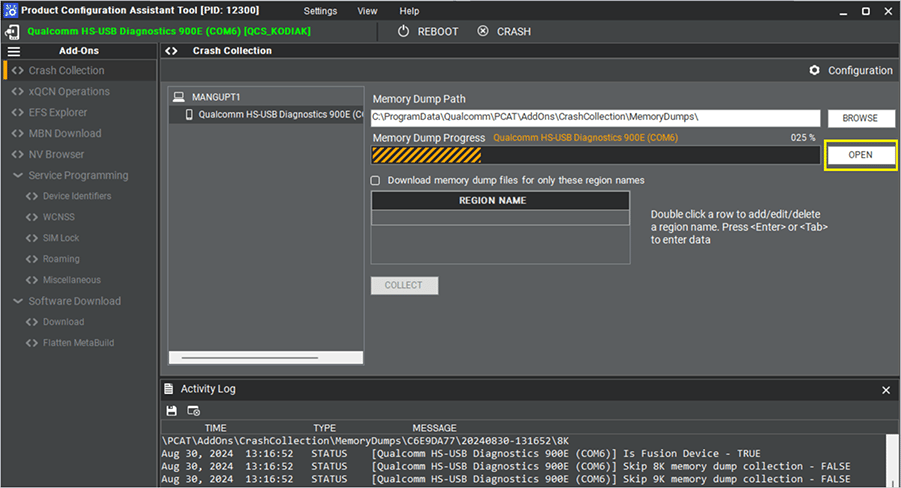
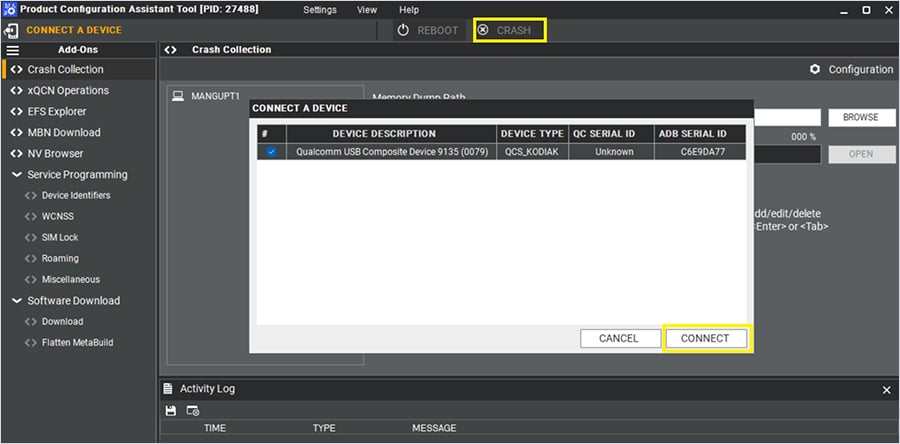 将设备连接到 Windows 主机后,PCAT 会自动开始捕获 RAM 转储,PCAT UI 会显示转储收集的进度。
2\. 要查看转储,请选择 **OPEN**。
将设备连接到 Windows 主机后,PCAT 会自动开始捕获 RAM 转储,PCAT UI 会显示转储收集的进度。
2\. 要查看转储,请选择 **OPEN**。
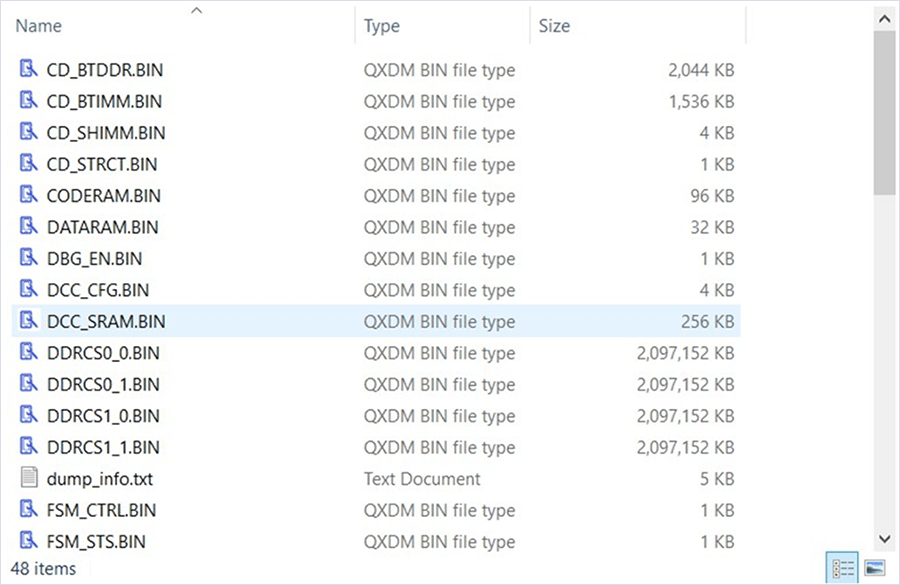
 以下示例显示了 RAM 转储目录的内容:
 Linux 主机使用命令行界面而非 GUI 进行基于 PCAT 的 RAM 转储捕获,例如 `PCAT -PLUGIN CC -DEVICE -DUMPDIR /tmp -RESET TRUE -UNIQUETS TRUE`。
## **捕获子系统转储**
此功能仅面向拥有授权访问权限的许可开发者。有关如何启用和捕获子系统 coredump 的更多信息,请参阅 [Qualcomm Linux Debug Guide - Addendum](https://docs.qualcomm.com/bundle/resource/topics/80-80021-12A/debugging_linux_kernel.html#subsystem_ram_dumps)。
Linux 主机使用命令行界面而非 GUI 进行基于 PCAT 的 RAM 转储捕获,例如 `PCAT -PLUGIN CC -DEVICE -DUMPDIR /tmp -RESET TRUE -UNIQUETS TRUE`。
## **捕获子系统转储**
此功能仅面向拥有授权访问权限的许可开发者。有关如何启用和捕获子系统 coredump 的更多信息,请参阅 [Qualcomm Linux Debug Guide - Addendum](https://docs.qualcomm.com/bundle/resource/topics/80-80021-12A/debugging_linux_kernel.html#subsystem_ram_dumps)。