> ## Documentation Index
> Fetch the complete documentation index at: https://dragonwingdocs-staging.qualcomm.com/llms.txt
> Use this file to discover all available pages before exploring further.
# Wi-Fi 和 Bluetooth
Qualcomm Dragonwing IQ-9075 EVK 通过 M.2 接口上的 **NFA765A** 模块(WCN6856 NSP288 芯片)提供集成的 Wi-Fi 和 Bluetooth 连接。
## 规格
### Wi-Fi
| 特性 | 规格 |
| ------------- | ----------------------- |
| **标准** | Wi-Fi 6E (802.11ax) |
| **频段** | 2.4 GHz、5 GHz、6 GHz(三频) |
| **峰值 PHY 速率** | 使用 1K QAM 时可达 2.9 Gbps |
| **工作模式** | 双频同时工作(DBS)、STA 和 AP 模式 |
| **驱动** | ath11k |
### Bluetooth
| 特性 | 规格 |
| ---------- | --------------------------------- |
| **标准** | Bluetooth Core Specification v5.2 |
| **BLE 速度** | 最高 2 Mbps |
| **长距离** | 500 Kbps 和 125 Kbps |
| **协议栈** | BlueZ |
## 硬件设置
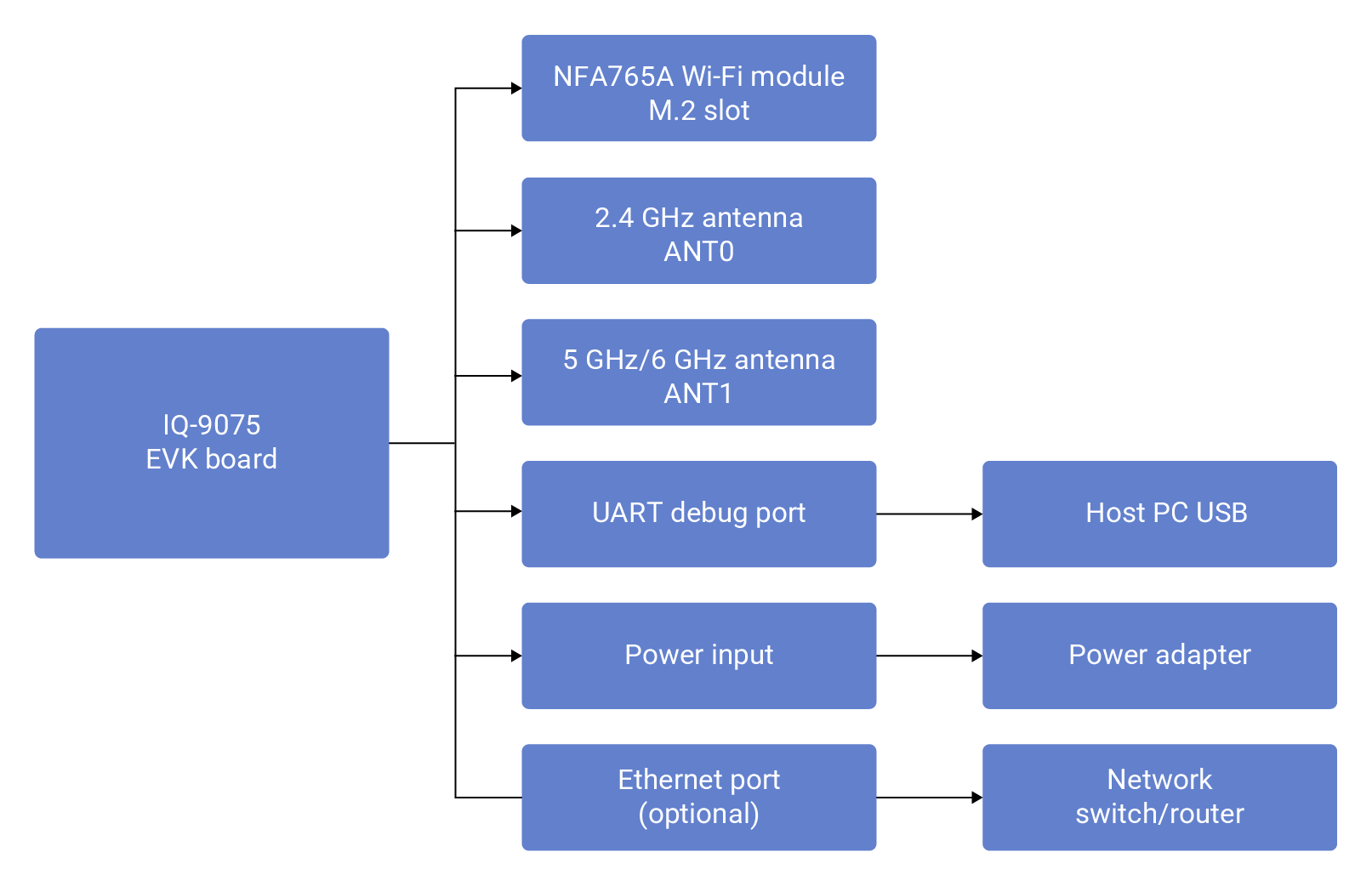 将 NFA765A 模块以 30 度角插入 M.2 插槽,按平后使用随附的螺丝固定。
* **ANT0 (2.4G)** — 由 Wi-Fi 和 Bluetooth 共享
* **ANT1 (5G/6G)** — 仅用于 Wi-Fi 5 GHz 和 6 GHz
将 UART 线缆连接到调试端口,并记下分配的 COM 端口或 `/dev/ttyUSB` 设备。
上电并通过 UART 控制台观察启动序列。默认登录:`ubuntu` / `ubuntu`。
## 架构
### Wi-Fi 软件架构
将 NFA765A 模块以 30 度角插入 M.2 插槽,按平后使用随附的螺丝固定。
* **ANT0 (2.4G)** — 由 Wi-Fi 和 Bluetooth 共享
* **ANT1 (5G/6G)** — 仅用于 Wi-Fi 5 GHz 和 6 GHz
将 UART 线缆连接到调试端口,并记下分配的 COM 端口或 `/dev/ttyUSB` 设备。
上电并通过 UART 控制台观察启动序列。默认登录:`ubuntu` / `ubuntu`。
## 架构
### Wi-Fi 软件架构
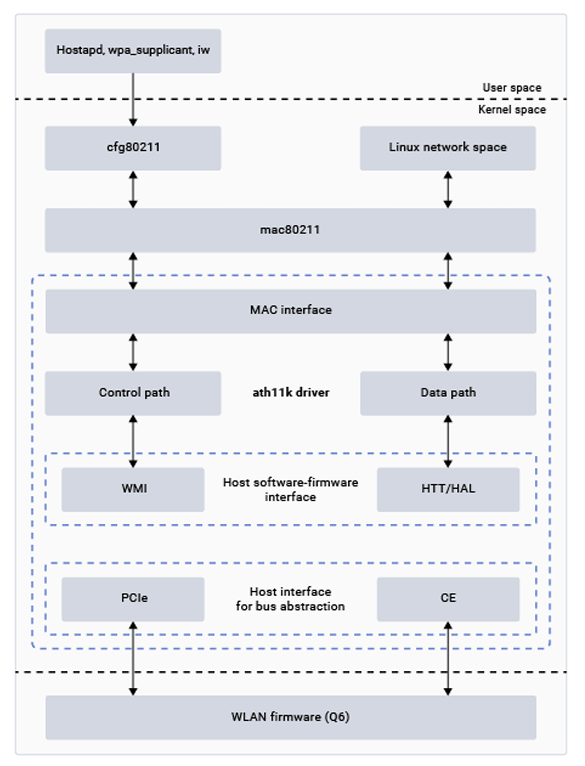 | 组件 | 描述 |
| ------------------ | --------------------------- |
| **hostapd** | 接入点和认证服务器(WPA/WPA2/WPA3) |
| **cfg80211** | 无线设备配置管理 |
| **mac80211** | 开源 WLAN 协议实现 |
| **ath11k MAC 接口** | mac80211 与底层 ath11k 各层之间的接口 |
| **ath11k 控制/数据通路** | 扫描、认证、关联;数据流量管理 |
| **WMI/HTT** | 主机驱动与固件之间的高层协议 |
### Bluetooth 软件架构
| 组件 | 描述 |
| ------------------ | --------------------------- |
| **hostapd** | 接入点和认证服务器(WPA/WPA2/WPA3) |
| **cfg80211** | 无线设备配置管理 |
| **mac80211** | 开源 WLAN 协议实现 |
| **ath11k MAC 接口** | mac80211 与底层 ath11k 各层之间的接口 |
| **ath11k 控制/数据通路** | 扫描、认证、关联;数据流量管理 |
| **WMI/HTT** | 主机驱动与固件之间的高层协议 |
### Bluetooth 软件架构
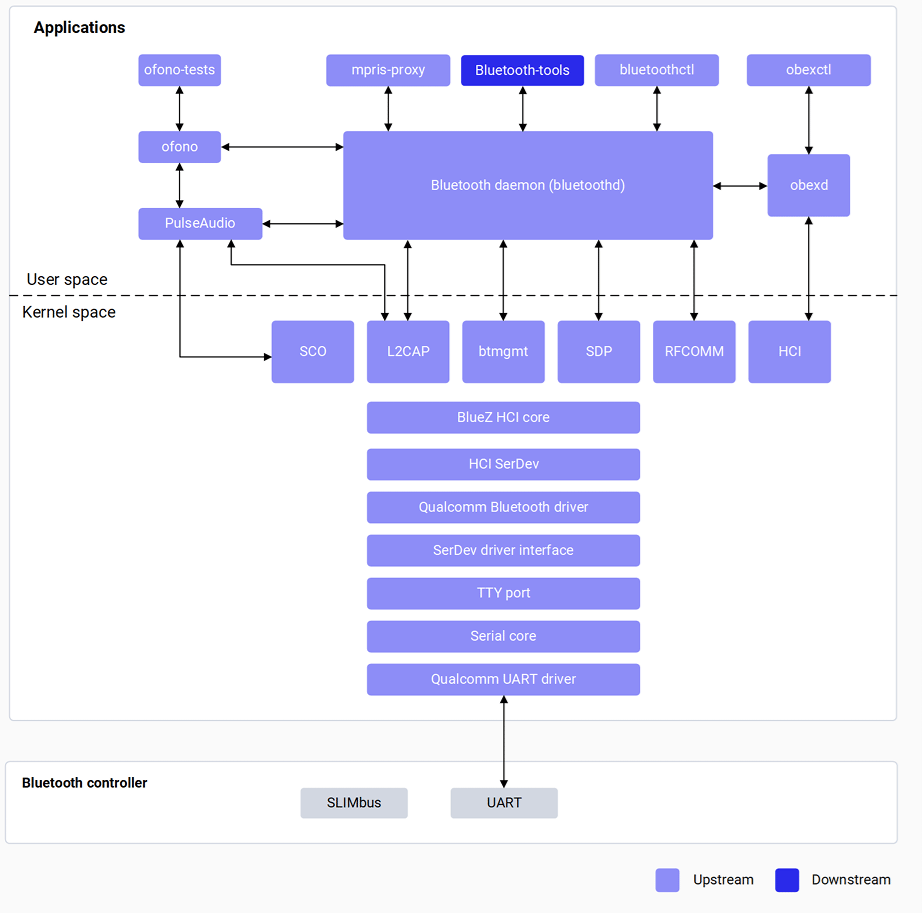 | 组件 | 描述 |
| ------------------ | ----------------------------- |
| **bluetoothd** | 提供 D-Bus 接口的核心 Bluetooth 守护进程 |
| **bluetoothctl** | 用于测试 Bluetooth 功能的 CLI 工具 |
| **HCI Core** | 在用户空间与驱动之间发送/接收 HCI 命令 |
| **L2CAP** | 将大数据包拆分为帧;处理 QoS |
| **Qualcomm BT 驱动** | GPIO 配置、稳压器、补丁和 NV 数据下载 |
## 验证组件
### Wi-Fi
```bash theme={null}
# Check driver
lsmod | grep ath11k
# Check interface
iw dev
# Check firmware
ls -la /lib/firmware/ath11k/
```
### Bluetooth
```bash theme={null}
# Check driver
lsmod | grep bt
# Check HCI device
hciconfig
# Check firmware
ls -la /lib/firmware/qca/
# Check BlueZ daemon
systemctl status bluetooth
```
## Wi-Fi 配置
### 站点(Station)模式
```bash theme={null}
# Scan for networks
nmcli dev wifi list
# Connect
nmcli dev wifi connect password
# Verify connection
nmcli general status
nmcli dev status
ip addr show wlp1s0
ping 8.8.8.8
```
### 设置 MAC 地址(可选)
手动设置的 MAC 地址仅在下次重启前有效,之后会恢复为出厂 OTP 地址。
```bash theme={null}
ip link set wlp1s0 down
ip link set wlp1s0 hw ether XX:XX:XX:XX:XX:XX
ip link set wlp1s0 up
```
### 热点模式
```bash theme={null}
iw dev wlp1s0 interface add wlan1 type managed
```
```bash theme={null}
# Pull default config (optional)
scp -r ubuntu@:/etc/hostapd.conf .
#Update the hostapd.conf file with the SSID, password,
#Interface name and relevant configurations & push the file.
scp -r hostapd.conf root@:/etc
# Start the hostapd process:
hostapd -B /etc/hostapd.conf
```
```bash theme={null}
#Create bridge interface
brctl addbr br0
#Add wlan1 to bridge
brctl addif br0 wlan1
#Assign IP address to bridge
ip addr add 192.168.225.1/24 dev br0
#Restart dnsmasq
killall dnsmasq
#Start dnsmasq with DHCP configuration
dnsmasq --conf-file=/etc/dnsmasq.conf --dhcp-leasefile=/var/run/dnsmasq.leases \
--addn-hosts=/data/hosts --pid-file=/var/run/dnsmasq.pid -i br0 -I lo -z \
--dhcp-range=br0,192.168.225.20,192.168.225.60,255.255.255.0,43200 --dhcp-hostsfile=/data/dhcp_hosts \
--dhcp-option-force=6,192.168.225.1 --dhcp-script=/bin/dnsmasq_script.sh
```
```bash theme={null}
#To establish a connection with the *hostapd_cli*
hostapd_cli -i wlan1 -p /var/run/hostapd
```
**停止热点:**
```bash theme={null}
#To stop the hostapd process
killall hostapd
#To disable the interface
ip link set wlan1 down
#To delete *ctrl_interface*
rm -rf /var/run/hostapd/wlan1
```
### 配置链路速度
```bash theme={null}
sudo ethtool -s end0 autoneg on speed 1000 duplex full
```
## Bluetooth 配置
### 设置 Bluetooth MAC 地址(可选)
手动设置的 Bluetooth MAC 地址在重启后不会保留。
```bash theme={null}
# Power off Bluetooth first
hciconfig hci0 down
# Set address
btmgmt public-addr 22:22:9B:2C:79:1E
# Verify
hciconfig
```
### GAP 操作
| 组件 | 描述 |
| ------------------ | ----------------------------- |
| **bluetoothd** | 提供 D-Bus 接口的核心 Bluetooth 守护进程 |
| **bluetoothctl** | 用于测试 Bluetooth 功能的 CLI 工具 |
| **HCI Core** | 在用户空间与驱动之间发送/接收 HCI 命令 |
| **L2CAP** | 将大数据包拆分为帧;处理 QoS |
| **Qualcomm BT 驱动** | GPIO 配置、稳压器、补丁和 NV 数据下载 |
## 验证组件
### Wi-Fi
```bash theme={null}
# Check driver
lsmod | grep ath11k
# Check interface
iw dev
# Check firmware
ls -la /lib/firmware/ath11k/
```
### Bluetooth
```bash theme={null}
# Check driver
lsmod | grep bt
# Check HCI device
hciconfig
# Check firmware
ls -la /lib/firmware/qca/
# Check BlueZ daemon
systemctl status bluetooth
```
## Wi-Fi 配置
### 站点(Station)模式
```bash theme={null}
# Scan for networks
nmcli dev wifi list
# Connect
nmcli dev wifi connect password
# Verify connection
nmcli general status
nmcli dev status
ip addr show wlp1s0
ping 8.8.8.8
```
### 设置 MAC 地址(可选)
手动设置的 MAC 地址仅在下次重启前有效,之后会恢复为出厂 OTP 地址。
```bash theme={null}
ip link set wlp1s0 down
ip link set wlp1s0 hw ether XX:XX:XX:XX:XX:XX
ip link set wlp1s0 up
```
### 热点模式
```bash theme={null}
iw dev wlp1s0 interface add wlan1 type managed
```
```bash theme={null}
# Pull default config (optional)
scp -r ubuntu@:/etc/hostapd.conf .
#Update the hostapd.conf file with the SSID, password,
#Interface name and relevant configurations & push the file.
scp -r hostapd.conf root@:/etc
# Start the hostapd process:
hostapd -B /etc/hostapd.conf
```
```bash theme={null}
#Create bridge interface
brctl addbr br0
#Add wlan1 to bridge
brctl addif br0 wlan1
#Assign IP address to bridge
ip addr add 192.168.225.1/24 dev br0
#Restart dnsmasq
killall dnsmasq
#Start dnsmasq with DHCP configuration
dnsmasq --conf-file=/etc/dnsmasq.conf --dhcp-leasefile=/var/run/dnsmasq.leases \
--addn-hosts=/data/hosts --pid-file=/var/run/dnsmasq.pid -i br0 -I lo -z \
--dhcp-range=br0,192.168.225.20,192.168.225.60,255.255.255.0,43200 --dhcp-hostsfile=/data/dhcp_hosts \
--dhcp-option-force=6,192.168.225.1 --dhcp-script=/bin/dnsmasq_script.sh
```
```bash theme={null}
#To establish a connection with the *hostapd_cli*
hostapd_cli -i wlan1 -p /var/run/hostapd
```
**停止热点:**
```bash theme={null}
#To stop the hostapd process
killall hostapd
#To disable the interface
ip link set wlan1 down
#To delete *ctrl_interface*
rm -rf /var/run/hostapd/wlan1
```
### 配置链路速度
```bash theme={null}
sudo ethtool -s end0 autoneg on speed 1000 duplex full
```
## Bluetooth 配置
### 设置 Bluetooth MAC 地址(可选)
手动设置的 Bluetooth MAC 地址在重启后不会保留。
```bash theme={null}
# Power off Bluetooth first
hciconfig hci0 down
# Set address
btmgmt public-addr 22:22:9B:2C:79:1E
# Verify
hciconfig
```
### GAP 操作
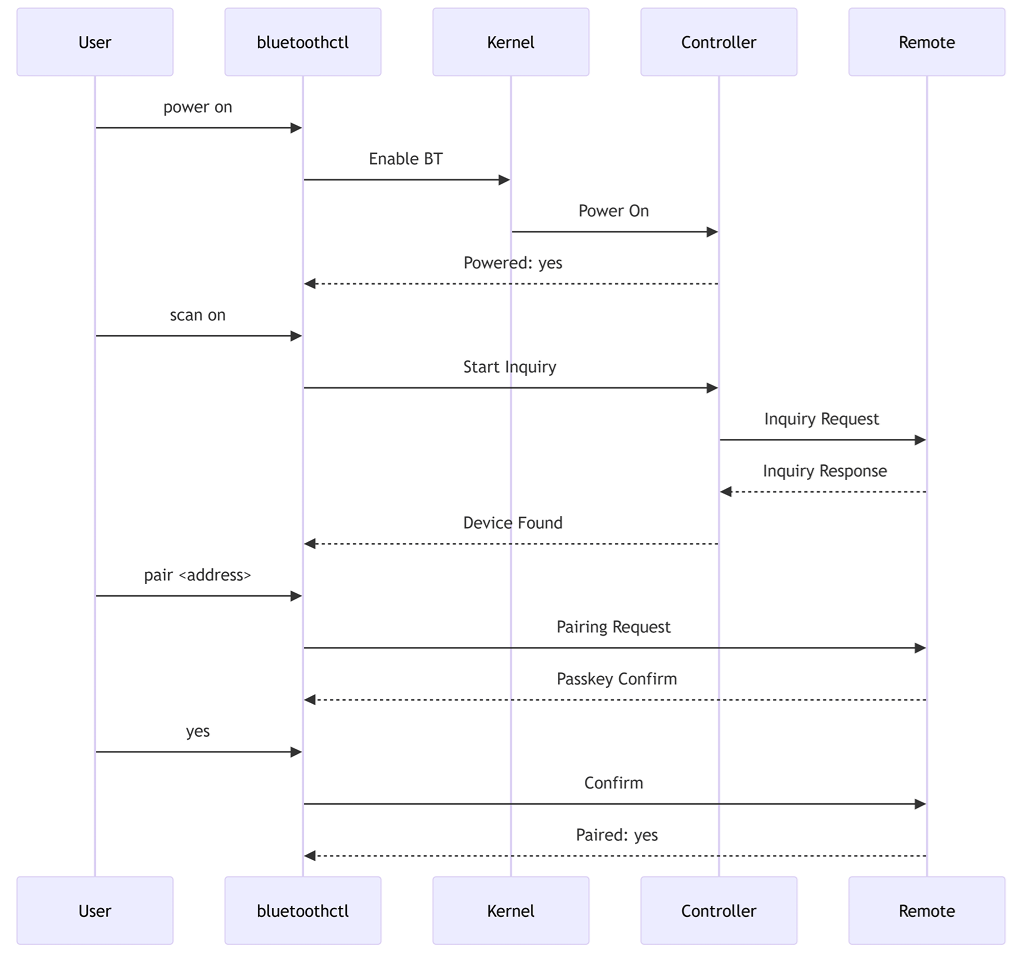 ```bash theme={null}
# Launch bluetoothctl
bluetoothctl
# Enable Bluetooth
power on
# Enable discoverable mode
discoverable on
# Scan for devices
scan on
# Pair with device
pair F8:7D:76:9D:9B:6B
# List paired devices
devices
# Disable Bluetooth
power off
```
### 支持的 Bluetooth 配置文件
| 配置文件 | 角色 | 版本 |
| ---- | -------------------- | ---- |
| GAP | Central 和 Peripheral | — |
| SPP | Client 和 Server | v1.2 |
| GATT | Central 和 Peripheral | — |
| OPP | Client 和 Server | v1.2 |
| FTP | Client 和 Server | v1.2 |
| PBAP | Client 和 Server | v1.1 |
| MAP | Client 和 Server | v1.2 |
WCN6750/WCN6856 支持 A2DP、AVRCP 和 HFP。
## 调试
### Wi-Fi 调试日志
```bash theme={null}
# Enable logging
echo "module ath11k +p" > /sys/kernel/debug/dynamic_debug/control
echo "module ath11k_pci +p" > /sys/kernel/debug/dynamic_debug/control
# Collect logs
dmesg > /tmp/dmesg.txt
scp ubuntu@:/tmp/dmesg.txt .
# Collect firmware dump (on crash)
cat /sys/class/devcoredump/devcd*/data > /tmp/firmware_dump.bin
```
### Bluetooth 调试日志
```bash theme={null}
#Enable BlueZ logs
vi /lib/systemd/system/bluetooth.service
#Append -d option to the following line in the file and save
ExecStart=/usr/libexec/bluetooth/bluetoothd -d
#Restart Bluetooth
systemctl daemon-reload
systemctl restart bluetooth
# Collect HCI snoop log
hcidump --save-dump=/var/log/snoop.log
```
## 故障排除
\*\*原因:\*\*驱动未加载或缺少固件。
```bash theme={null}
dmesg | grep ath11k
ls /lib/firmware/ath11k/
```
\*\*原因:\*\*密码错误或安全设置不匹配。
确认 SSID 和密码;检查 AP 的安全设置。
\*\*原因:\*\*DHCP 服务器问题。
检查 AP 上的 DHCP 服务器;可手动分配静态 IP 进行测试。
\*\*原因:\*\*hostapd 配置错误。
检查 `hostapd.conf` 设置;检查信道和安全参数。
\*\*原因:\*\*驱动未加载或缺少固件。
```bash theme={null}
dmesg | grep -i bluetooth
ls /lib/firmware/qca/
```
\*\*原因:\*\*配对码不匹配或超时。
确保两台设备确认相同的配对码;重试配对。
\*\*原因:\*\*NFA765A 不支持 A2DP/HFP。
确认配置文件支持情况 — A2DP 和 HFP 需要 WCN6750/WCN6856。
\*\*原因:\*\*2.4 GHz 干扰或电源管理。
禁用电源管理;检查来自 Wi-Fi 的 2.4 GHz 干扰。
## 快速入门检查清单
* [ ] NFA765A 模块已安装到 M.2 插槽
* [ ] 天线已连接(ANT0 和 ANT1)
* [ ] 固件文件存在(`/lib/firmware/ath11k/`)
* [ ] `wlp1s0` 接口存在(`iw dev`)
* [ ] 已连接到 AP(`nmcli dev wifi connect ...`)
* [ ] 已分配 IP 地址(`ip addr show wlp1s0`)
* [ ] 可访问互联网(`ping 8.8.8.8`)
* [ ] NFA765A 芯片组已初始化
* [ ] Bluetooth 固件存在(`/lib/firmware/qca/`)
* [ ] `hci0` 控制器存在(`hciconfig`)
* [ ] `bluetoothd` 正在运行(`systemctl status bluetooth`)
* [ ] `bluetoothctl` 可用
* [ ] Bluetooth 已开启(`power on`)
* [ ] 扫描和配对成功
## 资源
* [Wi-Fi Alliance](https://www.wi-fi.org/certification)
* [Bluetooth SIG](https://www.bluetooth.com/specifications/)
* [Linux Wireless](https://wireless.wiki.kernel.org/)
* [ath11k](https://wireless.wiki.kernel.org/en/users/drivers/ath11k)
* [hostapd 文档](https://w1.fi/cgit/hostap/plain/hostapd/README)
* [nmcli 手册](https://www.linux.org/docs/man1/nmcli.html)
```bash theme={null}
# Launch bluetoothctl
bluetoothctl
# Enable Bluetooth
power on
# Enable discoverable mode
discoverable on
# Scan for devices
scan on
# Pair with device
pair F8:7D:76:9D:9B:6B
# List paired devices
devices
# Disable Bluetooth
power off
```
### 支持的 Bluetooth 配置文件
| 配置文件 | 角色 | 版本 |
| ---- | -------------------- | ---- |
| GAP | Central 和 Peripheral | — |
| SPP | Client 和 Server | v1.2 |
| GATT | Central 和 Peripheral | — |
| OPP | Client 和 Server | v1.2 |
| FTP | Client 和 Server | v1.2 |
| PBAP | Client 和 Server | v1.1 |
| MAP | Client 和 Server | v1.2 |
WCN6750/WCN6856 支持 A2DP、AVRCP 和 HFP。
## 调试
### Wi-Fi 调试日志
```bash theme={null}
# Enable logging
echo "module ath11k +p" > /sys/kernel/debug/dynamic_debug/control
echo "module ath11k_pci +p" > /sys/kernel/debug/dynamic_debug/control
# Collect logs
dmesg > /tmp/dmesg.txt
scp ubuntu@:/tmp/dmesg.txt .
# Collect firmware dump (on crash)
cat /sys/class/devcoredump/devcd*/data > /tmp/firmware_dump.bin
```
### Bluetooth 调试日志
```bash theme={null}
#Enable BlueZ logs
vi /lib/systemd/system/bluetooth.service
#Append -d option to the following line in the file and save
ExecStart=/usr/libexec/bluetooth/bluetoothd -d
#Restart Bluetooth
systemctl daemon-reload
systemctl restart bluetooth
# Collect HCI snoop log
hcidump --save-dump=/var/log/snoop.log
```
## 故障排除
\*\*原因:\*\*驱动未加载或缺少固件。
```bash theme={null}
dmesg | grep ath11k
ls /lib/firmware/ath11k/
```
\*\*原因:\*\*密码错误或安全设置不匹配。
确认 SSID 和密码;检查 AP 的安全设置。
\*\*原因:\*\*DHCP 服务器问题。
检查 AP 上的 DHCP 服务器;可手动分配静态 IP 进行测试。
\*\*原因:\*\*hostapd 配置错误。
检查 `hostapd.conf` 设置;检查信道和安全参数。
\*\*原因:\*\*驱动未加载或缺少固件。
```bash theme={null}
dmesg | grep -i bluetooth
ls /lib/firmware/qca/
```
\*\*原因:\*\*配对码不匹配或超时。
确保两台设备确认相同的配对码;重试配对。
\*\*原因:\*\*NFA765A 不支持 A2DP/HFP。
确认配置文件支持情况 — A2DP 和 HFP 需要 WCN6750/WCN6856。
\*\*原因:\*\*2.4 GHz 干扰或电源管理。
禁用电源管理;检查来自 Wi-Fi 的 2.4 GHz 干扰。
## 快速入门检查清单
* [ ] NFA765A 模块已安装到 M.2 插槽
* [ ] 天线已连接(ANT0 和 ANT1)
* [ ] 固件文件存在(`/lib/firmware/ath11k/`)
* [ ] `wlp1s0` 接口存在(`iw dev`)
* [ ] 已连接到 AP(`nmcli dev wifi connect ...`)
* [ ] 已分配 IP 地址(`ip addr show wlp1s0`)
* [ ] 可访问互联网(`ping 8.8.8.8`)
* [ ] NFA765A 芯片组已初始化
* [ ] Bluetooth 固件存在(`/lib/firmware/qca/`)
* [ ] `hci0` 控制器存在(`hciconfig`)
* [ ] `bluetoothd` 正在运行(`systemctl status bluetooth`)
* [ ] `bluetoothctl` 可用
* [ ] Bluetooth 已开启(`power on`)
* [ ] 扫描和配对成功
## 资源
* [Wi-Fi Alliance](https://www.wi-fi.org/certification)
* [Bluetooth SIG](https://www.bluetooth.com/specifications/)
* [Linux Wireless](https://wireless.wiki.kernel.org/)
* [ath11k](https://wireless.wiki.kernel.org/en/users/drivers/ath11k)
* [hostapd 文档](https://w1.fi/cgit/hostap/plain/hostapd/README)
* [nmcli 手册](https://www.linux.org/docs/man1/nmcli.html)