> ## Documentation Index
> Fetch the complete documentation index at: https://dragonwingdocs-staging.qualcomm.com/llms.txt
> Use this file to discover all available pages before exploring further.
# Display
The IQ-9075 platform features a Qualcomm Adreno Display Processing Unit (DPU) providing hardware-accelerated image processing. The IQ9-EVK supports two simultaneous displays via dual DisplayPort outputs.
## Display Capabilities
| Interface | Capability |
| - | - |
| **DP0** | 3840 × 2160 at 60 fps, 30 bpp |
| **DP1** | 3840 × 2160 at 60 fps, 30 bpp |
| **Concurrent** | DP0 as primary + DP1 as secondary, both at 3840 × 2160 @ 60 fps |
**Supported features:**
* Wayland and Weston with upstream protocol
* Weston compositor with DRM backend
* 2× DisplayPort with SST and MST support
## Architecture
### DPU Hardware
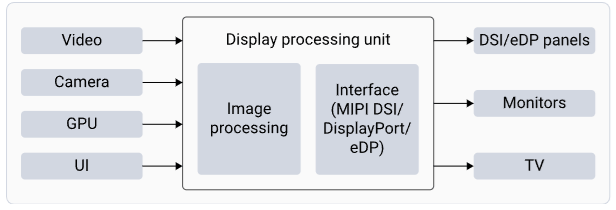
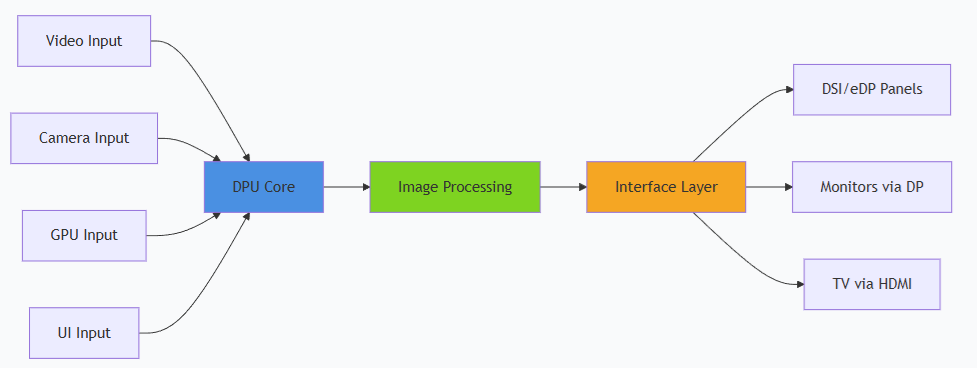
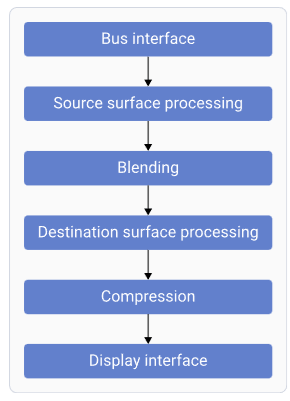
 | Component | Function |
| - | - |
| **Bus Interface** | Fetches data from memory |
| **Source Surface Processing** | Reads RGB/YUV surfaces; performs format conversion |
| **Blending** | Blends and mixes source surfaces |
| **Destination Surface Processing** | Converts and adjusts data for panel characteristics |
| **Compression** | Reduces bandwidth by sending compressed display buffers |
| **Display Interface** | Generates timings for connected display peripherals |
### Software Stack
| Component | Function |
| - | - |
| **Bus Interface** | Fetches data from memory |
| **Source Surface Processing** | Reads RGB/YUV surfaces; performs format conversion |
| **Blending** | Blends and mixes source surfaces |
| **Destination Surface Processing** | Converts and adjusts data for panel characteristics |
| **Compression** | Reduces bandwidth by sending compressed display buffers |
| **Display Interface** | Generates timings for connected display peripherals |
### Software Stack
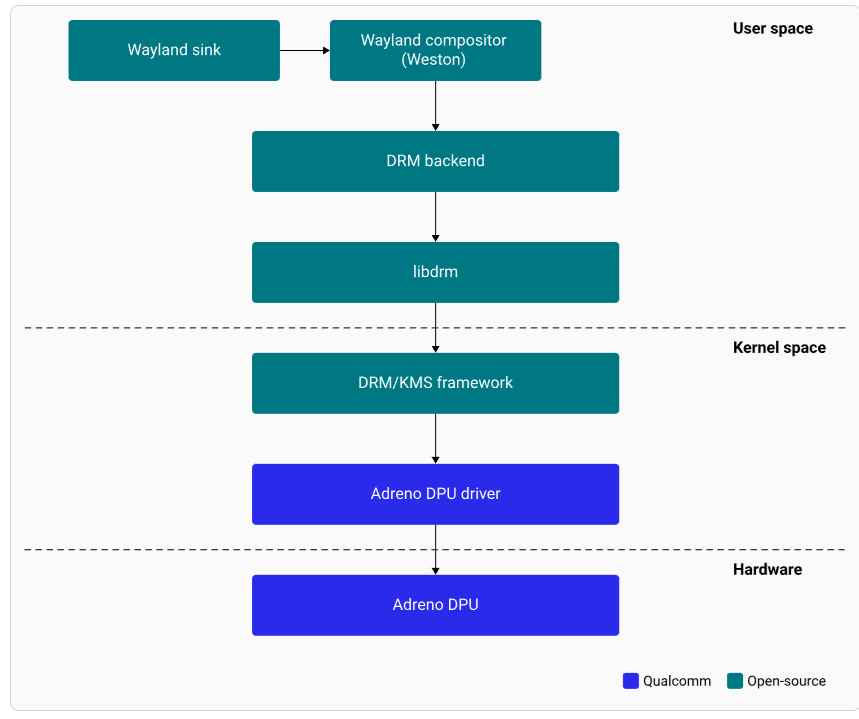
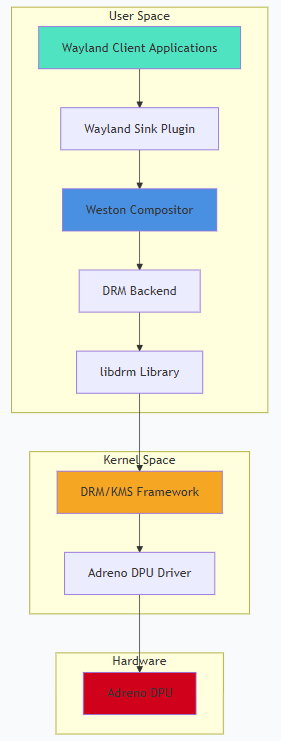 | Component | Description |
| - | - |
| **Wayland Sink** | Plug-in communicating with Weston to render the display |
| **Weston** | Wayland compositor; handles composition and rendering |
| **DRM Backend** | Manages Adreno DPU hardware resources and composition strategy |
| **libdrm** | Library providing DRM IOCTL APIs |
| **DRM/KMS Framework** | Kernel and userland interface for hardware features |
| **Adreno DPU Driver** | Manages all pixel data paths to panel interfaces |
## DisplayPort and DSI Interfaces
### eDP Interface
The processor has four eDP interfaces. eDP0 and eDP1 are routed to connectors JEDP0 and JEDP1.
| Component | Description |
| - | - |
| **Wayland Sink** | Plug-in communicating with Weston to render the display |
| **Weston** | Wayland compositor; handles composition and rendering |
| **DRM Backend** | Manages Adreno DPU hardware resources and composition strategy |
| **libdrm** | Library providing DRM IOCTL APIs |
| **DRM/KMS Framework** | Kernel and userland interface for hardware features |
| **Adreno DPU Driver** | Manages all pixel data paths to panel interfaces |
## DisplayPort and DSI Interfaces
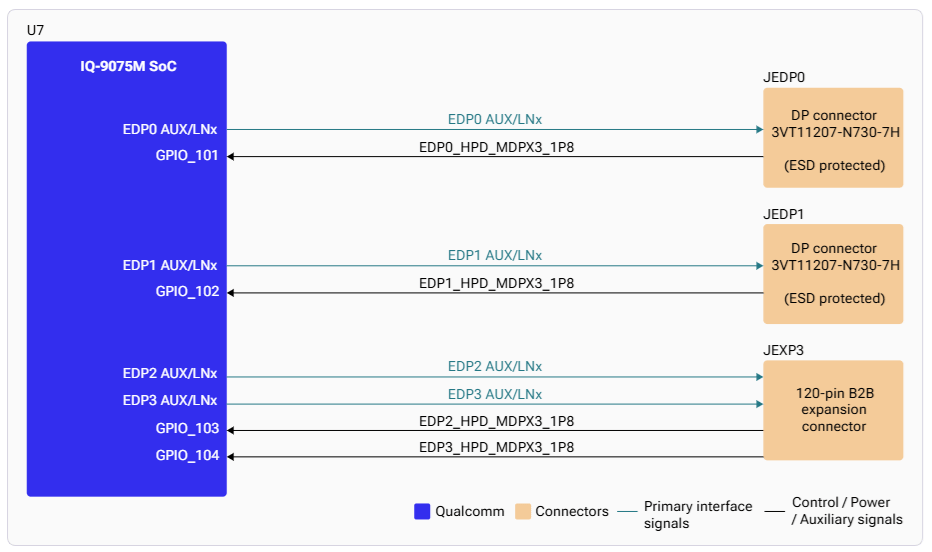
### eDP Interface
The processor has four eDP interfaces. eDP0 and eDP1 are routed to connectors JEDP0 and JEDP1.
 ### DSI Interface
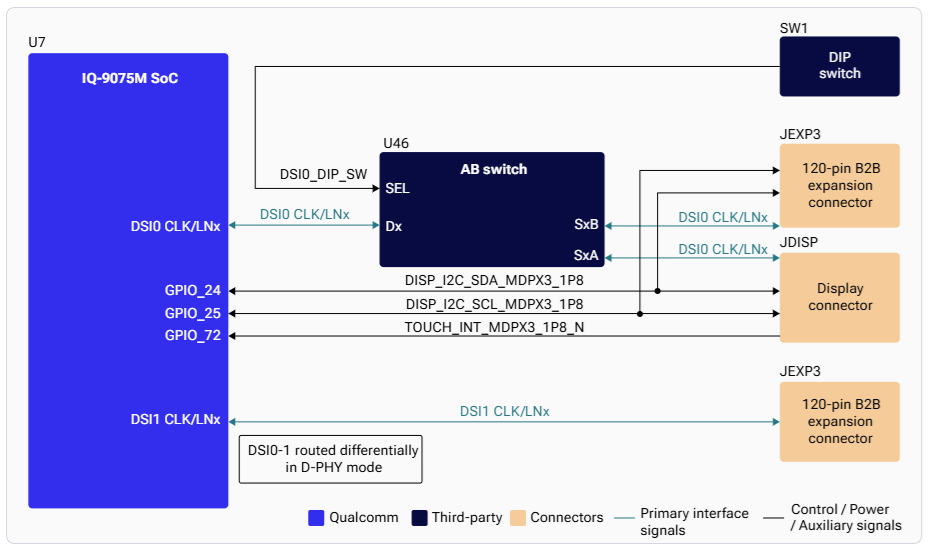
The IQ-9075 supports two 4-lane MIPI-DSI with VESA DSC v1.2. The DSI0 interface uses an analog switch allowing access through both the JDISP LCD connector and the JEXP1 board-to-board expansion connector.
### DSI Interface
The IQ-9075 supports two 4-lane MIPI-DSI with VESA DSC v1.2. The DSI0 interface uses an analog switch allowing access through both the JDISP LCD connector and the JEXP1 board-to-board expansion connector.
 ## Setup
### Connect DisplayPort
## Setup
### Connect DisplayPort
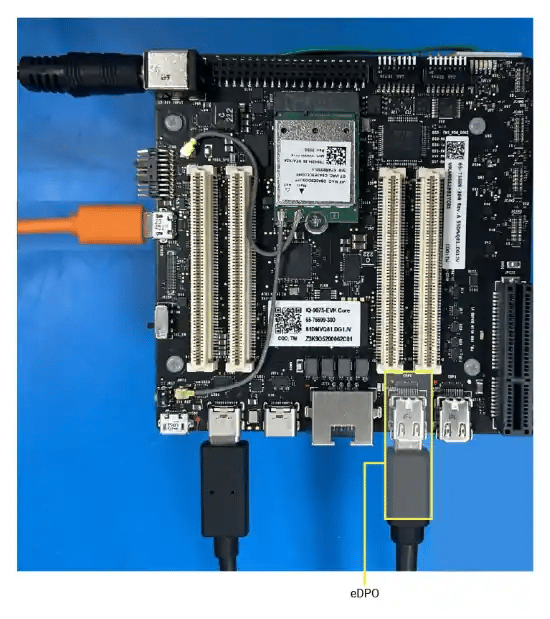
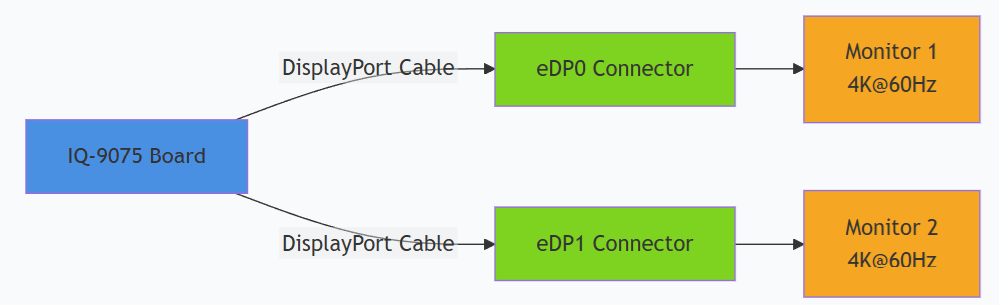
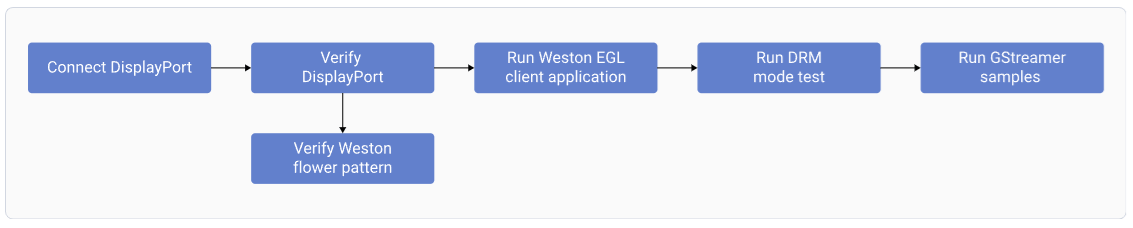
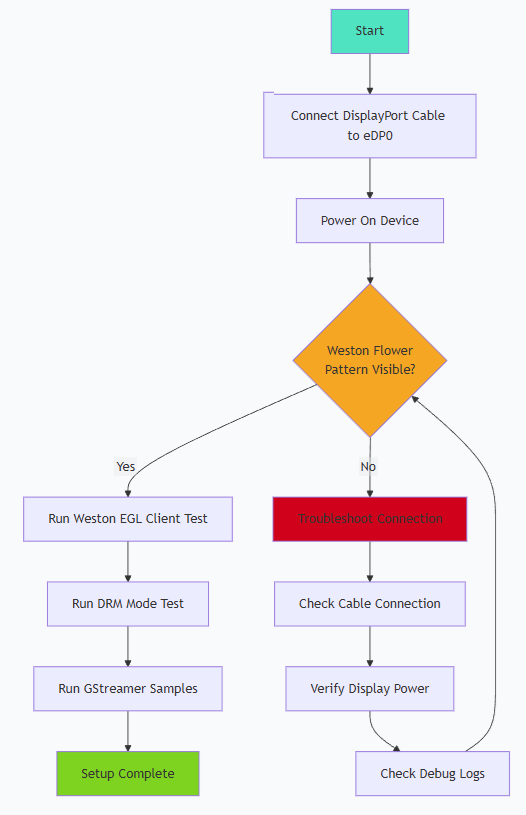 Connect a DisplayPort cable to the **eDP0** connector.
For dual display, connect a second DisplayPort cable to **eDP1**.
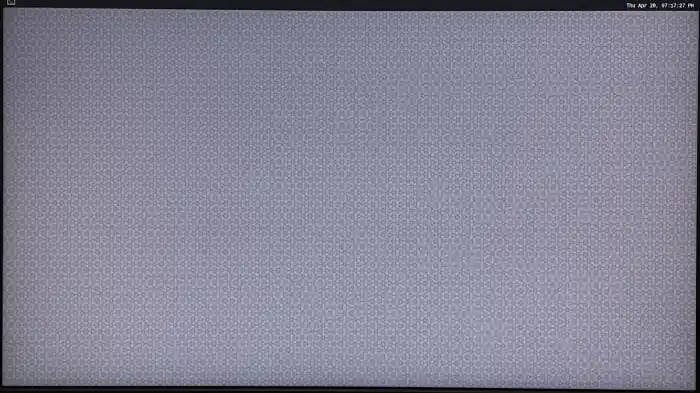
Power on the device. Weston launches automatically during boot and displays the flower pattern.
Connect a DisplayPort cable to the **eDP0** connector.
For dual display, connect a second DisplayPort cable to **eDP1**.
Power on the device. Weston launches automatically during boot and displays the flower pattern.
 ### SSH Access
Default credentials: **Username:** `ubuntu` / **Password:** `ubuntu`
## Testing and Verification
### Run Weston EGL Client
```bash theme={null}
weston-simple-egl
```
**Expected output:** A rotating triangle on the display at 60 fps.
```
300 frames in 5 seconds: 60.000000 fps
```
Press `Ctrl+C` to terminate.
### GStreamer Video Playback
### SSH Access
Default credentials: **Username:** `ubuntu` / **Password:** `ubuntu`
## Testing and Verification
### Run Weston EGL Client
```bash theme={null}
weston-simple-egl
```
**Expected output:** A rotating triangle on the display at 60 fps.
```
300 frames in 5 seconds: 60.000000 fps
```
Press `Ctrl+C` to terminate.
### GStreamer Video Playback
 Ensure video files are at `/etc/media` on the device.
```bash theme={null}
# H.264 playback
gst-launch-1.0 -v filesrc location=/etc/media/video.mp4 ! qtdemux ! queue ! \
h264parse ! v4l2h264dec capture-io-mode=4 output-io-mode=4 ! \
video/x-raw,format=NV12 ! waylandsink
# H.265/HEVC playback
gst-launch-1.0 -v filesrc location=/etc/media/video_hevc.mp4 ! qtdemux ! queue ! \
h265parse ! v4l2h265dec capture-io-mode=4 output-io-mode=4 ! \
video/x-raw,format=NV12 ! waylandsink
# With scaling
gst-launch-1.0 -v filesrc location=/etc/media/video.mp4 ! qtdemux ! queue ! \
h264parse ! v4l2h264dec capture-io-mode=4 output-io-mode=4 ! \
video/x-raw,width=1920,height=1080 ! waylandsink
```
**Key pipeline components:**
| Component | Purpose |
| - | - |
| `capture-io-mode=4` | Allocates decoded frames as DMABUF (zero-copy to display) |
| `output-io-mode=4` | Handles encoded bitstream buffers via DMABUF |
| `format=NV12` | NV12 pixel format for hardware-accelerated path |
| `waylandsink` | Renders video to Wayland display |
## Debugging
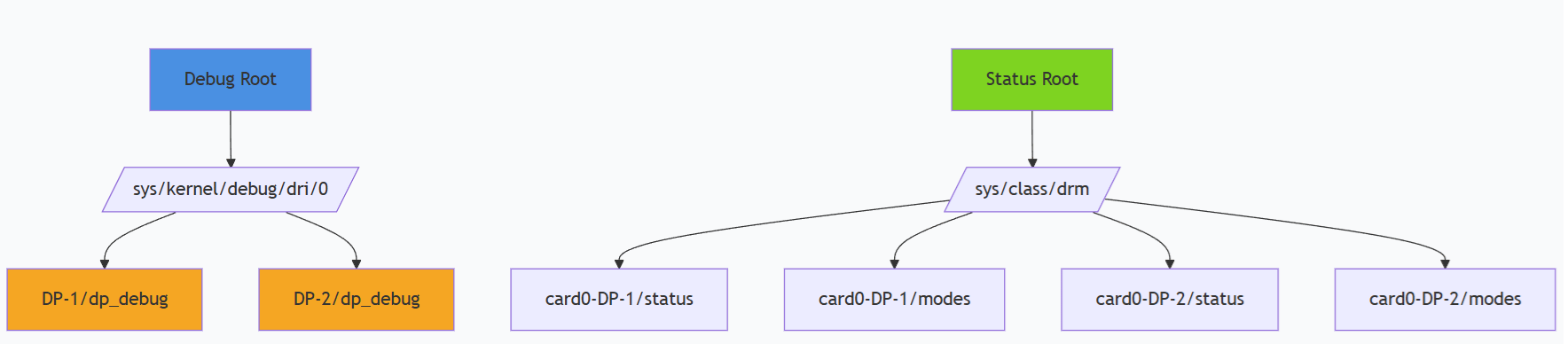
### Check DisplayPort Status
```bash theme={null}
# Cable status
sudo cat /sys/class/drm/card0-DP-1/status # eDP0
sudo cat /sys/class/drm/card0-DP-2/status # eDP1
# Available modes (EDID)
sudo cat /sys/class/drm/card0-DP-1/modes
# Detailed DP info
sudo cat /sys/kernel/debug/dri/0/DP-1/dp_debug
```
### Debug Filesystem
Ensure video files are at `/etc/media` on the device.
```bash theme={null}
# H.264 playback
gst-launch-1.0 -v filesrc location=/etc/media/video.mp4 ! qtdemux ! queue ! \
h264parse ! v4l2h264dec capture-io-mode=4 output-io-mode=4 ! \
video/x-raw,format=NV12 ! waylandsink
# H.265/HEVC playback
gst-launch-1.0 -v filesrc location=/etc/media/video_hevc.mp4 ! qtdemux ! queue ! \
h265parse ! v4l2h265dec capture-io-mode=4 output-io-mode=4 ! \
video/x-raw,format=NV12 ! waylandsink
# With scaling
gst-launch-1.0 -v filesrc location=/etc/media/video.mp4 ! qtdemux ! queue ! \
h264parse ! v4l2h264dec capture-io-mode=4 output-io-mode=4 ! \
video/x-raw,width=1920,height=1080 ! waylandsink
```
**Key pipeline components:**
| Component | Purpose |
| - | - |
| `capture-io-mode=4` | Allocates decoded frames as DMABUF (zero-copy to display) |
| `output-io-mode=4` | Handles encoded bitstream buffers via DMABUF |
| `format=NV12` | NV12 pixel format for hardware-accelerated path |
| `waylandsink` | Renders video to Wayland display |
## Debugging
### Check DisplayPort Status
```bash theme={null}
# Cable status
sudo cat /sys/class/drm/card0-DP-1/status # eDP0
sudo cat /sys/class/drm/card0-DP-2/status # eDP1
# Available modes (EDID)
sudo cat /sys/class/drm/card0-DP-1/modes
# Detailed DP info
sudo cat /sys/kernel/debug/dri/0/DP-1/dp_debug
```
### Debug Filesystem
 | Command | Purpose |
| - | - |
| `dmesg \| grep -i display` | Display-related kernel messages |
| `dmesg \| grep -i drm` | DRM subsystem messages |
| `cat /sys/kernel/debug/dri/0/state` | Current DRM state |
| `cat /proc/interrupts \| grep mdss` | Display interrupts |
## Troubleshooting
```bash theme={null}
cat /sys/class/drm/card0-DP-1/status
sudo dmesg | grep -i "dp\|display\|drm"
```
* Verify cable connection to eDP0 or eDP1
* Check display power and input source selection
```bash theme={null}
cat /sys/class/drm/card0-DP-1/modes
```
Verify the display supports the desired resolution.
```bash theme={null}
journalctl -u weston
ls -l /dev/dri/card0
ls -l /dev/dri/
```
Manually launch Weston with debug output:
```bash theme={null}
weston --idle-time=0 --continue-without-input --log=/home/ubuntu/weston.log
```
```bash theme={null}
cat /sys/class/drm/card0-DP-1/status
cat /sys/class/drm/card0-DP-2/status
cat /sys/kernel/debug/dri/0/state
```
* Verify both cables are connected to eDP0 and eDP1
* Check Weston configuration for multi-display support
```bash theme={null}
ps -A | grep weston
killall weston
sudo systemctl start weston-autostart
export XDG_RUNTIME_DIR=/run/user/$(id -u ubuntu)
export WAYLAND_DISPLAY=wayland-1
```
## Resources
| Resource | URL |
| - | - |
| DRM Internals | [https://www.kernel.org/doc/html/v5.4/gpu/drm-internals.html](https://www.kernel.org/doc/html/v5.4/gpu/drm-internals.html) |
| Kernel Mode Setting (KMS) | [https://www.kernel.org/doc/html/v5.4/gpu/drm-kms.html](https://www.kernel.org/doc/html/v5.4/gpu/drm-kms.html) |
| Wayland Protocol | [https://wayland.freedesktop.org/](https://wayland.freedesktop.org/) |
| Weston Compositor | [https://gitlab.freedesktop.org/wayland/weston](https://gitlab.freedesktop.org/wayland/weston) |
| GStreamer Documentation | [https://gstreamer.freedesktop.org/documentation/](https://gstreamer.freedesktop.org/documentation/) |
| Command | Purpose |
| - | - |
| `dmesg \| grep -i display` | Display-related kernel messages |
| `dmesg \| grep -i drm` | DRM subsystem messages |
| `cat /sys/kernel/debug/dri/0/state` | Current DRM state |
| `cat /proc/interrupts \| grep mdss` | Display interrupts |
## Troubleshooting
```bash theme={null}
cat /sys/class/drm/card0-DP-1/status
sudo dmesg | grep -i "dp\|display\|drm"
```
* Verify cable connection to eDP0 or eDP1
* Check display power and input source selection
```bash theme={null}
cat /sys/class/drm/card0-DP-1/modes
```
Verify the display supports the desired resolution.
```bash theme={null}
journalctl -u weston
ls -l /dev/dri/card0
ls -l /dev/dri/
```
Manually launch Weston with debug output:
```bash theme={null}
weston --idle-time=0 --continue-without-input --log=/home/ubuntu/weston.log
```
```bash theme={null}
cat /sys/class/drm/card0-DP-1/status
cat /sys/class/drm/card0-DP-2/status
cat /sys/kernel/debug/dri/0/state
```
* Verify both cables are connected to eDP0 and eDP1
* Check Weston configuration for multi-display support
```bash theme={null}
ps -A | grep weston
killall weston
sudo systemctl start weston-autostart
export XDG_RUNTIME_DIR=/run/user/$(id -u ubuntu)
export WAYLAND_DISPLAY=wayland-1
```
## Resources
| Resource | URL |
| - | - |
| DRM Internals | [https://www.kernel.org/doc/html/v5.4/gpu/drm-internals.html](https://www.kernel.org/doc/html/v5.4/gpu/drm-internals.html) |
| Kernel Mode Setting (KMS) | [https://www.kernel.org/doc/html/v5.4/gpu/drm-kms.html](https://www.kernel.org/doc/html/v5.4/gpu/drm-kms.html) |
| Wayland Protocol | [https://wayland.freedesktop.org/](https://wayland.freedesktop.org/) |
| Weston Compositor | [https://gitlab.freedesktop.org/wayland/weston](https://gitlab.freedesktop.org/wayland/weston) |
| GStreamer Documentation | [https://gstreamer.freedesktop.org/documentation/](https://gstreamer.freedesktop.org/documentation/) |