> ## Documentation Index
> Fetch the complete documentation index at: https://dragonwingdocs-staging.qualcomm.com/llms.txt
> Use this file to discover all available pages before exploring further.
# Qualcomm® VSCode Extension
> An integrated development environment for Qualcomm® development kits — right inside Visual Studio Code.
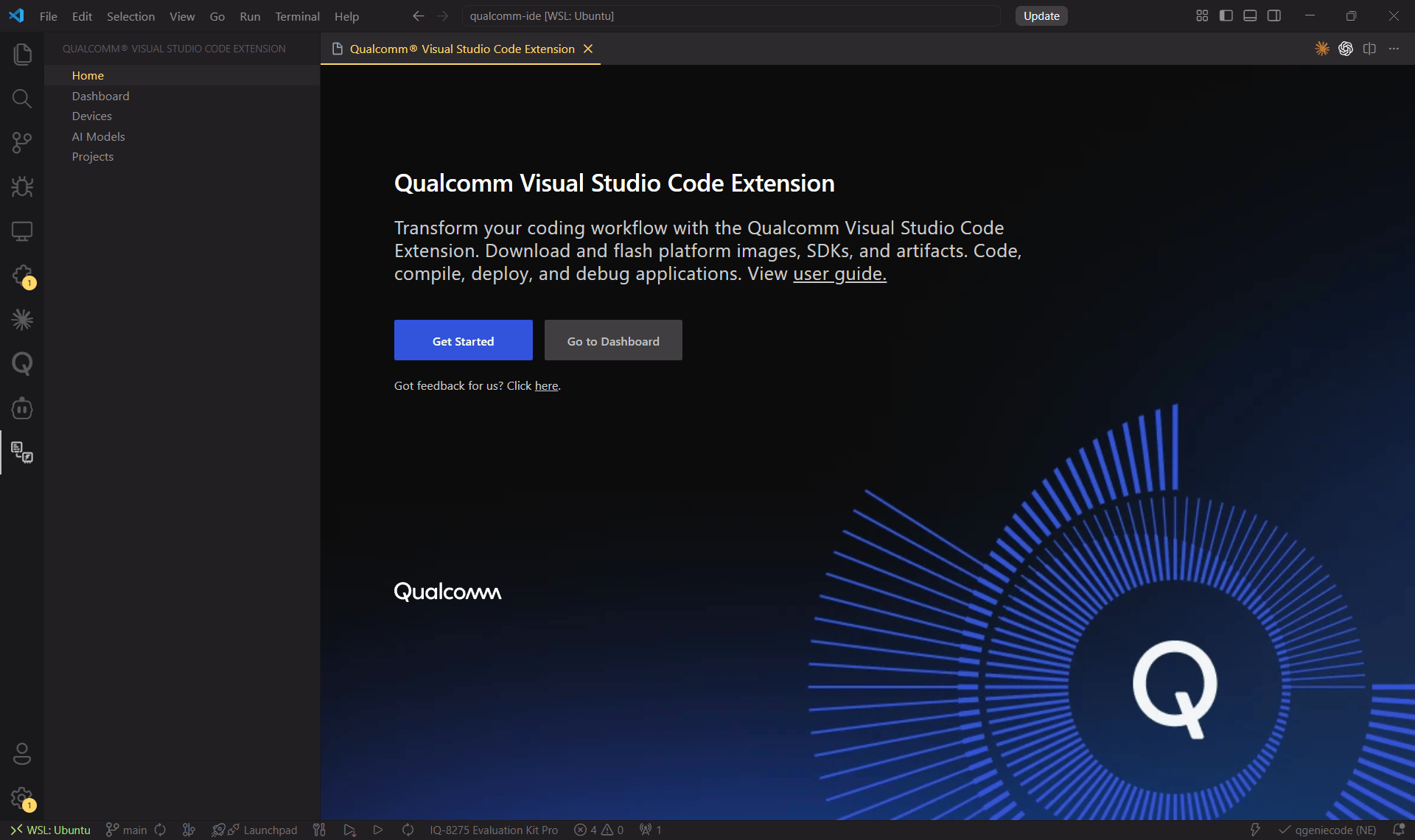 ## What is the Qualcomm VSCode Extension?
The **Qualcomm® Visual Studio Code Extension (QVSCE)** turns VS Code into a complete embedded-Linux development environment for Qualcomm® development kits. Everything you need — from firmware flashing to AI-model profiling — is available without leaving your editor.
Download platform images and SDKs, then flash them to your device in a
guided 5-step workflow.
Compile, deploy and source-level debug applications with full IntelliSense
support.
Start from ready-made templates that match the pre-installed device apps.
Browse, download, profile and deploy AI models via Qualcomm AI Hub directly
from the IDE.
## Key Features
Compile and flash platform images and Qualcomm-powered SDKs seamlessly —
then build, deploy, and debug applications from the same IDE window.
Interact with AI models using **Qualcomm AI Hub**. Optimize and profile
models for your target device without switching tools.
Connect via **SSH** (Qualcomm Linux & Ubuntu). Add any device by IP address.
Auto-configured `.vscode` workspace settings enable code search,
highlighting, autocompletion, input prompts, and symbol inspection.
## Host Machine Requirements
If setting up on your host machine, it must run one of the following:
## Choose Your Setup Path
Run the VS Code Extension on your PC and connect to the dev kit over USB or
SSH.
Run the VS Code Extension directly on the dev kit — no host machine
required.
## What is the Qualcomm VSCode Extension?
The **Qualcomm® Visual Studio Code Extension (QVSCE)** turns VS Code into a complete embedded-Linux development environment for Qualcomm® development kits. Everything you need — from firmware flashing to AI-model profiling — is available without leaving your editor.
Download platform images and SDKs, then flash them to your device in a
guided 5-step workflow.
Compile, deploy and source-level debug applications with full IntelliSense
support.
Start from ready-made templates that match the pre-installed device apps.
Browse, download, profile and deploy AI models via Qualcomm AI Hub directly
from the IDE.
## Key Features
Compile and flash platform images and Qualcomm-powered SDKs seamlessly —
then build, deploy, and debug applications from the same IDE window.
Interact with AI models using **Qualcomm AI Hub**. Optimize and profile
models for your target device without switching tools.
Connect via **SSH** (Qualcomm Linux & Ubuntu). Add any device by IP address.
Auto-configured `.vscode` workspace settings enable code search,
highlighting, autocompletion, input prompts, and symbol inspection.
## Host Machine Requirements
If setting up on your host machine, it must run one of the following:
## Choose Your Setup Path
Run the VS Code Extension on your PC and connect to the dev kit over USB or
SSH.
Run the VS Code Extension directly on the dev kit — no host machine
required.