> ## Documentation Index
> Fetch the complete documentation index at: https://dragonwingdocs-staging.qualcomm.com/llms.txt
> Use this file to discover all available pages before exploring further.
# Dashboard
> The main hub of the Qualcomm VSCode Extension — manage devices, downloads, SDKs, and AI models.
## Overview
The **Dashboard** is the central command center of the extension. Reach it from the Qualcomm icon in the Activity Bar.
View connected devices, set the active device, and manage connections over
SSH.
Browse downloaded device software and SDKs. Flash firmware directly from the
UI.
Manage sample projects and templates. Import, reset, and open in the editor.
Discover AI models, optimize them with Qualcomm AI Hub, and profile
performance.
## Active Device
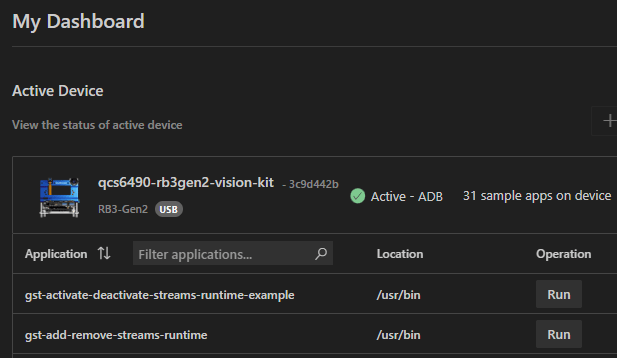
The device pane shows the device connected to the host, its metadata, and sample apps available on the device. You can execute pre-installed apps and view their output directly from this pane.
 ## Projects
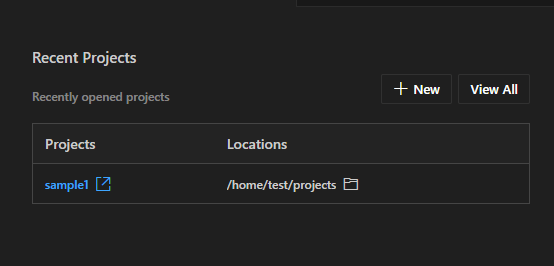
The projects section shows recently opened projects. Open existing projects, create new ones, or view all projects from this section.
## Projects
The projects section shows recently opened projects. Open existing projects, create new ones, or view all projects from this section.
 ## AI Models
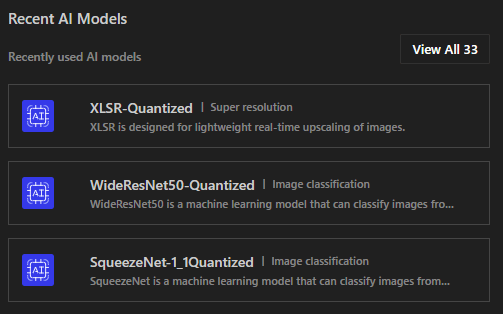
The AI models section lists recently used models and models available on Qualcomm AI Hub.
## AI Models
The AI models section lists recently used models and models available on Qualcomm AI Hub.
 ## Downloads
The Downloads section has four tabs: **Operating System**, **SDKs**, **Tools**, and **Extensions**.
### Operating System tab
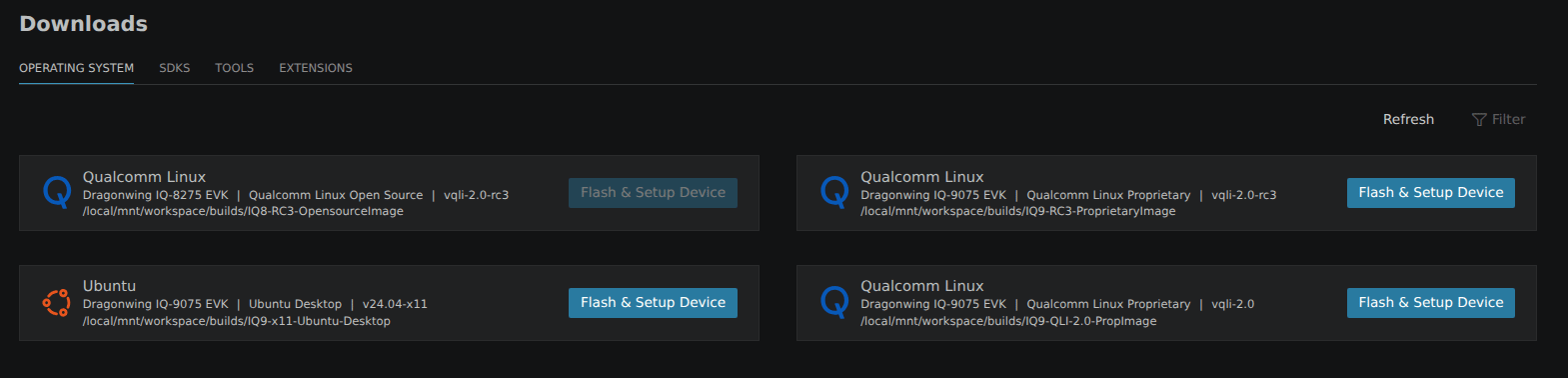
Lists available OS images. Each entry shows the device, OS variant, version, and local path. Click **Flash & Setup Device** to flash the image.
## Downloads
The Downloads section has four tabs: **Operating System**, **SDKs**, **Tools**, and **Extensions**.
### Operating System tab
Lists available OS images. Each entry shows the device, OS variant, version, and local path. Click **Flash & Setup Device** to flash the image.
 ### SDKs tab
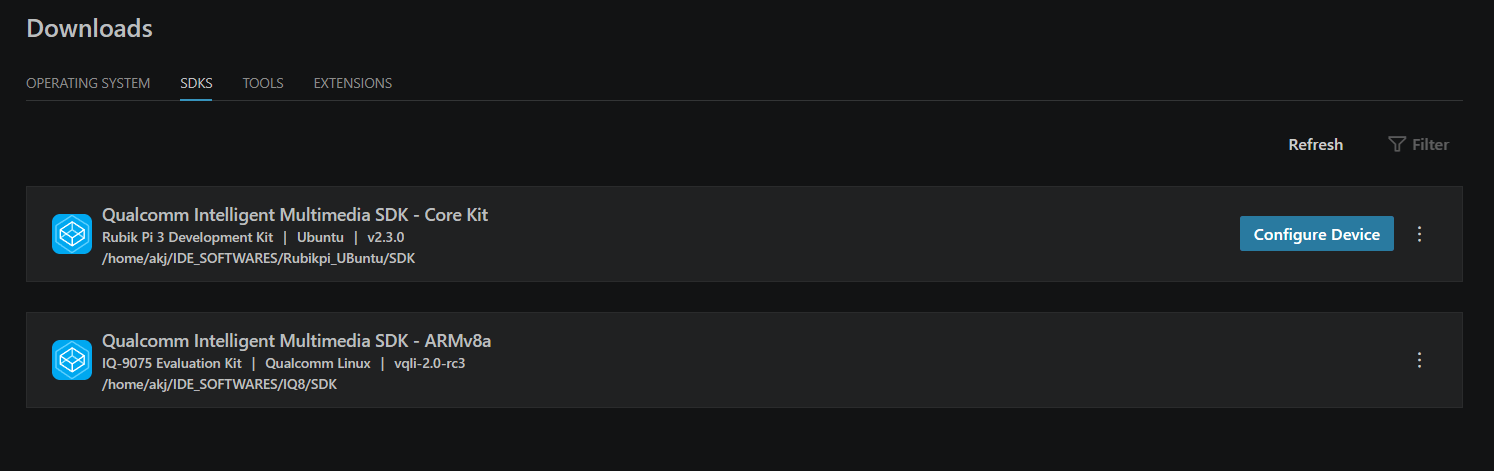
Lists SDKs available. Click **Configure Device** to run the post-install setup script on the active device.
### SDKs tab
Lists SDKs available. Click **Configure Device** to run the post-install setup script on the active device.
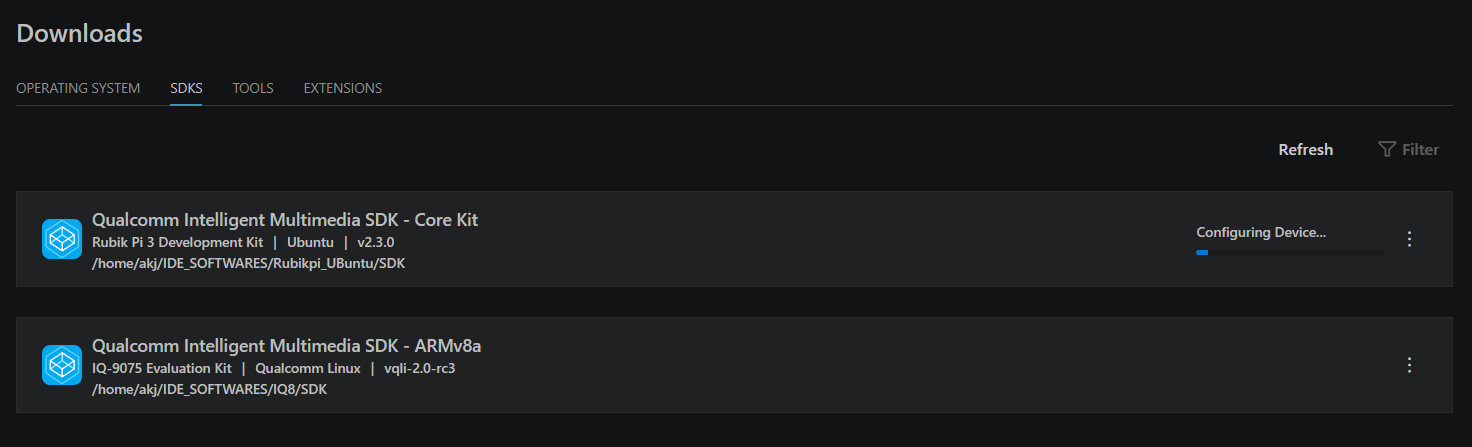
 While configuration runs, the row shows **Configuring Device...** with a progress indicator:
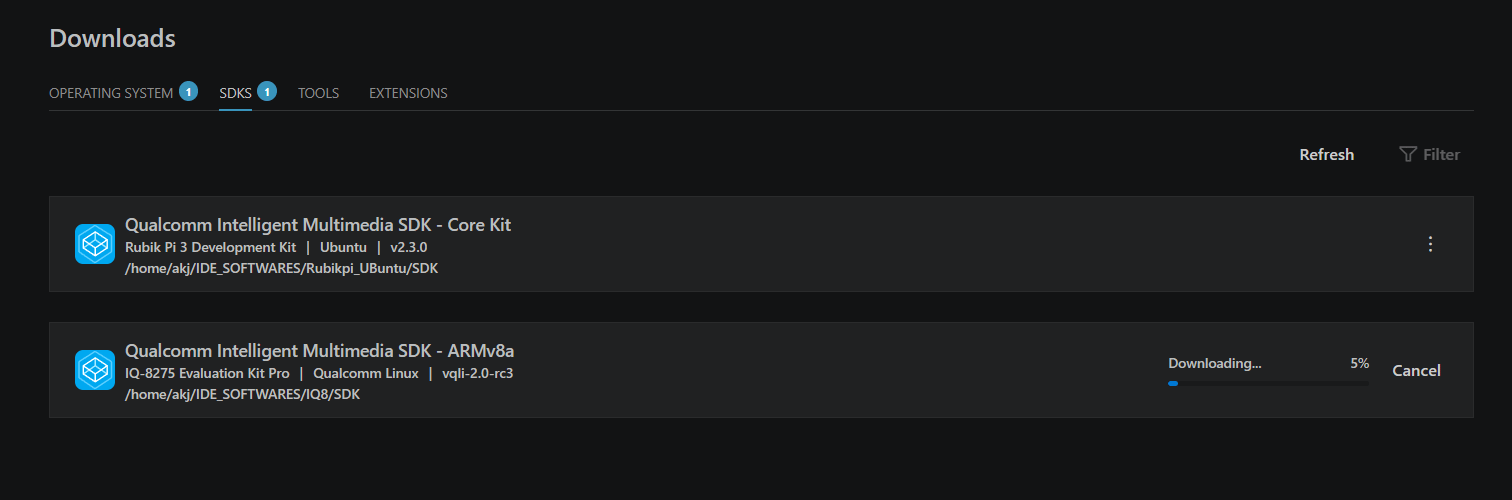
 When downloading an SDK, the row shows a progress bar with percentage and a **Cancel** button:
 ### Device flashing
After the OS image is available, click **Flash & Setup Device** next to the image. Put the device into Emergency Download (EDL) mode and start the flashing process.
### Device flashing
After the OS image is available, click **Flash & Setup Device** next to the image. Put the device into Emergency Download (EDL) mode and start the flashing process.
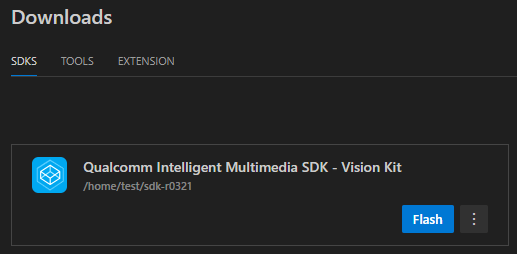
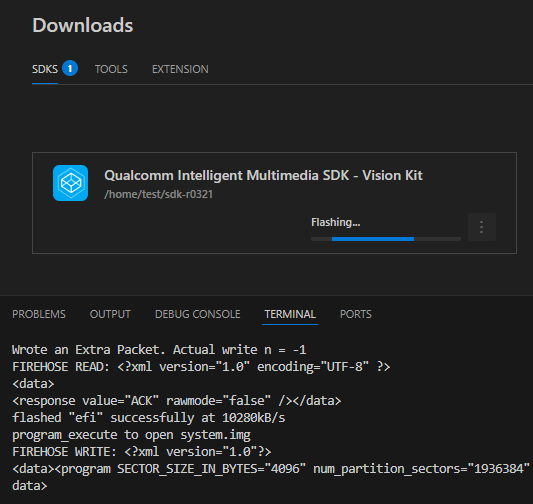
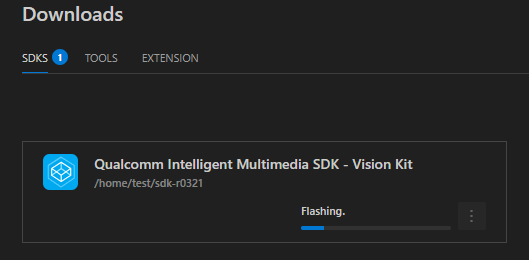 The extension uses [Qualcomm Device Loader (QDL)](https://softwarecenter.qualcomm.com/catalog/item/Qualcomm_Device_Loader) to write the image. Progress is shown in the VS Code Terminal. Once complete, the device reboots and appears in the Active Device pane.
 ## Dashboard sections at a glance
| Section | What you do here |
| - | - |
| Devices | Activate a device, view SSH status |
| Downloads | Flash firmware, configure device SDK |
| Projects | Import templates, open sample apps |
| AI Hub | Browse models, submit optimization jobs |
## SDK — Configure Device
After flashing, run **Dashboard → SDK → Configure Device** to execute the
post-flash initialization script. This step is **mandatory** for the device to
function correctly.
## Dashboard sections at a glance
| Section | What you do here |
| - | - |
| Devices | Activate a device, view SSH status |
| Downloads | Flash firmware, configure device SDK |
| Projects | Import templates, open sample apps |
| AI Hub | Browse models, submit optimization jobs |
## SDK — Configure Device
After flashing, run **Dashboard → SDK → Configure Device** to execute the
post-flash initialization script. This step is **mandatory** for the device to
function correctly.