> ## Documentation Index
> Fetch the complete documentation index at: https://dragonwingdocs-staging.qualcomm.com/llms.txt
> Use this file to discover all available pages before exploring further.

# Enable pick-and-place in the simulator with simulation_sample_pick_and_place

This pick-and-place simulated sample application uses the C++ based robotic manipulation ROS 2 node `simulation_sample_pick_and_place` to demonstrate autonomous pick-and-place operations using `MoveIt2` for motion planning and `Gazebo` for physics simulation.

<Note>
  **Note**

  For more information, see [simulation\_sample\_pick\_and\_place](https://github.com/qualcomm-qrb-ros/qrb_ros_samples/tree/stable-simulation_sample_pick_and_place/1.0.1) on GitHub.
</Note>

<video
  autoPlay
  muted
  loop
  playsInline
  width={2024}
  height={824}
  src="https://mintcdn.com/qualcomm-staging/blZpKs_b9On5nj-y/archives/2.1/SDKs/QIR-SDK-2.0/media/80-65220-2-qirp-sdk-qsg/simulation-sample-pick-and-place.mp4?fit=max&auto=format&n=blZpKs_b9On5nj-y&q=85&s=c902651e83eabce2ab3a6dbfdf19a5d1"
  style={{
width: "100%",
display: "block",
margin: "0 auto" }}
  data-path="archives/2.1/SDKs/QIR-SDK-2.0/media/80-65220-2-qirp-sdk-qsg/simulation-sample-pick-and-place.mp4"
/>

<p style={{ textAlign: 'center', fontWeight: 'bold' }}>
  Figure: Sample effects of `simulation_sample_pick_and_place`
</p>

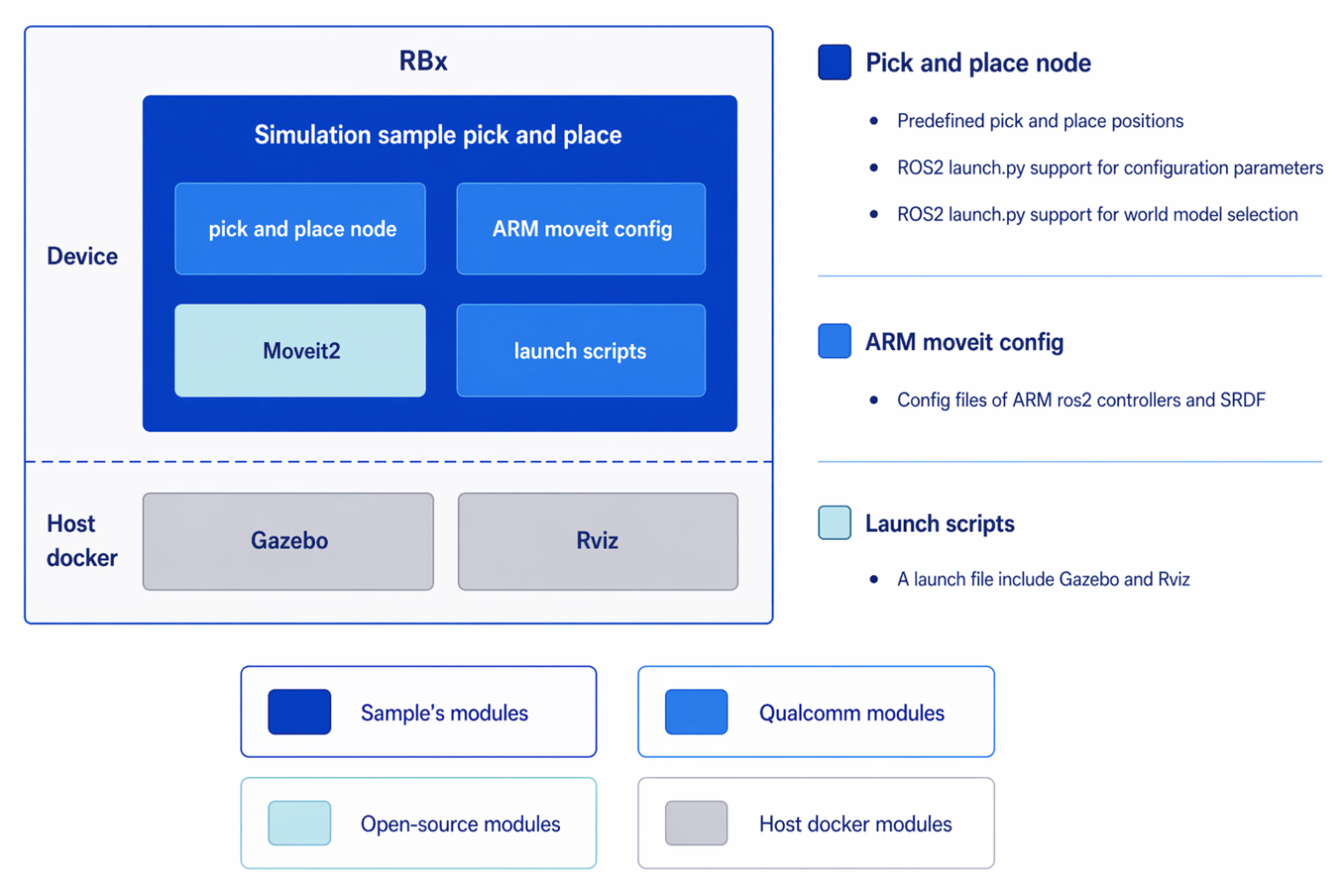
## Pipeline flow for `simulation_sample_pick_and_place`
<img src="https://mintcdn.com/qualcomm-staging/blZpKs_b9On5nj-y/archives/2.1/SDKs/QIR-SDK-2.0/media/80-65220-2-qirp-sdk-qsg/simulation-sample-pick-and-place-architecture.png?fit=max&auto=format&n=blZpKs_b9On5nj-y&q=85&s=d0bcb14b09e2bdd17cfa7428510273da" alt="image" width="1536" height="1024" data-path="archives/2.1/SDKs/QIR-SDK-2.0/media/80-65220-2-qirp-sdk-qsg/simulation-sample-pick-and-place-architecture.png" />

## ROS nodes used in the `simulation_sample_pick_and_place `pipeline

| ROS node | Description |
| :- | :- |
| `qrb_ros_simulation` | A ROS package that sets up the Qualcomm robotic simulation environment. For details, see [QRB ROS Simulation](https://github.com/qualcomm-qrb-ros/qrb_ros_simulation). |
| `simulation_sample_pick_and_place` | Source code for pick-and-place. |
| `moveit_ros_move_group` | A ROS package that provides the MoveIt ROS MoveGroup interface. For details, see [MoveIt MoveGroup](https://moveit.picknik.ai/humble/doc/examples/move_group_interface/move_group_interface_tutorial.html). |

## ROS topics used in the `simulation_sample_pick_and_place` pipeline

<table>
  <thead>
    <tr>
      <th style={{width: '35%' }}>ROS Topics</th>
      <th style={{ width: '25%' }}>Type</th>
      <th astyle={{ width: '40%' }}>Description</th>
    </tr>
  </thead>

  <tbody>
    <tr>
      <td align="left"><code>/joint\_states</code></td>
      <td align="left"><code>sensor\_msgs/msg/JointState</code></td>
      <td align="left">Real-time data for all robot joints control information.</td>
    </tr>

    <tr>
      <td align="left"><code>/hand\_controller/controller\_state</code></td>
      <td align="left"><code>control\_msgs.msg.ControllerState</code></td>
      <td align="left">Current state and status information of the gripper controller.</td>
    </tr>

    <tr>
      <td align="left"><code>/rm\_group\_controller/controller\_state</code></td>
      <td align="left"><code>control\_msgs.msg.ControllerState</code></td>
      <td align="left">Current state and status information of the robotic arm controller.</td>
    </tr>

    <tr>
      <td align="left"><code>/robot\_description</code></td>
      <td align="left"><code>std\_msgs.msg.String</code></td>
      <td align="left">URDF robot description in XML format for robot modeling and visualization.</td>
    </tr>

    <tr>
      <td align="left"><code>/robot\_description\_semantic</code></td>
      <td align="left"><code>std\_msgs.msg.String</code></td>
      <td align="left">SRDF semantic robot description for MoveIt planning and configuration.</td>
    </tr>
  </tbody>
</table>

## Prerequisites

<Accordion title="Try me">
  You have completed the following settings in [Set up the environment for running sample applications](./set-up-env-for-sample-app).

  * Set up the device
  * Set up the host docker

  ### Set up the simulation environment

  <Steps>
    <Step title="Build the simulation environment on your host computer">
      Complete the following to build the Qualcomm robotic simulation environment according to the **README** of [QRB ROS Simulation](https://github.com/qualcomm-qrb-ros/qrb_ros_simulation). Ensure that the device and the host are on the same local network and can communicate with each other through ROS communication.

      1. Set up development environment on Ubuntu24.04 host or Docker.
      2. Build from source.
    </Step>

    <Step title="Launch the Gazebo simulation environment">
      Run the `qrb ros simulation` on the host. Open a terminal and run the following commands to launch the `Gazebo` simulation environment:

      ```bash title="SSH Session" theme={null}
      # Set the ROS_DOMAIN_ID
      source install/setup.sh
      export ROS_DOMAIN_ID=55
      ros2 launch qrb_ros_sim_gazebo gazebo_rml_63_gripper.launch.py world_model:=warehouse initial_x:=2.2 initial_y:=-2 initial_z:=1.025 initial_yaw:=3.14159 initial_pitch:=0.0 initial_roll:=0.0 use_sim_time:=true
      ```
    </Step>

    <Step title="Launch the controller manager">
      Select the `Play` button in `Gazebo` to start the simulation, and then open another terminal and run the following commands to launch the controller manager:

      ```bash title="SSH Session" theme={null}
      # Set the ROS_DOMAIN_ID
      source install/setup.sh
      export ROS_DOMAIN_ID=55
      ros2 launch qrb_ros_sim_gazebo gazebo_rml_63_gripper_load_controller.launch.py
      ```
    </Step>
  </Steps>
</Accordion>

## Run out-of-the-box `simulation_sample_pick_and_place`

<Accordion title="Try me">
  <Steps>
    <Step title="Launch the moveit ROS move group">
      On the development kit, open a terminal and run the following commands:

      ```bash title="SSH Session" theme={null}
      # setup runtime environment
      source /usr/share/qirp-setup.sh
      # Set the ROS_DOMAIN_ID
      export ROS_DOMAIN_ID=55
      ros2 launch simulation_sample_pick_and_place simulation_sample_pick_and_place.launch.py
      ```

      If the ROS node is launched successfully, the log starting from `[move_group-1] You can start planning now!` appears.
    </Step>

    <Step title="Launch the pick-and-place sample application">
      Open another terminal and run the following commands:

      ```bash title="SSH Session" theme={null}
      # setup runtime environment
      source /usr/share/qirp-setup.sh
      # Set the ROS_DOMAIN_ID
      export ROS_DOMAIN_ID=55
      ros2 run simulation_sample_pick_and_place qrb_ros_arm_pick_place
      ```
    </Step>
  </Steps>
</Accordion>

**Result**

If the ROS node launches successfully, you can see the robot arm performing the pick-and-place operation in Gazebo.

## Build and run `simulation_sample_pick_and_place`

<Accordion title="Try me">
  <Note>
    **Note**

    * `<qir_version>`: Version of the QIR SDK, see [QIR SDK 2.0 Release Notes](./release-notes).
    * `<qir_decompressed_path>`: The path where you decompress the QIR SDK.
  </Note>

  <Steps>
    <Step title="Build and package on the host computer">
      1. Build the sample application project.
         ```bash title="SSH Session" theme={null}
         # Set up the QIR SDK  environment
         tar -zxf qirp-sdk_<qir_version>.tar.gz
         cd <qir_decompressed_path>/qirp-sdk
         source setup.sh
         # Build the sample
         cd <qir_decompressed_path>/qirp-sdk/qirp-samples/robotics/simulation_sample_pick_and_place
         chmod +x scripts/build.sh
         bash scripts/build.sh
         ```
      2. Package and push the sample application to the device.
         ```bash title="SSH Session" theme={null}
         # package and push build result of sample
         cd <qir_decompressed_path>/qirp-sdk/qirp-amples/robotics/simulation_sample_pick_and_place/install
         tar -czf simulation_sample_pick_and_place.tar.gz lib share
         scp simulation_sample_pick_and_place.tar.gz root@[ip-addr]:/opt/
         ```
    </Step>

    <Step title="Install and run on the development kit">
      1. Install the sample application.
         ```bash title="SSH Session" theme={null}
         # Install sample package
         tar --no-overwrite-dir --no-same-owner -zxf /opt/simulation_sample_pick_and_place.tar.gz -C /usr/ros/jazzy/
         ```
      2. Run the sample application with the steps in [Run out-of-the-box simulation\_sample\_pick\_and\_place](#run-out-of-the-box-simulation_sample_pick_and_place).
    </Step>
  </Steps>
</Accordion>
