> ## Documentation Index
> Fetch the complete documentation index at: https://dragonwingdocs-staging.qualcomm.com/llms.txt
> Use this file to discover all available pages before exploring further.
# Run using QDemo Application
> Run sample applications on the Qualcomm Dragonwing IQ-9075 Evaluation Kit using preinstalled Qdemo GUI.
The Qualcomm® DragonwingTM IQ-9075 Evaluation Kit (EVK) is preinstalled with Qdemo, a graphical user interface (GUI) application designed to run sample applications without a host setup. The Qdemo application allows you to experience the AI and multimedia capabilities of the development kit with just a few clicks.
Qualcomm Linux® provides the following types of sample applications for use cases such as retail, Qualcomm Edge AI Box Solutions, and IP camera:
* **Multimedia sample applications**, which show camera, video, and audio functionalities.
* **AI sample applications**, which show AI and machine learning (ML) capabilities.
The following table lists the sample applications that you can run using Qdemo. For the complete list of available applications, see [Sample applications](https://imsdkdocs.qualcomm.com/sample-application/ai-sample-applications).
**Table: List of applications supported in Qdemo**
| Application | Description |
| - | - |
| **Multimedia applications** | |
| DashCamera | Streams from two camera sensors simultaneously and displays the feeds side by side on a screen. This application is suitable for dash cameras or stereo camera use cases, which require capturing videos from multiple cameras for viewing or archiving. |
| Record live video | Records camera feed and saves videos up to 30 sec. This application uses a single camera that supports outputs such as preview and encoding. |
| VideoWall | Plays MP4 AVC (H.264) videos concurrently and composes them on a video wall display. Before running this application, ensure that you have a recorded video or record one using the evaluation kit. |
| **AI applications** | |
| Daisychain Pose | Performs cascaded object detection and classification on the images streamed from a camera. |
| FaceDetection | Processes inputs from a camera and uses the Qualcomm® AI Hub detection model to produce a preview. |
| Multistream | Shows AI inference (object detection) on input streams from a camera or a file. |
| ObjectDetection | Detects objects in camera streams. |
| Parallel-AI-Fusion | Detects and classifies objects, detects poses, and segments images from a camera input stream. |
## Prerequisites
* **Qualcomm Linux multimedia image**: The device must be flashed with the prebuilt Qualcomm Linux multimedia image (`qcom-multimedia-proprietary-image`), which includes Qdemo and the Qualcomm IM SDK.
* **HDMI monitor**: Connect to the device to view Qdemo output.
* **Mouse and keyboard**: Required to interact with the Weston desktop and the Qdemo application.
* [**Set up the debug UART**](https://dragonwingdocs.qualcomm.com/Linux/devices/iq9075-evk/set-up-the-device#set-up-the-debug-uart): The debug UART provides serial-console access to the device, allowing you to sign in and verify the device after flashing.
* [**Connect to Wi-Fi**](https://dragonwingdocs.qualcomm.com/Linux/devices/iq9075-evk/set-up-the-device#wi-fi): AI sample applications require a Wi-Fi connection to download models and labels from GitHub. Multimedia applications don't require Wi-Fi.
* **Verify GStreamer installation**:
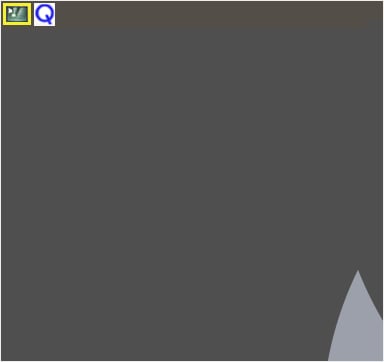
1. Run the `weston terminal` by clicking on the terminal icon on the screen:
 2. Verify the Gstreamer installation by running the following command:
```bash theme={null}
gst-launch-1.0 --version
```
* **USB camera (optional)**: Required for camera-based sample applications. If connected, select it from the `Source` list in Qdemo.
To use a camera, enable `camx` on the device by running the following commands on the target device:
```shell theme={null}
echo -n "camx" > /var/data
efivar -n 882f8c2b-9646-435f-8de5-f208ff80c1bd-VendorDtbOverlays -w -f /var/data
efivar -n 882f8c2b-9646-435f-8de5-f208ff80c1bd-VendorDtbOverlays -p
sync
reboot
```
## Run sample applications using Qdemo
To run sample applications using Qdemo, do the following:
Connect the mouse, keyboard, camera, monitor, and power cable to the device.
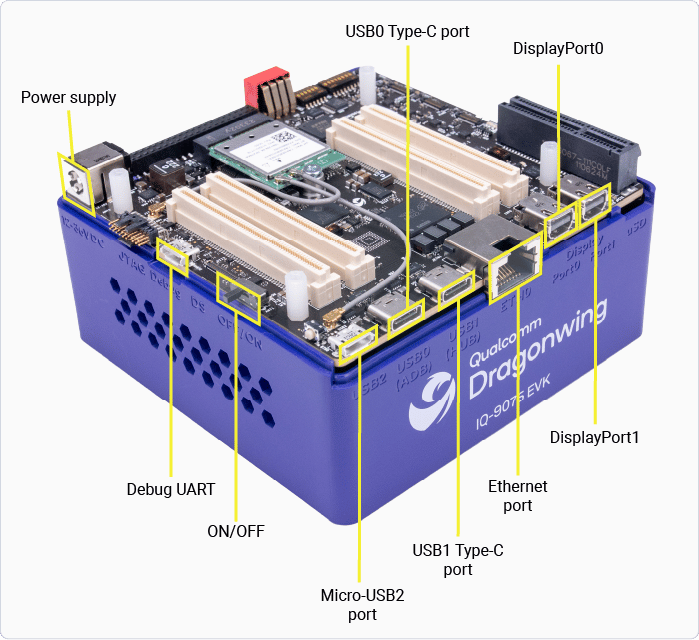
The following figure shows the display ports, USB ports, Ethernet port, power supply port and power on-off switch. Connect the peripheral devices to these ports, including a USB or MIPI camera. For display, connect one end of the Mini DisplayPort cable to **DisplayPort0** on the Dragonwing IQ-9075 device, and the other end to your monitor.
To connect the EVK to a display through HDMI, use an HDMI cable and adapter, then connect it to an active DisplayPort on the EVK. The HDMI cable and adapter aren't included with the EVK.
2. Verify the Gstreamer installation by running the following command:
```bash theme={null}
gst-launch-1.0 --version
```
* **USB camera (optional)**: Required for camera-based sample applications. If connected, select it from the `Source` list in Qdemo.
To use a camera, enable `camx` on the device by running the following commands on the target device:
```shell theme={null}
echo -n "camx" > /var/data
efivar -n 882f8c2b-9646-435f-8de5-f208ff80c1bd-VendorDtbOverlays -w -f /var/data
efivar -n 882f8c2b-9646-435f-8de5-f208ff80c1bd-VendorDtbOverlays -p
sync
reboot
```
## Run sample applications using Qdemo
To run sample applications using Qdemo, do the following:
Connect the mouse, keyboard, camera, monitor, and power cable to the device.
The following figure shows the display ports, USB ports, Ethernet port, power supply port and power on-off switch. Connect the peripheral devices to these ports, including a USB or MIPI camera. For display, connect one end of the Mini DisplayPort cable to **DisplayPort0** on the Dragonwing IQ-9075 device, and the other end to your monitor.
To connect the EVK to a display through HDMI, use an HDMI cable and adapter, then connect it to an active DisplayPort on the EVK. The HDMI cable and adapter aren't included with the EVK.
 Toggle the power switch to the On position.
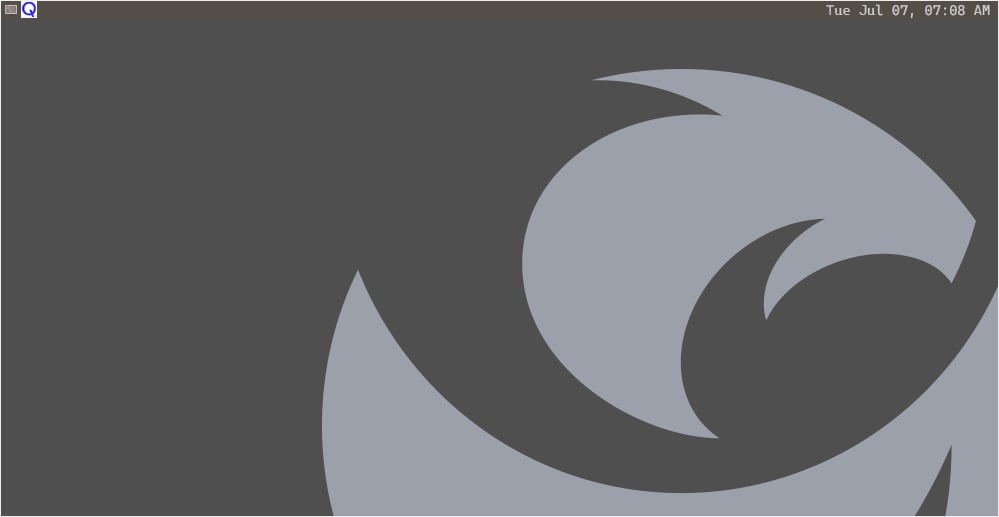
After the device powers on, the following screen appears on the monitor.
Toggle the power switch to the On position.
After the device powers on, the following screen appears on the monitor.
 Run the Qdemo application by clicking the `Q` icon on the screen.
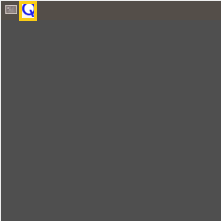
The following figure shows the `Q` icon on the screen.
Run the Qdemo application by clicking the `Q` icon on the screen.
The following figure shows the `Q` icon on the screen.
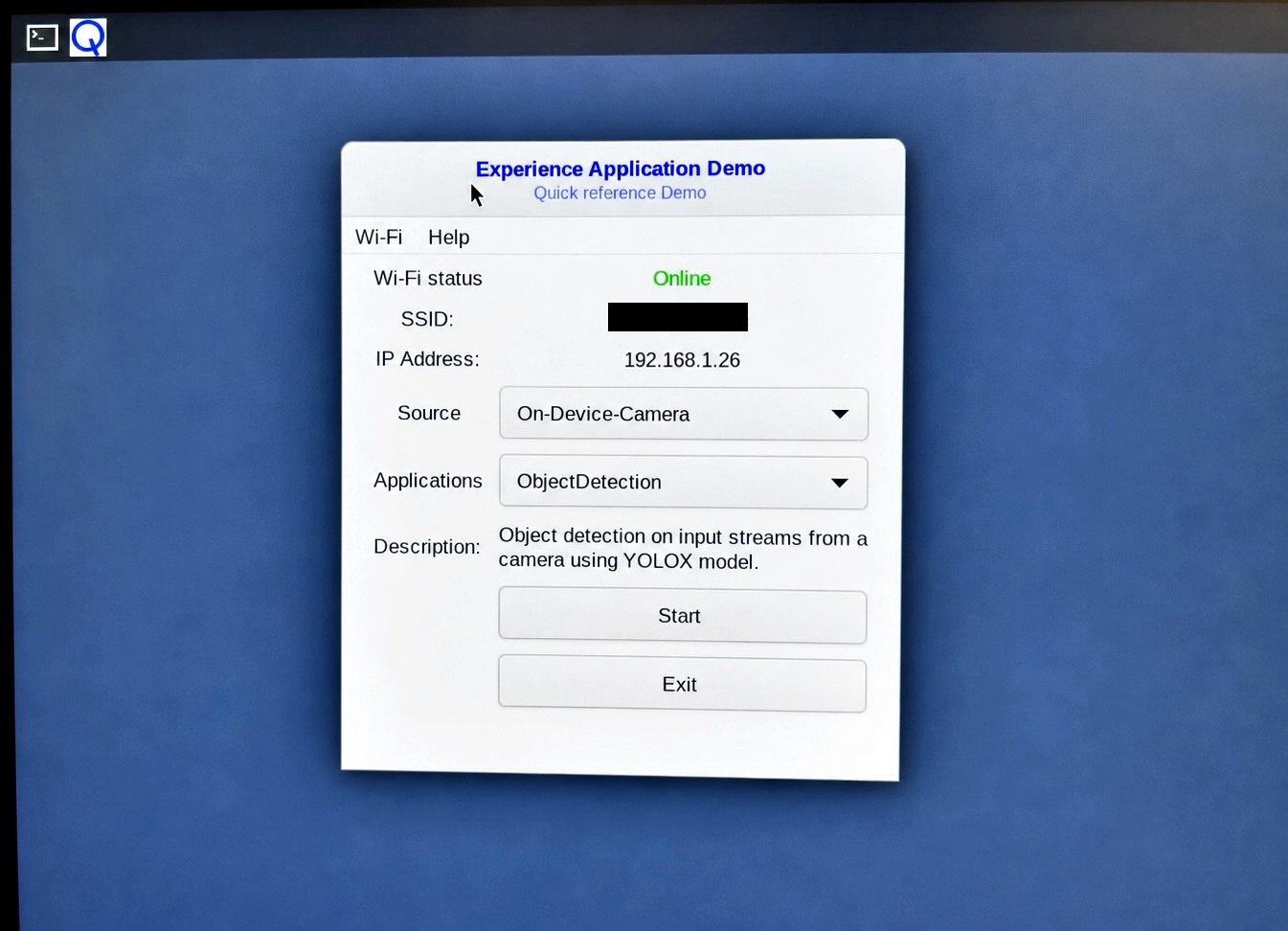
 The **Experience Application Demo** window appears.
The following figure shows a sample of the **Experience Application Demo** window with Wi-Fi connectivity:
The **Experience Application Demo** window appears.
The following figure shows a sample of the **Experience Application Demo** window with Wi-Fi connectivity:
 In the **Source** drop-down list, select the required camera.
The Dragonwing IQ-9075 device doesn't have a built-in camera, and not all applications require a camera. If you've connected an external camera to the device, select it from the **Source** drop-down list. By default, the **On-Device-Camera** option is selected.
In the **Applications** drop-down list, select an application and select **Start**.
The selected application starts running, and a dialog displays the output on the screen.
When you run a sample application for the first time, it may take a minute or more to run as the device downloads the AI models and labels from GitHub.
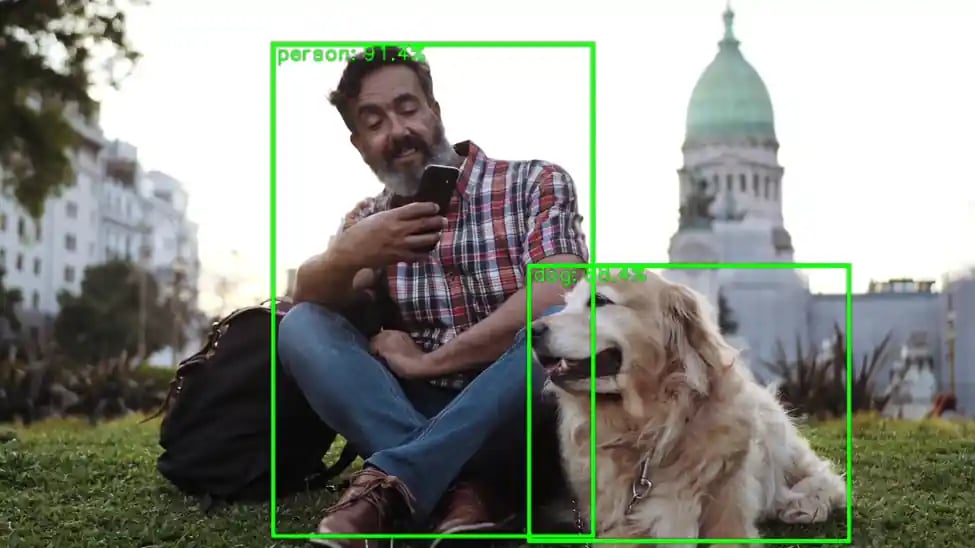
The following figure shows the sample output of the Object Detection application, identifying two objects including a person and a dog.
In the **Source** drop-down list, select the required camera.
The Dragonwing IQ-9075 device doesn't have a built-in camera, and not all applications require a camera. If you've connected an external camera to the device, select it from the **Source** drop-down list. By default, the **On-Device-Camera** option is selected.
In the **Applications** drop-down list, select an application and select **Start**.
The selected application starts running, and a dialog displays the output on the screen.
When you run a sample application for the first time, it may take a minute or more to run as the device downloads the AI models and labels from GitHub.
The following figure shows the sample output of the Object Detection application, identifying two objects including a person and a dog.
 Stop the sample application by closing the output window.
Close the Qdemo application by selecting **Exit**.
Stop the sample application by closing the output window.
Close the Qdemo application by selecting **Exit**.