> ## Documentation Index
> Fetch the complete documentation index at: https://dragonwingdocs-staging.qualcomm.com/llms.txt
> Use this file to discover all available pages before exploring further.
# Camera
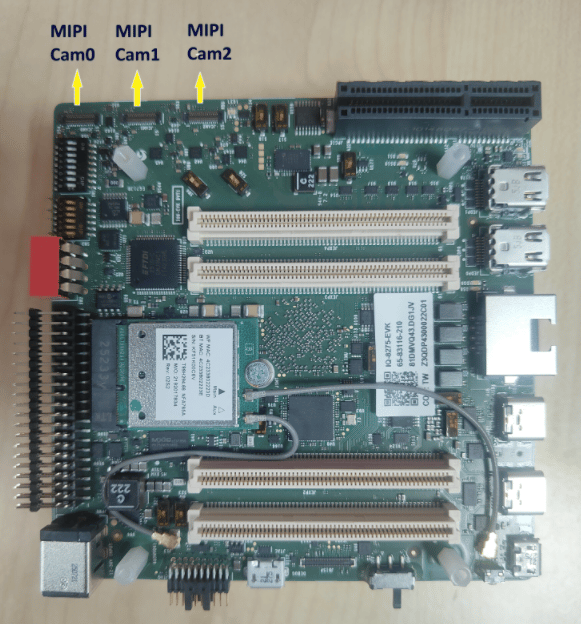
The IQ8-EVK supports camera sensor connectivity through three MIPI CSI interfaces, supporting both C-PHY and D-PHY modes.
## Hardware Architecture
### CSI Interface Mapping
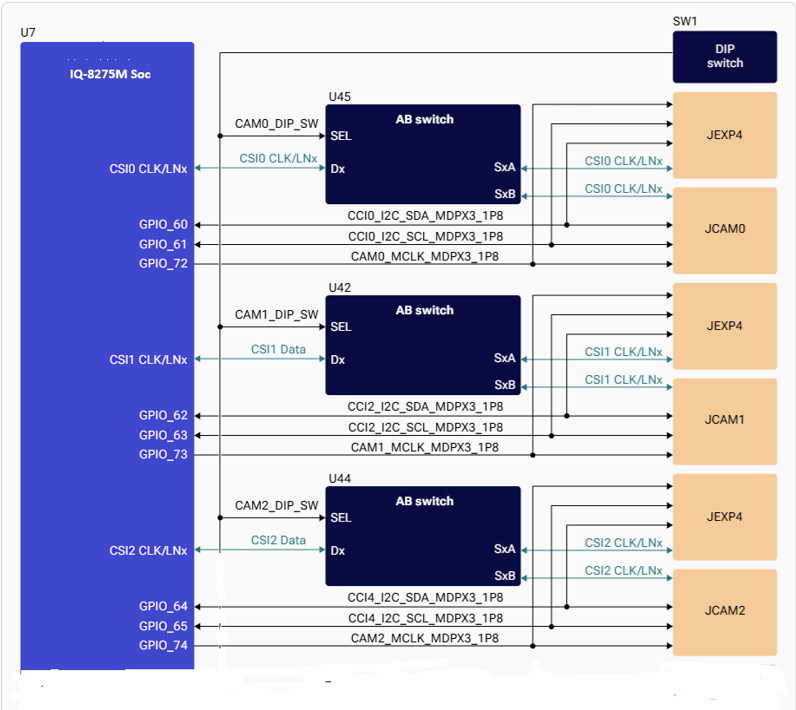
| CSI Interface | Analog Switch | Camera Connector | B2B Connector |
| - | - | - | - |
| CSI0 | U45 (TMUX646ZECR) | JCAM0 | JEXP4, Pins 111–120 |
| CSI1 | U42 (TMUX646ZECR) | JCAM1 | JEXP4, Pins 51–60 |
| CSI2 | U44 (TMUX646ZECR) | JCAM2 | JEXP4, Pins 40–49 |
 ### DIP Switch Configuration
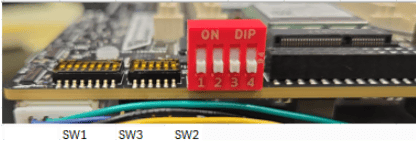 | Switch | ON | OFF (default) |
| - | - | - |
| SW1-5 | CSI0 → GMSL mezzanine | CSI0 → mainboard |
| SW1-6 | CSI1 → GMSL mezzanine | CSI1 → mainboard |
| SW1-7 | CSI2 → GMSL mezzanine | CSI2 → mainboard |
## Supported MIPI CSI Camera Sensors
### ov9282 Camera Sensor
| Switch | ON | OFF (default) |
| - | - | - |
| SW1-5 | CSI0 → GMSL mezzanine | CSI0 → mainboard |
| SW1-6 | CSI1 → GMSL mezzanine | CSI1 → mainboard |
| SW1-7 | CSI2 → GMSL mezzanine | CSI2 → mainboard |
## Supported MIPI CSI Camera Sensors
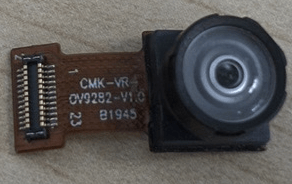
### ov9282 Camera Sensor
 ### Arducam imx577 Camera Sensor
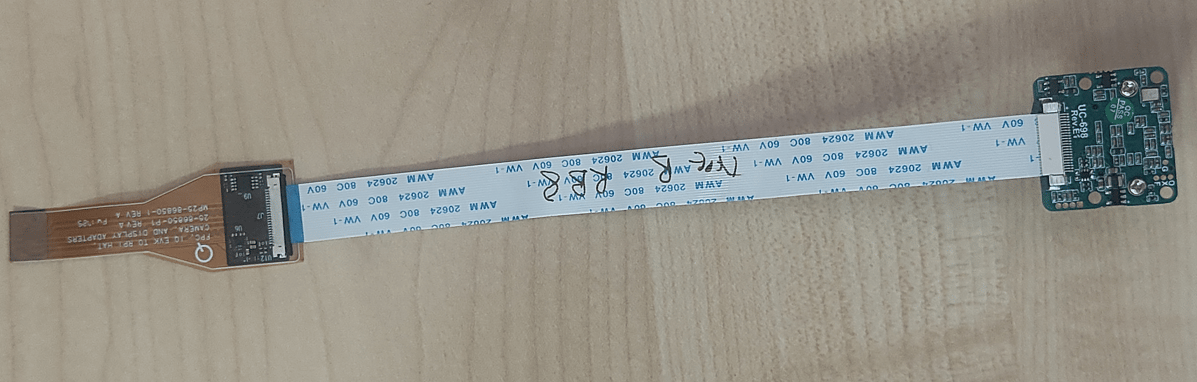
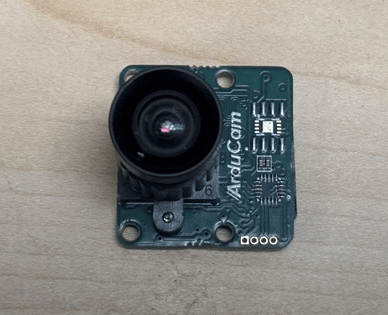 **Arducam sensor requires an additional converter board(Arducam 22-pin to Qualcomm 30-pin CSI adapter)**
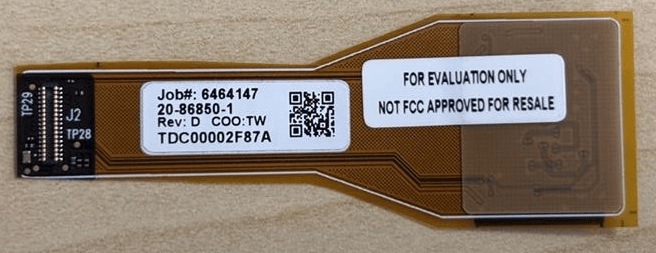
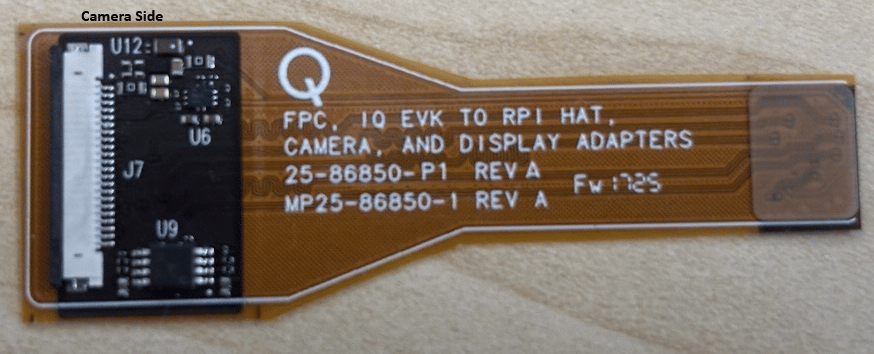 **Arducam imx577 sensor + 22 pin flex cable + converter board**
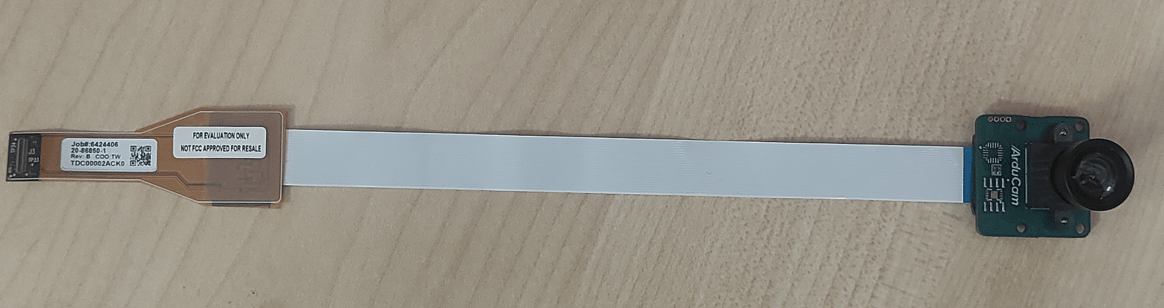
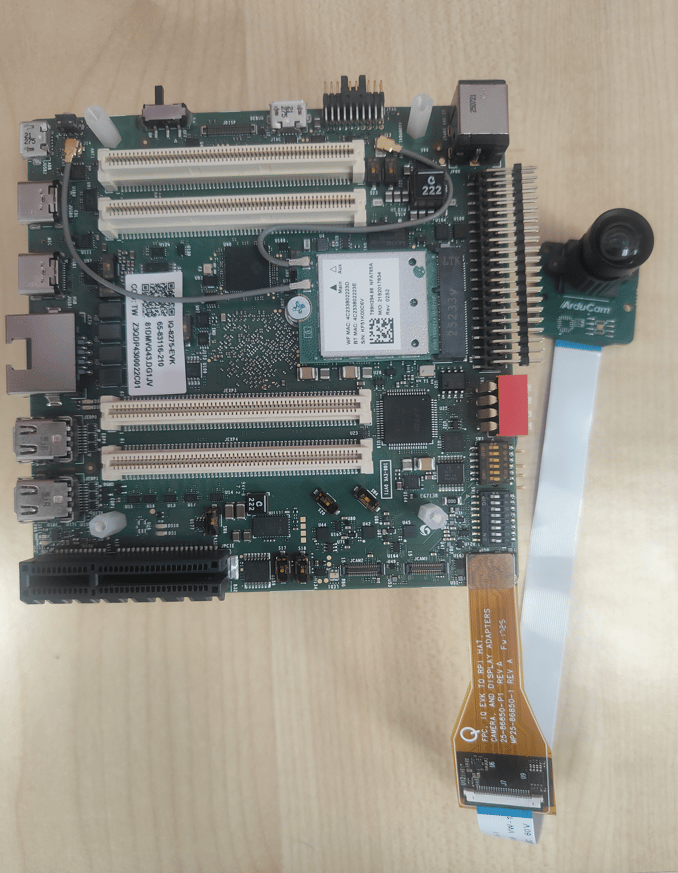
 ### Arducam imx577 Camera Sensor connection to iq8275
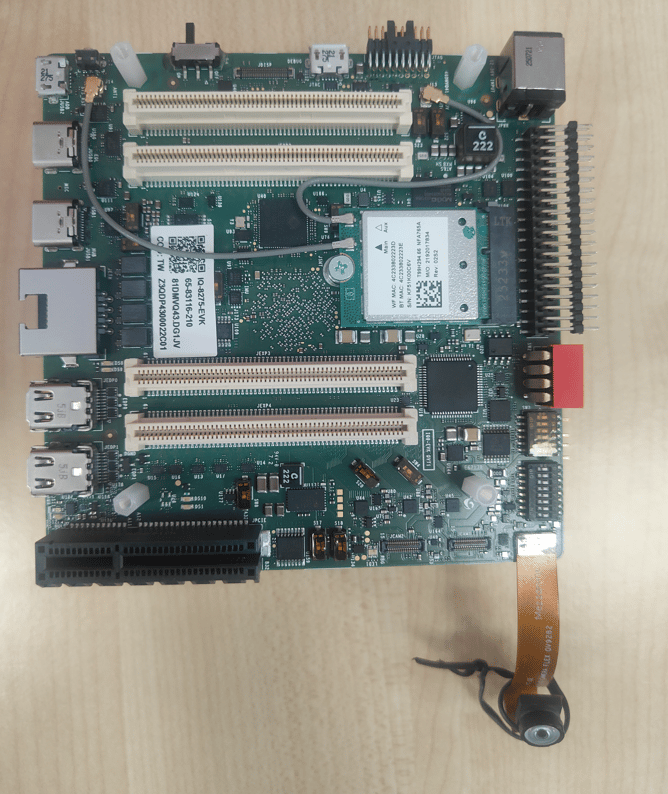
 ### ov9282 Camera Sensor connection to iq8275
 ## Supported Resolutions
| Resolution | Aspect Ratio | IMX577 | OV9282 |
| - | - | - | - |
| 4000 × 3000 | 4:3 | Yes | No |
| 3840 × 2160 | 16:9 | Yes | No |
| 1920 × 1080 | 16:9 | Yes | No |
| 1280 × 720 | 16:9 | Yes | Yes |
| 1024 × 768 | 4:3 | Yes | Yes |
| 800 × 600 | 4:3 | Yes | Yes |
| 640 × 480 | 4:3 | Yes | Yes |
| 320 × 240 | 4:3 | Yes | Yes |
* Advanced features such as SHDR, LDC, and EIS are not supported on IQ-8275.
* There is no hardware JPEG encoder — snapshots use a software encoder running on the CPU.
## Camera Streaming
### Prerequistes to run camera
* Enable Camera functionality
On Qualcomm Linux 2.0, qcom-multimedia-proprietary-image includes the downstream camera packages by default, but camera functionality is not enabled automatically.
Enable camera support on qcom-multimedia-proprietary-image by running the following command in the device shell:
```bash theme={null}
echo -n "camx" > /var/data
efivar -n 882f8c2b-9646-435f-8de5-f208ff80c1bd-VendorDtbOverlays -w -f /var/data
efivar -n 882f8c2b-9646-435f-8de5-f208ff80c1bd-VendorDtbOverlays -p
sync
reboot
```
* Clear GStreamer registry (if needed)
If a GStreamer command was executed before enabling the camera overlay, the GStreamer registry must be cleared after enabling the camera overlay.
Run the following command to clear the registry:
```bash theme={null}
rm ~/.cache/gstreamer-1.0/registry.aarch64.bin
```
### Single Camera Stream
```bash theme={null}
gst-launch-1.0 -e qticamsrc name=camsrc camera=0 ! 'video/x-raw,format=NV12,\
width=1280,height=720,framerate=30/1' ! fakesink
```
The above command starts the camera with 720p at 30 FPS configuration.
The frame coming from the camera sensor is thrown away by fakesink.
If the gst pipeline status is changed to “PLAYING” as shown below, this indicates that the camera is running.
Since this command dumps camera frames to fakesink, nothing will be saved on the device.
If the pipeline status changes to `PLAYING`, the camera is running. Press `Ctrl+C` to stop.
```bash theme={null}
gbm_create_device(187): Info: backend name is: msm_drm
Setting pipeline to PAUSED ...
Pipeline is live and does not need PREROLL ...
Setting pipeline to PLAYING ...
New clock: GstSystemClock
```
### Video Encoding
```bash theme={null}
gst-launch-1.0 -e qticamsrc name=camsrc camera=0 ! \
video/x-raw,format=NV12,width=1280,height=720,framerate=30/1,\
interlace-mode=progressive,colorimetry=bt601 ! v4l2h264enc \
capture-io-mode=4 output-io-mode=5 extra-controls="controls,video_bitrate=6000000,\
video_bitrate_mode=0;" ! h264parse ! mp4mux ! filesink location=/opt/mux_avc.mp4
```
This command starts the camera with 720p at 30 FPS configuration and saves it as a video file after h264 video encoding. If the gst pipeline status is changed to “PLAYING”, this indicates the camera is running.
To stop the camera, press CTRL+C.
/opt/mux\_avc.mp4 is generated on the device. The recorded content can be pulled from the device by running the following scp command on the host PC:
```bash theme={null}
scp -r root@[ip-addr]:/opt/mux_avc.mp4 .
```
### Video Encoding + Snapshot
```bash theme={null}
gst-pipeline-app -e qticamsrc name=camsrc camera=0 ! video/x-raw,format=NV12,width=1280,height=720,\
framerate=30/1,interlace-mode=progressive,colorimetry=bt601 ! queue ! v4l2h264enc capture-io-mode=4 \
output-io-mode=5 extra-controls="controls,video_bitrate_mode=0,video_bitrate=6000000;" ! queue ! \
h264parse ! mp4mux ! queue ! filesink location="/opt/mux_720_avc.mp4" camsrc.image_1 ! "image/jpeg,\
width=1280,height=720,framerate=30/1" ! multifilesink location=/opt/frame%d.jpg async=false sync=true \
enable-last-sample=false
```
From the interactive menu: **(1) Ready → (3) Playing → (p) Plugin Mode → (11) camerasrc → (37) capture-image → (1) Snapshot → enter count**
Press Enter → `b` (Back) → `q` (Quit).
```bash theme={null}
scp -r root@[ip-addr]:/opt/ .
```
## Multi-Camera with Offline IFE
## Supported Resolutions
| Resolution | Aspect Ratio | IMX577 | OV9282 |
| - | - | - | - |
| 4000 × 3000 | 4:3 | Yes | No |
| 3840 × 2160 | 16:9 | Yes | No |
| 1920 × 1080 | 16:9 | Yes | No |
| 1280 × 720 | 16:9 | Yes | Yes |
| 1024 × 768 | 4:3 | Yes | Yes |
| 800 × 600 | 4:3 | Yes | Yes |
| 640 × 480 | 4:3 | Yes | Yes |
| 320 × 240 | 4:3 | Yes | Yes |
* Advanced features such as SHDR, LDC, and EIS are not supported on IQ-8275.
* There is no hardware JPEG encoder — snapshots use a software encoder running on the CPU.
## Camera Streaming
### Prerequistes to run camera
* Enable Camera functionality
On Qualcomm Linux 2.0, qcom-multimedia-proprietary-image includes the downstream camera packages by default, but camera functionality is not enabled automatically.
Enable camera support on qcom-multimedia-proprietary-image by running the following command in the device shell:
```bash theme={null}
echo -n "camx" > /var/data
efivar -n 882f8c2b-9646-435f-8de5-f208ff80c1bd-VendorDtbOverlays -w -f /var/data
efivar -n 882f8c2b-9646-435f-8de5-f208ff80c1bd-VendorDtbOverlays -p
sync
reboot
```
* Clear GStreamer registry (if needed)
If a GStreamer command was executed before enabling the camera overlay, the GStreamer registry must be cleared after enabling the camera overlay.
Run the following command to clear the registry:
```bash theme={null}
rm ~/.cache/gstreamer-1.0/registry.aarch64.bin
```
### Single Camera Stream
```bash theme={null}
gst-launch-1.0 -e qticamsrc name=camsrc camera=0 ! 'video/x-raw,format=NV12,\
width=1280,height=720,framerate=30/1' ! fakesink
```
The above command starts the camera with 720p at 30 FPS configuration.
The frame coming from the camera sensor is thrown away by fakesink.
If the gst pipeline status is changed to “PLAYING” as shown below, this indicates that the camera is running.
Since this command dumps camera frames to fakesink, nothing will be saved on the device.
If the pipeline status changes to `PLAYING`, the camera is running. Press `Ctrl+C` to stop.
```bash theme={null}
gbm_create_device(187): Info: backend name is: msm_drm
Setting pipeline to PAUSED ...
Pipeline is live and does not need PREROLL ...
Setting pipeline to PLAYING ...
New clock: GstSystemClock
```
### Video Encoding
```bash theme={null}
gst-launch-1.0 -e qticamsrc name=camsrc camera=0 ! \
video/x-raw,format=NV12,width=1280,height=720,framerate=30/1,\
interlace-mode=progressive,colorimetry=bt601 ! v4l2h264enc \
capture-io-mode=4 output-io-mode=5 extra-controls="controls,video_bitrate=6000000,\
video_bitrate_mode=0;" ! h264parse ! mp4mux ! filesink location=/opt/mux_avc.mp4
```
This command starts the camera with 720p at 30 FPS configuration and saves it as a video file after h264 video encoding. If the gst pipeline status is changed to “PLAYING”, this indicates the camera is running.
To stop the camera, press CTRL+C.
/opt/mux\_avc.mp4 is generated on the device. The recorded content can be pulled from the device by running the following scp command on the host PC:
```bash theme={null}
scp -r root@[ip-addr]:/opt/mux_avc.mp4 .
```
### Video Encoding + Snapshot
```bash theme={null}
gst-pipeline-app -e qticamsrc name=camsrc camera=0 ! video/x-raw,format=NV12,width=1280,height=720,\
framerate=30/1,interlace-mode=progressive,colorimetry=bt601 ! queue ! v4l2h264enc capture-io-mode=4 \
output-io-mode=5 extra-controls="controls,video_bitrate_mode=0,video_bitrate=6000000;" ! queue ! \
h264parse ! mp4mux ! queue ! filesink location="/opt/mux_720_avc.mp4" camsrc.image_1 ! "image/jpeg,\
width=1280,height=720,framerate=30/1" ! multifilesink location=/opt/frame%d.jpg async=false sync=true \
enable-last-sample=false
```
From the interactive menu: **(1) Ready → (3) Playing → (p) Plugin Mode → (11) camerasrc → (37) capture-image → (1) Snapshot → enter count**
Press Enter → `b` (Back) → `q` (Quit).
```bash theme={null}
scp -r root@[ip-addr]:/opt/ .
```
## Multi-Camera with Offline IFE
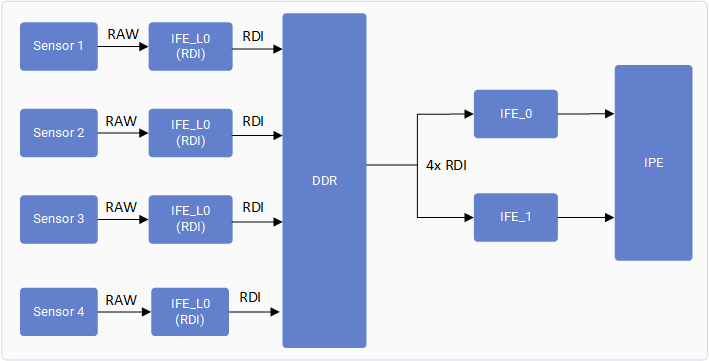 The IQ-8275 camera subsystem includes two full Image Front End (IFE) hardware blocks capable of performing real-time Bayer-to-YUV image processing.
In a conventional real-time camera pipeline, each Bayer camera requires an IFE for de-Bayering and image signal processing, limiting concurrent Bayer camera streaming to two cameras.
The **Offline IFE** feature extends this capability by separating image acquisition from image processing.
In this mode, each camera sensor is connected to an IFE-Lite instance, which captures the incoming RAW Bayer data and writes it directly to DDR memory through the RDI path without performing any image processing.
The stored RAW frames are subsequently fetched from DDR by the SFE Lite fetch engine and supplied to a IFE for offline Bayer-to-YUV processing.
Since the input frames are sourced from memory rather than directly from the sensor interface, a single IFE can time-share its processing resources across multiple cameras.
As a result, the two available IFEs can each process RAW frames from two different cameras, enabling concurrent streaming of up to four Bayer cameras.
### Verify Multi-Camera Operation
Connect Three MIPI cameras(OV9282 or IMX577) to MIPI CSI slots (0, 1 and 2)
Run a GST command with **multicamera-hint=true** for each camera to enable this feature. For example:
```bash theme={null}
gst-launch-1.0 -e qticamsrc name=camsrc camera=0 multicamera-hint=true ! \
video/x-raw,format=NV12,width=1280,height=720,framerate=30/1,\
interlace-mode=progressive,colorimetry=bt601 ! v4l2h264enc \
capture-io-mode=4 output-io-mode=5 extra-controls="controls,video_bitrate=6000000,\
video_bitrate_mode=0;" ! h264parse ! mp4mux ! filesink location=/opt/mux_avc.mp4
```
**Check for below print in user log to confirm offline ife feature is enabled**
```
CamX: [CORE_CFG]3509 3556 [CORE ] camxpipeline.h:4222 SetPipelineStatus() RealTimeFeatureZSLPreviewRawOfflineIFE_0_cam_0 status is now PipelineStatus::STREAM_ON
```
## Troubleshooting
```bash theme={null}
systemctl restart cam-server
# or
pkill cam-server
```
```bash theme={null}
gst-launch-1.0 -e qticamsrc name=camsrc camera=0 ! 'video/x-raw,format=NV12,\
width=1280,height=720,framerate=30/1' ! fakesink
```
Collect logs and search for `probe success`:
```bash theme={null}
journalctl -f > /opt/user_log.txt
```
**Expected probe success log:**
```
CAM_INFO: CAM-SENSOR: Probe success, slot:0, slave_addr: 0x34, sensor_id:0x577
```
If no probe success appears, check the flex cable connection or camera module.
Enable CSI debug logs and collect dmesg:
```bash theme={null}
echo 3 > /sys/kernel/debug/camera/ife/ife_csid_debug
dmesg -w > /opt/kernel_log.txt
```
Start the camera and check for SOF/EOF IRQ messages in the log.
**Expected logs:**
```
CAM_INFO: CAM-ISP: cam_ife_csid_irq: 5288 CSID:1 IPP SOF received
CAM_INFO: CAM-ISP: cam_ife_csid_irq: 5300 CSID:1 IPP EOF received
CAM_INFO: CAM-ISP: cam_ife_csid_irq: 5288 CSID:1 IPP SOF received
CAM_INFO: CAM-ISP: cam_ife_csid_irq: 5300 CSID:1 IPP EOF received
```
### Collect Debug Logs
```bash theme={null}
journalctl -f > /opt/user_log.txt # User space logs
dmesg -w > /opt/kernel_log.txt # Kernel logs
```
## Resources
| Topic | Link |
| - | - |
| Camera Architecture | [Camera Architecture](https://docs.qualcomm.com/doc/80-70023-17A/topic/camera-architecture.html) |
| Camera Sensor Driver Development | [Camera Sensor Driver Development](https://docs.qualcomm.com/doc/80-70023-17A/topic/camera-sensor-driver-development.html) |
| Customize Camera Use Case and Pipeline | [Customize Camera Use Case and Pipeline](https://docs.qualcomm.com/doc/80-70023-17A/topic/customize-camera-use-case-and-pipelines.html) |
| Customize Advanced Camera Features | [Customize Advanced Camera Features](https://docs.qualcomm.com/doc/80-70023-17A/topic/customize-advanced-camera-features.html) |
The IQ-8275 camera subsystem includes two full Image Front End (IFE) hardware blocks capable of performing real-time Bayer-to-YUV image processing.
In a conventional real-time camera pipeline, each Bayer camera requires an IFE for de-Bayering and image signal processing, limiting concurrent Bayer camera streaming to two cameras.
The **Offline IFE** feature extends this capability by separating image acquisition from image processing.
In this mode, each camera sensor is connected to an IFE-Lite instance, which captures the incoming RAW Bayer data and writes it directly to DDR memory through the RDI path without performing any image processing.
The stored RAW frames are subsequently fetched from DDR by the SFE Lite fetch engine and supplied to a IFE for offline Bayer-to-YUV processing.
Since the input frames are sourced from memory rather than directly from the sensor interface, a single IFE can time-share its processing resources across multiple cameras.
As a result, the two available IFEs can each process RAW frames from two different cameras, enabling concurrent streaming of up to four Bayer cameras.
### Verify Multi-Camera Operation
Connect Three MIPI cameras(OV9282 or IMX577) to MIPI CSI slots (0, 1 and 2)
Run a GST command with **multicamera-hint=true** for each camera to enable this feature. For example:
```bash theme={null}
gst-launch-1.0 -e qticamsrc name=camsrc camera=0 multicamera-hint=true ! \
video/x-raw,format=NV12,width=1280,height=720,framerate=30/1,\
interlace-mode=progressive,colorimetry=bt601 ! v4l2h264enc \
capture-io-mode=4 output-io-mode=5 extra-controls="controls,video_bitrate=6000000,\
video_bitrate_mode=0;" ! h264parse ! mp4mux ! filesink location=/opt/mux_avc.mp4
```
**Check for below print in user log to confirm offline ife feature is enabled**
```
CamX: [CORE_CFG]3509 3556 [CORE ] camxpipeline.h:4222 SetPipelineStatus() RealTimeFeatureZSLPreviewRawOfflineIFE_0_cam_0 status is now PipelineStatus::STREAM_ON
```
## Troubleshooting
```bash theme={null}
systemctl restart cam-server
# or
pkill cam-server
```
```bash theme={null}
gst-launch-1.0 -e qticamsrc name=camsrc camera=0 ! 'video/x-raw,format=NV12,\
width=1280,height=720,framerate=30/1' ! fakesink
```
Collect logs and search for `probe success`:
```bash theme={null}
journalctl -f > /opt/user_log.txt
```
**Expected probe success log:**
```
CAM_INFO: CAM-SENSOR: Probe success, slot:0, slave_addr: 0x34, sensor_id:0x577
```
If no probe success appears, check the flex cable connection or camera module.
Enable CSI debug logs and collect dmesg:
```bash theme={null}
echo 3 > /sys/kernel/debug/camera/ife/ife_csid_debug
dmesg -w > /opt/kernel_log.txt
```
Start the camera and check for SOF/EOF IRQ messages in the log.
**Expected logs:**
```
CAM_INFO: CAM-ISP: cam_ife_csid_irq: 5288 CSID:1 IPP SOF received
CAM_INFO: CAM-ISP: cam_ife_csid_irq: 5300 CSID:1 IPP EOF received
CAM_INFO: CAM-ISP: cam_ife_csid_irq: 5288 CSID:1 IPP SOF received
CAM_INFO: CAM-ISP: cam_ife_csid_irq: 5300 CSID:1 IPP EOF received
```
### Collect Debug Logs
```bash theme={null}
journalctl -f > /opt/user_log.txt # User space logs
dmesg -w > /opt/kernel_log.txt # Kernel logs
```
## Resources
| Topic | Link |
| - | - |
| Camera Architecture | [Camera Architecture](https://docs.qualcomm.com/doc/80-70023-17A/topic/camera-architecture.html) |
| Camera Sensor Driver Development | [Camera Sensor Driver Development](https://docs.qualcomm.com/doc/80-70023-17A/topic/camera-sensor-driver-development.html) |
| Customize Camera Use Case and Pipeline | [Customize Camera Use Case and Pipeline](https://docs.qualcomm.com/doc/80-70023-17A/topic/customize-camera-use-case-and-pipelines.html) |
| Customize Advanced Camera Features | [Customize Advanced Camera Features](https://docs.qualcomm.com/doc/80-70023-17A/topic/customize-advanced-camera-features.html) |