

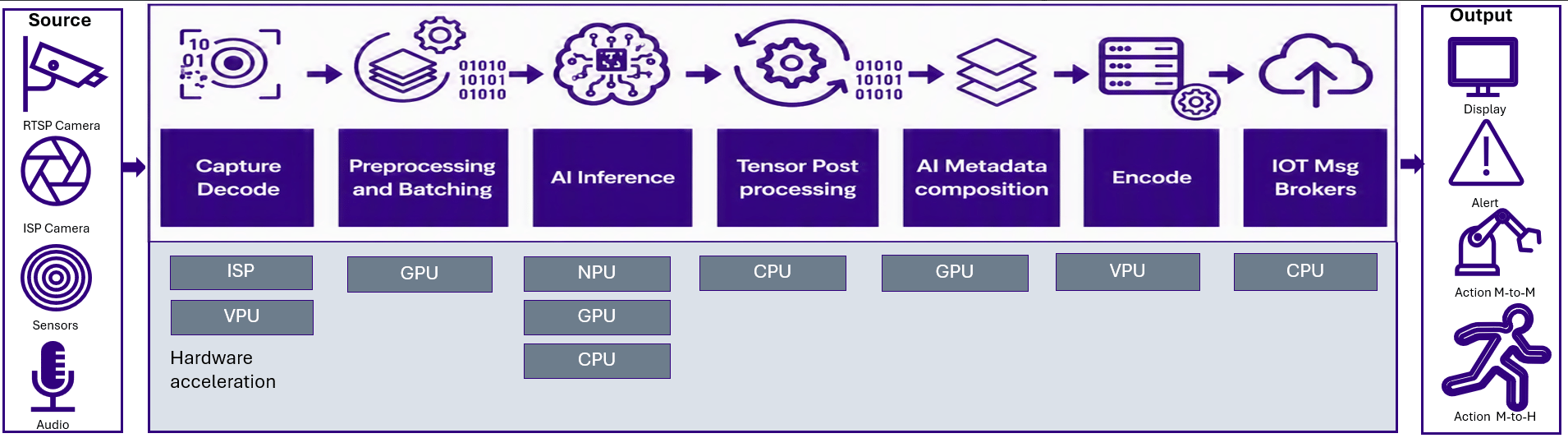
QIM SDK maps each pipeline stage onto the most suitable hardware block
This page provides a workflow-level overview for the AI Developer Workflow. For complete SDK reference material, including installation, plugin catalogs, App Builder APIs, sample pipelines, and reference applications, see Discover SDKs → IM SDKs.
Why use QIM SDK
QIM SDK reduces the effort required to build optimized AI and multimedia applications on Qualcomm platforms. It provides the following benefits:One unified multimedia + AI framework
Capture, preprocess, inference, post-process, and render all live in a single GStreamer pipeline, not separate apps glued together.
Hardware-accelerated by default
Plugins natively use the Qualcomm CPU, GPU, NPU (HTP), camera ISP, video (VPU), and DSP, so each stage runs on the right engine.
Zero-copy (zero-memcpy) buffers
Frames move through the pipeline as DMA-buf handles, so the same buffer is shared across ISP, GPU, and NPU with no CPU copies.
GPU pre- and post-processing
Resize, color conversion, tensor layout, and overlay rendering run on the Adreno GPU, keeping the CPU free and inference fed.
Flexible AI runtime support
Run models through LiteRT/TFLite, ONNX, Qualcomm AI Engine Direct (QNN), or SNPE. Choose per model without rewriting the pipeline.
Qualcomm AI Hub integration
Download pre-trained, quantized models from Qualcomm AI Hub and run them as-is in a reference pipeline.
How an QIM SDK pipeline works
A typical vision-AI pipeline has five stages. The QIM SDK accelerates the highlighted (⚡) stages on dedicated hardware and passes frames between them as zero-copy DMA-buf handles.
For a stage-by-stage guide to building these pipelines, see Building AI pipelines and the plugin reference in Discover SDKs.
How zero-copy improves performance
In a naive pipeline, every stage copies the frame into its own buffer, burning memory bandwidth and CPU cycles, and adding latency. The IM SDK instead keeps one frame buffer moving across decode → preprocess → inference → overlay → encode as a shared DMA-buf handle:- The camera ISP writes a frame once; the GPU and NPU read the same physical buffer, with no
memcpybetween engines. - Plugins negotiate DMA-buf allocation automatically through GStreamer’s allocation-query mechanism; zero-copy is enabled when every stage in the pipeline supports it (for example,
capture-io-mode=dmabuf/output-io-mode=dmabuf-importon decode/encode elements). - The result is lower memory traffic, lower CPU load, and lower end-to-end latency, which matters most for high-resolution and multi-stream workloads.
Pre- and post-processing on the GPU
Inference on the NPU is only fast if the NPU is never waiting on the CPU. The IM SDK runs the data-shaping work on the Adreno GPU:- Preprocessing:
qtimlvconverterperforms color-space conversion and tensor-layout transforms directly on the GPU, producing the exact tensor the model expects without a CPU bottleneck before inference. - Post-processing:
qtimlpostprocessdecodes the model’s output tensors into structured metadata (bounding boxes, labels, masks), andqtivoverlaydraws that metadata back onto the frame in-place on the GPU.
Next steps
Download source code for development
Set up the Qualcomm IM SDK extensible SDK (eSDK) and download the source code to develop AI/ML application and plugin code.
Integrate a custom AI model in an application
Choose the right Qualcomm SDK path to deploy a custom AI model in an application using the Qualcomm IM SDK or the Qualcomm AI Runtime SDK.
Add postprocessing support for a custom model
Add custom model postprocessing support to a Qualcomm IM SDK pipeline using the qtimlpostprocess plugin.