> ## Documentation Index
> Fetch the complete documentation index at: https://dragonwingdocs-staging.qualcomm.com/llms.txt
> Use this file to discover all available pages before exploring further.
# Start a device session
> Create and launch an interactive device session on Qualcomm Device Cloud
1. Go to [Qualcomm Device Cloud](https://qdc.qualcomm.com/) and sign in using your Qualcomm ID.
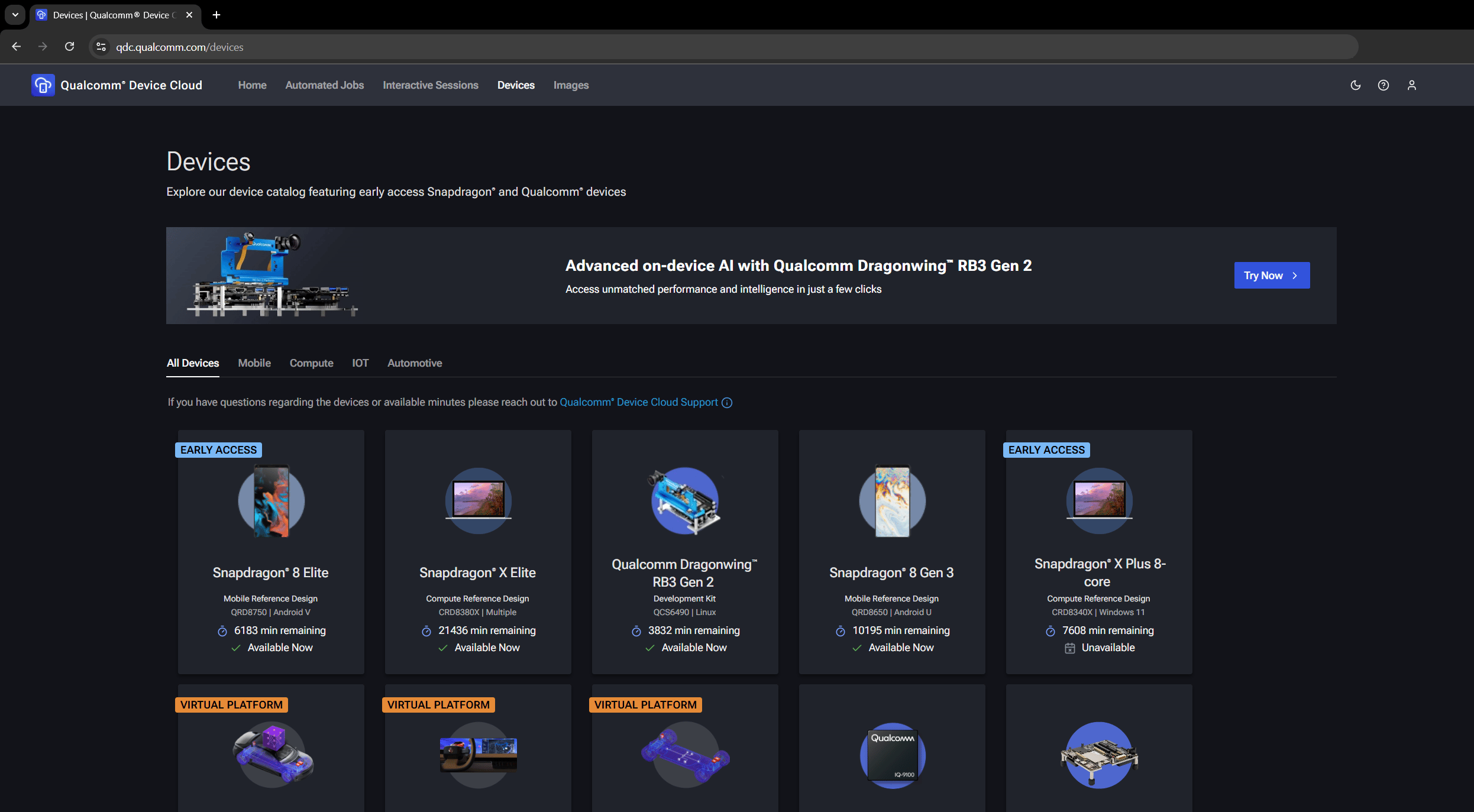
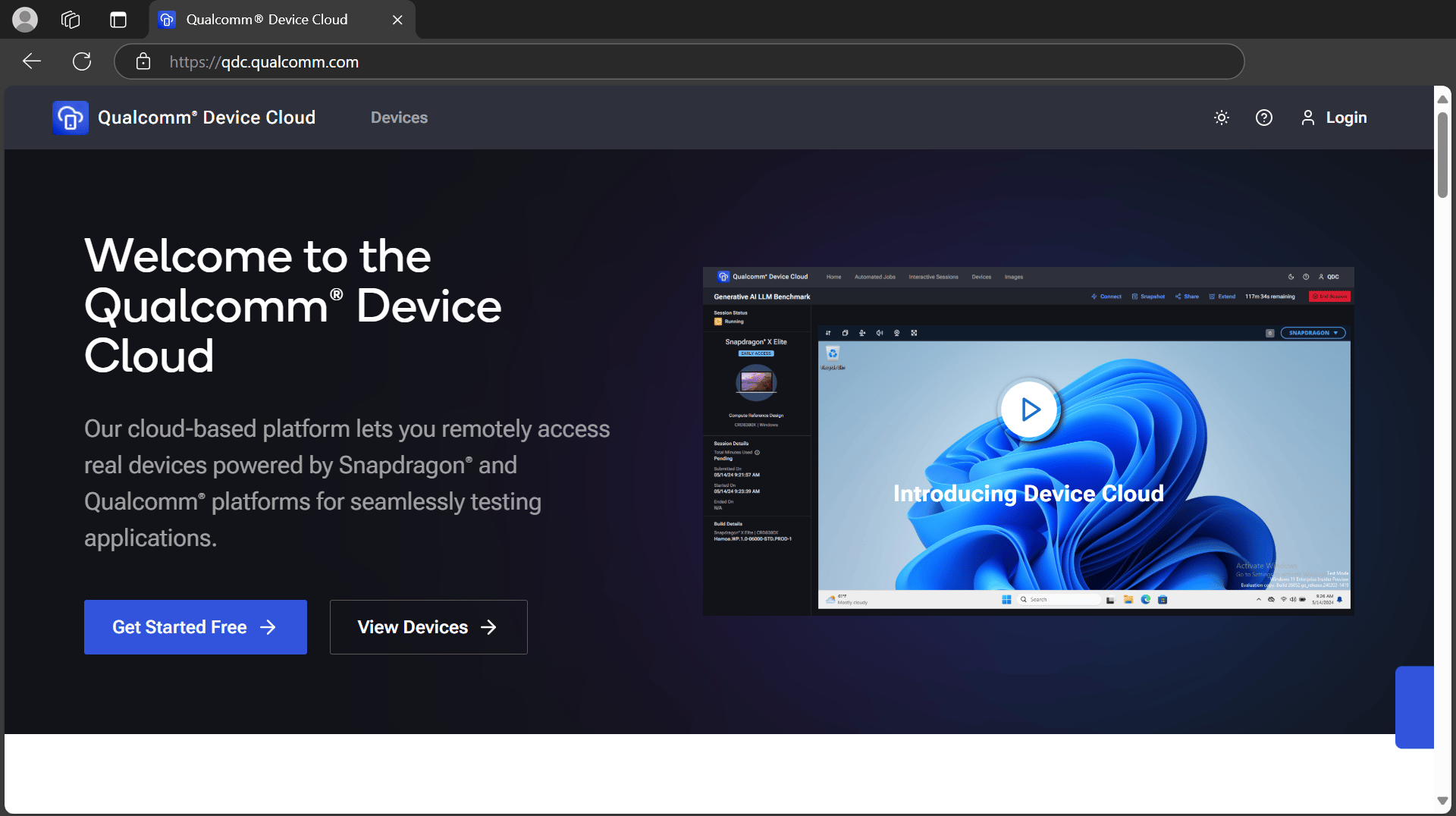 2. Select **Devices** and select **Qualcomm Dragonwing™ RB3 Gen 2**.
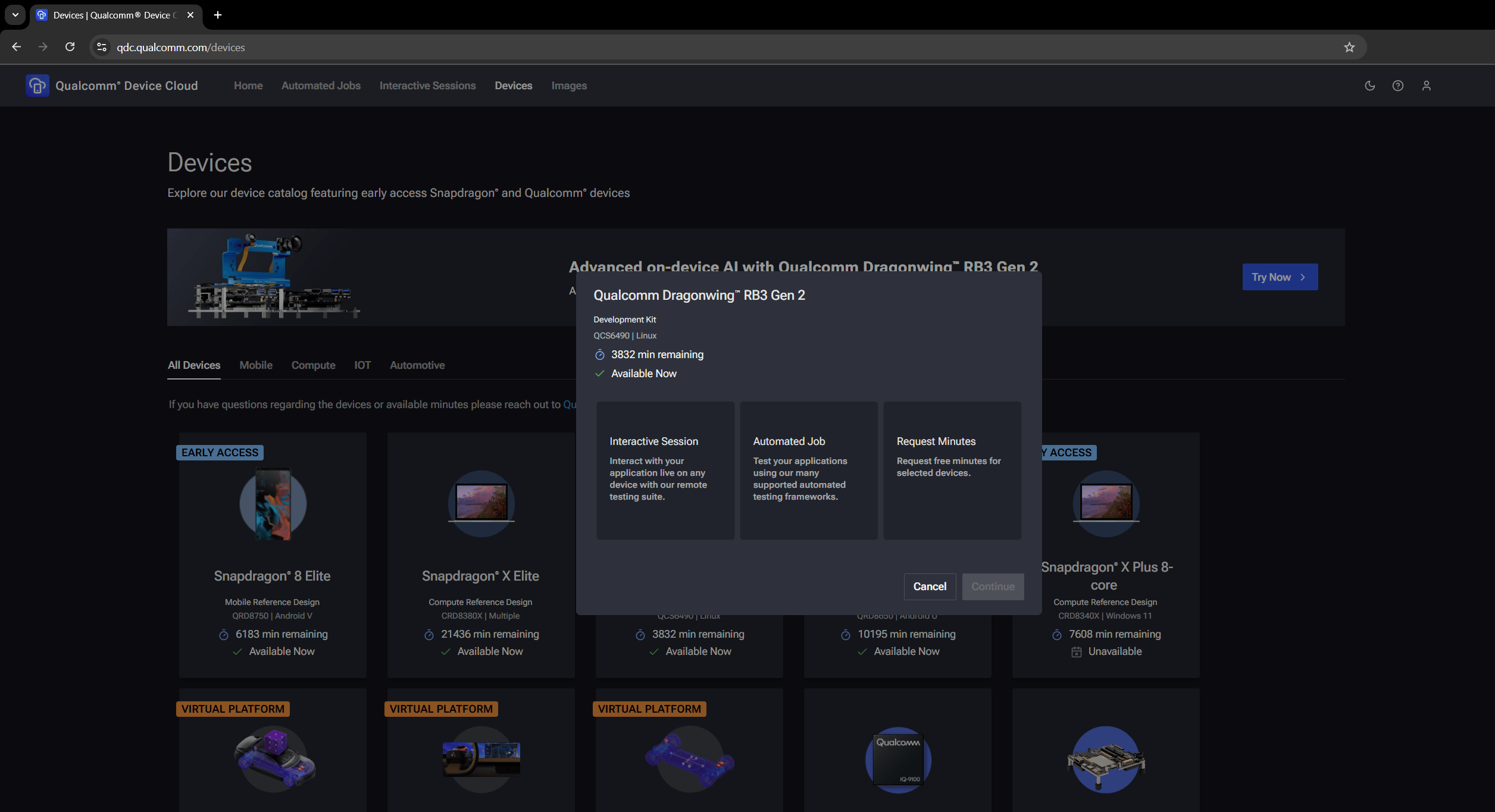
 3. Select **Interactive session** and select **Continue**.
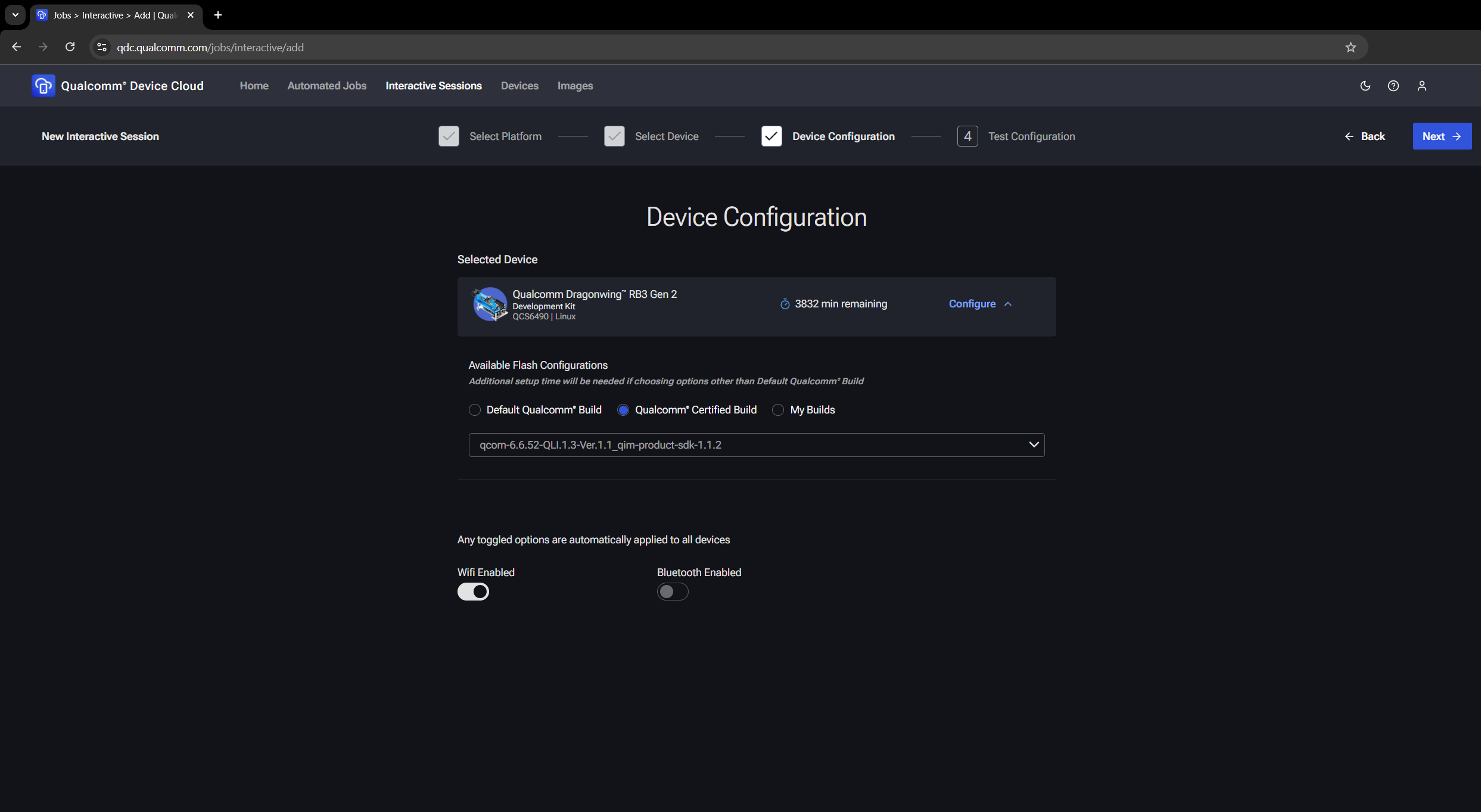
 4. On the **Device Configuration** page, select a build (Qualcomm Certified or custom) and enable Wi-Fi and Bluetooth as needed. Ensure that Wi-Fi is enabled before proceeding.
 5. On the **Test Configuration** page, enter the **Session Name** and **Maximum Minutes Per Device**. Select **Interactive shell + SSH** and generate a new public key for the session.
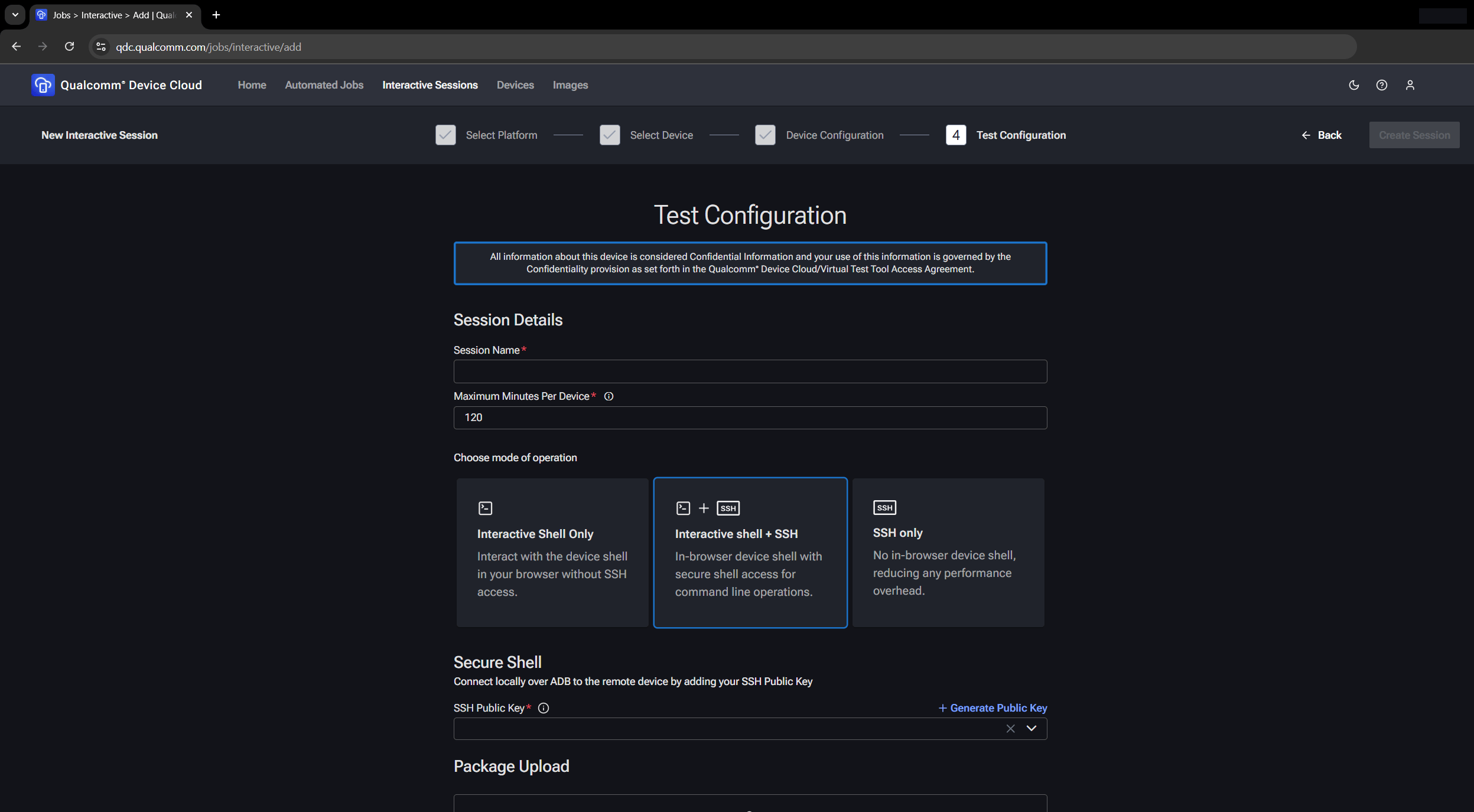 6. Select **Generate New Pair**.
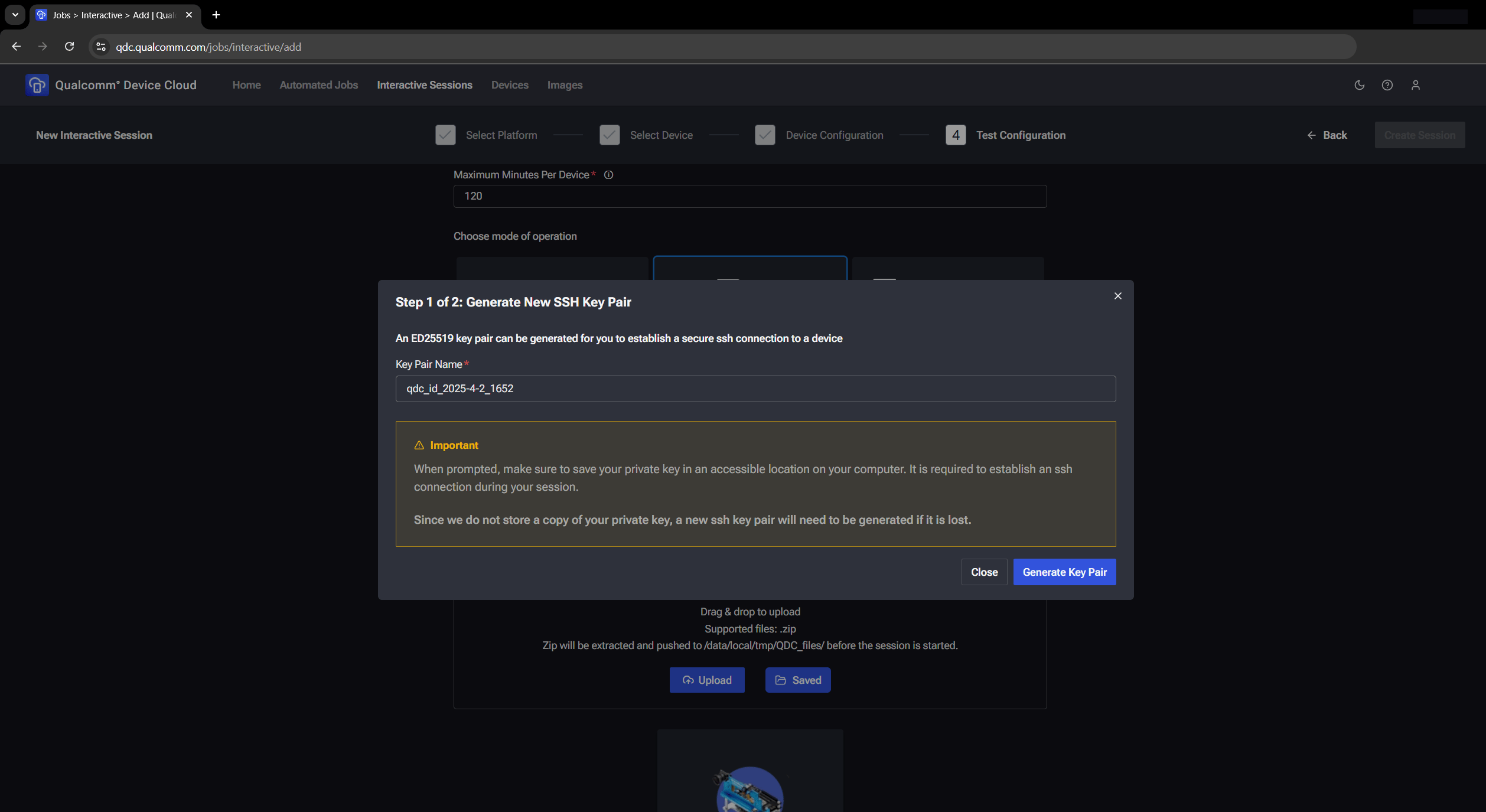 A `.pem` file is downloaded to your host computer.
7. Select **Create Session**.
A new device session is created in 10–15 minutes.
A `.pem` file is downloaded to your host computer.
7. Select **Create Session**.
A new device session is created in 10–15 minutes.