
Overview
This guide helps you run the Qualcomm® VS Code Extension entirely on the development kit — no separate host machine needed. Connect a monitor, keyboard, and mouse directly to the device to interact with it locally.Prerequisites
Visual Studio Code installed
Install VS Code on the device before proceeding.
Extension installed
Install the Qualcomm® VS Code Extension from a
.vsix file.Using the Extension
1
Open the extension
Launch VS Code on the device and click the Qualcomm Visual Studio Code Extension icon in the Activity Bar. The Home page loads with Get Started and Go to Dashboard buttons.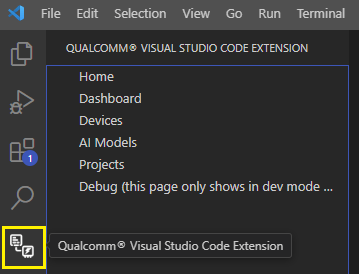
2
Go to the Dashboard
Click Go to Dashboard.
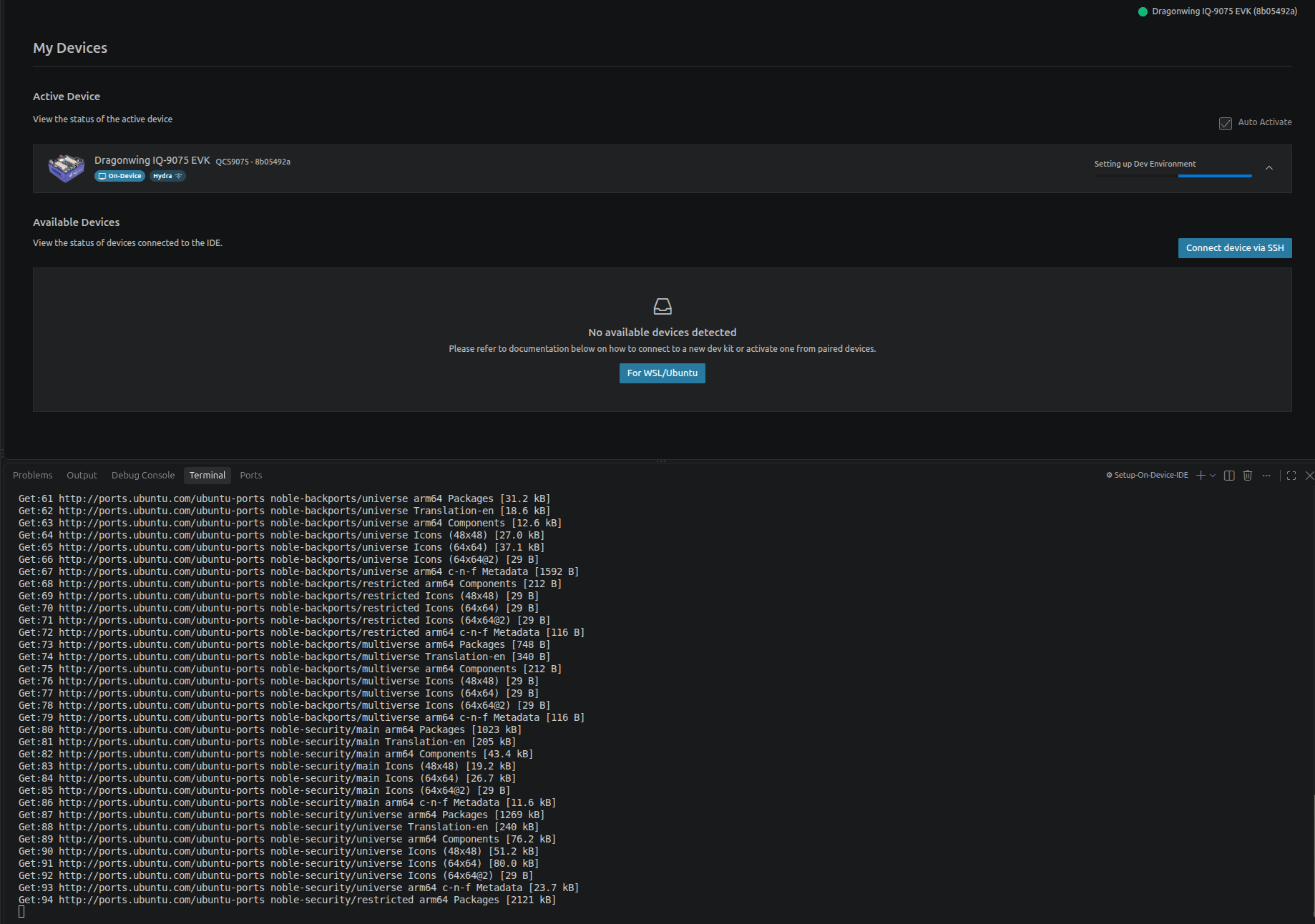
Active (On-Device) status, with no manual activation needed.

Set Up the Development Environment
The first time you open the device card, it shows Dev environment not configured. Click the Set Up Dev Environment button to configure sample projects and tools for on-device development. You can also trigger this at any time from the ⋮ menu on the device card → Set Up Dev Environment.
Requires an internet connection and about 2–3 GB of free disk space; takes
10–20 minutes depending on network speed. Installs Qualcomm runtime packages
(GStreamer, QNN, SNPE) and build dependencies, adds the
ms-vscode.cpptools
extension, and fetches sample application sources.