

Prerequisites
Visual Studio Code installed
Install VS Code on the device before proceeding.
WiFi enabled on the device
Ensure WiFi has been configured and is active on the device.
Internet or SSH connection
The device needs internet access, or alternatively an SSH connection to a host machine that has internet access.
If your device does not meet these prerequisites, we recommend using the Hosted IDE setup instead — where the IDE runs on your laptop or development machine and remotely connects to the device. See the Setup on Your Host Machine section to get started.
Get the Extension on the Device
The extension is available on the Qualcomm® Software Center (QSC) — no account or login required.Look for Qualcomm IDE Developer Edition on the catalog page. The download is a
.vsix file or a .zip file that contains the vsix file.- Download directly on the device
- Transfer from a host machine
This requires the device to have an internet connection.
.vsix file directly to the device.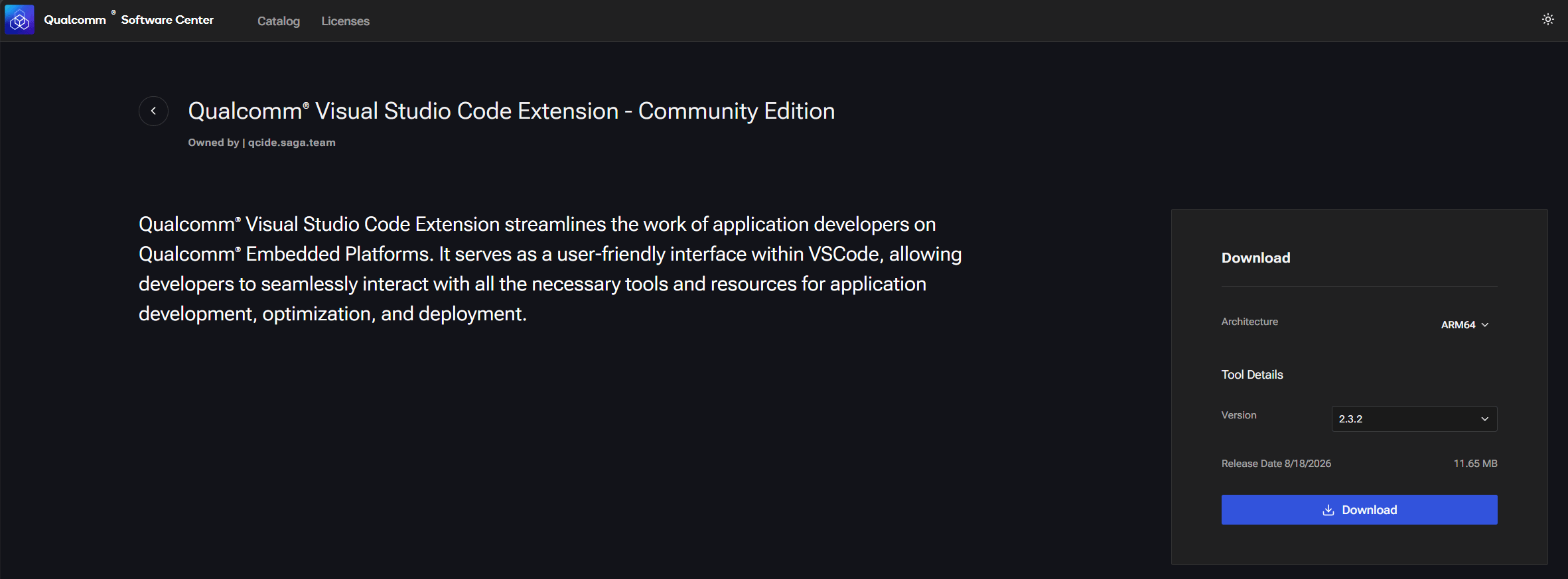
Install in VS Code
1
Open the Extensions side-bar
Click the Extensions icon in the Activity Bar (or press
Ctrl+Shift+X).2
Install from VSIX
Click the 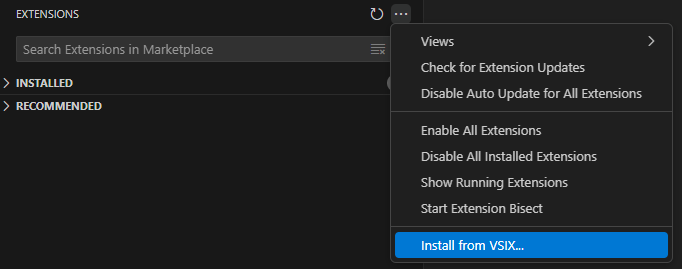
… overflow menu at the top of the Extensions panel and choose Install from VSIX….vsix file you downloaded.3
Activate the extension
After installation, a Qualcomm Visual Studio Code Extension icon appears in the Activity Bar. Click it.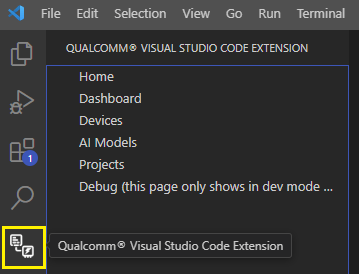
Verify Installation
The Home page loads with Get Started and Go to Dashboard buttons — you are ready to use the extension on your device.