> ## Documentation Index
> Fetch the complete documentation index at: https://dragonwingdocs-staging.qualcomm.com/llms.txt
> Use this file to discover all available pages before exploring further.
# AI Models
> Browse, download, profile, and manage AI models for your Qualcomm® device — directly from the IDE.
## Overview
The **AI Models** section lets you browse the Qualcomm AI Hub model catalog, download models to your host, flash them to your active device, and profile them — all without leaving VS Code.
The AI Models section has two tabs:
* **MY MODELS** — models you have already downloaded to the host
* **EXPLORE MODELS** — the full Qualcomm AI Hub model catalog
The active device is shown in the top-right corner of the AI Models page.
***
## My Models
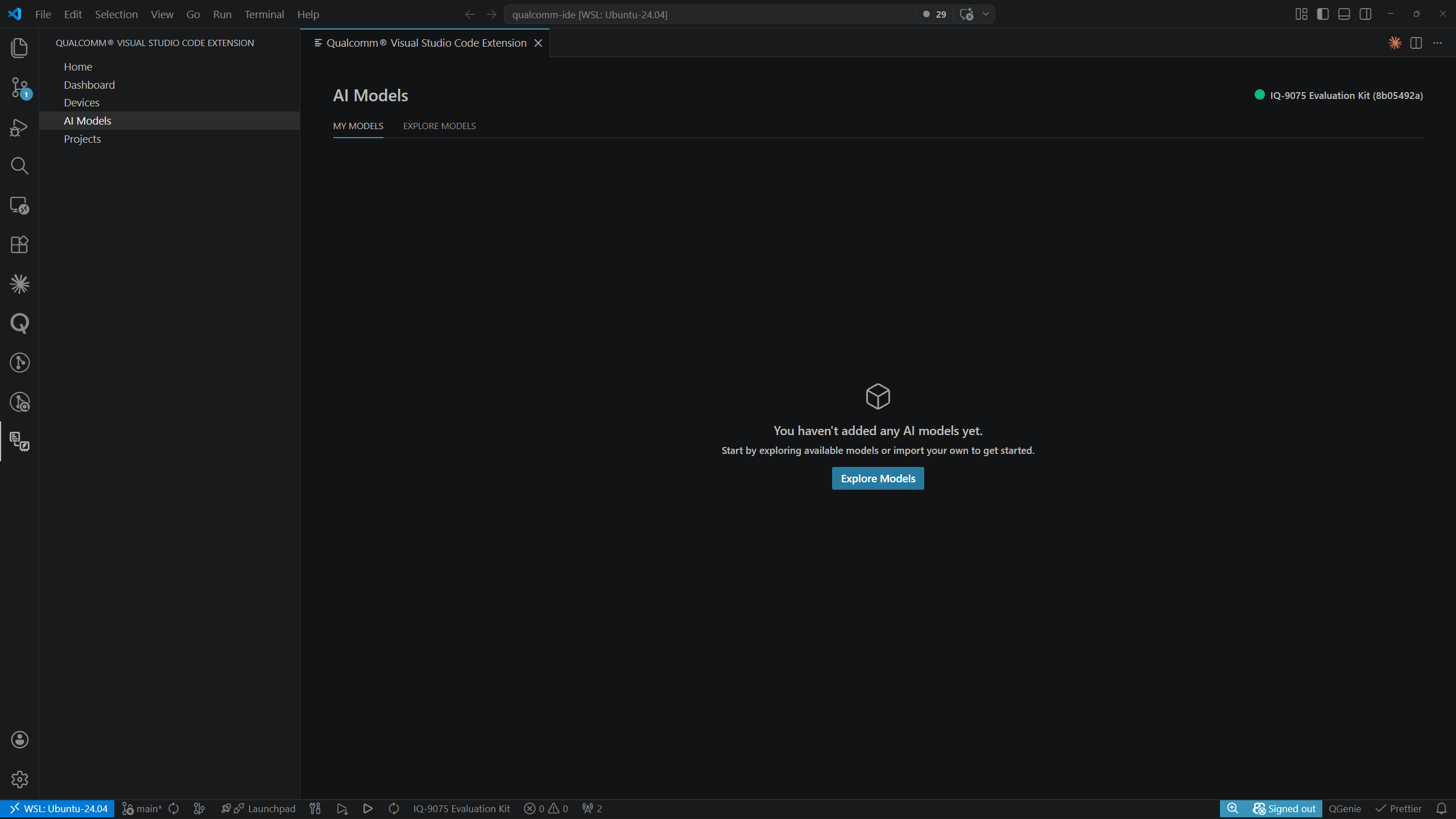
When no models have been downloaded yet, **MY MODELS** shows an empty state with an **Explore Models** button:
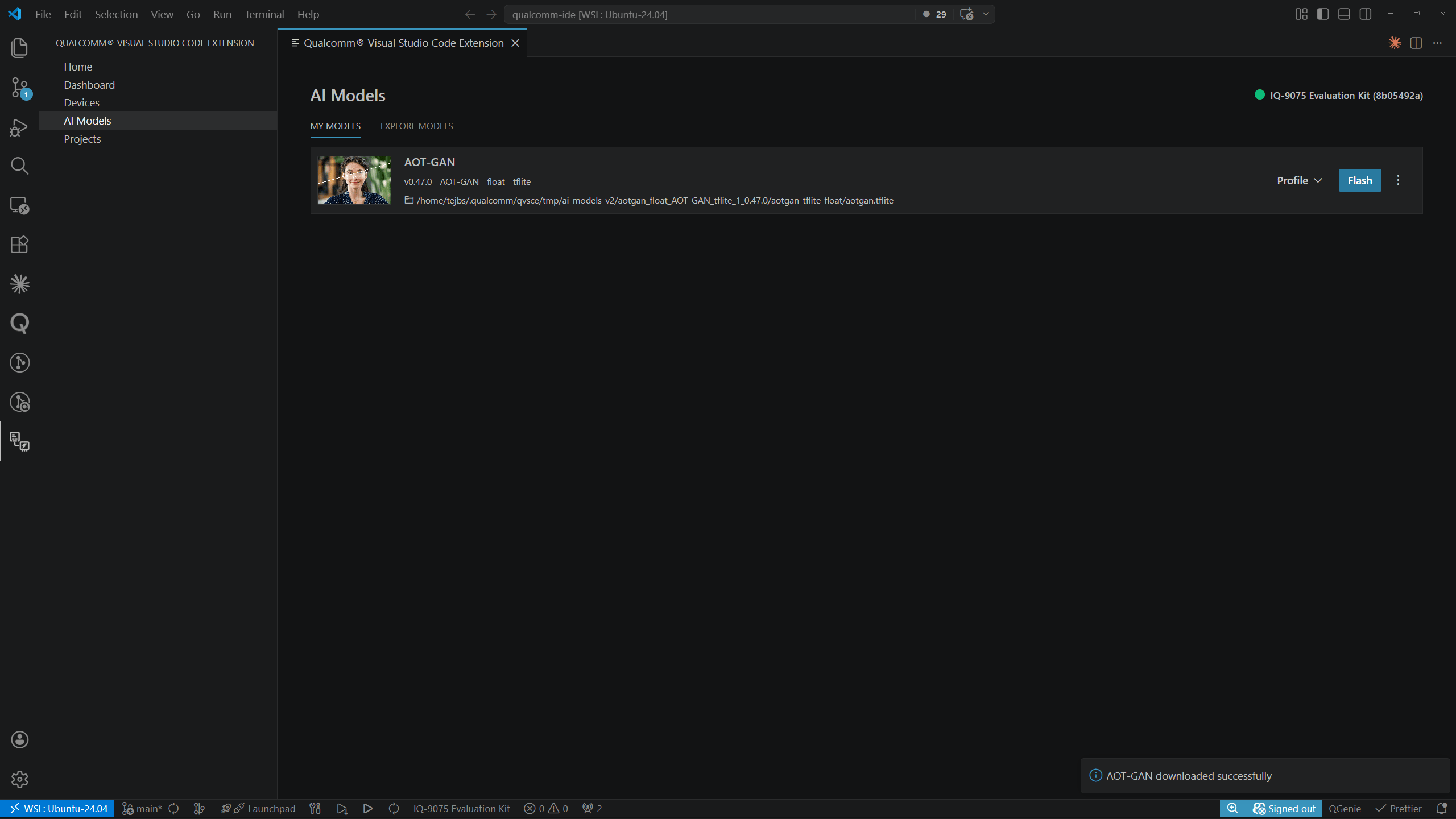
 Once models are downloaded, each row shows the model name, tags (task, precision, runtime, supported platforms), local file path, and **Profile** / **Flash** action buttons.
 ***
## Explore Models
The **EXPLORE MODELS** tab displays the AI Hub model catalog as a card grid grouped by category (e.g., Computer Vision, Generative AI, Multimodal). Each category heading shows the total number of available models and a **View All** link.
***
## Explore Models
The **EXPLORE MODELS** tab displays the AI Hub model catalog as a card grid grouped by category (e.g., Computer Vision, Generative AI, Multimodal). Each category heading shows the total number of available models and a **View All** link.
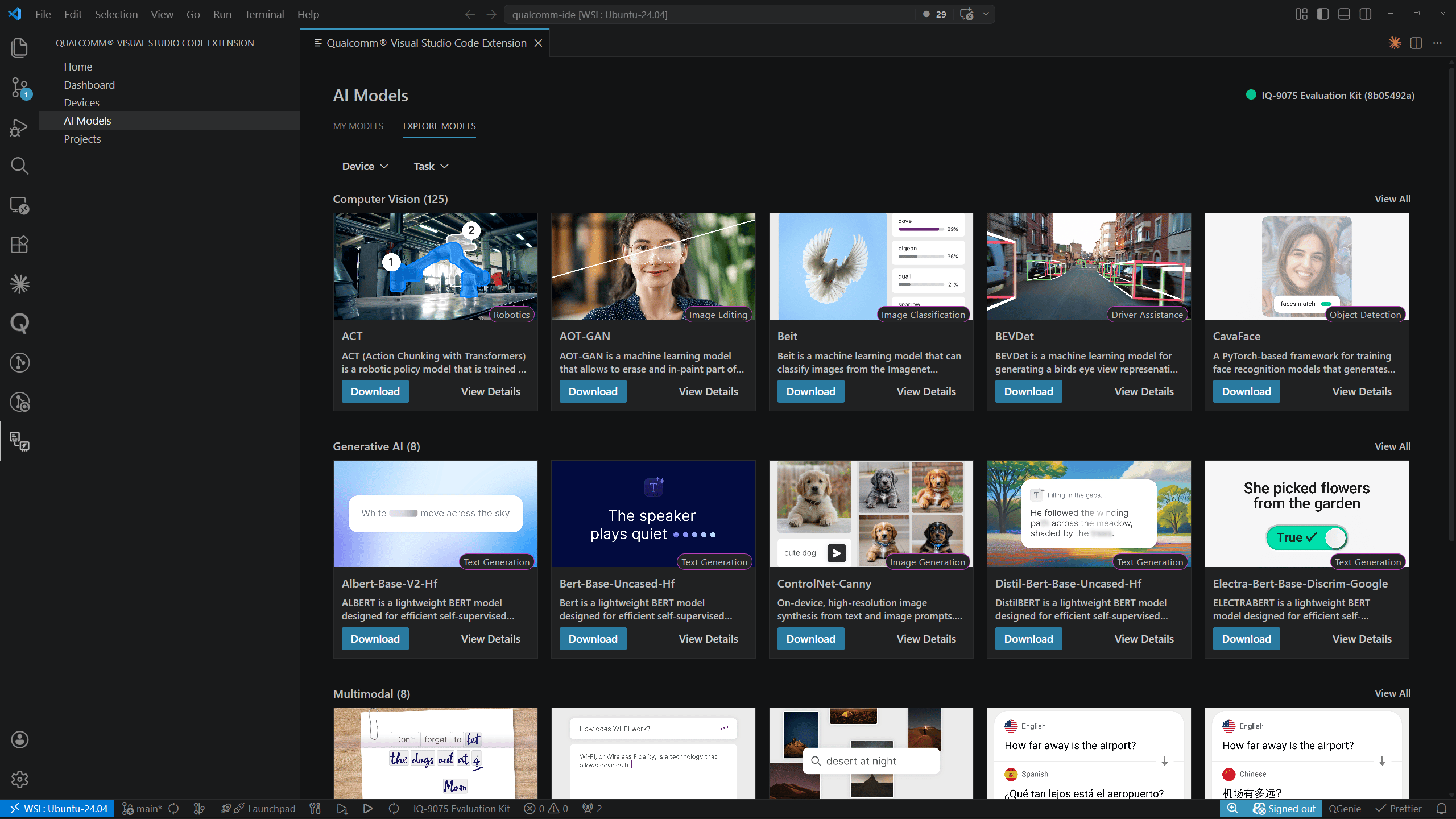 Each card shows:
* A preview image with a task badge (e.g., Image Classification, Text Generation)
* Model name and short description
* **Download** and **View Details** action buttons
### Filtering the Catalog
Use the **Device** and **Task** filter dropdowns above the grid to narrow results.
Clicking **Device** opens a modal with a search field and device chip selectors (e.g., RB3 Gen2 Vision Kit, IQ-9075 Evaluation Kit, IQ-8275 Evaluation Kit Pro). Select one or more devices, then click **Apply Filter**.
Each card shows:
* A preview image with a task badge (e.g., Image Classification, Text Generation)
* Model name and short description
* **Download** and **View Details** action buttons
### Filtering the Catalog
Use the **Device** and **Task** filter dropdowns above the grid to narrow results.
Clicking **Device** opens a modal with a search field and device chip selectors (e.g., RB3 Gen2 Vision Kit, IQ-9075 Evaluation Kit, IQ-8275 Evaluation Kit Pro). Select one or more devices, then click **Apply Filter**.
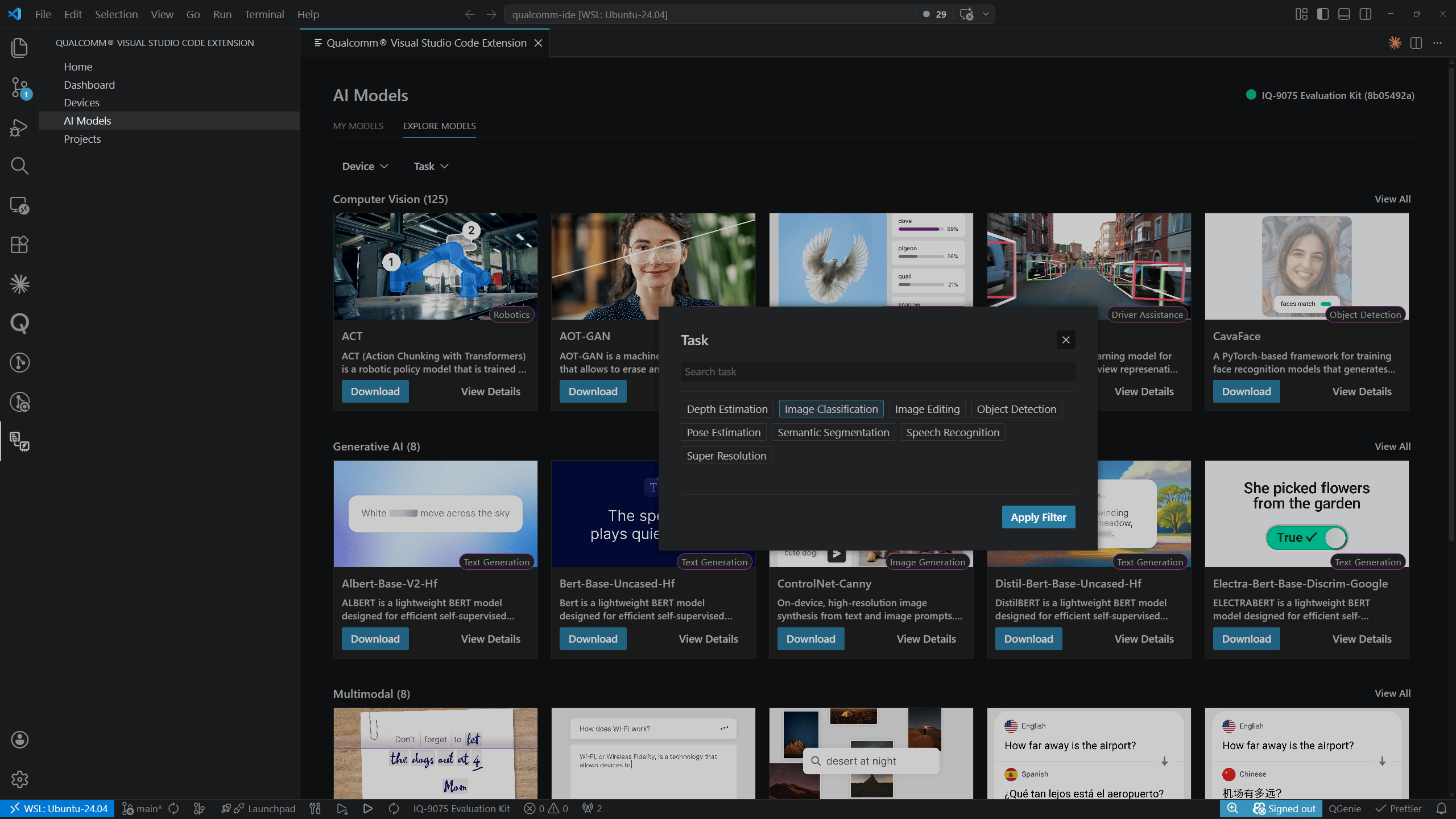
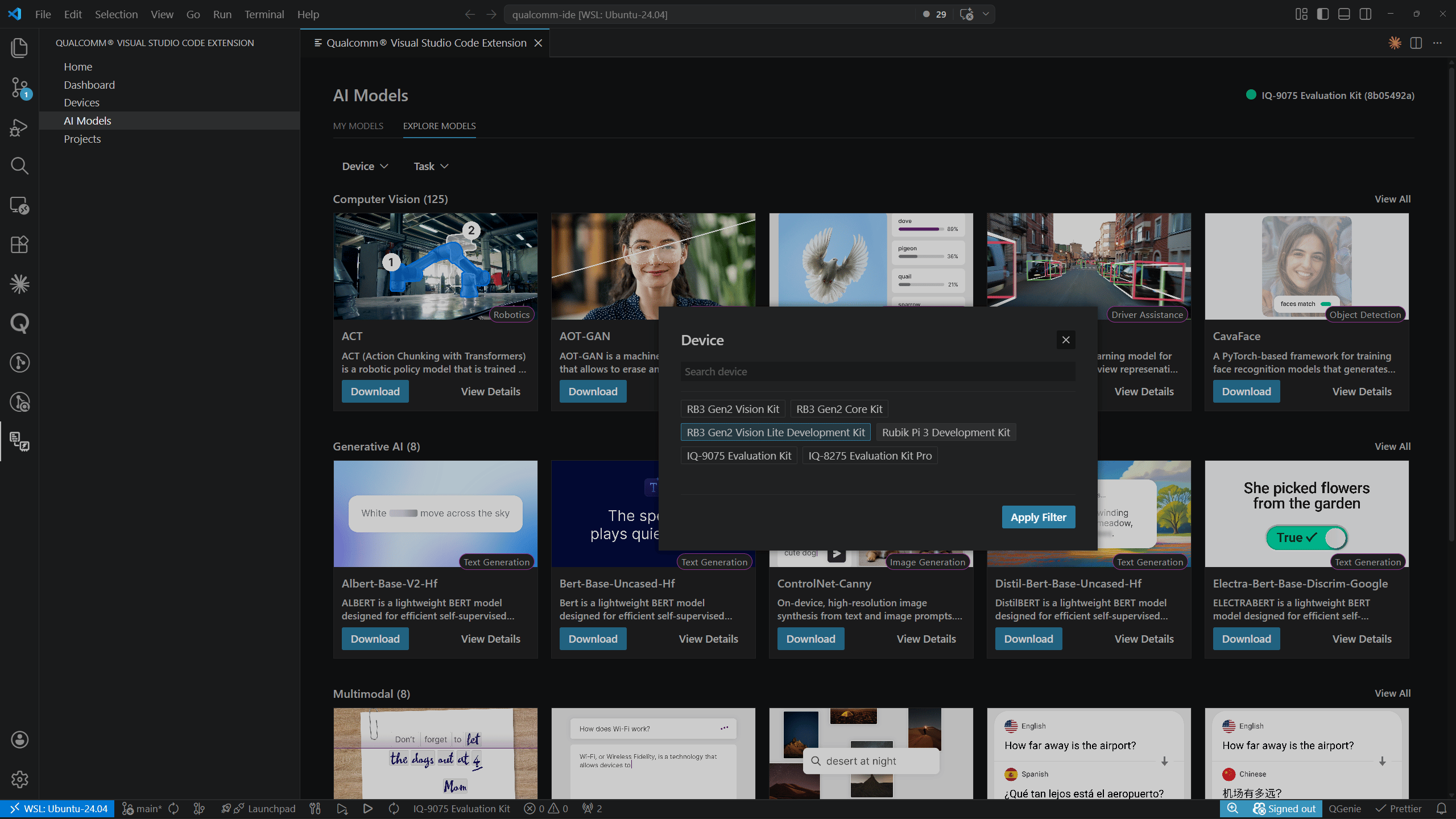 Clicking **Task** opens a similar modal with task chip selectors (e.g., Depth Estimation, Image Classification, Image Editing, Object Detection, Pose Estimation, Semantic Segmentation, Speech Recognition, Super Resolution). Select one or more tasks, then click **Apply Filter**.
 ***
## Model Detail Page
Click **View Details** on any catalog card to open the model detail page. You can also reach this page from **MY MODELS** by clicking the model name.
The breadcrumb shows the navigation path:
* From **Explore Models**: `Explore Models > > `
* From **My Models**: `My Models > `
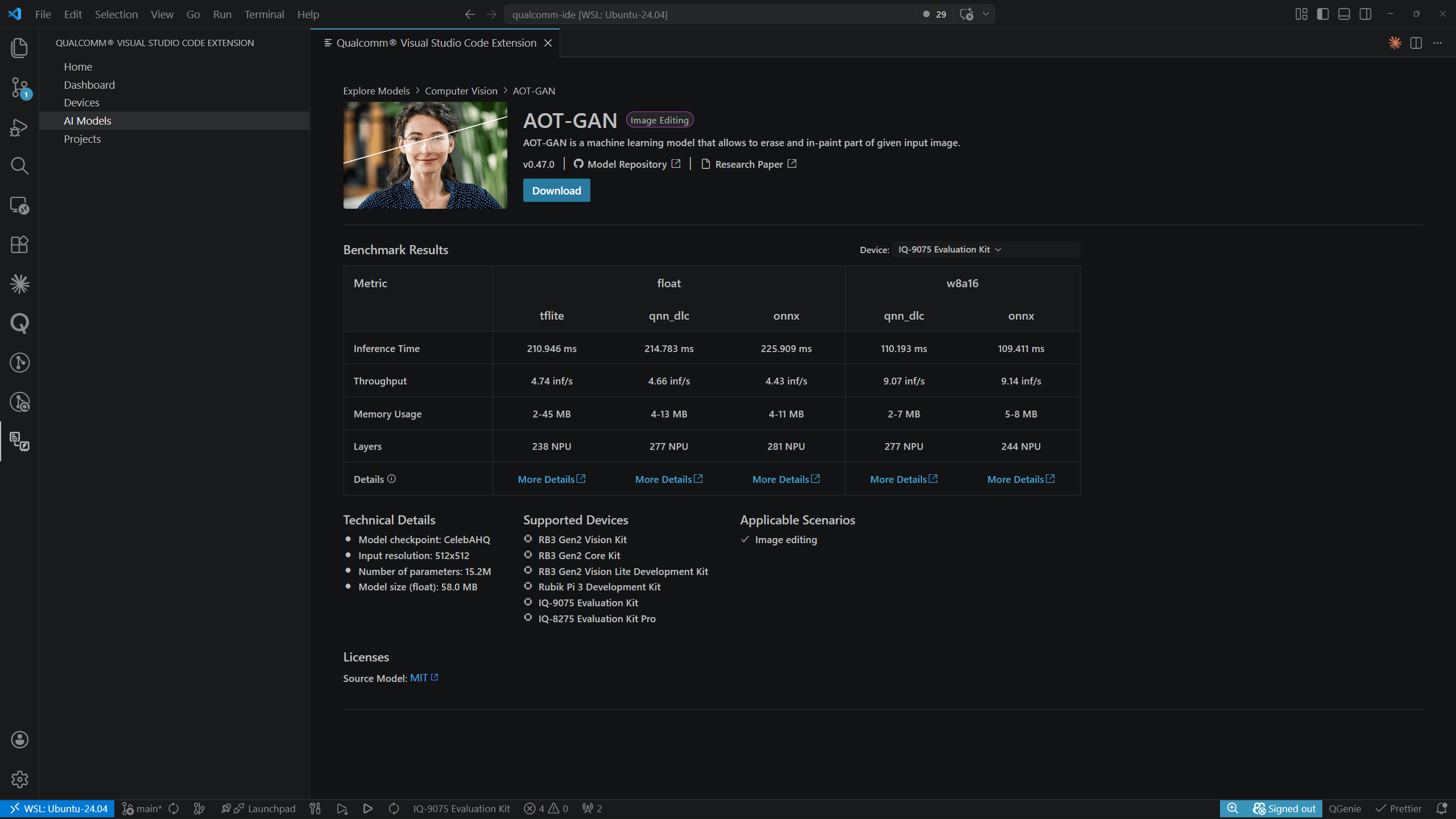
The detail page reached from **Explore Models** shows the full benchmark table with columns for each precision/runtime combination across supported devices:
***
## Model Detail Page
Click **View Details** on any catalog card to open the model detail page. You can also reach this page from **MY MODELS** by clicking the model name.
The breadcrumb shows the navigation path:
* From **Explore Models**: `Explore Models > > `
* From **My Models**: `My Models > `
The detail page reached from **Explore Models** shows the full benchmark table with columns for each precision/runtime combination across supported devices:
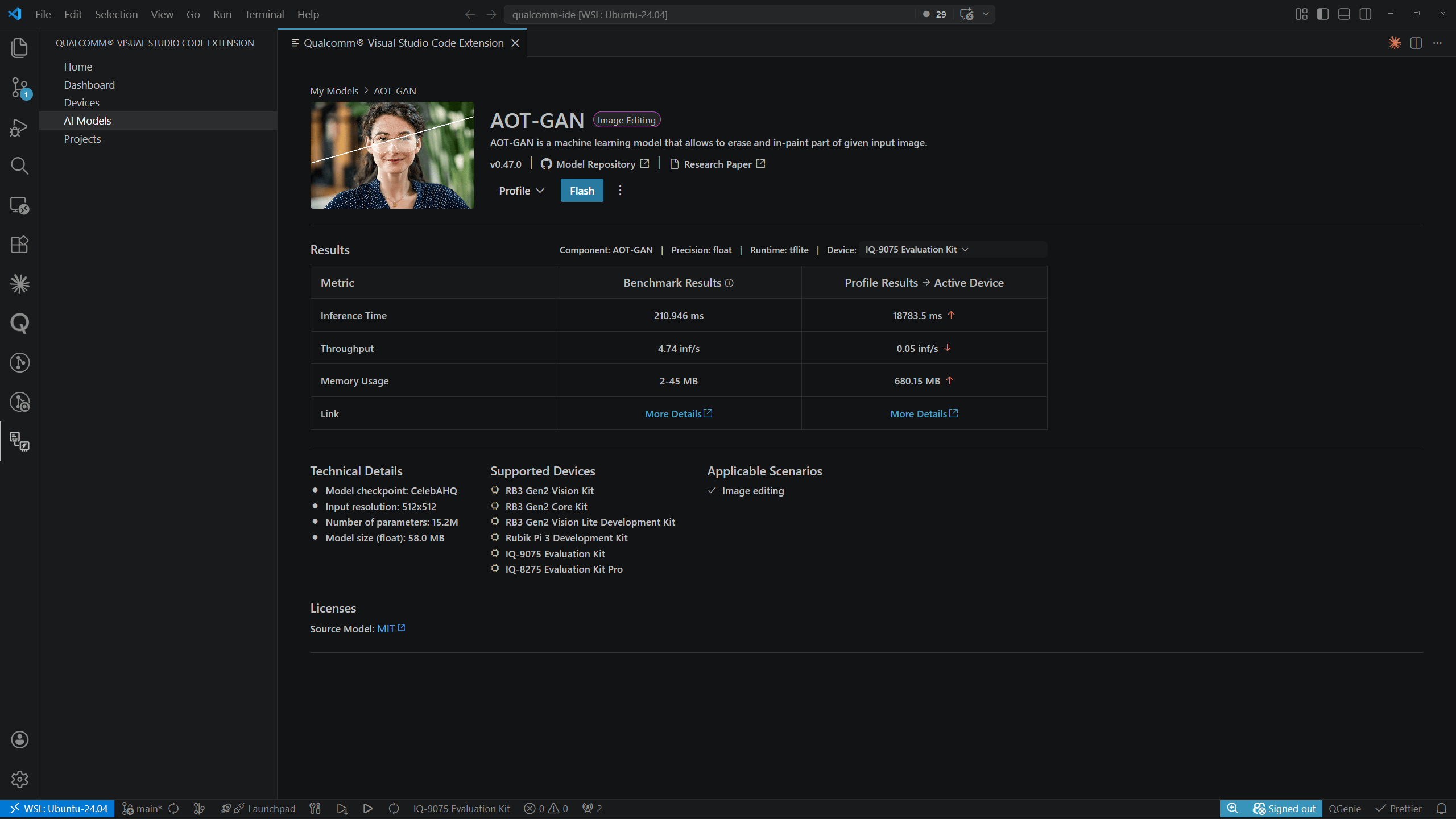
 The detail page reached from **MY MODELS** shows Benchmark Results alongside profiling results columns:
 The detail page includes:
* Model name, task badge, and description
* Version, **Model Repository** link, and **Research Paper** link
* **Download** button
* **Results** table with a **Device** selector
* **Technical Details** — model checkpoint, input resolution, parameter count, model size
* **Supported Devices** — list of compatible dev kits
* **Applicable Scenarios** — suggested use cases
* **Licenses** — source model license
***
## Downloading a Model
### Starting a Download
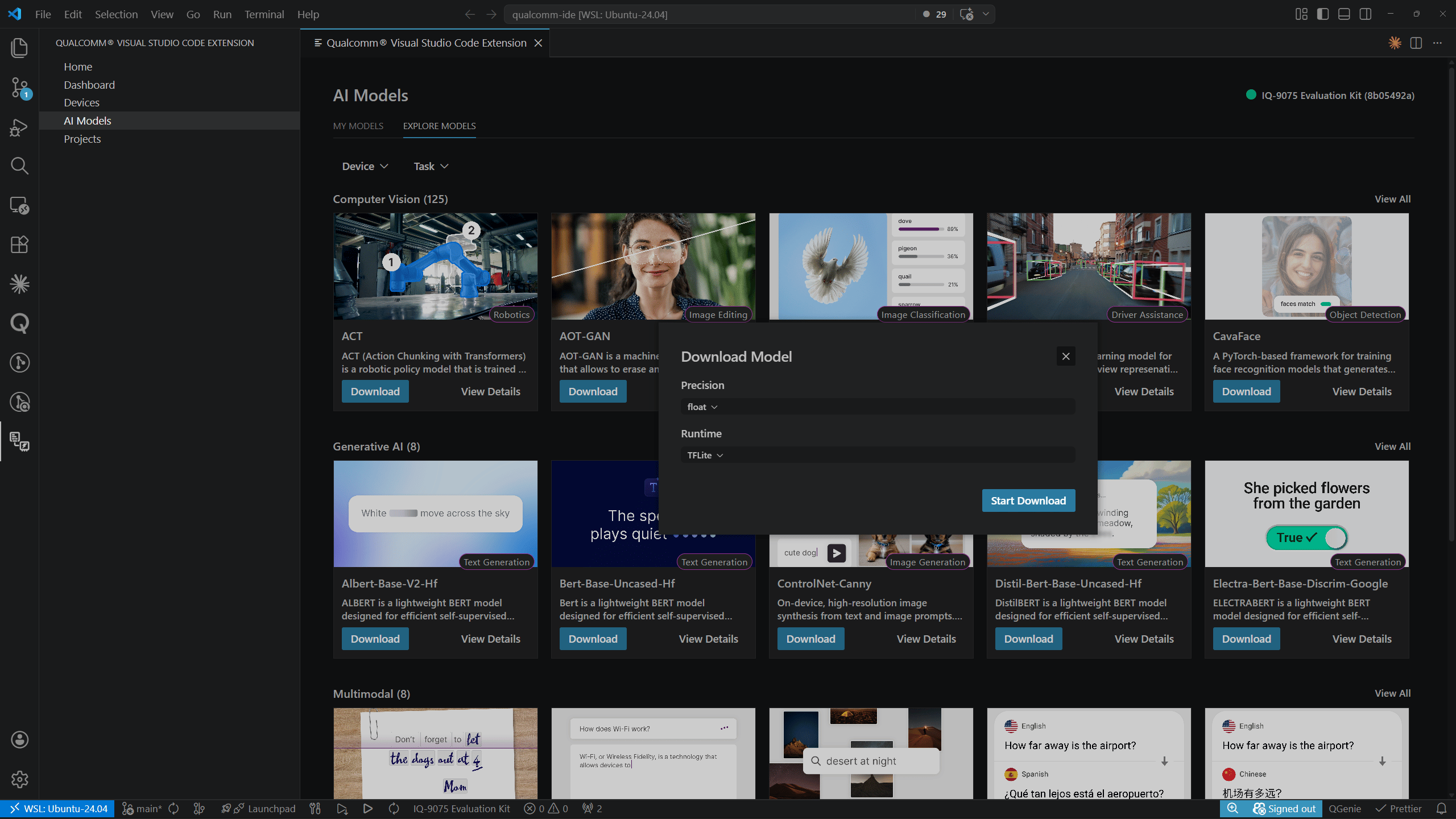
Click **Download** on a catalog card or on the model detail page. In the **Download Model** dialog, select the desired **Precision**, **Float**, and **Runtime** values, then click **Start Download**.
The detail page includes:
* Model name, task badge, and description
* Version, **Model Repository** link, and **Research Paper** link
* **Download** button
* **Results** table with a **Device** selector
* **Technical Details** — model checkpoint, input resolution, parameter count, model size
* **Supported Devices** — list of compatible dev kits
* **Applicable Scenarios** — suggested use cases
* **Licenses** — source model license
***
## Downloading a Model
### Starting a Download
Click **Download** on a catalog card or on the model detail page. In the **Download Model** dialog, select the desired **Precision**, **Float**, and **Runtime** values, then click **Start Download**.
 ### Download Progress
While downloading, the model appears in **MY MODELS** with a **Downloading…** label and a progress bar:
### Download Progress
While downloading, the model appears in **MY MODELS** with a **Downloading…** label and a progress bar:
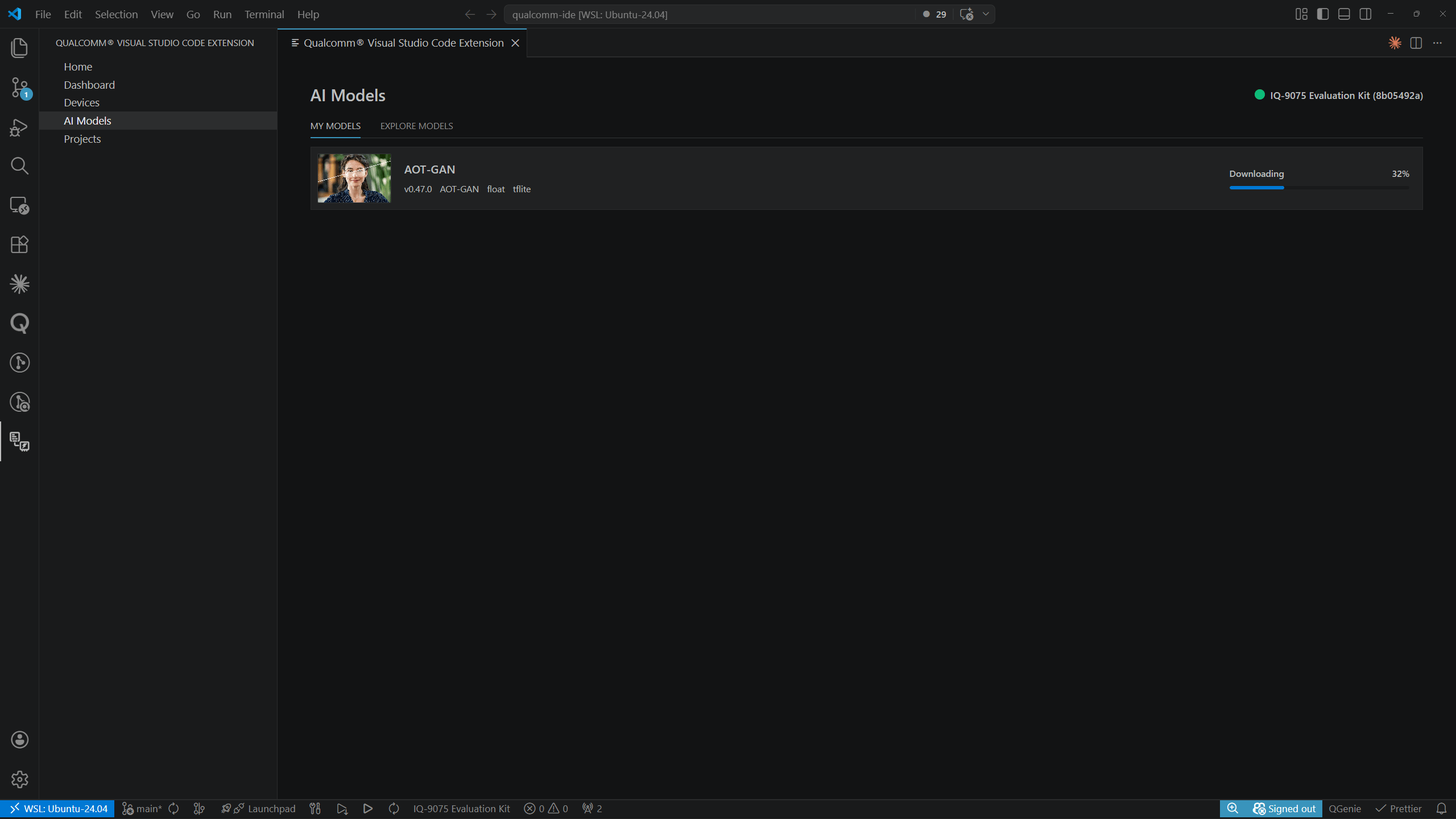 When the download completes, a toast notification confirms: *"\ downloaded successfully."* The model row updates to show its local file path and the **Profile** and **Flash** action buttons.
***
## Profiling a Model
Each model row in **MY MODELS** has a **Profile** split-button. Click the dropdown arrow (▾) to choose from four options:
When the download completes, a toast notification confirms: *"\ downloaded successfully."* The model row updates to show its local file path and the **Profile** and **Flash** action buttons.
***
## Profiling a Model
Each model row in **MY MODELS** has a **Profile** split-button. Click the dropdown arrow (▾) to choose from four options:
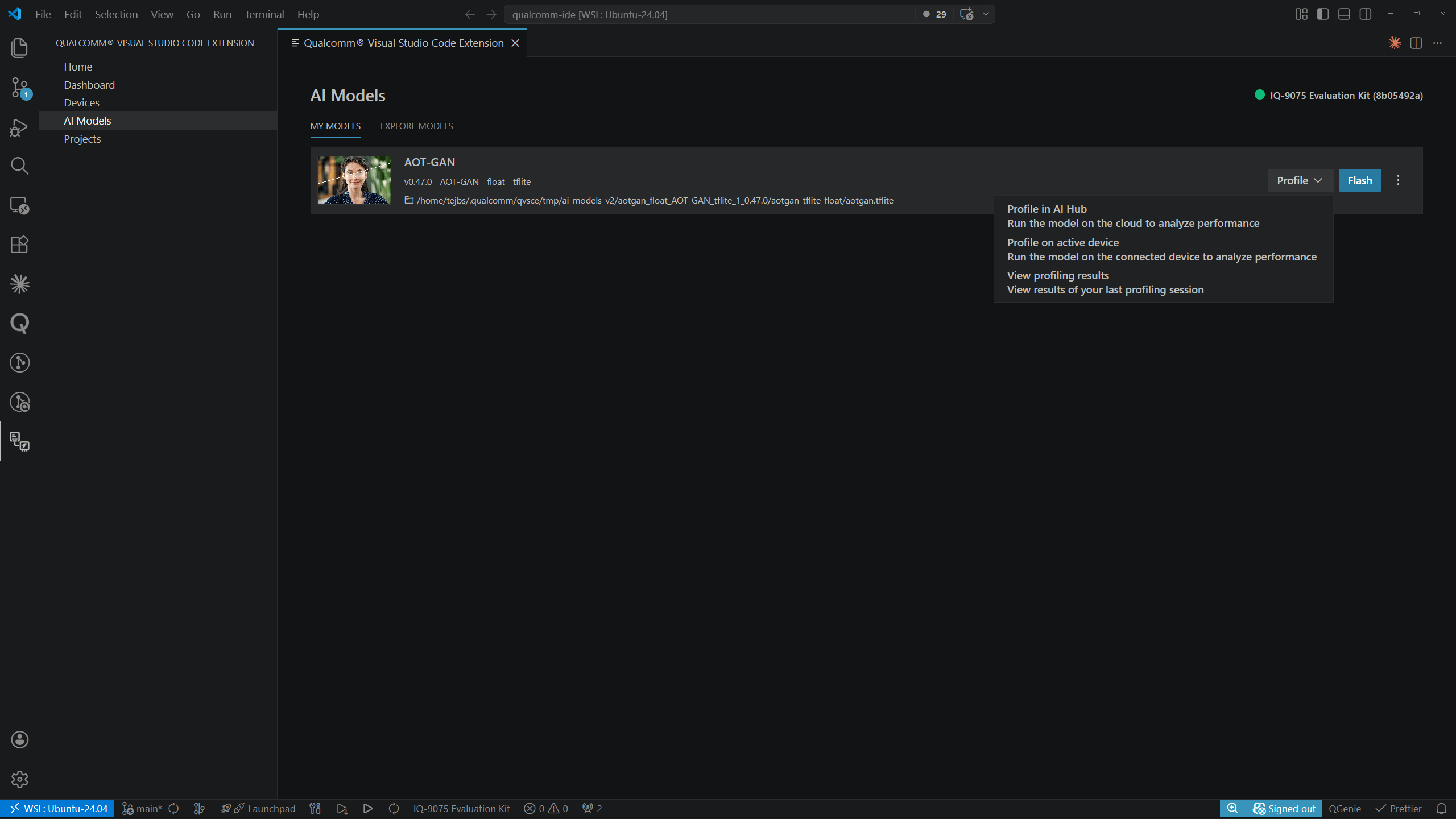 | Option | Description |
| ---------------------------- | ------------------------------------------------------------ |
| **Profile in AI Hub** | Run the model on the cloud to analyze performance |
| **Profile on active device** | Run the model on the connected device to analyze performance |
| **View profiling results** | Open the profiling results page |
### Profile on Active Device
Selecting **Profile on active device** starts local profiling.
| Option | Description |
| ---------------------------- | ------------------------------------------------------------ |
| **Profile in AI Hub** | Run the model on the cloud to analyze performance |
| **Profile on active device** | Run the model on the connected device to analyze performance |
| **View profiling results** | Open the profiling results page |
### Profile on Active Device
Selecting **Profile on active device** starts local profiling.
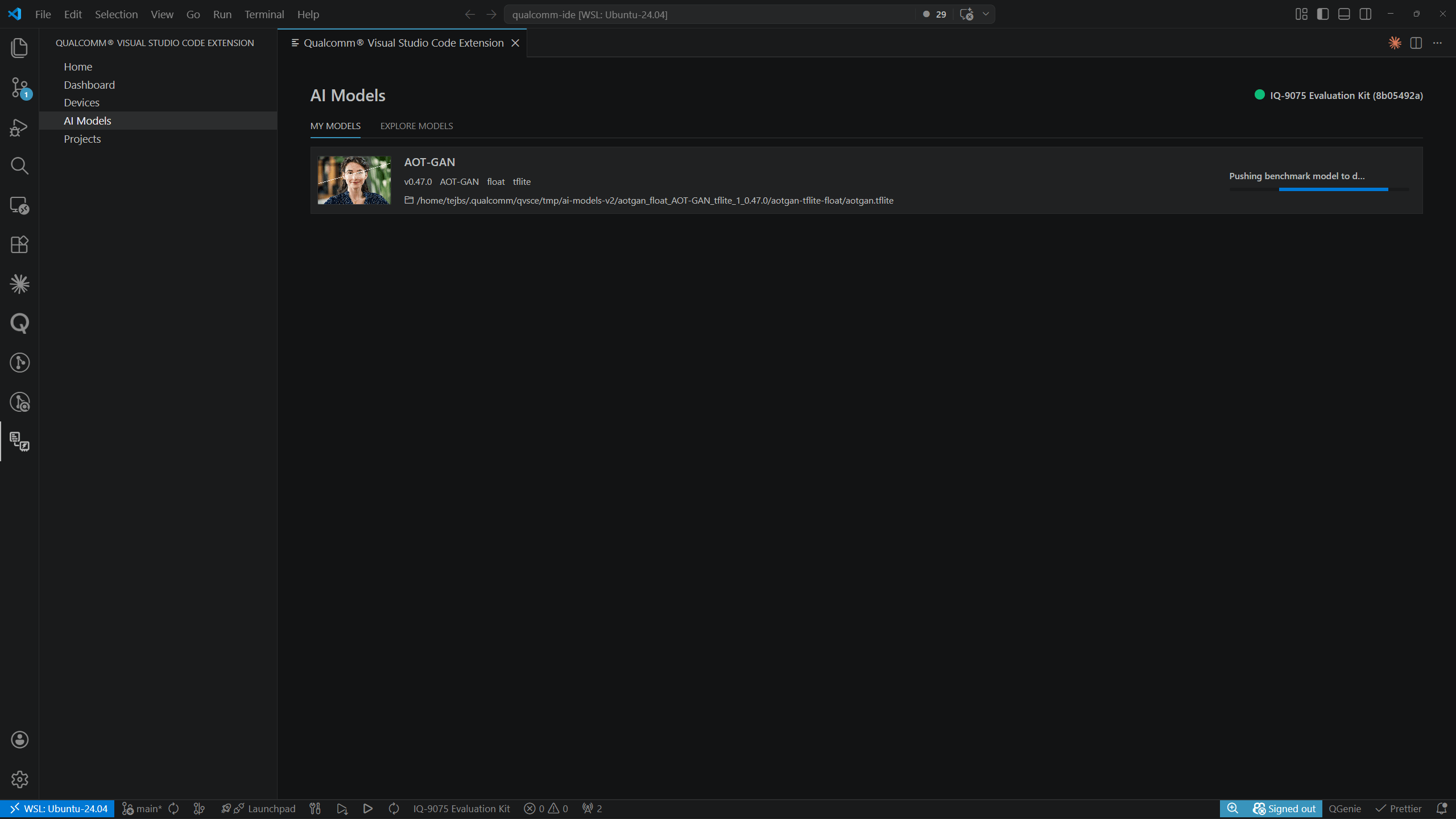
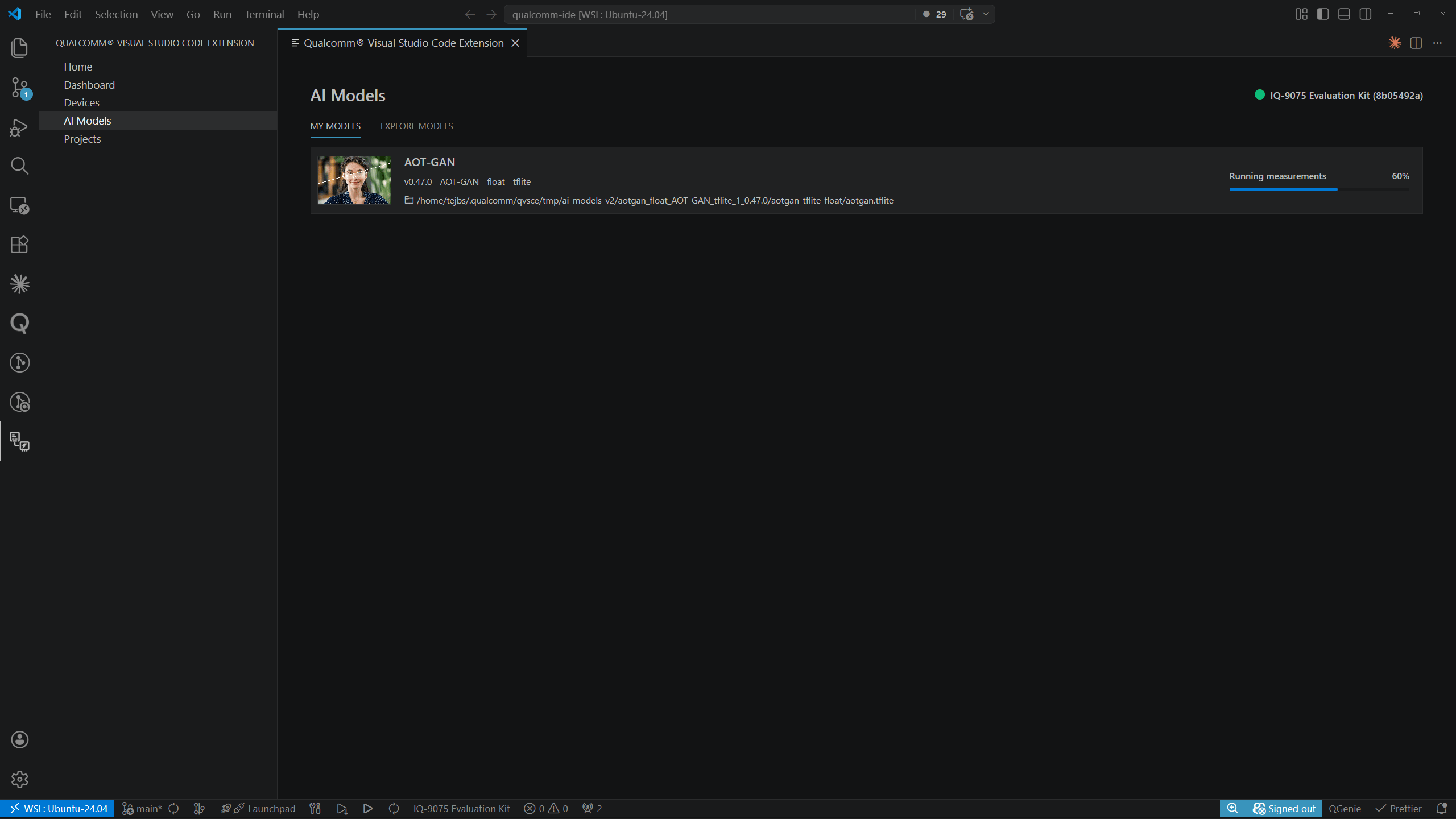 When complete, a toast notification confirms: *"AOT-GAN profiled locally on IQ-8075 Evaluation Kit."*
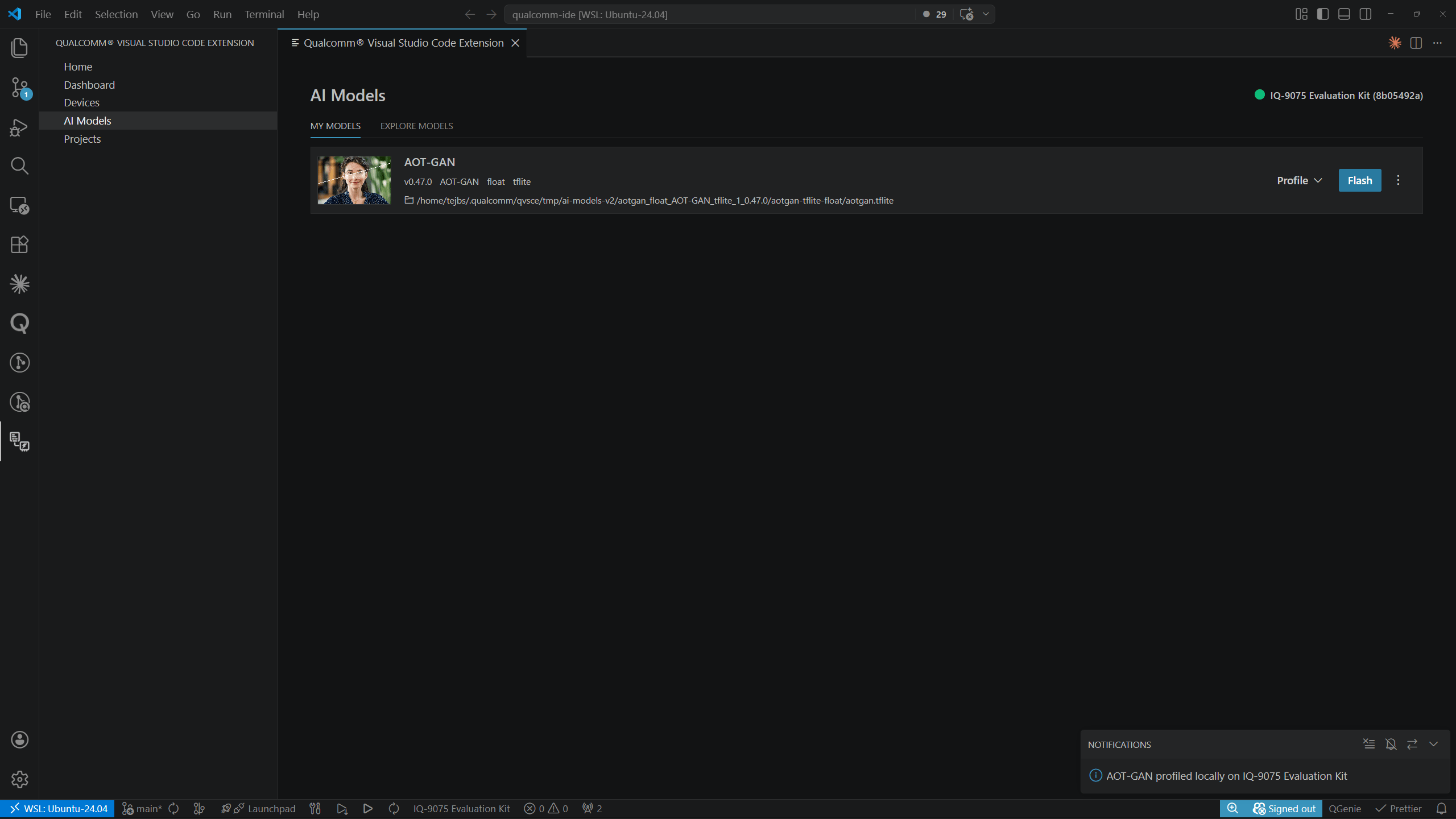 An active device must be set before using **Profile on active device**. See
[Devices](../development/devices) for setup instructions.
### Profile in AI Hub
#### AI Hub Token
The first time you profile a model in AI Hub, the extension prompts you to enter your AI Hub token:
An active device must be set before using **Profile on active device**. See
[Devices](../development/devices) for setup instructions.
### Profile in AI Hub
#### AI Hub Token
The first time you profile a model in AI Hub, the extension prompts you to enter your AI Hub token:
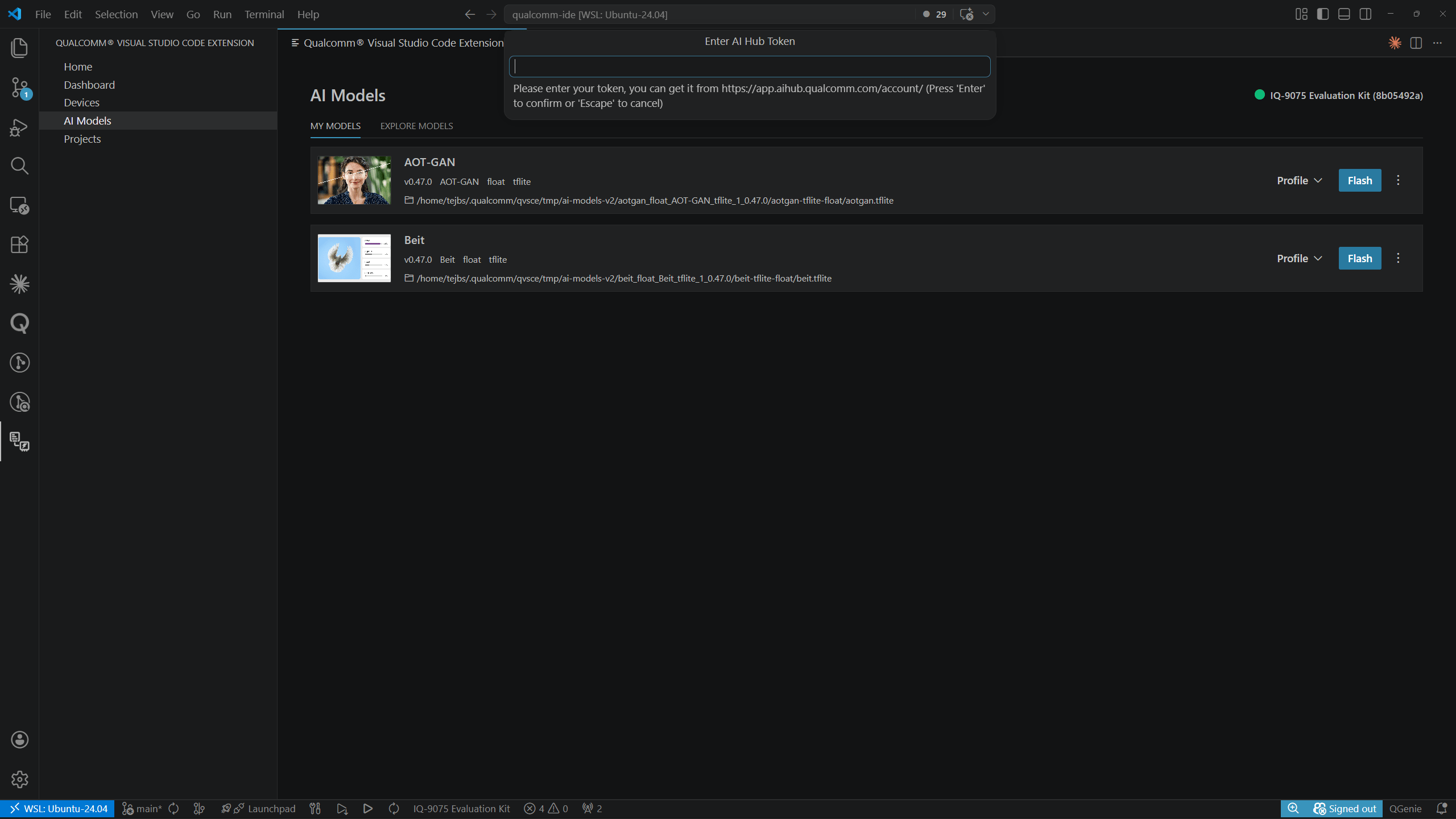 Paste your token from [aihub.qualcomm.com/account](https://aihub.qualcomm.com/account) and press **Enter** to confirm or **Escape** to cancel.
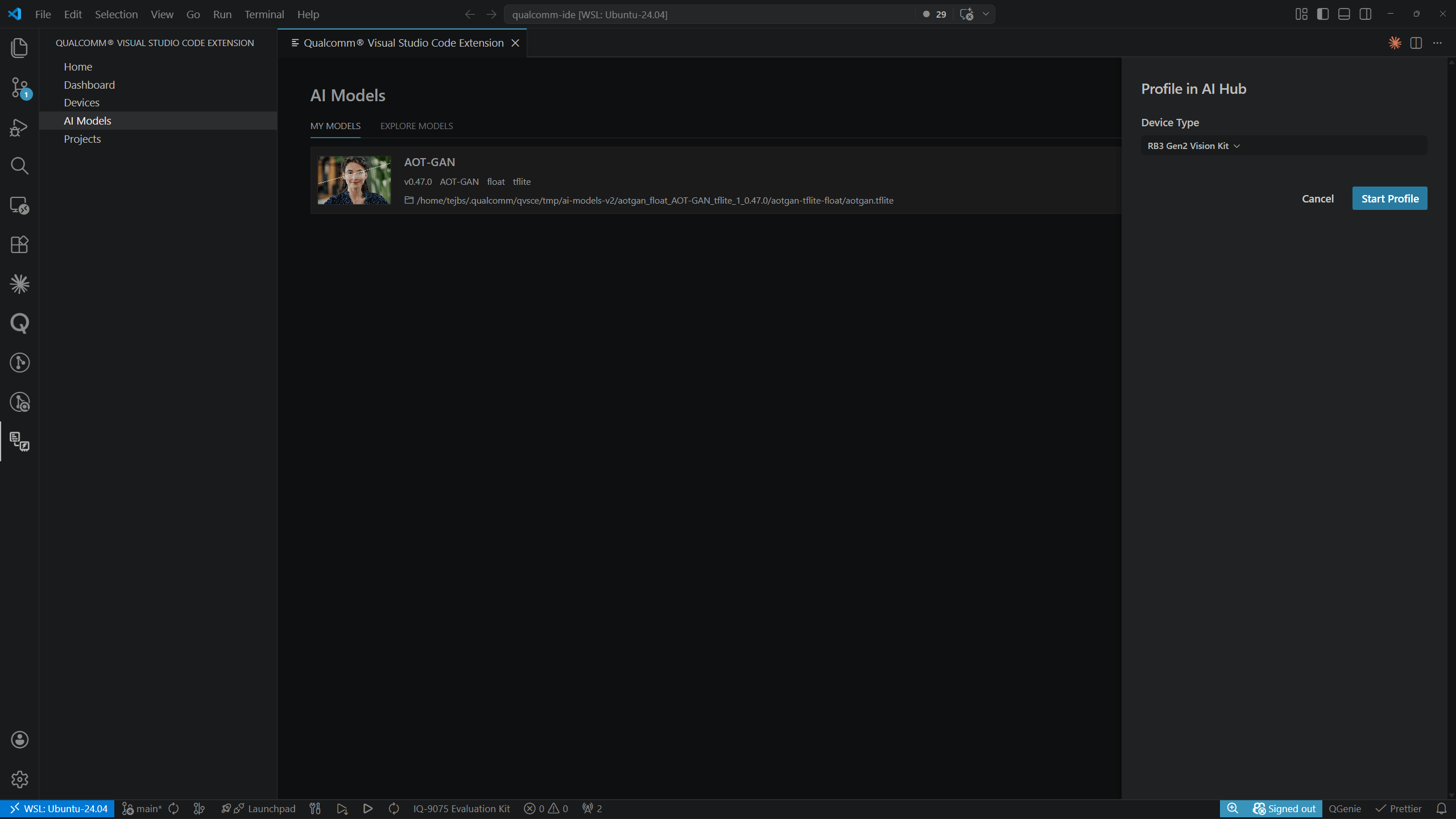
Selecting **Profile in AI Hub** opens a side panel to configure the cloud profile job. Select the **Device Type** from the dropdown, then click **Start Profile**.
Paste your token from [aihub.qualcomm.com/account](https://aihub.qualcomm.com/account) and press **Enter** to confirm or **Escape** to cancel.
Selecting **Profile in AI Hub** opens a side panel to configure the cloud profile job. Select the **Device Type** from the dropdown, then click **Start Profile**.
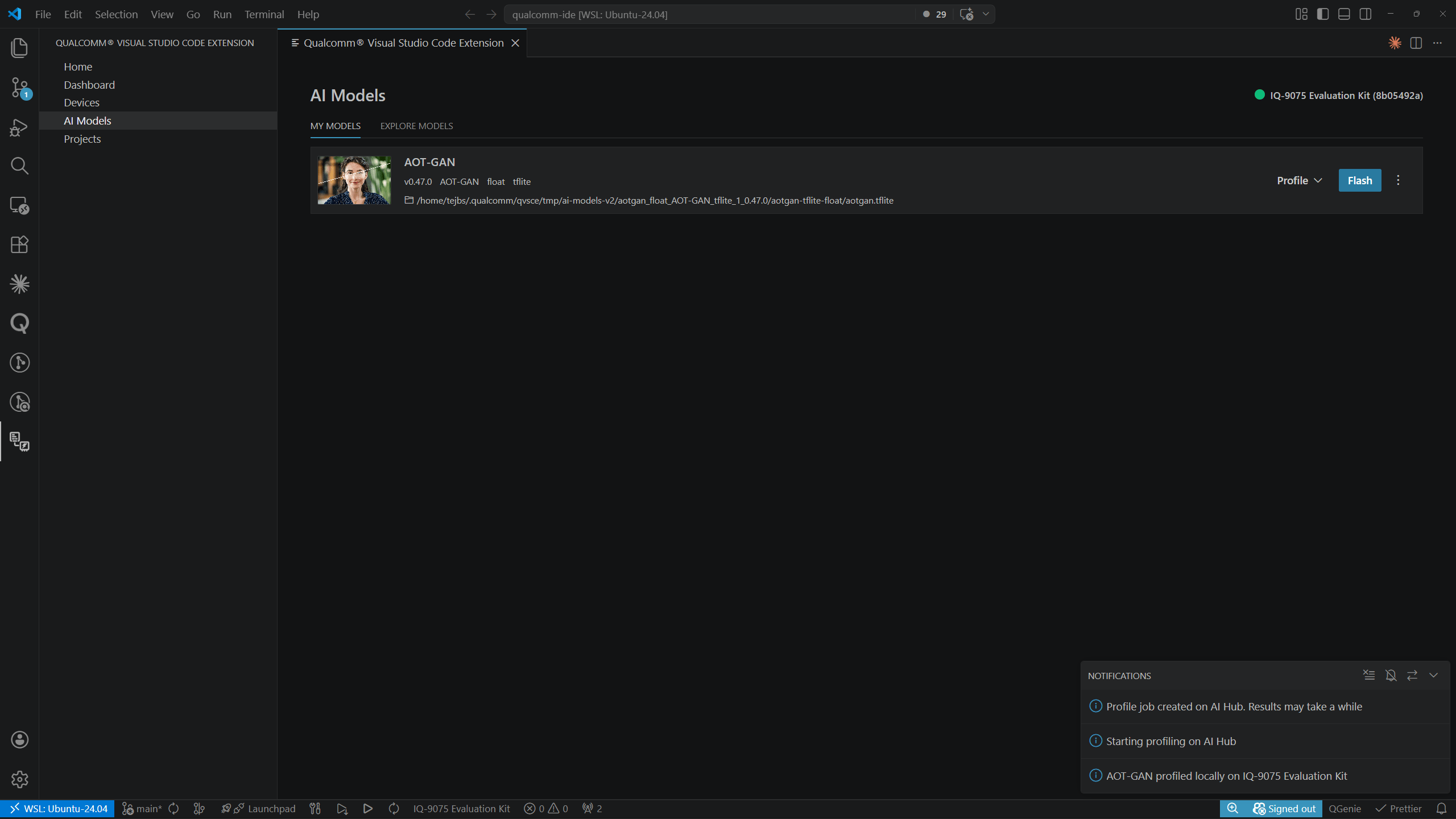
 A notification panel confirms the job was created: *"Profile job created on AI Hub. Results may take a while"* and *"Starting profiling on AI Hub."*
 ### Viewing Profiling Results
Select **View profiling results** to open the results page from the model detail view. The breadcrumb shows `My Models > `.
### Viewing Profiling Results
Select **View profiling results** to open the results page from the model detail view. The breadcrumb shows `My Models > `.
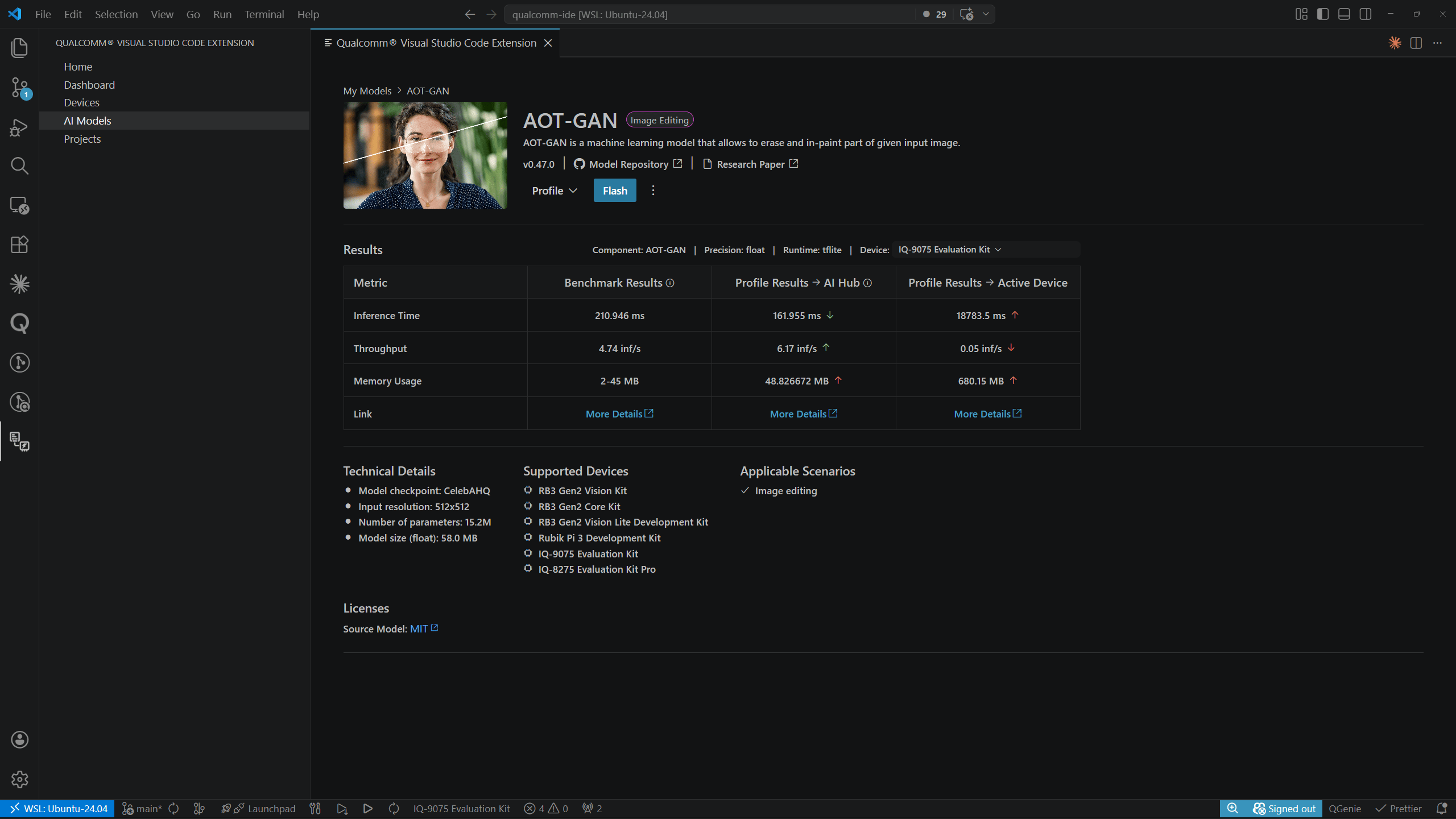 The results table header shows the Component, Precision, Runtime, and Device used for profiling. Columns show results from all available sources:
| Column | Description |
| ----------------------------------- | ------------------------------------------------ |
| **Benchmark Results** | Published AI Hub reference values for the model |
| **Profile Results – AI Hub** | Values from the cloud AI Hub profiling job |
| **Profile Results – Active Device** | Values measured on your locally connected device |
Each value in the **Profile Results** columns has a colored arrow indicating performance relative to the benchmark:
* **Red** — worse than benchmark
* **Green** — better than benchmark
A **More Details** link in each column opens the full AI Hub profiling report.
***
## Flashing a Model to the Device
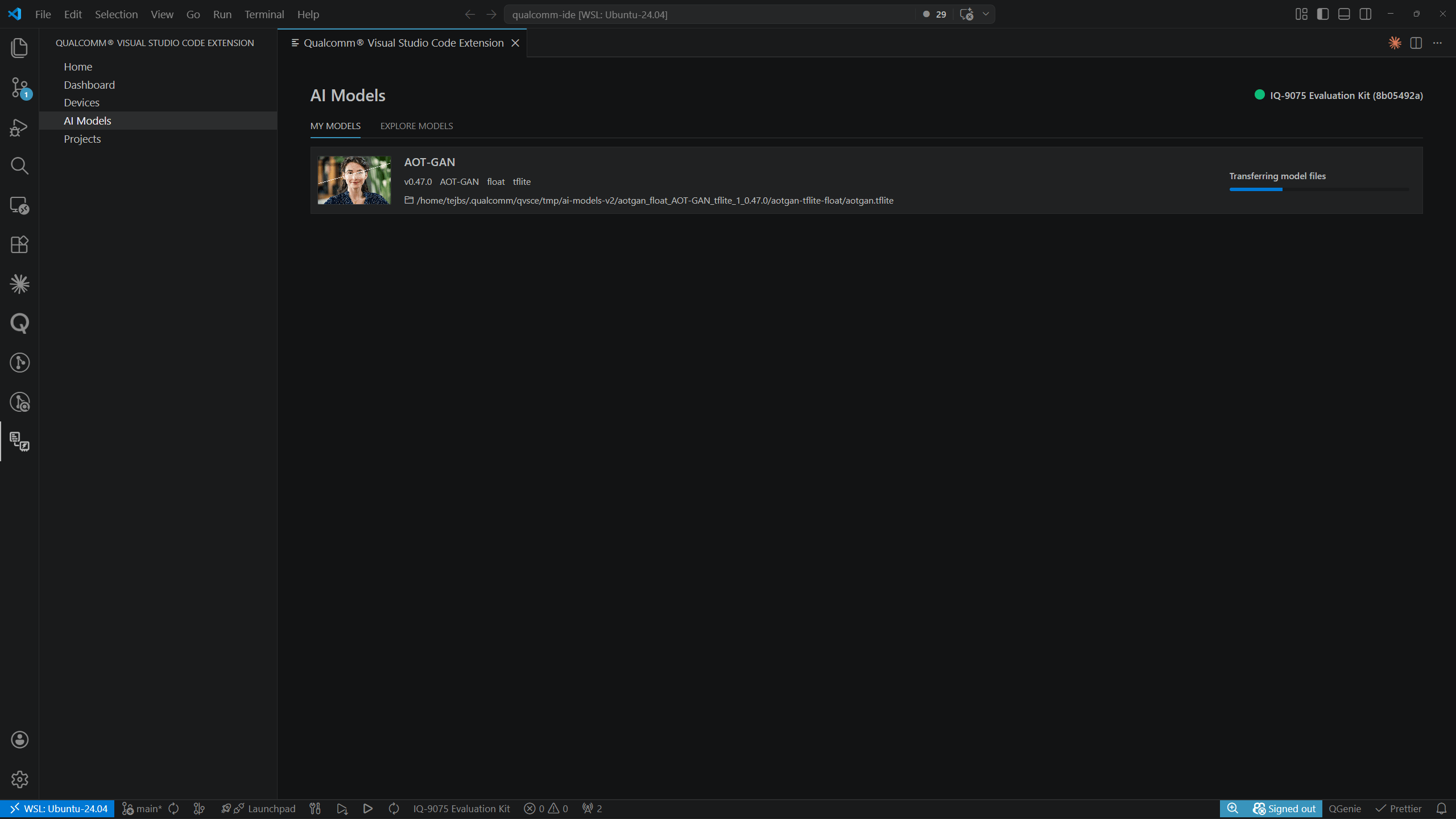
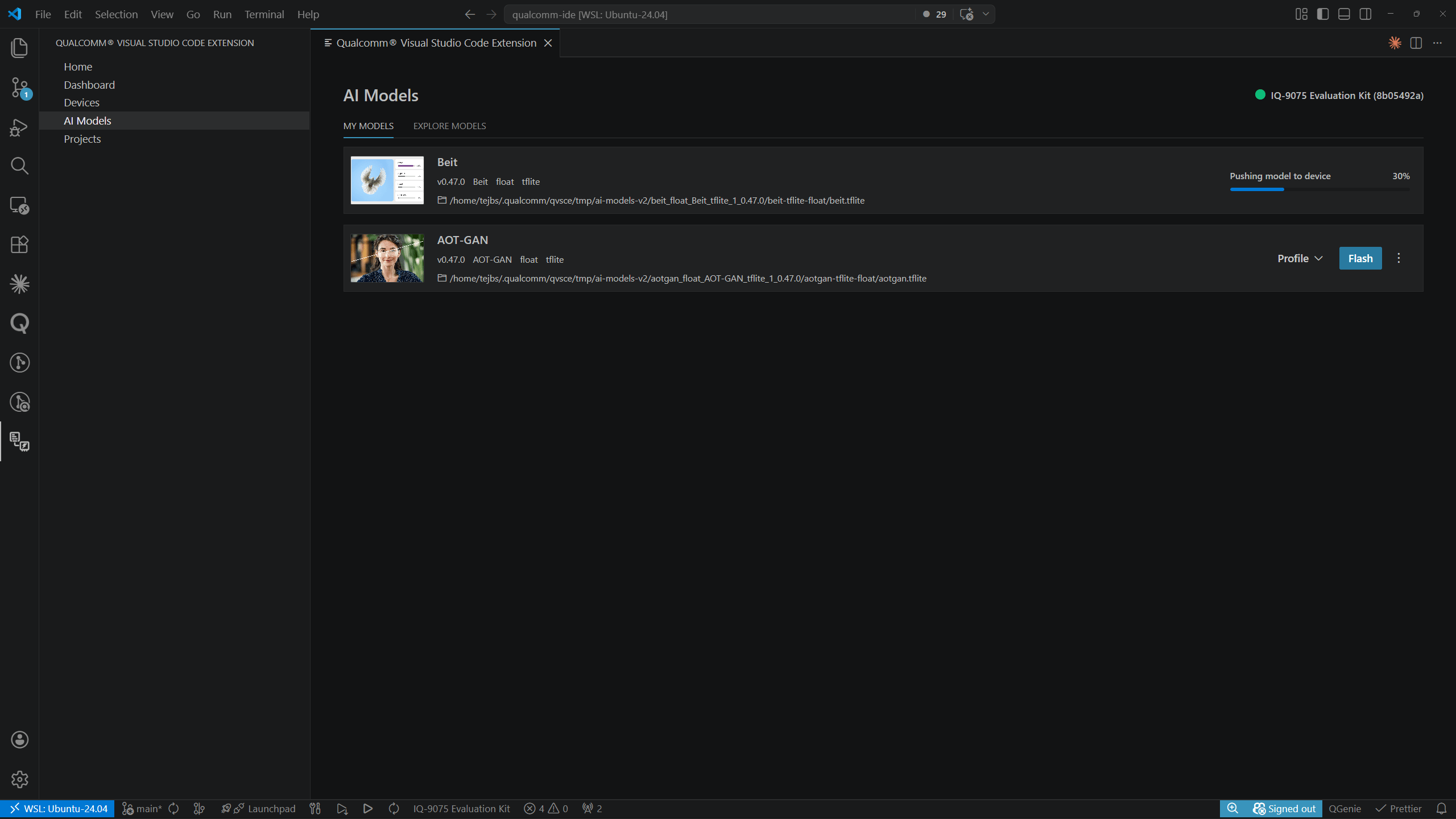
Click **Flash** on a model row in **MY MODELS** to push the model to the active device.
The results table header shows the Component, Precision, Runtime, and Device used for profiling. Columns show results from all available sources:
| Column | Description |
| ----------------------------------- | ------------------------------------------------ |
| **Benchmark Results** | Published AI Hub reference values for the model |
| **Profile Results – AI Hub** | Values from the cloud AI Hub profiling job |
| **Profile Results – Active Device** | Values measured on your locally connected device |
Each value in the **Profile Results** columns has a colored arrow indicating performance relative to the benchmark:
* **Red** — worse than benchmark
* **Green** — better than benchmark
A **More Details** link in each column opens the full AI Hub profiling report.
***
## Flashing a Model to the Device
Click **Flash** on a model row in **MY MODELS** to push the model to the active device.
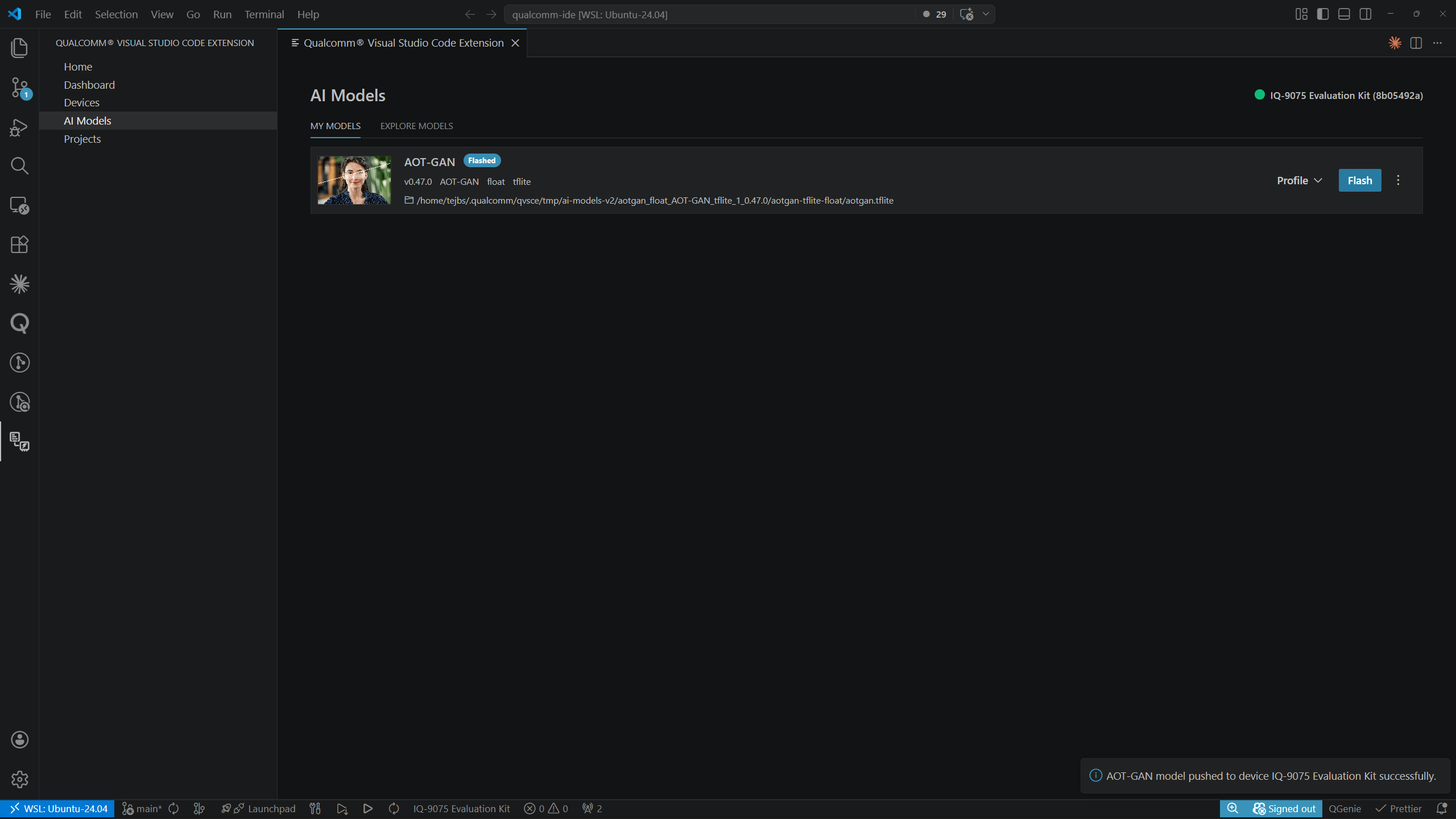
 When complete, a toast confirms: *"AOT-GAN model pushed to IQ-8075 Evaluation Kit successfully."*
 An active device must be set before flashing. The active device is shown in
the top-right corner of the AI Models page. See
[Devices](../development/devices) for setup instructions.
***
## Removing a Model
Click the **⋮** overflow menu on the right side of a model row in **MY MODELS** and select **Remove** to delete the model and all its profiling results from the host.
An active device must be set before flashing. The active device is shown in
the top-right corner of the AI Models page. See
[Devices](../development/devices) for setup instructions.
***
## Removing a Model
Click the **⋮** overflow menu on the right side of a model row in **MY MODELS** and select **Remove** to delete the model and all its profiling results from the host.
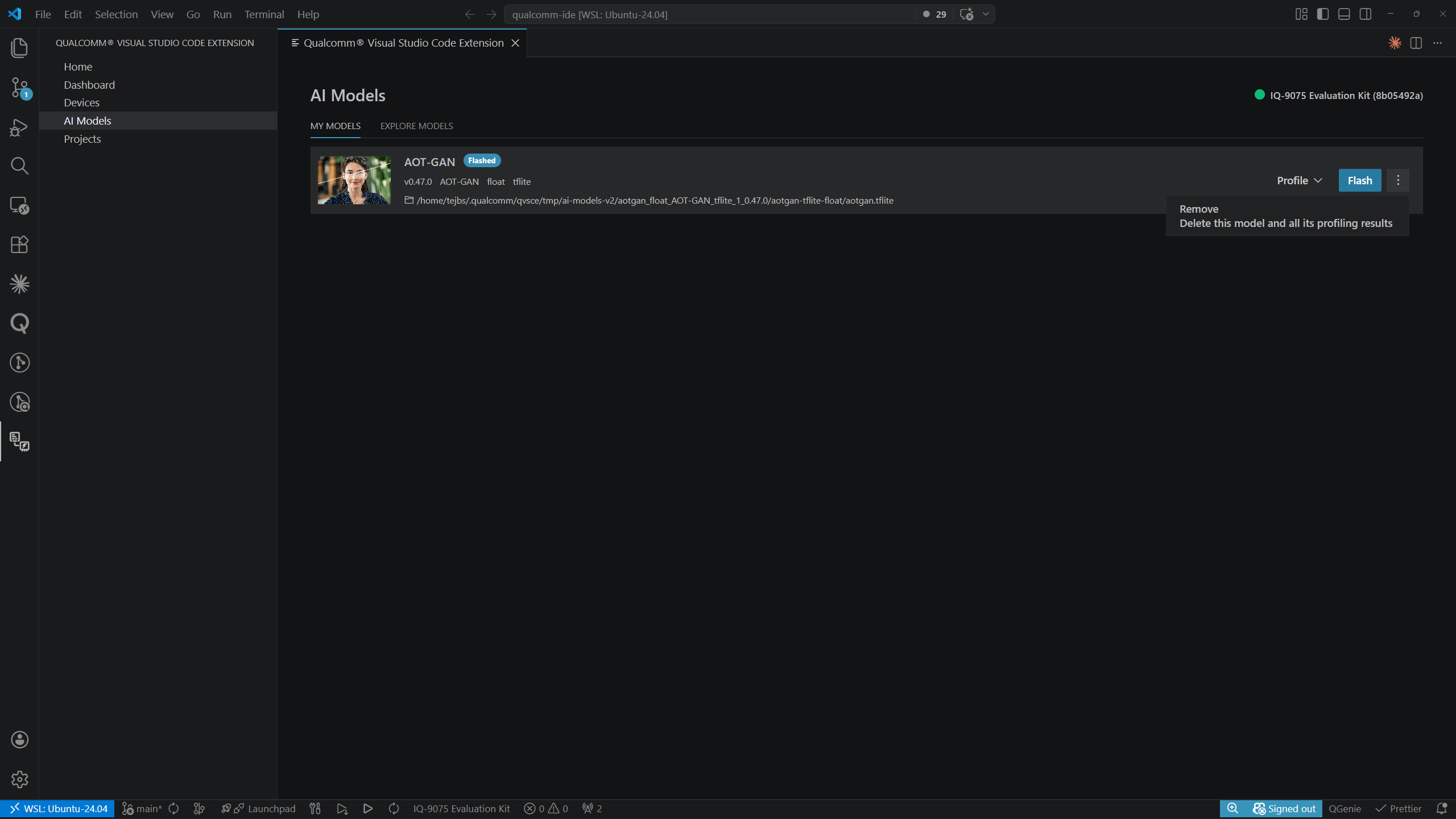 **Remove** deletes the local model file and all associated profiling results.
The model can be re-downloaded from the **Explore Models** tab.
**Remove** deletes the local model file and all associated profiling results.
The model can be re-downloaded from the **Explore Models** tab.