> ## Documentation Index
> Fetch the complete documentation index at: https://dragonwingdocs-staging.qualcomm.com/llms.txt
> Use this file to discover all available pages before exploring further.
# IQ-615
## Debug the high-definition multimedia interface (HDMI) display
Set switch **SW7 to OFF** as described in [IQ-615 HDMI setup](enable-display-iq615), then use the connector map and checks below.
Connect to the target through SSH and run target commands from the root shell. For instructions, see [Sign in using SSH](https://dragonwingdocs.qualcomm.com/Key-Documents/Flash-Guide/how-to-sign-in-with-ssh).
The HDMI output routes DSI0 through the ADV7511 DSI-to-HDMI bridge to `HDMI-A-1`.
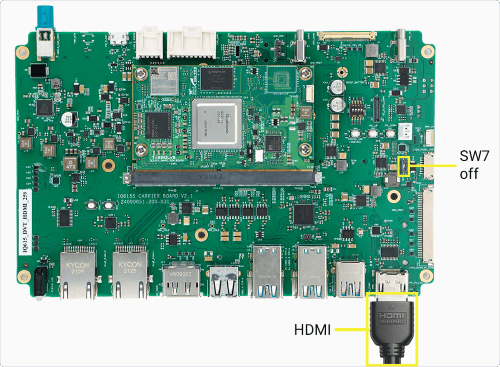
**Figure: IQ-615 HDMI connection**
### 1. Identify the connector
Run the following command:
> ```text theme={null}
> modetest -M msm -c
> ```
This lists the HDMI connector, its DRM ID, and its connection state.
Reference output
```text theme={null}
34 0 disconnected HDMI-A-1 0x0 0 33
```
Run the following command:
> ```text theme={null}
> cat /sys/class/drm/card0-HDMI-A-1/status
> ```
This reports whether HDMI is connected. The expected result is `connected`.
Run the following command:
> ```text theme={null}
> cat /sys/class/drm/card0-HDMI-A-1/modes
> ```
This lists the modes reported by the connected monitor.
If HDMI is `disconnected` or reports no modes, check the cable, monitor power, and selected HDMI input. DRM object IDs and card numbers can vary by build.
### 3. Check the active DRM state
If `debugfs` is not mounted, run the following command:
> ```text theme={null}
> mount -t debugfs none /sys/kernel/debug
> ```
This makes DRM state and interface debug data available.
Run the following command:
> ```text theme={null}
> modetest -M msm -c -p
> ```
This shows the HDMI encoder, CRTC, mode, and plane.
Reference output
```text theme={null}
Encoders:
id crtc type
33 0 DSI
```
Run the following command:
> ```text theme={null}
> cat /sys/kernel/debug/dri/0/state
> ```
This shows the kernel DRM connector, encoder, CRTC, and plane state.
For `HDMI-A-1`, confirm one active display pipeline:
* `status: connected`
* A nonzero CRTC ID
* `active=yes` for that CRTC
* A plane whose `crtc` field matches that CRTC ID
**Restore Weston after testing a display mode.**
To test a different mode, follow [Run DRM modetest](run-drm-modetest), then [Relaunch Weston](troubleshoot-relaunch-weston) before returning to Weston tests.
Run the following command:
> ```text theme={null}
> cat /sys/kernel/debug/clk/disp_cc_mdss_pclk*/clk_rate
> ```
This prints the available DSI pixel-clock rates used by the HDMI bridge in Hz.
Compare the rate with the active CRTC pixel clock, which `modetest` reports in kHz. If the clock path is absent, continue with the DRM state and kernel log checks.
### 5. Check current-boot kernel messages and live display events
Run the following command:
> ```text theme={null}
> journalctl -k -b --no-pager -o short-monotonic | grep -Ei 'adv7511|adv7533|adv7535|hdmi|edid|dsi|dpu|drm'
> ```
This shows bridge, EDID, DSI, and DRM messages from the current boot only. If it returns no lines, capture live data while reproducing the issue.
Reference output
```text theme={null}
[ 12.060926] adv7511 0-003d: supply v1p2 not found, using dummy regulator
[ 12.326611] msm_dpu ae01000.display-controller: bound ae94000.dsi
[ 12.512759] [drm] Initialized msm 1.13.0 for ae01000.display-controller
```
To capture display events while reproducing the issue, run the following command:
> ```text theme={null}
> journalctl -f
> ```
This follows new Weston and kernel messages. Run it without `-k` so the output includes compositor connector changes and output enablement. Reproduce the issue, then press `Ctrl+C`.
Look for connector-state changes, EDID or mode detection, output enablement, and driver errors. Compare the relevant messages with the connector status and active DRM state.
EDID or I2C errors point to the monitor, cable, or bridge.
| **Result** | **Likely area** | **Next action** |
| - | - | - |
| `disconnected` after reconnecting, or no new display message and no status change | Cable, monitor input, bridge, or HPD path | Reseat the cable, select the HDMI input, and recheck connector status. |
| Connected with no modes or EDID/I2C errors | Monitor, cable, or bridge | Check the cable and monitor, then inspect bridge messages. |
| Mode reported, but the connector, CRTC, and plane do not form one active pipeline | DRM or compositor | Check the active DRM state and Weston status. |
| Active CRTC but blank screen | Bridge or Weston | Compare the DSI clock, bridge log, and Wayland output. |
**Verify the Weston service before checking the output layout.**
Run the following command:
```text theme={null}
systemctl is-active weston
```
The expected result is `active`. If the service is not active, [Relaunch Weston](troubleshoot-relaunch-weston) before continuing.
### 7. Check Weston and the output layout
Run the following command:
> ```text theme={null}
> journalctl -b -u weston -n 40 --no-pager
> ```
This shows the latest Weston messages from the current boot.
Run the following command if Weston is active but the display is blank:
> ```text theme={null}
> find /run/user/ -maxdepth 1 -type s -name 'wayland-*' -printf '%f\n'
> ```
This lists the available Wayland socket names.
Run the following command after replacing the placeholders:
> ```text theme={null}
> runuser -u weston -- env XDG_RUNTIME_DIR=/run/user/ WAYLAND_DISPLAY= wayland-info
> ```
**Compare the Weston output with DRM state.**
This prints Weston output information. Find the selected display output and compare it with the DRM connector and CRTC state. If Weston is inactive, [Relaunch Weston](troubleshoot-relaunch-weston) before continuing.