> ## Documentation Index
> Fetch the complete documentation index at: https://dragonwingdocs-staging.qualcomm.com/llms.txt
> Use this file to discover all available pages before exploring further.
# IQ-615
## Debug the DisplayPort
The mini DisplayPort connector maps to `DP-1`. Run `connector=DP-1` before the following checks. This selects the mini DisplayPort connector.
Connect to the target through SSH and run target commands from the root shell. For instructions, see [Sign in using SSH](https://dragonwingdocs.qualcomm.com/Key-Documents/Flash-Guide/how-to-sign-in-with-ssh).
| **Board connector** | **Linux DRM connector** |
| - | - |
| Mini DisplayPort | DP-1 |
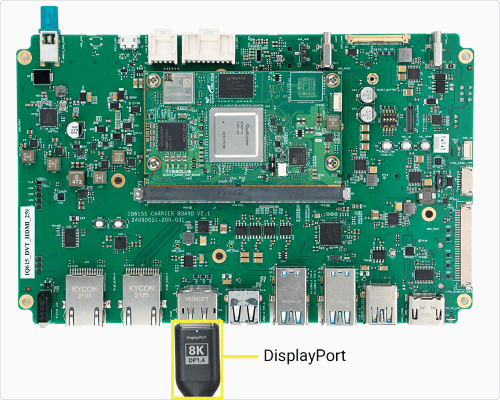
**Figure: IQ-615 DisplayPort connection**
The connector mapping above is platform-specific and determines the following used connector value. The seven troubleshooting steps are otherwise the same on every DisplayPort page.
### 1. Identify the connector
Run the following command:
> ```text theme={null}
> modetest -M msm -c
> ```
This lists the DRM connectors, their IDs, and their connection states.
### 2. Check connector status and modes
Run the following command:
> ```text theme={null}
> cat "/sys/class/drm/card0-${connector}/status"
> ```
This reports whether the selected connector is connected. The expected result is `connected`.
Reference output
```text theme={null}
connected
```
Run the following command:
> ```text theme={null}
> cat "/sys/class/drm/card0-${connector}/modes"
> ```
This lists the modes reported by the connected display.
A connected output normally reports at least one mode. If it is `disconnected`, check the cable, monitor power, and selected monitor input. If `card0` is absent, use the DRM card reported by `modetest`.
If `debugfs` is not mounted, run the following command:
> ```text theme={null}
> mount -t debugfs none /sys/kernel/debug
> ```
This makes DRM state and interface debug data available.
Run the following command:
> ```text theme={null}
> modetest -M msm -c -p
> ```
This shows the selected connector's encoder, CRTC, mode, and plane.
Reference output
```text theme={null}
CRTCs:
id fb pos size
75 78 (0,0) (1920x1080)
#0 1920x1080 60.00
```
Run the following command:
> ```text theme={null}
> cat /sys/kernel/debug/dri/0/state
> ```
This shows the kernel DRM state for each connector, encoder, CRTC, and plane.
For the selected connector, confirm one active display pipeline:
* `status: connected`
* An encoder assigned to that connector
* A nonzero CRTC ID from that encoder
* `active=yes` for that CRTC
* A plane whose `crtc` field matches that CRTC ID
A visible output requires every item.
**Restore Weston after testing a display mode.**
To test a different mode, follow [Run DRM modetest](run-drm-modetest), then [Relaunch Weston](troubleshoot-relaunch-weston) before returning to Weston tests.
Run the following command:
> ```text theme={null}
> cat "/sys/kernel/debug/dri/0/${connector}/dp_debug"
> ```
This shows DisplayPort link rate, lane count, and panel timing when the driver provides `dp_debug`.
Reference output
```text theme={null}
name = msm_dp
drm_dp_link
rate = 270000
num_lanes = 4
dp_panel_info:
active = 1920x1080
refresh rate = 60
```
Run the following command:
> ```text theme={null}
> cat /sys/kernel/debug/clk/*dp*link_clk/clk_rate
> ```
This prints the DisplayPort link-clock rates in Hz.
Reference output
```text theme={null}
disp_cc_mdss_dp_link_clk: 270000000
```
Run the following command:
> ```text theme={null}
> cat /sys/kernel/debug/clk/*dp*pixel*clk/clk_rate
> ```
This prints the DisplayPort pixel-clock rates in Hz.
Reference output
```text theme={null}
disp_cc_mdss_dp_pixel_clk: 74250000
```
A working link has nonzero rate and lane values and reports at least one mode. Compare the pixel clock with the active CRTC mode, which `modetest` reports in kHz.
Run the following command:
> ```text theme={null}
> journalctl -k -b --no-pager -o short-monotonic | grep -Ei 'msm[_-]dp|displayport|edp|dp_aux|link.*train|hpd|typec|ucsi|pmic_glink|dpu|drm'
> ```
This shows DisplayPort and DRM messages from the current boot only. If it returns no lines, capture live data while reproducing the issue.
Reference output
```text theme={null}
[ 12.512759] [drm] Initialized msm 1.13.0 for ae01000.display-controller
```
To capture display events while reproducing the issue, run the following command:
> ```text theme={null}
> journalctl -f
> ```
This follows new Weston and kernel messages. Run it without `-k` so the output includes compositor connector changes and output enablement. Reproduce the issue, then press `Ctrl+C`.
Look for connector-state changes, EDID or mode detection, output enablement, and driver errors. Compare the relevant messages with the connector status and active DRM state.
AUX or DPCD timeouts point to the cable or port, and failed link training points to link quality.
| **Result** | **Likely area** | **Next action** |
| - | - | - |
| `disconnected` | Cable or monitor input | Reseat the cable and select the correct monitor input. |
| Connected with no modes or AUX/DPCD timeouts | Cable, port, or EDID | Check the cable and monitor, then reconnect while following the live journal. |
| Link-training failure | Cable or signal quality | Try a known-good cable and a lower-bandwidth mode. |
| Modes present, but the connector, encoder, CRTC, and plane do not form one active pipeline | DRM or compositor | Check the active DRM state and Weston status. |
| No new display message and no connector-status change after reconnecting | HPD or Type-C Alt Mode | Check the port, Type-C orientation, and cable. |
**Verify the Weston service before checking the output layout.**
Run the following command:
```text theme={null}
systemctl is-active weston
```
The expected result is `active`. If the service is not active, [Relaunch Weston](troubleshoot-relaunch-weston) before continuing.
### 7. Check Weston and the output layout
Run the following command:
> ```text theme={null}
> journalctl -b -u weston -n 40 --no-pager
> ```
This shows the latest Weston messages from the current boot.
Run the following command if Weston is active but the display is blank:
> ```text theme={null}
> find /run/user/ -maxdepth 1 -type s -name 'wayland-*' -printf '%f\n'
> ```
This lists the available Wayland socket names.
Run the following command after replacing the placeholders:
> ```text theme={null}
> runuser -u weston -- env XDG_RUNTIME_DIR=/run/user/ WAYLAND_DISPLAY= wayland-info
> ```
**Compare the Weston output with DRM state.**
This prints Weston output information. Find the selected display output and compare it with the DRM connector and CRTC state. If Weston is inactive, [Relaunch Weston](troubleshoot-relaunch-weston) before continuing.