

Introduction
Describes how to flash images using the qsc-cli tool. Use this procedure if you are a registered user with appropriate access. It supports flashing images generated by the qsc‑cli build process.Install required packages
qsc-cli is a command-line tool provided by Qualcomm that offers an end-to-end workflow
to access, manage, and build the Qualcomm software. Follow these steps to install
qsc-cli on your system:
- Register your Qualcomm email ID by visiting the Qualcomm Support Page.
-
Download the Debian package for
qsc-cli: -
Install the
qsc-cliDebian package: -
Sign in to
qsc-cliusing your Qualcomm ID. For most users, your Qualcomm ID is your email address. This opens a browser window to complete authentication. If the browser doesn’t open automatically, copy the link printed in the terminal and paste it into your browser to complete authentication.
pcat is a Qualcomm-provided flashing tool that offers a guided and integrated
interface to program software images onto the Qualcomm devices. Follow these
steps to install pcat on your system:
-
Install the following tools on the host computer:
If you encounter issues while installing QUD that require enrolling a public key on your Linux host, see the instructions in the README file located at
/opt/QTI/sign/signReadme.txt. -
Confirm if the
QTI_HS-USB_QDLoaderdriver is available in the installed directory:Sample output
Configure CDT
The configuration data table (CDT) contains device-specific information required for proper platform initialization. You need to select the correct CDT file based on your reference kit before flashing.- QCS6490/QCS5430
- IQ-X7181/IQ-X5121
- CQ-2390/IQ-2390
- Other Kits
-
Multiple CDT binaries are provided as part of the qcomflash tarball.
Choose the correct CDT binary for your kit and replace the default
cdt.binwith the appropriate one. -
After the entire flashing process succeeds, you can verify that the correct CDT
is loaded by reviewing the UEFI serial logs. Use the Subtype field to identify
the CDT loaded onto your device.
Sample output
Switch device to EDL mode
The device must be in the EDL mode before you flash the software image. The Qualcomm supported device by default enters EDL mode if there is no image on the device after power up or if it’s corrupted. Follow these steps to force the device into EDL mode.- QCS6490/QCS5430
- IQ-9075
- IQ-8275
- IQ-615
- IQ-X7181/IQ-X5121
- CQ-2390/IQ-2390
- Press and hold the F_DL button.
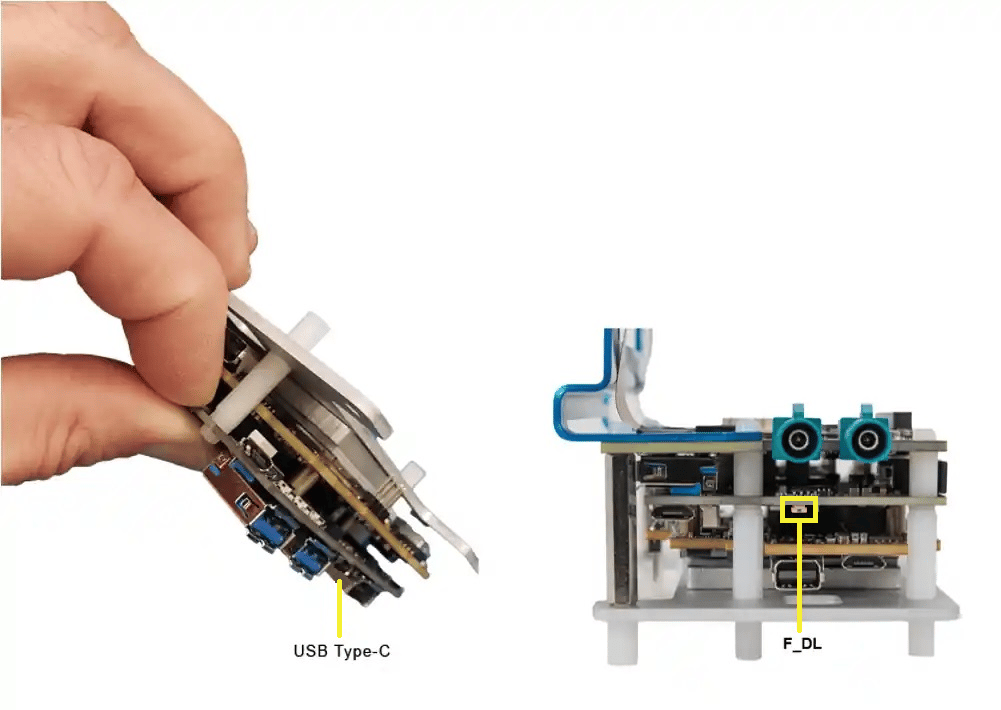
- Connect the device to a +12 V wall power supply.
- Connect the device to the host system through the USB Type-C connector.
- Release the F_DL button. The device is now in EDL mode.
- Unplug the power cable once the entire flashing process is complete to exit EDL mode.
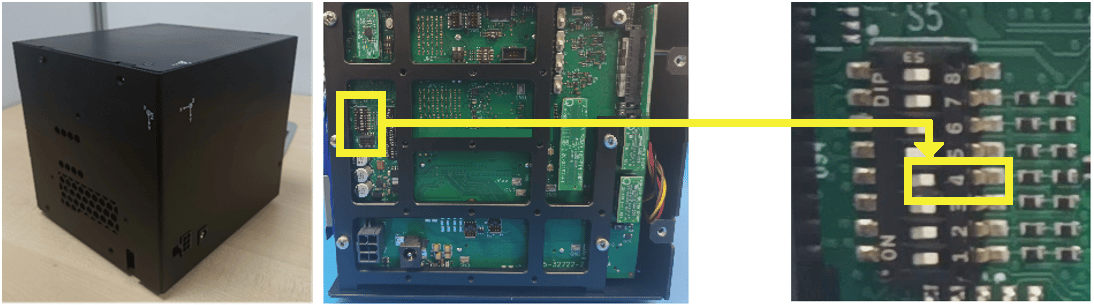

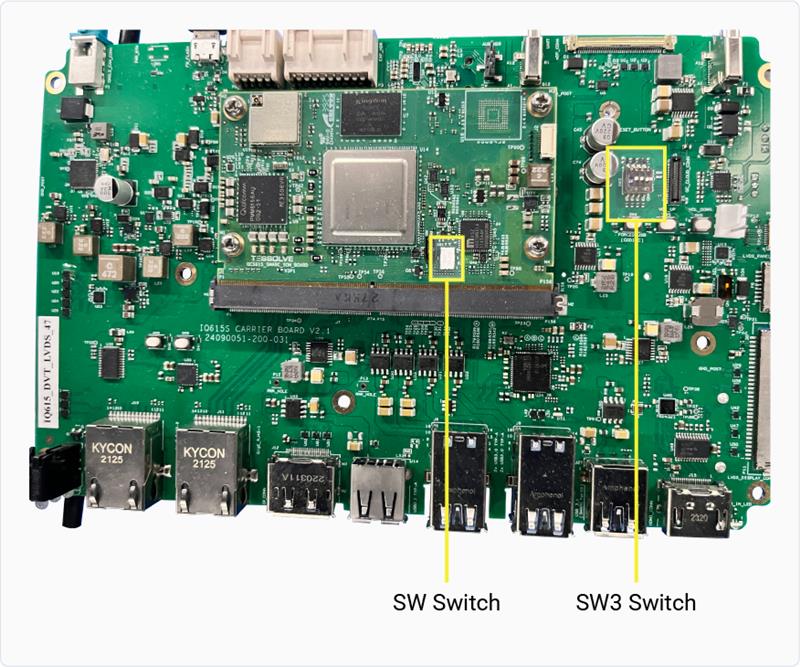
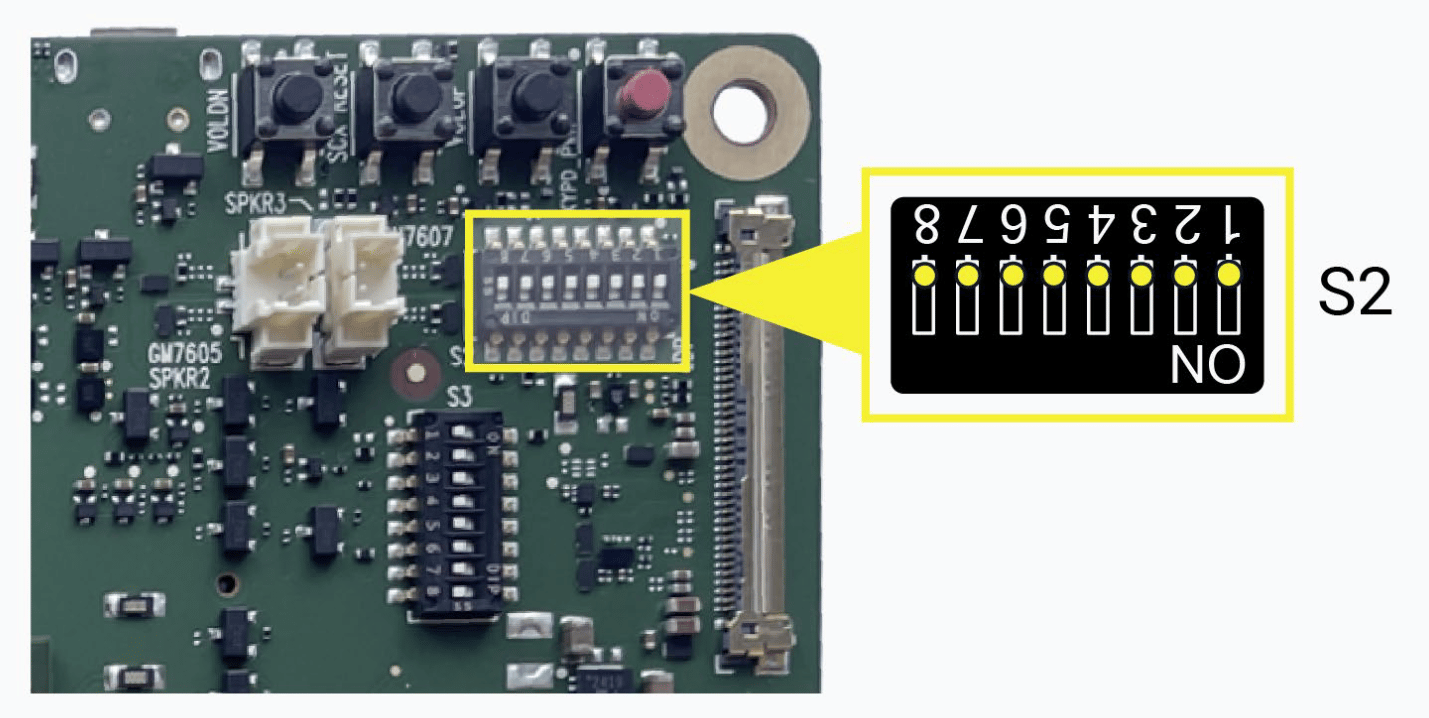
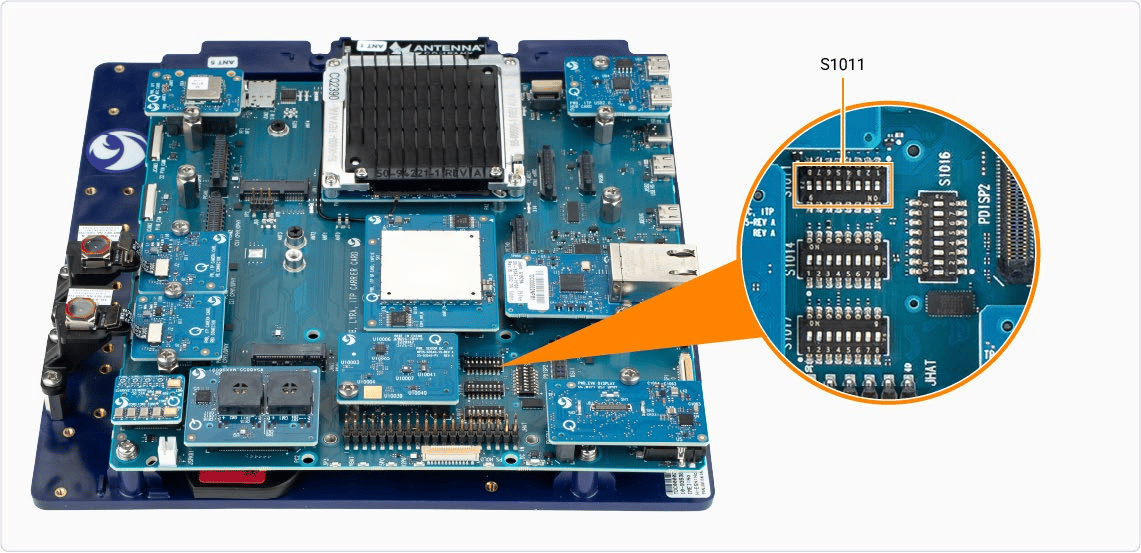
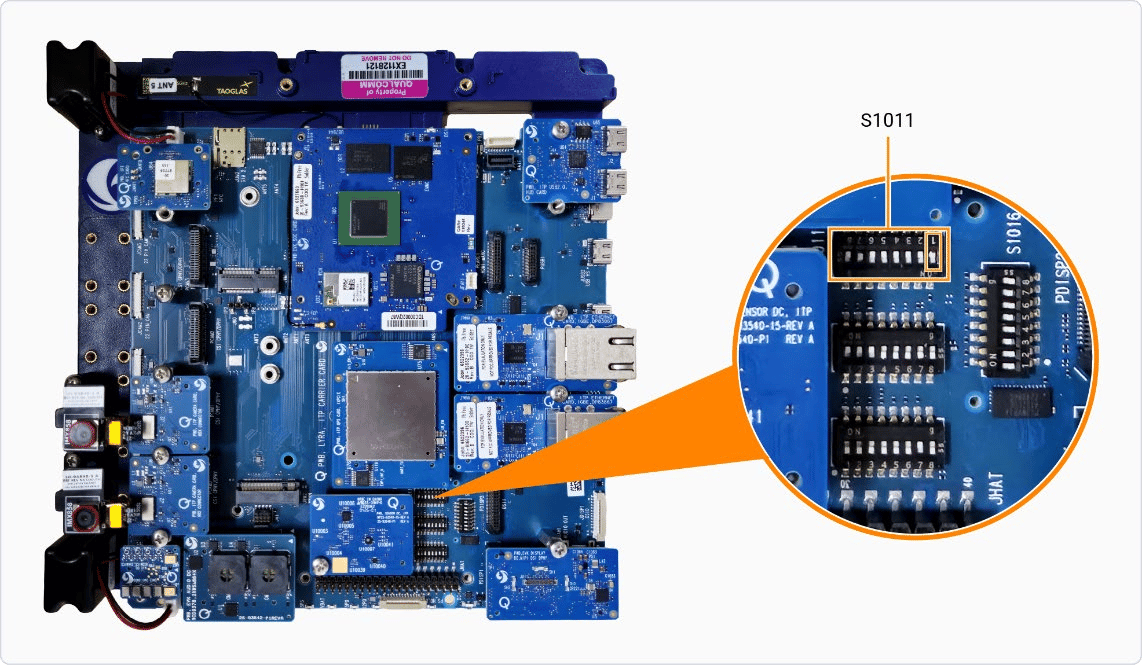
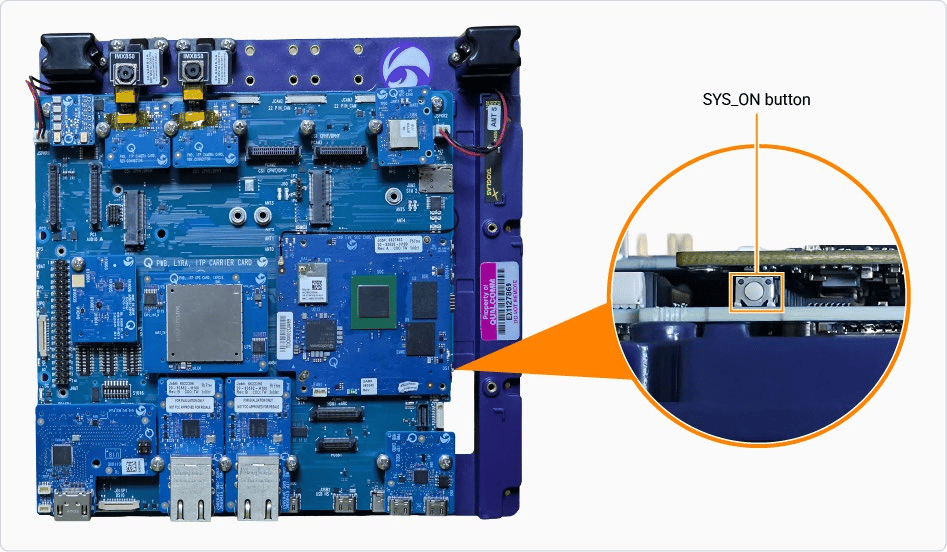
Expected output
Provision UFS
Universal flash storage (UFS) provisioning helps to divide the storage into many LUNs, which stores different types of data separately. This improves access efficiency and system organization. UFS is provisioned by default on the Qualcomm hardware, so re-provisioning is required only when customizing the LUN layout. Because the Qualcomm-providedprovision.zip will not correspond to a custom layout, you must provide your own provision files. The following commands demonstrate how to run the re-provisioning process.
UFS provisioning is not applicable for CQ-2390/IQ-2390.
-
Download the provision file from Qualcomm’s artifacts server:
-
Unzip the downloaded archive:
-
Go to the extracted directory:
-
Provision UFS:
-
Go to the previous directory:
Flash SAIL
Safety Island (SAIL) image contains the isolated, safety‑critical firmware that runs on the dedicated safety island to ensure secure boot and reliable system operation are independent of the main processor.Safety Island (SAIL) is applicable only for the Qualcomm Dragonwing™ IQ-9075
and the Qualcomm Dragonwing™ IQ-8275 development kits. If you’re not using one
of these development kits, skip this section.
-
The SAIL artifacts are present under the
sail_nordirectory within the unpacked qcomflash directory. Go to the following directory: -
Flash the SAIL:
-
Go to the previous directory:
Flash a software image
-
Identify the
--serialnumberparameter for your device:Sample output -
Identify the
--buildflavorfor the image to be flashed. To list the build flavors, run the following command on the host computer: -
Flash the image: